

















BCC Trails Basic
Category: BCC Time
Effect Name: BCC Trails Basic
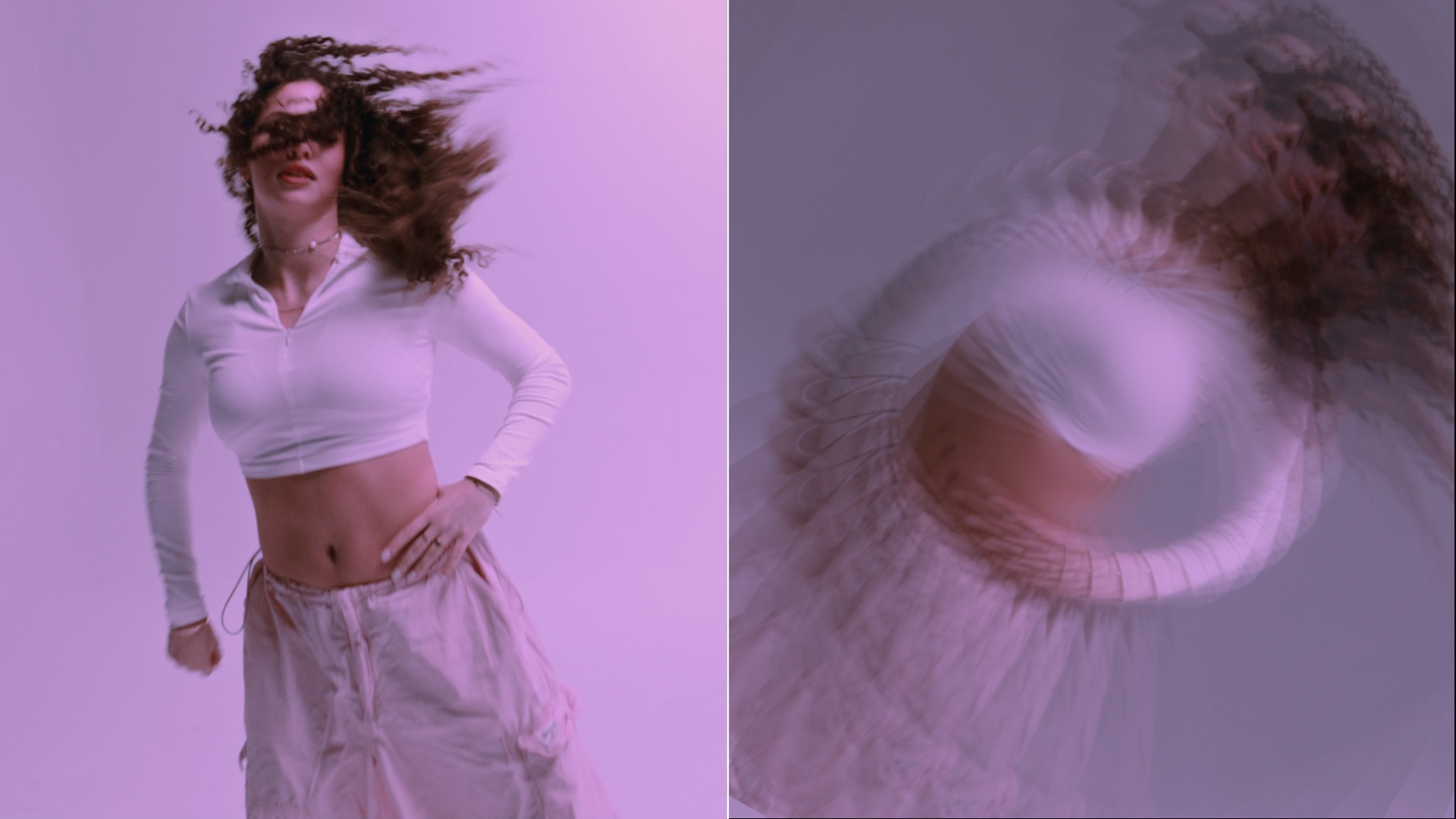
The BCC Trails Basic filter, part of the BCC Time category, creates motion trails, video echoes, and video feedback effects which can be combined in a variety of ways.
Working with the Filter
Presets and Common Controls
- BCC filters come with a library of factory installed presets plus the ability to create your own custom presets and preview them with the BCC FX Browser™.
- BCC filters also include common controls that configure global effect preferences and other host-specific effect settings.
For more information about working with presets and other common controls, Click Here.
- Source Layer: The Source Layer menu sets the clip used to create the effect.
Source Group
- Crop Top-Left: Sets the upper left point of the rectangular crop area.
- Crop Bot-Right: Sets the bottom right point of the rectangular crop area.
Geometry Group
The Geometry group adjusts the source’s size and position and rotate the source around the X, Y, and Z axis.
- Lock to Scale X: Links the scale x and scale y parameters, so that scale asjustments remain proportional.
- Scale X Source: Sets the size of the source along the x axis.
- Scale Y Source: Sets the size of the source along the y axis.
- Position XY Source: Sets the X and Y coordinates of the center point of the source.
- Position Z Source: Adjusts the apparent depth of the source. Decreasing negative values move the source closer to the viewer, while increasing positive values move the source farther away from the viewer.
- Tumble Source, Spin Source, and Rotate Source: move the source around the X, Y, and Z axis, respectively. Tumble, Spin, and Rotate can be animated over values greater than 360° in order to make the source complete more than one full revolution.
Trails Group
The Trails parameters add motion trails to the effect and provide a variety of options for adjusting the trails’ behavior and appearance.
- Frame Separation: Sets the distance between each motion trail and the adjacent trail and/or source image. This value measures the number of frames between each trail and the frame from which the trail is created.
- Trail Count: Determines the number of trails that are visible in the effect.
- Trails Before Start: Determines whether or not the effect displays trail frames that are created before the first frame of the source layer.
- Trail Intensity: Sets the opacity of the trails.
- Blur: Sets the blur of the trails.
- Blur Quality:
Selects the style of the blur and the overall quality of the effect
- Gaussian Low: the fastest option but with the least smooth result.
- Gaussian Medium: a fast option with the smoother results.
- Gaussian High: A balance of performance and quality.
- Gaussian Higher: A higher quality blur, but with increased render speed.
- Gaussian Highest: The highest quality but with the largest impact on render speed.
- Pyramid: Offers the performance boost of a box blur but with some of the smoothness that approaches a gaussian. This is the default setting for the filter.
- Pyramid Smoother: An extra smoothing pass over a standard Pyramid and closer to the look of a gaussian.
- Auto Fade: When selected, the trails automatically fade evenly so that the first trail is entirely opaque and the last trail is almost entirely transparent.
- Manual Fade: When Auto Fade is deselected, Manual Fade sets the ratio of the opacity of each trail to the opacity of the following trail.
Trail Feedback Group
- Scale Feedback: Sets the sizes of the trails.
- Position Offset Feedback: Affects the XY position of the trails.
- Position Z Feedback: Displaces the trails along the Z axis.
- Tumble Feedback, Spin Feedback, and Rotate Feedback: Rotates the trails around the X, Y, and Z axis respectively.
Composite Group
- Apply Mode: determines how the trails and source layer are composited.
- Apply Mix: blends the Apply Mode setting with the Apply Mix From setting.
Note: Use Apply Mix to soften the effect of a given apply mode, or animate Apply Mix to blend from one apply mode to another over time.
- Use Apply Settings: determines which elements are affected by Apply Mode and Apply Mix.
- Trails and Composite: Applies the settings to both the trails and the source layer.
- Trails Only: Applies the settings to the trails only, leaving the source layer unaffected.
- Composite Only: Applies the settings to the source layer only.
- Ignore: Disregards the settings and applies the effect normally to both the trails and the source layer.
- Composite Trails: Controls how the trails overlap the source.
- In Front: Composites the trails in front of the source layer.
- Behind: Composites the trails behind the source layer.
- Trails Only: Composites the trails only, removing the source layer from the effect.
- Render Order: Determines how the trails overlap each other.
- Oldest in Front: Places each successive trail in front of the previous trail.
- Youngest in Front: Place each successive trail behind the previous trail.
- Source Opacity: Sets the opacity of the source layer in the filtered output and does not affect the trails.
