

















BCC Match Move
Category: BCC Match Move
Effect Name: BCC Match Move
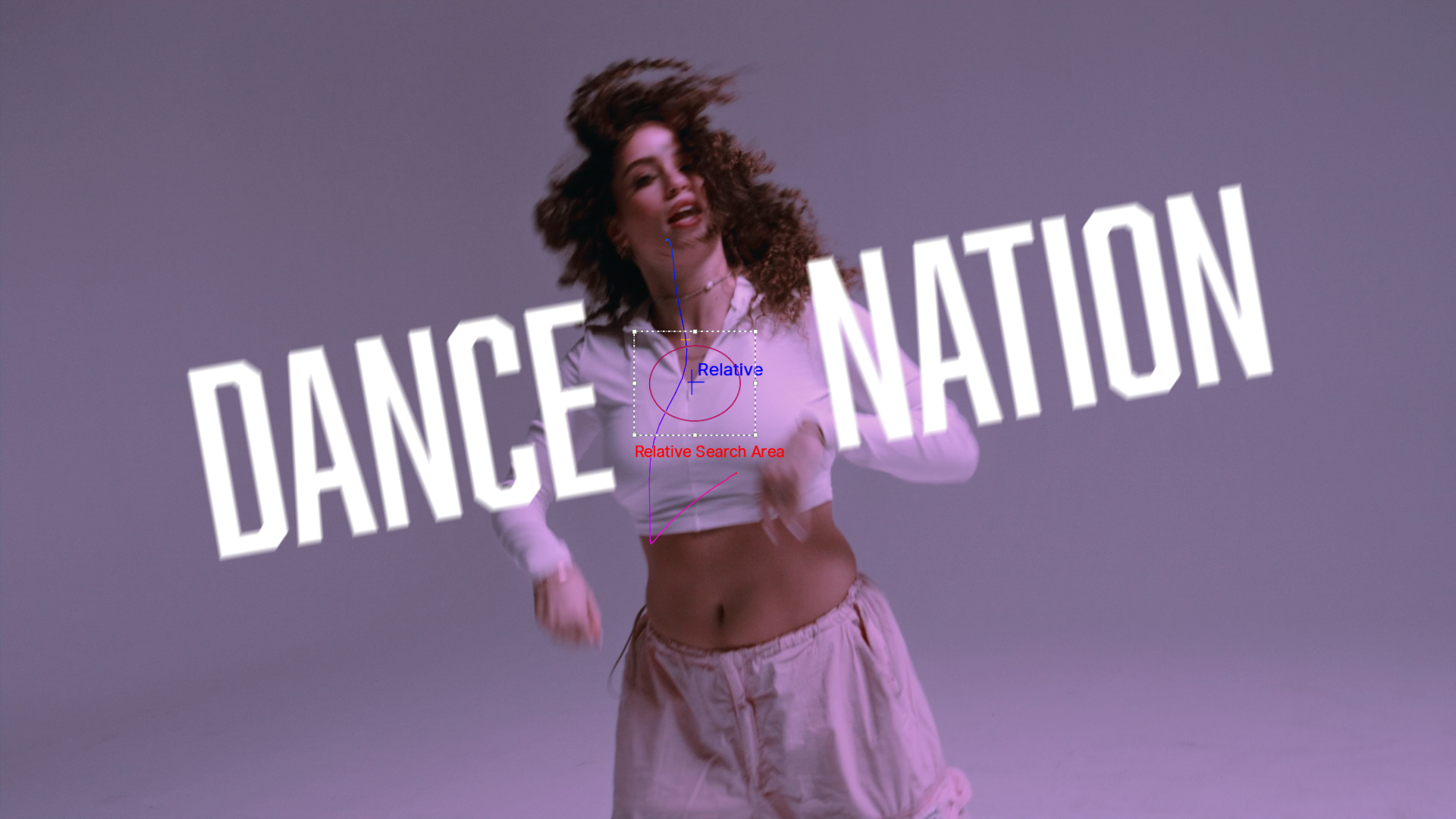
The BCC Match Move filter, part of the BCC Match Move category, uses Mocha’s planar tracking engine to track and match footage directly into a scene.
Working with the Filter
To launch the built in Mocha Motion Tracker, click on the button and the mocha UI window will open.
Inside of the Mocha UI there are two tracking layers that we need to be aware of:
- The blue crosshair represents the “surface,” or the position whose location will be exported back to the filter.
- The tracking layer , or the red circular region which defines the plane to be tracked.
Both of these will need to be moved to the chosen location you would like to track. Moving only one of these will result in undesierable results.
- With the desired tracking location set, we can click Track Forward to track the object in Mocha. It should be noted that Track Forward begins from the frame that your CTI is located on. If you are not at frame zero, you will want to move the CTI to frame zero before you track, or select Track Backwards after so that the whole timeline is tracked.
- Once you have tracked the specific point in Mocha, you can close the UI and save the tracking data.
- Show Motion Path: Displays an overlay on the video clip with a representation of the mocha-tracked motion path.
- Smooth Motion: Helps to smooth the movement of the effect along the motion path. Higher values will result in a smoother movement.
- Offset X: Offsets the tracking data along the X-Axis.
- Offset Y:Offsets the tracking date along the Y-Axis.
- Render Legacy Track:Helpful when opening up older projects that were created using legacy versions of the motion tracker. These projects will still open and render as expected, however, you may only use the Mocha Motion Tracker for any new motion tracking.
Match Move Group
- Render: Determines how the effect will be rendered.
- Move Over Background: Composites the forground layer on top of the background. This is the typical setting for final rendering.
- Move Only: Will display the forground layer only.
- MM Forground: Sets the forground layer for Match Move.
- MM Background: Sets the background layer for Match Move.
- Apply Tracking To: Selects how the match move motion is applied to the scene.
- None: Disables motion tracking
- Absolute: Links the motion of the forground image directly to the motion tracking.
- Relative: Will link the relative motion of the tracking to the forground image.
Transform Group
The Transform sub group contains parameters that enable you to adjust the placement, scale, and orientation of the inserted match move clip.
- Lock Scale to X: When enabled, any changes to Scale X will also be applied to Scale Y values. This will allow for symetrical scaling of the media.
- Position XY: Sets the position of the media along the XY axis. To manually adjust the Position XY, Apply Tracking must be set to Relative.
- Position Z: Sets the position of the media on the Z axis.
- Tumble: Sets angle of the media along the Z axis.
- Spin: Sets the angle of the media along the YZ axis.
- Rotate: Sets the angle of the media along the XY axis.
- Shift: Used to offset the result.
- Lock Pivot to Position: When enabled, transformations to the Tumble, Spin and Rotate values will pivot along the point as defined by the Position XY value.
- Motion Blur On: Toggles motion blur controls.
- Smoothness: Selects the levels of smoothing.
- Rough: provides a basic draft level of smoothness. Of the options it is the least render intensive.
- Medium: provides a basic level of smoothness.
- Smooth: provides a more advanced level of smoothness.
- Smoothest: provides the highest level of smoothness. Of the options it is the most render intensive.
Composite Group
Crop and Blend Group
Crop and Blend provides options for cropping the final output of the Match Move media.
- Crop Left: Crops the image along the left side.
- Crop Top: Crops the image along the top.
- Crop Right: Crops the image along the right side.
- Crop Bottom: Crops the image along the bottom.
- Blend Corner Shape: Defines the shape of the blending.
- Rectangle: Produces sharp, angular blending.
- Round: Allows for smooth, rounded blending.
- Lock Blend: When enabled, adjustments to the Blend Left, Blend Top, Blend Right, and Blend Bottom are locked together instead of individually..
- Border Corner Shape: Selects either round or square corners for the border.
- Border Width: Sets the width of the border.
- Border Opacity: Sets the opacity of the border.
- Border Softness: Sets the softness of the border.
- Border Color: Sets the color of the border.
- Shadow On: Drop Shadow can be enabled by selecting the Shadow On checkbox
- Shadow Distance: Controls the distance that the shadow is offset from the original.
- Shadow Intensity: Controls the opacity of the shadow.
- Shadow Softness: Controls the softness of the shadow.
- Shadow Angle: Controls the angle of the shadow.
- Shadow Color: Controls the color of the shadow.
- Light Type: Determines the type of lighting.
- Light Source XY: Sets the position of the light source along the XY axis.
- Light Source Z: Sets the position of the light source along the Z axis.
- Light Target: Sets the target for the spotlight.
- Light Width: Sets width of the spotlight.
- Ambient Intensity: Controls the level of ambient light.
- Diffuse: Controls the diffuse light quality of the image.
- Specular: Sets the width of the specular highlight.
- Specular Falloff: Controls the falloff of the specular highlight.
- Sweep Angle: Sets the angle of the light sweep.
- Light Color: Used to set the color of the light.
- Point Light at Source: When enabled will aim the light at the image source.
- Apply Mode: Determines the apply mode compositing options for lights.
- Apply Mix: Blends the selected apply mode with the normal apply mode.
- Wrap Lightness: Sets the lightness / darkness of the wrap.
- Wrap Softness: Sets the softness of the wrap outer edge.
- Wrap Width: Sets the width of the wrap.
- Wrap Apply Mode: Determines the apply mode compositing options for the wrap.
- Opacity: Controls the opacity of the effect.
- Apply Mode: Determines the apply mode compositing options for the composition.
- Apply Mix: Blends the current apply mode with the normal apply mode.
Border & Shadow Group
The Border & Shadow sub-group contains parameter groups that allow you to adjust the media border as well as drop shadow. This group allows you to clearly define the edges of the match move media, as well as visually separate it from the background.
Light Group
The Light Sub Group contains parameter groups that allow you to add, adjust and focus lighting effects on the media. It can be enabled by selecting the Light on checkbox.
Light Wrap Group
In Addition to the Light parameters, Match Move has host specific Light Wrap parameters. Light Wrap reflects the background image around the edges of the foreground image to form a border. This creates the illusion that light from the background image is reflected onto the foreground image. This creates a more convincing composite by making it appear as if the images were shot in the same environment.
