

















BCC Charcoal Sketch
Category: BCC Art Looks
Effect Name: BCC Charcoal Sketch
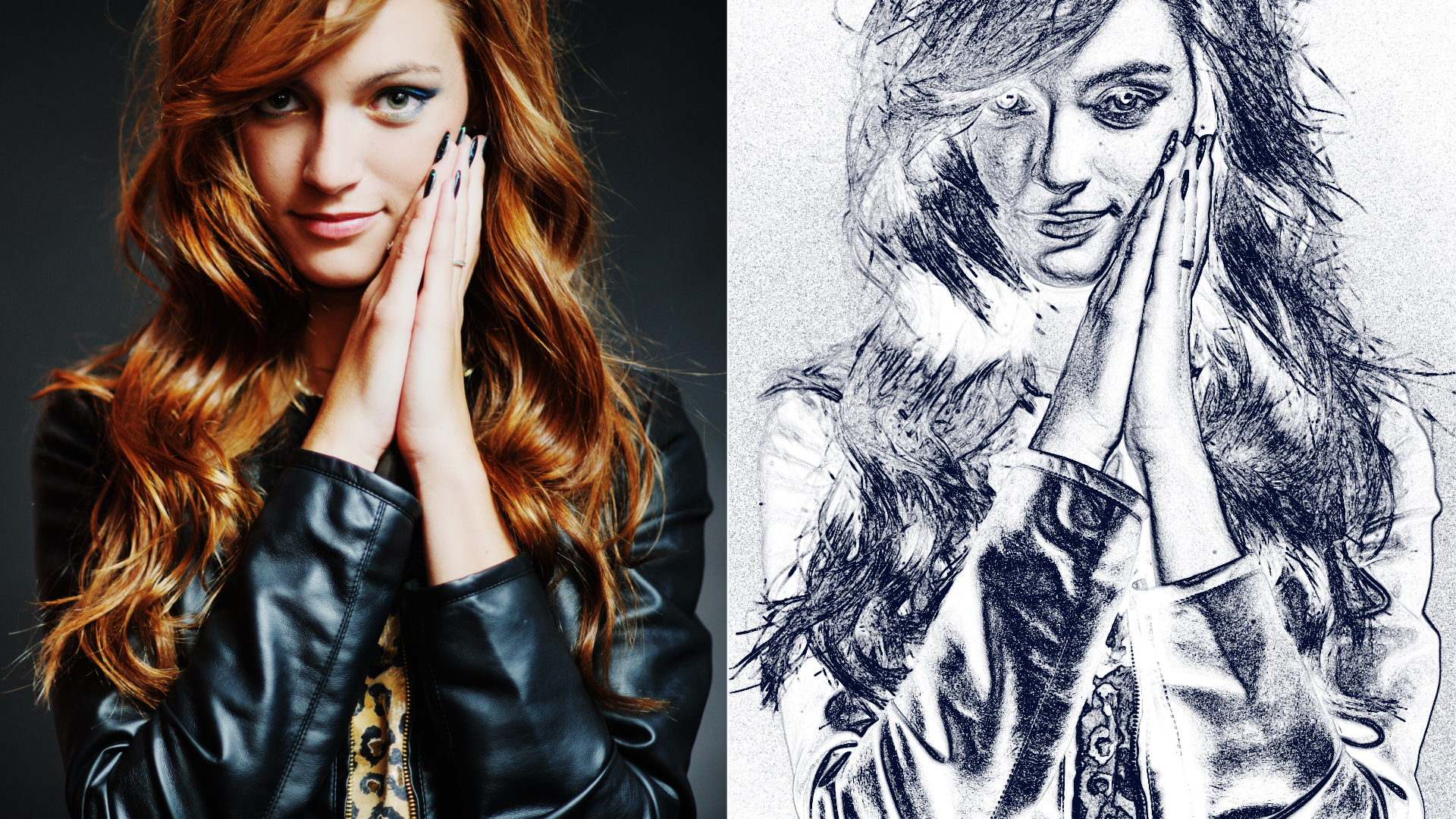
The BCC Charcoal Sketch filter, part of the BCC Art Looks category, takes input from an image clip and converts this into a charcoal sketch style animation.
Working With the Filter
Presets and Common Controls
- BCC filters come with a library of factory installed presets plus the ability to create your own custom presets and preview them with the BCC FX Browser™.
- BCC filters also include common controls that configure global effect preferences and other host-specific effect settings.
For more information about working with presets and other common controls, Click Here.
Effect Controls
Mocha Mask and Track
Continuum effects include integrated masking and matte tools that allow you to restrict the effect to specific regions of the image.
- Mocha masks: used to create custom spline masks. Mocha also includes Matte Assist ML and Matte Refine ML, which use machine learning to generate and track masks.
- Pixel Chooser: used to generate geometric shapes, gradients, or mattes based on channel, luma, or color-based selections. Additionally, an AI depth map generator, and an AI-powered face detection model allow for precise control of masks and mattes.
Note: Mocha can also be used to drive geometric parameters. See the Mocha Motion Tracker documentation for details.
For more information, see Mocha and Pixel Chooser.
Compare Mode
The Compare Mode is used to view the filtered result alongside the original source layer. Several split-screen and side-by-side display options are available.
For more information, see Compare Mode.
- Temporal Smoothing:Enables smoothing of the filter result over time.
- Soften:Softens / smooths the image before the lines are drawn.
- Line Style:
Sets the width of the sketched lines.
- Light: Generates thinner sketch lines.
- Medium: Generates medium weight sketch lines.
- Heavy: Generates thicker sketch lines.
- Line Threshold:Sets the base threshold value for line generation. Increasing this tends to produce a cleaner looking result.
- Line Width:Attenuates the width of the lines.
Advanced Group
This group of controls enables you to fine tune the result of the contouring and line generation.
- Boost Contrast:Boosts the contrast of the input image.
- Soften Max Deviation:Fine-tunes the master soften parameter. Higher values increase the amount of softening applied.
- Soften Iterations:Applies multiple passes of softening to the image.
- Sensitivity:Includes soft shading in the white areas of the filter result. Higher values generate more soft shading; lower values generate a harder black and white result.
Lines Group
Contains controls for the weight of the sketch.
- Thicken:Secondary control to make the lines thicker.
- Blur:Applies a blur filter to the lines.
- Median:Applies a median filter to the lines.
- Contract/Expand:Contracts or expands the width of the lines.
- FG Opacity:Controls the opacity of the Foreground color. Values less than 100 add transparency.
- FG Color:Sets the Foreground color.
- BG Opacity:Controls the opacity of the Background color. Values less than 100 add transparency.
- BG Color:Sets the Background color.
- Reverse Colors:Swaps the FG and BG colors.
- Apply Mode:Blends the filtered result back into the original image and contains all apply mode compositing options.
- Apply Mix:Blends the current apply mode with the normal apply mode.
- Mix With OriginalBlends the source and filtered images. Use this parameter to animate the effect from the unfiltered to the filtered image without adjusting other settings, or to reduce the effect of the filter by mixing it with the source image.
