

















BCC Tile Mosaic
Category: BCC Art Looks
Effect Name: BCC Tile Mosaic
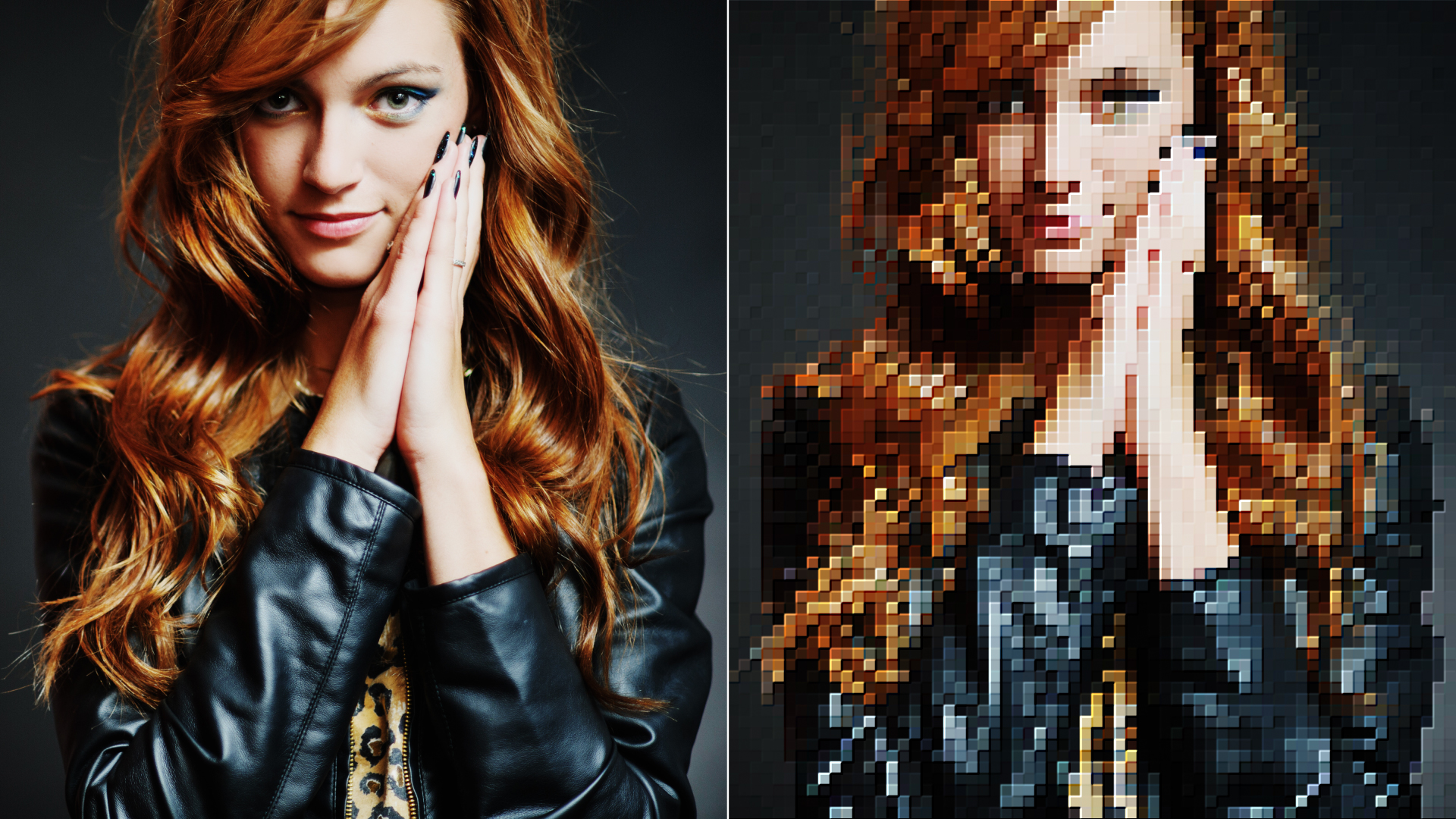
The BCC Tile Mosaic filter, part of the BCC Art Looks category, is designed to emulate the look of an image that has been formed of cut ceramic or glass tiles. This filter is based on hardware assisted rendering technology and will deliver a high level of performance when paired with a supported graphics card.
The tile patterns that this filter is capable of generating can be arranged in either a symmetric grid pattern, as one might find in a modern home, or they can be cut into random ragged shapes, with the amount of jaggedness controlled by the algorithm at the heart of this filter.
Working with the Filter
Presets and Common Controls
- BCC filters come with a library of factory installed presets plus the ability to create your own custom presets and preview them with the BCC FX Browser™.
- BCC filters also include common controls that configure global effect preferences and other host-specific effect settings.
For more information about working with presets and other common controls, Click Here.
Effect Controls
Mocha Mask and Track
Continuum effects include integrated masking and matte tools that allow you to restrict the effect to specific regions of the image.
- Mocha masks: used to create custom spline masks. Mocha also includes Matte Assist ML and Matte Refine ML, which use machine learning to generate and track masks.
- Pixel Chooser: used to generate geometric shapes, gradients, or mattes based on channel, luma, or color-based selections. Additionally, an AI depth map generator, and an AI-powered face detection model allow for precise control of masks and mattes.
Note: Mocha can also be used to drive geometric parameters. See the Mocha Motion Tracker documentation for details.
For more information, see Mocha and Pixel Chooser.
- Seed:Determines the starting point of the distortion to the mosaic shape.
- Shape:Controls the actual shape of the tile pieces. A setting of 0 generates a square grid of tile shapes, while higher values generate more jagged shapes.
- Lock to Scale X:Locks the X and Y scale for the tile pieces.
- Tile Size X:Controls the scale of the tiles along the X (horizontal) axis.
- Tile Size Y:Controls the scale of the tiles along the Y (vertical) axis.
- Tile Gap Width:Controls the width of the gap / grout between the tiles. Higher values generate more space between each tile.
- Tile Gap Color:Controls the color of the gap / grout.
Emboss Group
Controls the emboss effect along the edge of the tiles.
- Direction:Sets the direction of the light that produces the emboss effect.
- Relief:Sets the height of the emboss effect. Higher values generate a deeper emboss.
- Contrast:Sets the amount of light that produces the emboss. Low values produce a soft light, high values produce a stronger, more intense light.
- Emboss On:Enables or disables the tile emboss effect.
Noise Group
Controls the noise effect over the tile surface.
- Noise Amount:Sets the amount of noise or grit over the surface of the tile. Higher values yield a more gritty appearance.
- Noise Size:Sets the size of the noise / grit that is generated over the tile surface. Higher values increase the size of the grit.
- Mix With OriginalBlends the source and filtered images. Use this parameter to animate the effect from the unfiltered to the filtered image without adjusting other settings, or to reduce the effect of the filter by mixing it with the source image.
