

















BCC Time Displacement
Category: BCC Time
Effect Name: BCC Time Displacement
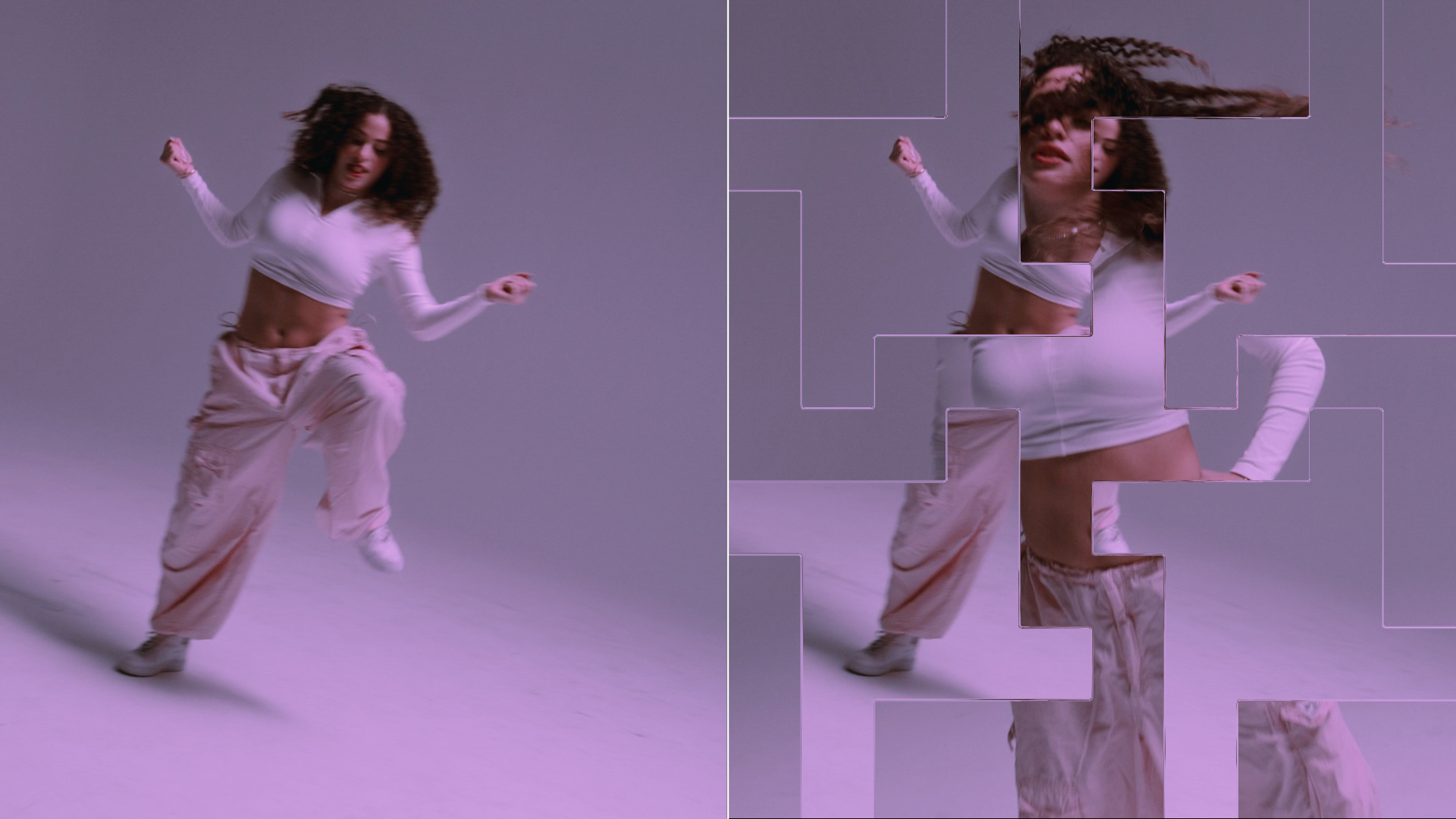
The BCC Time Displacement filter, part of the BCC Time category, is a displacement map that operates in time instead of in space. Pixels are displaced by mixing pixels from the source at the current frame with source pixels from previous or future frames. Basic frame blending is used to compute intermediate pixels and to produce anti-aliased result.
Note: You can apply the Time Displacement filter directly to the clip that you want to filter; however, the duration of the effect is then limited to the duration of the filtered clip. To create an effect that is longer than the duration of the source media, follow the steps described in the BCC Velocity Remap filter.
Working with the Filter
Presets and Common Controls
- BCC filters come with a library of factory installed presets plus the ability to create your own custom presets and preview them with the BCC FX Browser™.
- BCC filters also include common controls that configure global effect preferences and other host-specific effect settings.
For more information about working with presets and other common controls, Click Here.
Effect Controls
Mocha Mask and Track
Continuum effects include integrated masking and matte tools that allow you to restrict the effect to specific regions of the image.
- Mocha masks: used to create custom spline masks. Mocha also includes Matte Assist ML and Matte Refine ML, which use machine learning to generate and track masks.
- Pixel Chooser: used to generate geometric shapes, gradients, or mattes based on channel, luma, or color-based selections. Additionally, an AI depth map generator, and an AI-powered face detection model allow for precise control of masks and mattes.
Note: Mocha can also be used to drive geometric parameters. See the Mocha Motion Tracker documentation for details.
For more information, see Mocha and Pixel Chooser.
- Map Layer: Determines which layer in the timeline is used to create the distortions in the filtered image.
- View Map: Displays the Source Layer used as the displacement map.
- Displacement Channel: Sets the channel in the Source Layer used to compute displacement. The choices are Red, Green, Blue, Luma, White, Gray, and Black. White treats all of the pixels as if they were white (i. e. fully displaces each pixel Displacement Amount value). Gray treats all of the pixels as if they were 50% gray (resulting in no displacement). Black treats all of the pixels as if they were black, thereby displacing all pixels to the negative of the Displacement Amount value.
- Red: Uses the red channel.
- Green: Uses the green channel.
- Blue: Uses the blue channel.
- Luma: Resizes the Source Layer to the size of the source.
- White: Treats all of the pixels as if they were white; fully displacing each pixel.
- Grey: Treats all of the pixels as if they were 50% gray, thereby not displacing them.
- Black: Treats all of the pixels as if they were black, thereby displacing all pixels to the negative of the Displacement Amount value.
- Displacement Amount: Sets the number of frames between the most forward-displaced pixel and the most backward-displaced.
- Map Reference Level: Determines the channel value for which pixels are not displaced.
- Frame Blending: Toggles frame blending.
- Deinterlace: Generates an in-between frame to use for the field opposite to the one being rendered, and use the new frames in the displacement render. This produces a smoother render, but it can be somewhat softer because the in- between fields are averaged to make a frame. The filter renders more slowly when Deinterlace is selected.
- End Behavior: Determines the behavior of the displacement map when the frame being rendered is the close to the first or last frame in the source media and the previous or future frame does not exist.
- Squeeze Map in Time: Uses the specified Displacement Amount where possible and squeezes the displacement map so that all pixels are displaced.
- Expand Map in Time: Expands the map in the direction which has enough pixels (in the example above, this would be in the future frames direction) to keep the distance in time between the maximum and minimum displacement equal to the Displacement Amount.
- Clip Map: Does not alter the map. The filter substitutes the closest existing frame for every frame that does not exist. This choice produces a render in which the displacement does not start for some pixels until after the start of the effect.
- Map Behavior: The Map Behavior setting determines how the map is applied when the source image is a different size than the image in the Source Layer. If your map is the same size as the image to which you are applying the filter, the Map Behavior settings all produce the same result.
- Center Map: Centers the map on the source and does not displace the source image outside the boundaries of the centered Source Layer.
- Stretch Map to Fit: Resizes the Source Layer to the size of the source.
