

















BCC Jitter
Category: BCC Time
Effect Name: BCC Jitter
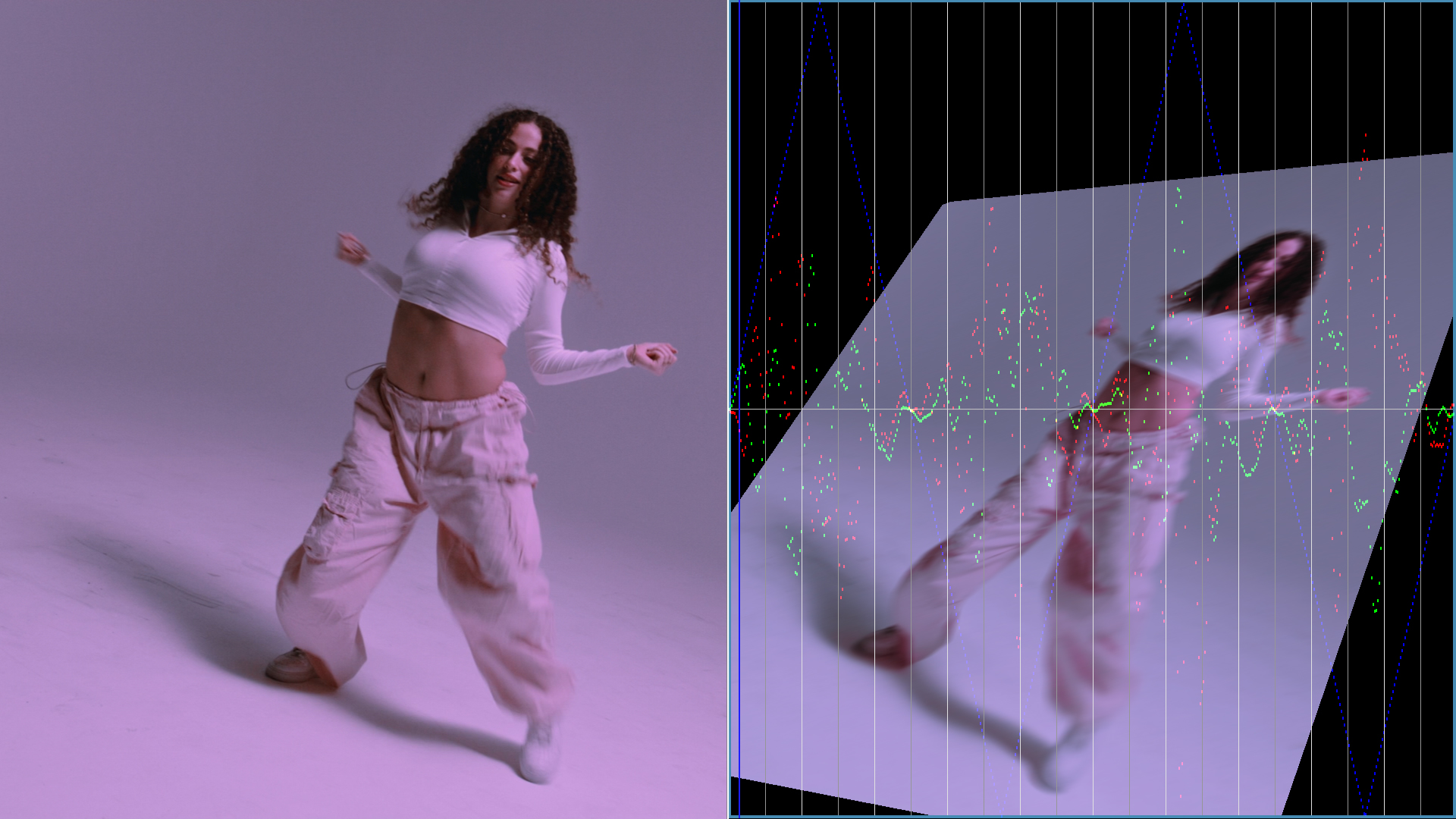
The BCC Jitter filter, part of the BCC Time category, creates variability in one or more attributes of a source layer over time, such as size, position, opacity, brightness, or contrast. Additional controls choose the type of variance used for the jittering and allow you to view color-coded graphs of the jittered parameter values.
Working with the Filter
Presets and Common Controls
- BCC filters come with a library of factory installed presets plus the ability to create your own custom presets and preview them with the BCC FX Browser™.
- BCC filters also include common controls that configure global effect preferences and other host-specific effect settings.
For more information about working with presets and other common controls, Click Here.
- Curve View: Displays a graph of the effect of the jitter over time. If one of the Jitter Shape controls is Off, that jitter is inactive and its curve does not appear on the graph. This menu setting determines how the jitter curves are represented on the graph. When you use the Draft Only options, the curves are not visible in the rendered effect. However, you must preview in Draft mode in your host for these options to display. When you use the Renderoptions, the curves appear in the rendered effect.
- Off Does not display any jitter curves.
- Curves: Display curves showing the amount of jitter at each frame or at selected frames of the effect.
- Curves Over Layer: Display the jitter curves over the rendered clip. This mode allows you to simultaneously preview the jitter curves and the rendered output, which can be useful for adjusting the effect.
- Curves Over Comp: Display the jitter curves over all other layers in the effect.
- Time View: The Time View menu controls the time range shown on the graph.
- Full Effect: Displays the jitter curves from the start to the end of the effect.
- 16, 8, 4, and 2 Seconds: Displays the curves for the given number of seconds after the frame specified by Scroll Curves.
- Scroll Curves: Selects the first frame in the effect that is displayed when Time View is set to 16, 8, 4, or 2 seconds. This parameter has no effect if Time View is set to Full Effect.
- Jitter Source: Selects the layer in the timeline used to create the effect.
- Lock to Scale X: Locks the Scale Y to the Scale X value, preserving the aspect ratio of the source image as scale adjustments are made. Deselect Lock to Scale X to adjust Scale X and Y independently.
- Scale X: Sets the horizontal scale of the source layer. The Scale X value is expressed as a percentage of the source layer’s original width.
- Scale Y: Sets the vertical scale of the source layer. The Scale Y value is expressed as a percentage of the source layer’s original height.
- Position XY: Sets the horizontal and vertical position of the source layer.
- Position Z: Sets the depth of the source layer. Increasing positive values move the source further away from the viewer, and decreasing negative values draw the source closer to the viewer.
- Tumble, Spin, and Rotate: Move the source layer around the X, Y, and Z axis respectively. Tumble, Spin, and Rotate can be animated over values greater than 360° in order to make the layer complete more than one full revolution.
- Lock Pivot to Center: Sets the layer tumble, spin, and rotate around its own center. If this option is deselected, you can set an external pivot point around which to tumble, spin, and rotate the layer, using the Pivot X, Y and Z parameters.
- Pivot X, Pivot Y and Pivot Z: Sets the X, Y, and Z coordinates of the pivot point. If the Lock Pivot to Center checkbox is selected, moving the pivot point parameters have no affect.
- Opacity: Scales the opacity of the source layer. When Opacity is 0, the layer is completely transparent. As the Opacity value increases, the layer becomes increasingly opaque, and at a value of 100, the layer is completely opaque.
- Motion Blur On: Toggles the motion blur effect controls.
- Motion Blur Smoothness: Determines how many times the effect samples between the time the shutter opens and the time it closes. Increasing the number of samples creates a smoother blur but increases render and preview time proportionately. Choose Rough, Medium, Smooth, or Smoothest. Rough uses the fewest samples, while Smoothest uses the most.
- Shutter Angle: Refers to the workings of a conventional film camera. Normally the shutter is open to 180°, meaning that the shutter is open for half of each frame. Increasing the angle opens the shutter longer, creating a wider blur. Decreasing the angle produces a thinner blur.
- Adaptive Motion Blur: Causes the effect to take fewer samples when the source moves more slowly. Selecting this usually does not have a visible effect, but improves rendering speed.
- Shape Jitter 1: The Shape Jitter 1 menu sets the shape of the Jitter curve.
- Off: Turns Jitter 1 off. If shape Jitter 1 is set to Off, the other Jitter 1 parameters have no effect.
- Noise Jumps: Causes the noise to jump to a new value in increments set by the Jitter 1 Separation and Jitter 1 Random Seed settings.
- Random Walk: Causes the noise to start at 0, then add a new random number in increments set by the Jitter 1 Separation and Jitter 1 Random Seed settings.
- Smooth Noise: Creates a new noise value every frame, then smooths the curve that is created.
- Smooth Walk: Creates a Random Walk curve, then smooths the result.
- Constant: Adds the Master Jitter 1 value to the base parameter value set by the Source and Insert settings, creating a static effect.
- The remaining choices all produce regular waves of varying shapes.
- Master Jitter 1: Sets the intensity of the jitter by scaling all of the other jitter parameters. When Master Jitter 1 is 0, no jitter is created.
- Jitter 1 Random Seed: Sets the value that is input to the random number generator used to generate noise.
- Jitter 1 Offset: Offsets the position of the jitter curve by the specified number of frames.
- Jitter 1 Destination: Selects which parameter is affected by the jitter.
- Off: No parameters are affected.
- Scale: Jitters both the X and Y Scale.
- Motion: Jitters the motion of the layer in the X, Y, and Z directions simultaneously.
- XY Wobble: Jitters the layer in the direction perpendicular to the layer’s direction of motion in the X and Y planes.
- Angular Motion: Jitters Tumble, Spin, and Rotate.
- Insert Color Channels Jitters the respective color channel in the chosen Insert colors.
- The remaining choices affect the parameters of the same name.
- Effect Insert: The Effect Insert menu determines which effect is applied.
- Off: Applies no additional effect to the source layer.
- Bright-Contrast: Adjusts the brightness and contrast of the source layer.
- Hue-Sat: Adjusts the hue and saturation of the source layer.
- Black & White: Mixes the source image with a black and white copy of itself.
- Black & Color: Mixes the source image with a tinted copy.
- Color & White: Mixes the source image with a tinted copy.
- Colorize: Mixes the source image with the chosen Color.
- Blur: Applies a blur to the source image.
- Choke: Shrinks or expands the opaque areas in the source image’s alpha channel.
- Radial Wipe: Creates a wipe effect.
- Key Out Dark: Keys out darker pixels.
- Key Out Light: Keys out lighter pixels.
- Key Out Color: Keys out similar colors.
- Key In Color: Keys out dissimilar colors.
Curves Group
Geometry Group
The Geometry parameters adjust the source layer’s position, size, rotation, and opacity.
Motion Blur Group
Warning: Motion Blur is an especially memory-intensive feature. It is particularly useful to work in Draft Mode when creating an effect with motion blur.
Jitter Group
Note: The Jitter 1, 2, and 3 parameter groups create three different jitter curves, each of which can apply to up to three parameters. The only difference between the three Jitter parameters sections is that each Jitter can apply to Jitter parameters below it.
Insert Group
Each of these parameter groups can be used to apply a simple effect to the source image.
