

















BCC Tritone
Category: BCC Color & Tone
Effect Name: BCC Tritone
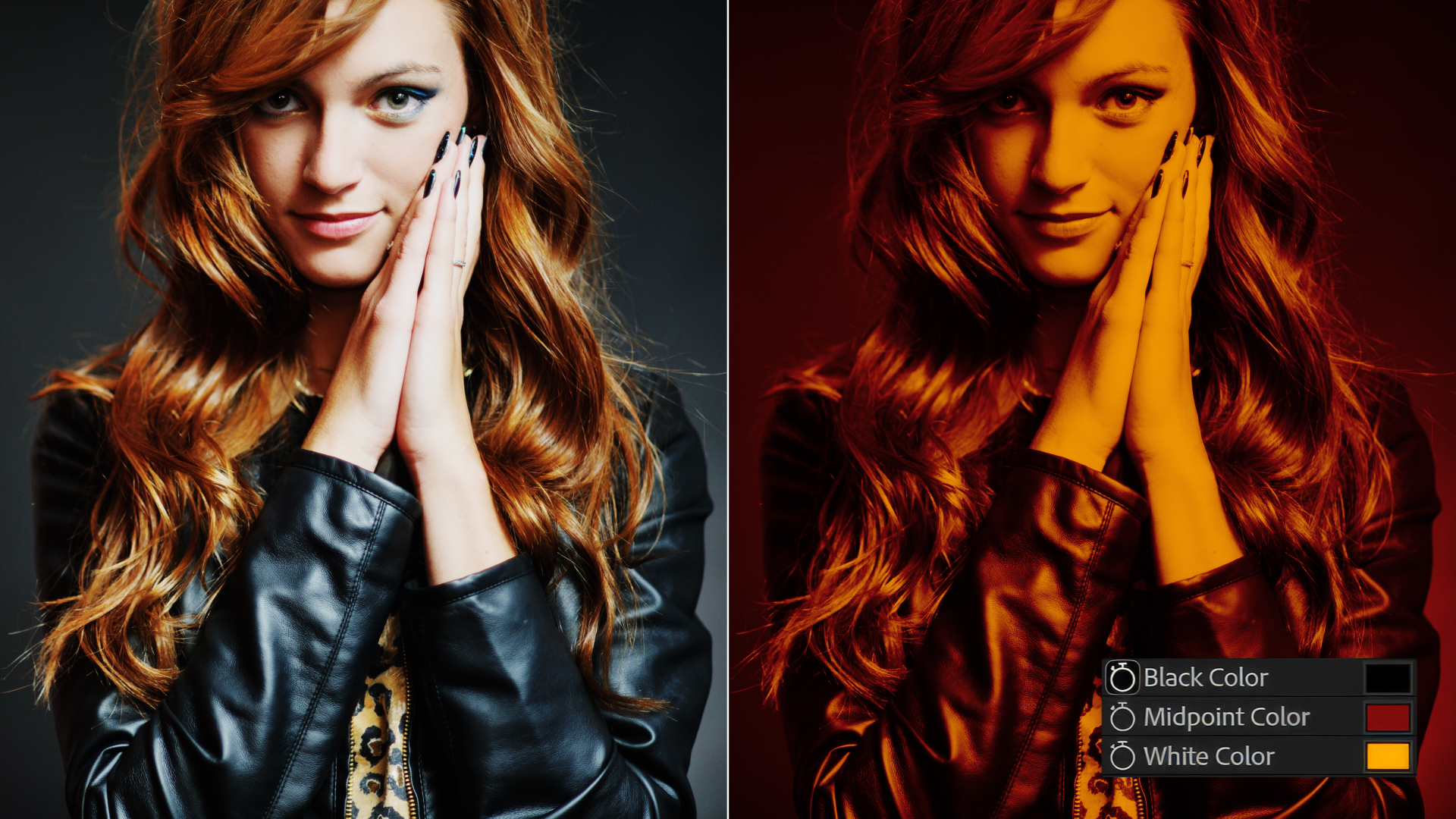
The BCC Tritone filter, part of the BCC Color & Tone category, creates a toned image from the source image’s luma channel or any of its RGB channels. The Input Channel maps to a color range that goes from the Black Color to the Middle Color to the White Color. The default Tritone uses the source’s luma channel as the Input Channel to produce an image that is black where the source is black, white where the source is white, and blue-toned in the gray regions.
Working with the Filter
Presets and Common Controls
- BCC filters come with a library of factory installed presets plus the ability to create your own custom presets and preview them with the BCC FX Browser™.
- BCC filters also include common controls that configure global effect preferences and other host-specific effect settings.
For more information about working with presets and other common controls, Click Here.
Effect Controls
Mocha Mask and Track
Continuum effects include integrated masking and matte tools that allow you to restrict the effect to specific regions of the image.
- Mocha masks: used to create custom spline masks. Mocha also includes Matte Assist ML and Matte Refine ML, which use machine learning to generate and track masks.
- Pixel Chooser: used to generate geometric shapes, gradients, or mattes based on channel, luma, or color-based selections. Additionally, an AI depth map generator, and an AI-powered face detection model allow for precise control of masks and mattes.
Note: Mocha can also be used to drive geometric parameters. See the Mocha Motion Tracker documentation for details.
For more information, see Mocha and Pixel Chooser.
Compare Mode
The Compare Mode is used to view the filtered result alongside the original source layer. Several split-screen and side-by-side display options are available.
For more information, see Compare Mode.
- Black Color: Sets the output color for pixels whose Input Channel value is 0.
- Midpoint Color: Sets the output color for pixels whose Input Channel value is equal to the Midpoint value.
- Use Midpoint Color: When selected, the Midpoint Color is used, creating a tritone effect. When deselected, a tint is created.
- White Color: Sets the output color for pixels whose Input Channel value is 255.
- Midpoint: Sets the input channel value for which the chosen Middle Color is output. Values below Midpoint blend between Black and Midpoint Colors. Values above Midpoint blend between Midpoint and White Colors.
- Input Channel: Determines which channel is used as the source for the toned image. Choices include Luma, Red, Green, Blue, and their Inverse variants.
- Output Channels: Sets the channels processed by the filter. Choices include RGB combinations, Difference, and Alpha.
- Repeats: Changes the mapping from input to output. The default value of 10 produces a normal toned image. Increasing the value causes the map to repeat, creating solarized and extreme effects. Decreasing fades toward the Black Color.
- Repeat Mode:
Controls the type of map loop.
- Back and Forth: Map goes from black to white to black.
- Jump: Map goes from black to white and jumps back to black, producing chaotic results.
- Mix with Original: Blends the source and filtered images. Use this parameter to animate the effect from the unfiltered to the filtered image without adjusting other settings, or to reduce the effect of the filter by mixing it with the source image.
