

















BCC+ Borders
Category: BCC Art Looks
Effect Name: BCC+ Borders
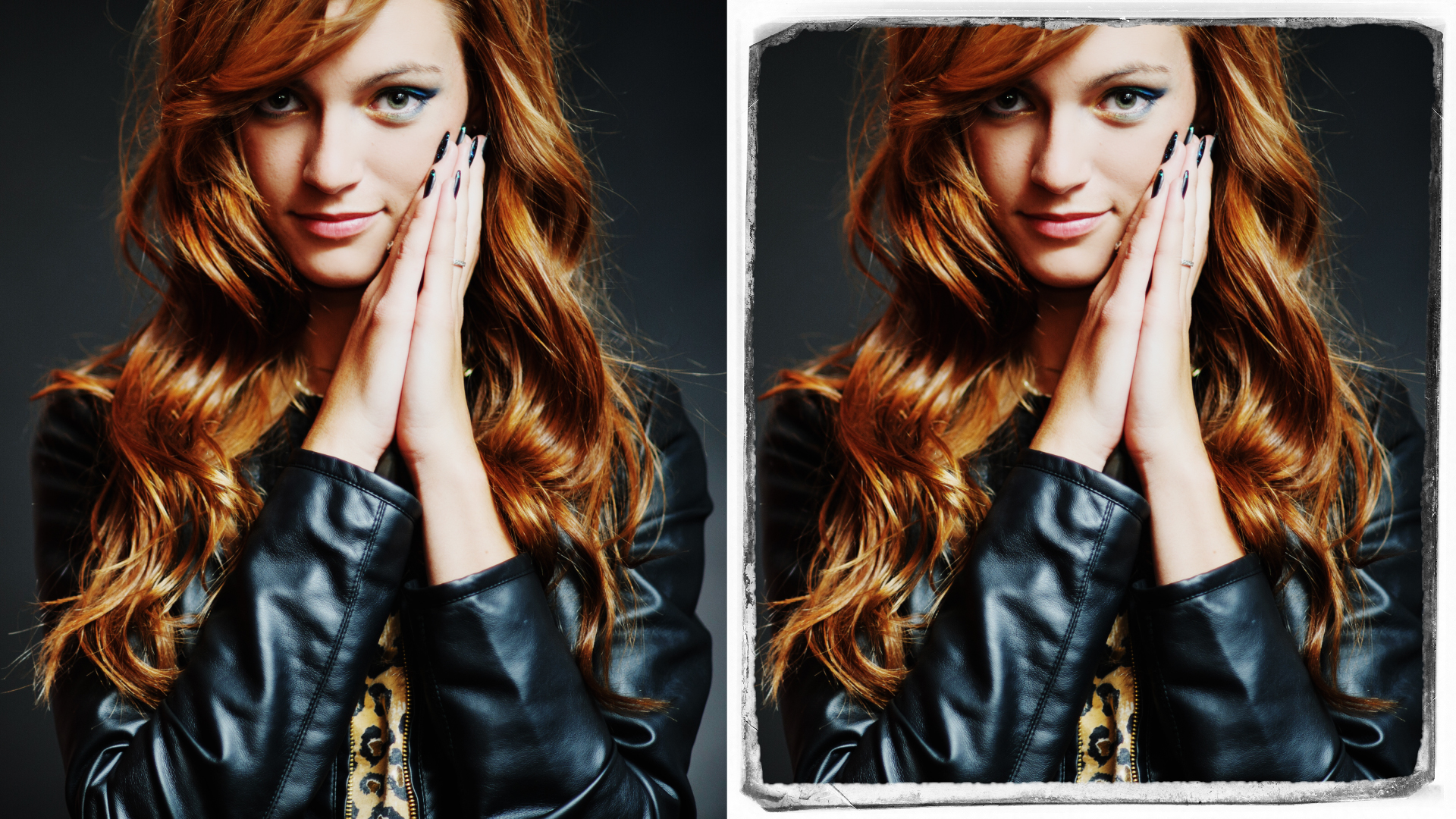
The BCC+ Borders filter, part of the BCC Art Looks category, allows you to select from a variety of different pre-made borders or create your own. Users are able to choose from a selection of 11 different borders or Custom to create variable colored, softened borders.
Working with the Filter
FX Editor and Presets
- Use the FX Editor to load or save presets for reuse.
- To load a preset: Open the FX Editor, select a preset from the Presets panel, and click Apply to return to the host application.
- To save a custom preset: While in the FX Editor, click the Create Custom Preset icon in the parameter list, enter a preset name, and click Done. Additionally, a custom preset can be saved from the main menu bar by selecting File->Save Preset.
- To import custom presets from another drive: While in the FX Editor, select File->Import Preset from the main menu bar.
Effect Controls
Compare Mode
The Compare Mode is used to view the filtered result alongside the original source layer. Several split-screen and side-by-side display options are available.
For more information, see Compare Mode.
- Type: Selects the border style from one of 11 pre-made borders, or select the Custom option to manually adjust border size and color.
- Orientation
Selects the border orientation.
- 0 degrees: The default orientation of the border.
- 90 degrees: Rotates the border 90 degrees.
- 180 degrees: Rotates the border 180 degrees.
- 270 degrees: Rotates the border 270 degrees.
- Invert: Inverts the color of the border.
Note: Orientation and Invert are only used for the pre-made Border’s 1-11.
- Size: Adjust the overall size of the border. Available when Custom type is selected.
- Color: Select the border color from the color chip. Available when Custom type is selected.
- Roughness: Adjusts the roughness of the border. Higher values will produce a grungier look.
- Softness: Adjusts the overall softness and feathering of the border.
- Randomize: Randomizes the pattern of roughness of the border.
Transform Group
- Scale: Increases or decreases the horizontal and vertical scale of the border. By default this is set to 100. Lower values will decrease the size of the border.
- Rotate: Rotates the border. Positive values rotate clockwise and negative values rotate counter-clockwise.
- Mix with Original: Blends the source and filtered images. Use this parameter to animate the effect from the unfiltered to the filtered image without adjusting other settings, or to reduce the effect of the filter by mixing it with the source image.
- Default: Uses product-wide default of 16 bit half-float GPU rendering.
- 16 Bit Float: Manually force 16 bit half-float GPU rendering.
- 32 Bit Float: Manually force 32 bit full-float GPU rendering.
- Disabled: Forces CPU rendering.
