

















BCC Z-Blur
Category: BCC Blur
Effect Name: BCC Z-Blur
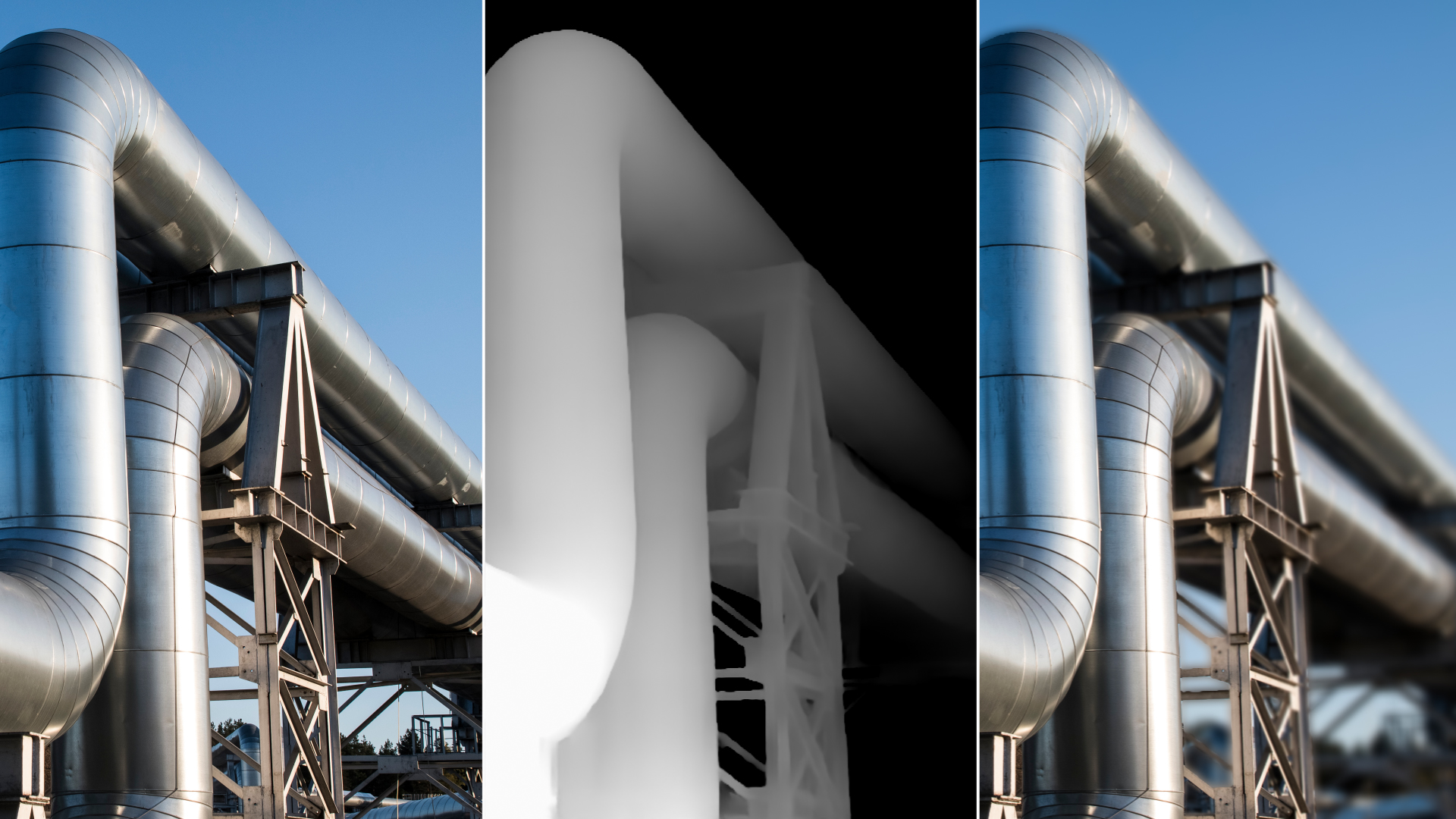
The BCC Z-Blur filter, part of the BCC Blur category, is used with a Z-map image to emulate a rack focus effect. Move the focal plane through the source image, using the Z-map to control the focus. Adjust the focal point, depth of field and blur parameters to finetune the area of the image to blur.
You can also set a channel from the image clip, then use that channel to control the z-blur effect. This type of effect is most noticeable in real life with a long focal lens, such as a 105mm or greater zoom lens.
Working with the Filter
Presets and Common Controls
- BCC filters come with a library of factory installed presets plus the ability to create your own custom presets and preview them with the BCC FX Browser™.
- BCC filters also include common controls that configure global effect preferences and other host-specific effect settings.
For more information about working with presets and other common controls, Click Here.
Note: Use a Z-map image that has bright pixels where the image pixels are close, and dark pixels where the image pixels are far away, or vice versa. You can invert the Z-Map using the Invert Z Channel checkbox. The following source image and Z-map are used in the examples in this section.
Effect Controls
Mocha Mask and Track
Continuum effects include integrated masking and matte tools that allow you to restrict the effect to specific regions of the image.
- Mocha masks: used to create custom spline masks. Mocha also includes Matte Assist ML and Matte Refine ML, which use machine learning to generate and track masks.
- Pixel Chooser: used to generate geometric shapes, gradients, or mattes based on channel, luma, or color-based selections. Additionally, an AI depth map generator, and an AI-powered face detection model allow for precise control of masks and mattes.
Note: Mocha can also be used to drive geometric parameters. See the Mocha Motion Tracker documentation for details.
For more information, see Mocha and Pixel Chooser.
Compare Mode
The Compare Mode is used to view the filtered result alongside the original source layer. Several split-screen and side-by-side display options are available.
For more information, see Compare Mode.
- View:
The View menu lets you display either the final render or the mask that defines the focus field in the Composite window.
- Normal: to view the final render in the Composite window.
- In-Focus Zone: displays only the areas of the image that are in focus. These are at a Z-depth of “Depth of Field” around the “Focal Point.”
- Z Map: shows the final Z-map, so that you can readily see the effect of the above two controls. Z-Map also colors the 0-level (where there is no blur) dark blue.
- Blur Type: Use the Blur Type menu to choose the type of blur to apply. The choices are Faster or Smoother. Smoother uses a different blur algorithm which produces a better looking result but takes twice as long to render.
- Z Layer:Use the Z Layer menu to assign the media that is used to create the depth map.
Warning: You must assign media to the Use Z Layer menu to see any result from the filter. The default media assigned to the Z Layer track in the timeline is None, not the filtered track.
- Z Channel: The Z Channel menu sets the channel to use for the depth map. Choose Alpha, Red, Green, Blue, Luminance, Lightness or Brightness. Luminance adjusts the tonal values in the image without affecting the hues. It can also be useful in retaining sharpness in the image which Brightness can reduce. Lightness and Brightness adjust the tonal values in the image, but they also affect the hues.
- Max Blur:sets the maximum amount of blur to apply to the image. When Max Blur is set to 0, no blur is applied to the image.
- Blur Aspect Ratio: controls the aspect ratio of the blur. Positive values produce a horizontal blur and negative values create a vertical blur. In the example below the clouds are blurred.
- Focal Point: determines the center point of focus along the focal plane. Animate the Focal Point parameter to shift the positioning of the focal mask. The examples below show the same Z-Blur effect, but the second set of images shows the focus view, and indicates that the focus shifts from the foreground (ball) to the sky (background).
- Depth of Field: determines the areas of the image that blur. Increasing Depth of Field decreases the amount of the image that blurs. The examples below show the same Z-Blur effect. The first set of images shows the difference in Depth of Field with a Focal Point of 5, and the second set of images shows the difference in Depth of Field with a Focal Point of 5. As the depth of field increases, the entire image becomes more in focus.
- Invert Z Channel: The Invert Z Channel checkbox inverts the mask you assigned to the Z Layer track in the timeline. The following example shows Luminance as the Z Channel.
- Smooth Z Channel:blurs the Z-map before the channel is extracted.
- Z Channel Gamma:alters the slope of the Z-map after the channel is extracted.
- Mix With Original: Blends the filtered image with the original source image. Use this control to reduce the strength of the effect or animate the transition.
