

















BCC Scatterize
Category: BCC Stylize
Effect Name: BCC Scatterize
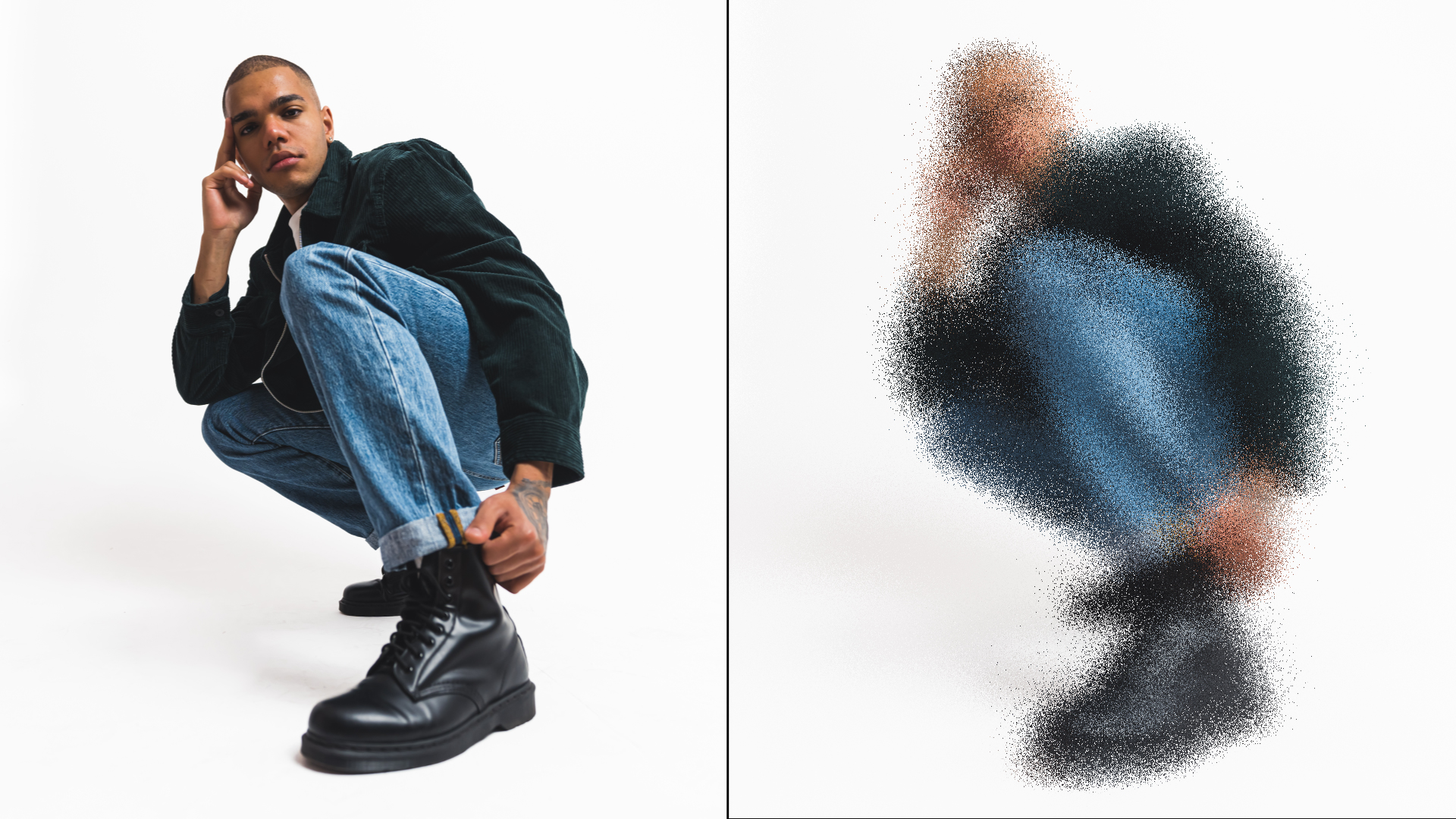
The BCC Scatterize filter, part of the BCC Stylize category, shuffles the pixels in the source image, creating a scattered effect.
Working with the Filter
Presets and Common Controls
- BCC filters come with a library of factory installed presets plus the ability to create your own custom presets and preview them with the BCC FX Browser™.
- BCC filters also include common controls that configure global effect preferences and other host-specific effect settings.
For more information about working with presets and other common controls, Click Here.
Effect Controls
Mocha Mask and Track
Continuum effects include integrated masking and matte tools that allow you to restrict the effect to specific regions of the image.
- Mocha masks: used to create custom spline masks. Mocha also includes Matte Assist ML and Matte Refine ML, which use machine learning to generate and track masks.
- Pixel Chooser: used to generate geometric shapes, gradients, or mattes based on channel, luma, or color-based selections. Additionally, an AI depth map generator, and an AI-powered face detection model allow for precise control of masks and mattes.
Note: Mocha can also be used to drive geometric parameters. See the Mocha Motion Tracker documentation for details.
For more information, see Mocha and Pixel Chooser.
Beat Reactor
The Beat Reactor is an audio-driven animation system that links effect parameters to an audio track. This allows visual effects to react dynamically to sound without manual key-framing.
For more information, see Beat Reactor Documentation.
- Variance: Determines how scattered the image is and works in conjunction with the Scatter Percentage parameter.
- Scatter Percentage: Determines the percentage of the pixels in the image that scatter. Adjusting this parameter allows you to scatter an image while leaving its basic shape intact.
- Style: Determines which type of scattering occurs in the effect.
- Uncontrolled: Scatters the pixels in random directions.
- Directional: Scatters the pixels along a straight line (in both directions).
- Radial: Scatters pixels outward from a point set by the Center Point settings.
- Directional Angle: Sets the angle between the Directional style line and the horizontal axis.
- Center Point: Sets the center point for the effect on the X and Y axis.
- Algorithm: Determines how the pixels scatter.
- No Bias: Scatters the entire image equally.
- Center Bias: Scatters the image more in the center than at the edges.
- Subtle Algorithm: Uses an algorithm which animates better but takes longer to render. This option also scales down variance, necessitating additional adjustments to the variance controls.
- Randomize: When enabled, the effect auto-animates, producing a constantly shifting array of scattered pixels. Deselect this option to create a static effect, or to manually animate the effect.
- Avoid Clipping: When selected, the scatterized effect expands outside the borders of the original source.Mocha Pixel Chooser is disabled if avoid clipping is selected.
- Random Seed: Determines which value is input to the random number generator used by the filter.
- Apply Mode: Determines how the filtered image is composited with the source image.
- Apply Mix: Determines the mix of the specified Apply Mode with the Normal apply mode. If the Apply Mode is Normal, Apply Mix has no affect and the parameter does not appear. If Apply Mix is 0, Apply Mode has no affect. Increase Apply Mix to blend the Apply Mode setting with the Normal apply mode.
Note: Animating Random Seed produces a different random pattern of pixels in each consecutive frame. Keeping this setting at a constant value creates static noise that retains its appearance from frame to frame.
