

















BCC Temporal Blur
Category: BCC Time
Effect Name: BCC Temporal Blur
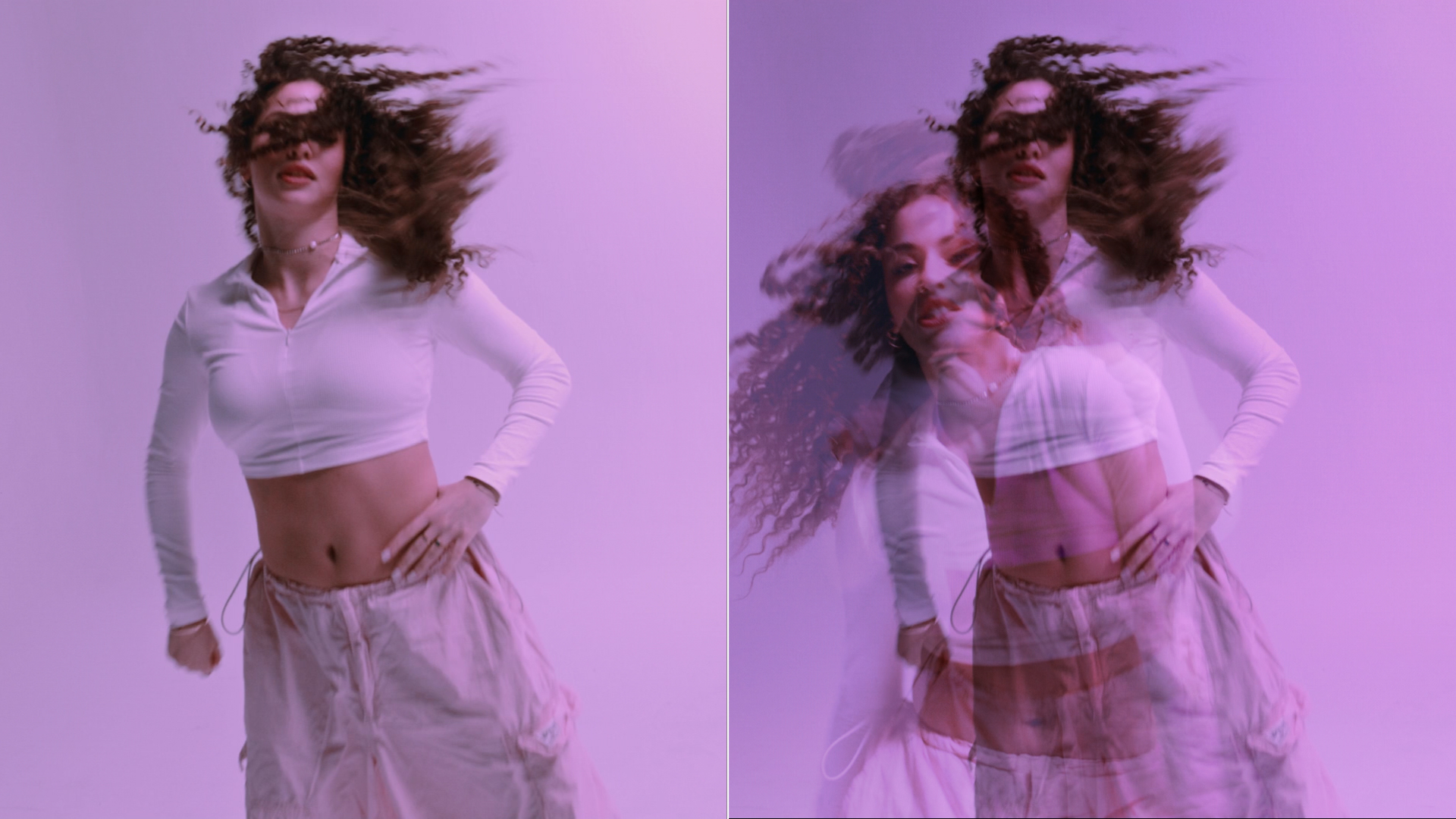
The BCC Temporal Blur filter, part of the BCC Time category, blurs the image over time by averaging two or more source frames to produce each output frame. This filter includes a PixelChooser, which allows you to selectively blur only a portion of the source image.
Note: You can apply the Temporal Blur filter directly to the clip that you want to filter; however, the duration of the effect is then limited to the duration of the filtered clip. To create an effect that is longer than the duration of the source media, follow the steps described in the BCC Velocity Remap filter.
Working with the Filter
Presets and Common Controls
- BCC filters come with a library of factory installed presets plus the ability to create your own custom presets and preview them with the BCC FX Browser™.
- BCC filters also include common controls that configure global effect preferences and other host-specific effect settings.
For more information about working with presets and other common controls, Click Here.
Effect Controls
Mocha Mask and Track
Continuum effects include integrated masking and matte tools that allow you to restrict the effect to specific regions of the image.
- Mocha masks: used to create custom spline masks. Mocha also includes Matte Assist ML and Matte Refine ML, which use machine learning to generate and track masks.
- Pixel Chooser: used to generate geometric shapes, gradients, or mattes based on channel, luma, or color-based selections. Additionally, an AI depth map generator, and an AI-powered face detection model allow for precise control of masks and mattes.
Note: Mocha can also be used to drive geometric parameters. See the Mocha Motion Tracker documentation for details.
For more information, see Mocha and Pixel Chooser.
- Amount (Frames): Sets the width of the blur in frames.
- Lock to Whole Frames: Locks the Amount value to a whole number of frames, which prevents partial frames from being averaged into the output. Selecting this option can improve render time and may produce a cleaner output if you want the blur to render only a few distinct frames.
Note: If Amount is animated, Lock to Whole Frames will cause jumps in the animation.
- Frame Separation: Sets the separation between the frames that are averaged in the blur computation. For example, if Frame Separation is set to 3, then the render for each frame uses the current frame averaged with every third frame thereafter.
- Frame Offset: Offsets the source image used to create the blur at the current time position. For example, if Frame Offset is 10, Frame 10 is used to compute the blur output at Frame 0.
Note: Try using Mix with Original with Frame Offset to produce an effect in which the blur is offset from the source image. In the examples below, Frame Offset is set to –6, so the blurred image lags 6 frames behind the source.
- Blur Direction: The Blur Direction menu chooses which frames are used to compute the blur for the source frame.
- Bidirectional: Blurs the source frame with both the preceding and following frames to produce the blurred output.
- Later Frames: Blurs the source frame with the following frames to produce the blurred output.
- Earlier Frames: Blurs the source frame with the preceding frames to produce the blurred output.
- Blur Shape: The Blur Shape menu sets the shape of the blur over time.
- Gaussian: Gives the most “weight” (prominence in the averaged output) to the source frame and less weight to frames further from the source in time to compute the blur.
- Flat: Gives an equal amount of weight to each frame used to compute the blur.
Warning: Increasing Blur Falloff increases rendering time. Also, animating Blur Falloff may produce jumps in the effect.
- Spread: Determines how frames used in computing the blur are weighted when using the Gaussian Blur Shape. Increasing Spread weights frames that are farther away in time from the source frame, adding less weight to frames close to the source frame. This parameter has no affect if the Blur Shape menu is set to Flat.
- Blur Threshold: Reduces the effect of the blur using the following method. First, the filter compares each blurred channel with the corresponding source channel. If the difference between the two is less than the Blur Threshold value, the source channel is used in the output and is not affected by the blur. If the difference is greater than the Blur Threshold value, the filter reduces the difference by the Blur Threshold value before outputting the channel.
- Bias Type: The Bias Type menu sets the type of bias used in weighting pixels.
- Channel: Weights pixels according to their channel values. If Bias Type is set to Channel, increasing positive Bias Amount values add more weight to pixels whose Bias Channel values are the highest. Decreasing negative values add more weight to pixels whose Bias Channel values are lowest.
- Contrast: Weights pixels based on the difference between their channel values and 128 (the midpoint between 0 and 255). If Bias Type is set to Contrast, increasing positive Bias Amount values add weight to pixels whose Bias Channel value are furthest from 128 (closest to 0 and 255). Decreasing negative values add more weight to pixels whose Bias Channel values are closest to 128.
- Off: Weights all pixels equally, so no bias is applied. When Bias Type is set to Off, Bias Channel and Bias Amount have no effect.
Note: You can use Apply Mix to soften the effect of a given apply mode, or to animate from one apply mode to another over time.
- Mix with Original: Blends the source and filtered images. Use this parameter to animate the effect from the unfiltered to the filtered image without adjusting other settings, or to reduce the effect of the filter by mixing it with the source image.
