

















BCC Cartooner
Category: BCC Art Looks
Effect Name: BCC Cartooner
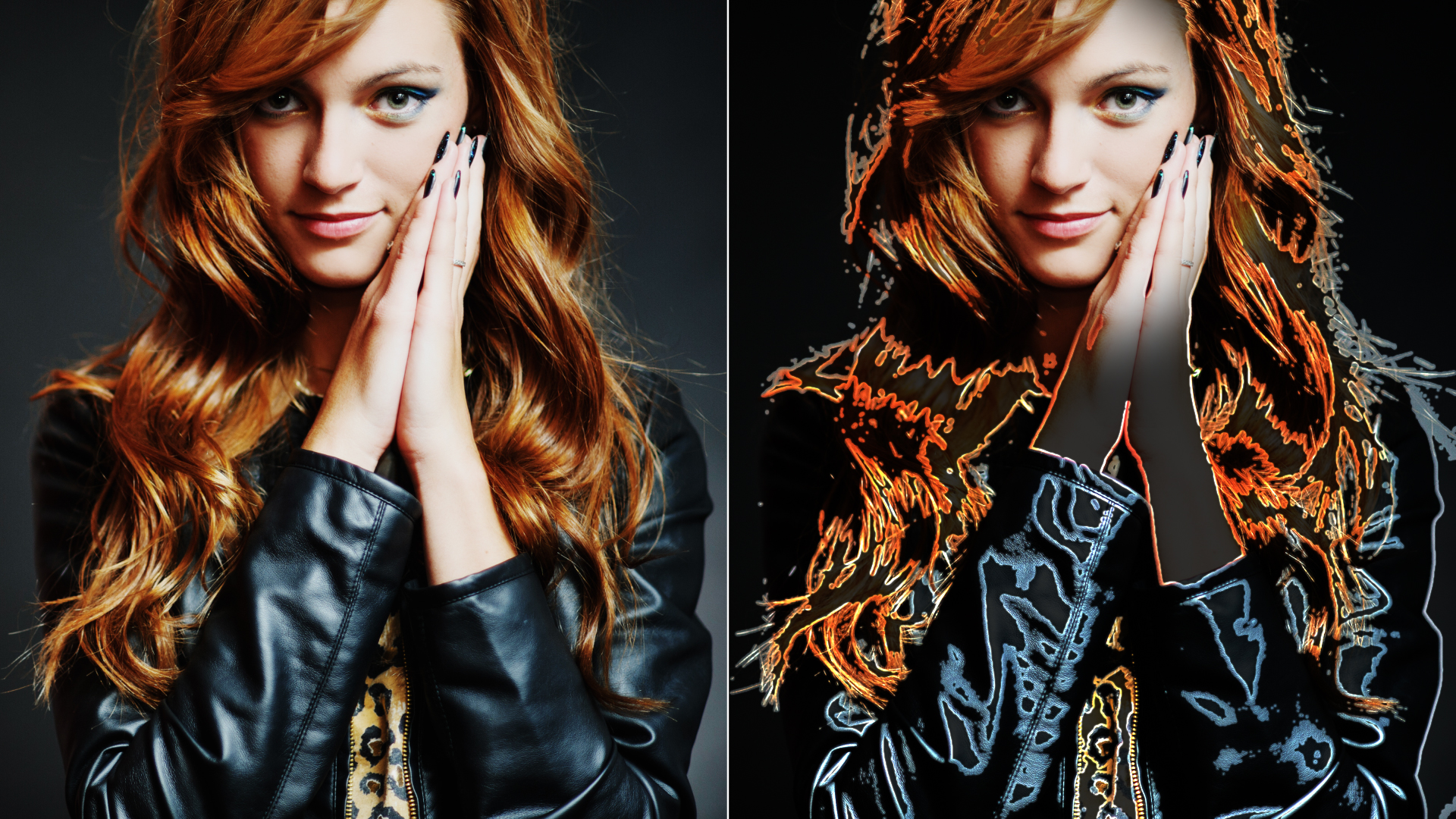
The BCC Cartooner filter, part of the BCC Art Looks category, allows you to draw an outline around the edges in one of an image’s color or alpha channels. You can also use the Cartooner filter to turn a video source into an outline animation.
The filter compares a selected channel in the source with a threshold value to create an edge map. Cartooner then blurs the map and strokes the edges in the map.
Because edge filters emphasize differences between adjacent pixels, they are very sensitive to parameter adjustments. Often a very small change in a parameter setting can have a dramatic effect on the result.
Working With the Filter
Presets and Common Controls
- BCC filters come with a library of factory installed presets plus the ability to create your own custom presets and preview them with the BCC FX Browser™.
- BCC filters also include common controls that configure global effect preferences and other host-specific effect settings.
For more information about working with presets and other common controls, Click Here.
Effect Controls
Mocha Mask and Track
Continuum effects include integrated masking and matte tools that allow you to restrict the effect to specific regions of the image.
- Mocha masks: used to create custom spline masks. Mocha also includes Matte Assist ML and Matte Refine ML, which use machine learning to generate and track masks.
- Pixel Chooser: used to generate geometric shapes, gradients, or mattes based on channel, luma, or color-based selections. Additionally, an AI depth map generator, and an AI-powered face detection model allow for precise control of masks and mattes.
Note: Mocha can also be used to drive geometric parameters. See the Mocha Motion Tracker documentation for details.
For more information, see Mocha and Pixel Chooser.
Compare Mode
The Compare Mode is used to view the filtered result alongside the original source layer. Several split-screen and side-by-side display options are available.
For more information, see Compare Mode.
- Edge Source:Choose any clip or layer in the composition to use as the source for the edges.
- Edges From:
Determines which channel in the Edge Source Layer is used to compute edges.
- Alpha
- Luma
- Red
- Green
- Blue
- Threshold:Determines how sensitive the filter is to differences between pixels when finding edges.
- Pre Blur:Blurs the source image before the edges are computed.
- Width:
Determines how the filter sets the width of the outlines.
- Constant: Stroke Width sets the thickness of the stroked edges.
- PixelChooser: Uses the PixelChooser parameters to determine stroke width.
- Min / Average / Max – PC Disabled: Previews Min and Max Stroke Widths while disabling PixelChooser.
- Min Stroke Width:Sets the minimum outline width.
- Max Stroke Width:Sets the maximum outline width.
- Stroke Distance:Controls the location of the stroked edges. Positive values expand outlines; negative values contract them.
- Post Blur:Controls the amount of Gaussian blur applied before edges are composited.
- Post Blur Quality: Choose Low, Medium, High, Higher or Highest.
- Intensity:Adjusts the intensity of the outlined edges.
- Color:Sets the color of the outlines.
- Ambient Light:Adjusts the total amount of diffuse light on the image.
- Ambient Follow:Causes ambient light to fall off in stroked regions.
- Alpha:
Determines how the Edge Source Layer’s input alpha channel and the outlined edges are composited.
- Source Alpha
- Edges Only
- Screen Alpha
- Multiply Alpha
- Composite Under
- Mask
- Stencil
- Reduce Flicker:
Helps reduce flicker in rendered image.
- 1-2-1
- 2-3-2
- 1-1-1
- Off
- Apply Mode:Controls how the outlines are composited with the filtered layer. For descriptions of all the possible Apply Modes, Click Here.
- Apply Mix:Controls the mix of the specified Apply Mode with the Normal apply mode.
- Mix with OriginalBlends the source and filtered images. Use this parameter to animate the effect from the unfiltered to the filtered image without adjusting other settings, or to reduce the effect of the filter by mixing it with the source image.
