

















BCC Artist's Poster
Category: BCC Art Looks
Effect Name: BCC Artist’s Poster
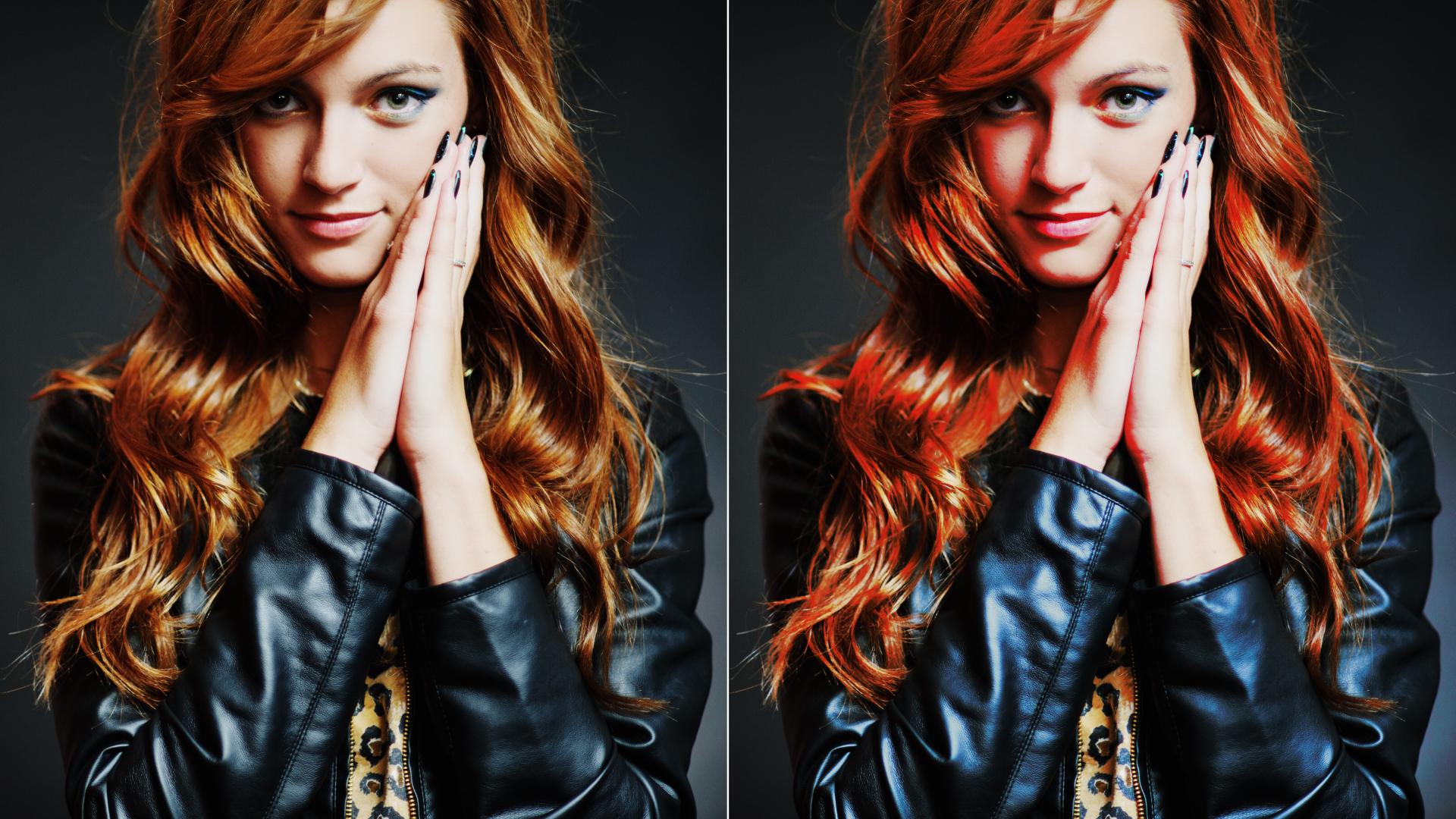
The BCC Artist’s Poster filter, part of the BCC Art Looks category, creates a posterized effect by reducing the image to eight “pure” colors (Red, Green, Blue, Cyan, Magenta, Yellow, Black, and White) and processing each color separately. At its default settings the filter outputs the NTSC-safe color that is closest to each of these eight colors.
Working with the Filter
Presets and Common Controls
- BCC filters come with a library of factory installed presets plus the ability to create your own custom presets and preview them with the BCC FX Browser™.
- BCC filters also include common controls that configure global effect preferences and other host-specific effect settings.
For more information about working with presets and other common controls, Click Here.
Effect Controls
Mocha Mask and Track
Continuum effects include integrated masking and matte tools that allow you to restrict the effect to specific regions of the image.
- Mocha masks: used to create custom spline masks. Mocha also includes Matte Assist ML and Matte Refine ML, which use machine learning to generate and track masks.
- Pixel Chooser: used to generate geometric shapes, gradients, or mattes based on channel, luma, or color-based selections. Additionally, an AI depth map generator, and an AI-powered face detection model allow for precise control of masks and mattes.
Note: Mocha can also be used to drive geometric parameters. See the Mocha Motion Tracker documentation for details.
For more information, see Mocha and Pixel Chooser.
Compare Mode
The Compare Mode is used to view the filtered result alongside the original source layer. Several split-screen and side-by-side display options are available.
For more information, see Compare Mode.
- Mix Layer: Chooses a clip or layer in the composition to composite with the source layer.
- Black:
Determines how the black pixels in the source image are output.
- Color: Replaces the black pixels in the source image with the specified Black Color.
- Transparent: Makes the black pixels in the source transparent.
- Mix Layer: Replaces the black pixels in the source with the corresponding pixels from the layer selected in the Mix Layer menu.
- Black Color: Sets the color that replaces the original black pixels in the source image when Black Mode is set to Color. When Black Mode is not set to Color, this parameter has no effect.
- Black Mix: Mixes the original black pixels with the new black pixels. If Black Mix is 100, the black pixels are output in their original colors. If Black Mix is 0, the black pixels are output according to the Black Mode setting.
Note: The other colors’, Color and Mix controls work in the same way as the corresponding Black, Black Color and Black Mix controls.
Threshold Parameter Group
Used to adjust the division of pixels into color channels.
- Red/Green/Blue Threshold: Adjusting the Thresholds changes this division into colors. Reducing Red Threshold makes some black pixels red, some blue pixels magenta, and so on. If you reduce Red Threshold to 0, only pixels whose red channel value is 0 can be black, green, blue, or cyan.
- Color Soften: Softens color transitions on a pixel-by-pixel basis. This does not reduce the sharpness of details in the original image; rather it reduces harsh color contrasts, making even extreme posterizations more natural-looking.
Blur Parameter Group
- Pre Blur: Blurs the source image before the posterization is applied. This softens the edges of the posterized image without increasing the number of output colors.
- Post Blur: Blurs the posterized image, creating softer edges where the colors blend. This means that the number of output colors is increased again after the posterization is applied.
- Blur Transparency: Blurs the alpha channel. This parameter can be useful if you created an alpha channel by setting one or more of the Color Modes to Transparent.
- Mix with Original: Blends the source and filtered images. Use this parameter to animate the effect from the unfiltered to the filtered image without adjusting other settings, or to reduce the effect of the filter by mixing it with the source image.
- Default: Uses product-wide default of 16 bit half-float GPU rendering.
- 16 Bit Float: Manually force 16 bit half-float GPU rendering.
- 32 Bit Float: Manually force 32 bit full-float GPU rendering.
- Disabled: Forces CPU rendering.
