

















BCC+ Lens Distortion
Category: BCC Lens
Effect Name: BCC+ Lens Distortion
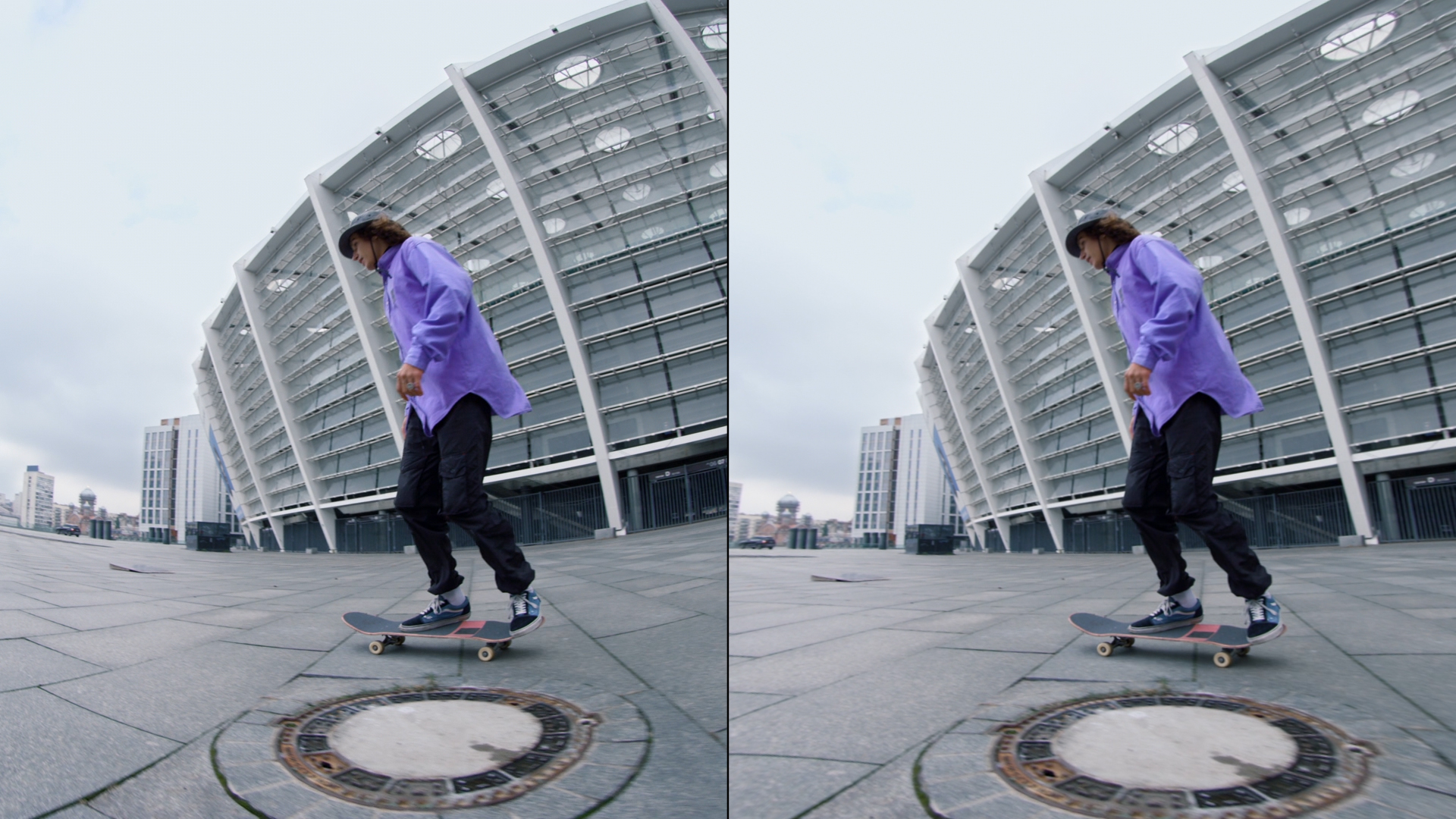
The BCC+ Lens Distortion filter, part of the BCC Lens category, corrects pin-cushioning and barrel distortion from camera lenses. It can also be used creatively to simulate the look of a wide-angle lens.
Working with the Filter
FX Editor and Presets
- Use the FX Editor to load or save presets for reuse.
- To load a preset: Open the FX Editor, select a preset from the Presets panel, and click Apply to return to the host application.
- To save a custom preset: While in the FX Editor, click the Create Custom Preset icon in the parameter list, enter a preset name, and click Done. Additionally, a custom preset can be saved from the main menu bar by selecting File->Save Preset.
- To import custom presets from another drive: While in the FX Editor, select File->Import Preset from the main menu bar.
Effect Controls
Compare Mode
The Compare Mode is used to view the filtered result alongside the original source layer. Several split-screen and side-by-side display options are available.
For more information, see Compare Mode.
Beat Reactor
The Beat Reactor is an audio-driven animation system that links effect parameters to an audio track. This allows visual effects to react dynamically to sound without manual key-framing.
For more information, see Beat Reactor Documentation.
- Distortion: Pulls the corners of the image in or out. Negative values pull the corners outward (useful for correcting barrel distortion), while positive values pull the corners inward (useful for correcting pin-cushion distortion).
- Anamorphic Squeeze:Corrects the squeeze commonly found in anamorphic motion picture lenses.
- Curvature X / Curvature Y: Corrects non-radial, asymmetric distortions often seen with anamorphic lenses.
- Center: Sets the center point used for distortion. Use the on-screen center control (drag in the viewer) to reposition the distortion center.
- Edge Mode:
Defines how the edges of the filtered frame are handled.
- Transparent: Makes the edges of the result transparent.
- Repeat: Extends edge pixels outward to create opaque edges. (Default)
- Reflect: Mirrors edge pixels back into the image.
- Wrap: Wraps the edge pixels to create opaque edges.
- Default: Uses product-wide default of 16 bit half-float GPU rendering.
- 16 Bit Float: Manually force 16 bit half-float GPU rendering.
- 32 Bit Float: Manually force 32 bit full-float GPU rendering.
- Disabled: Forces CPU rendering.
