

















BCC Posterize Time
Category: BCC Time
Effect Name: BCC Posterize Time
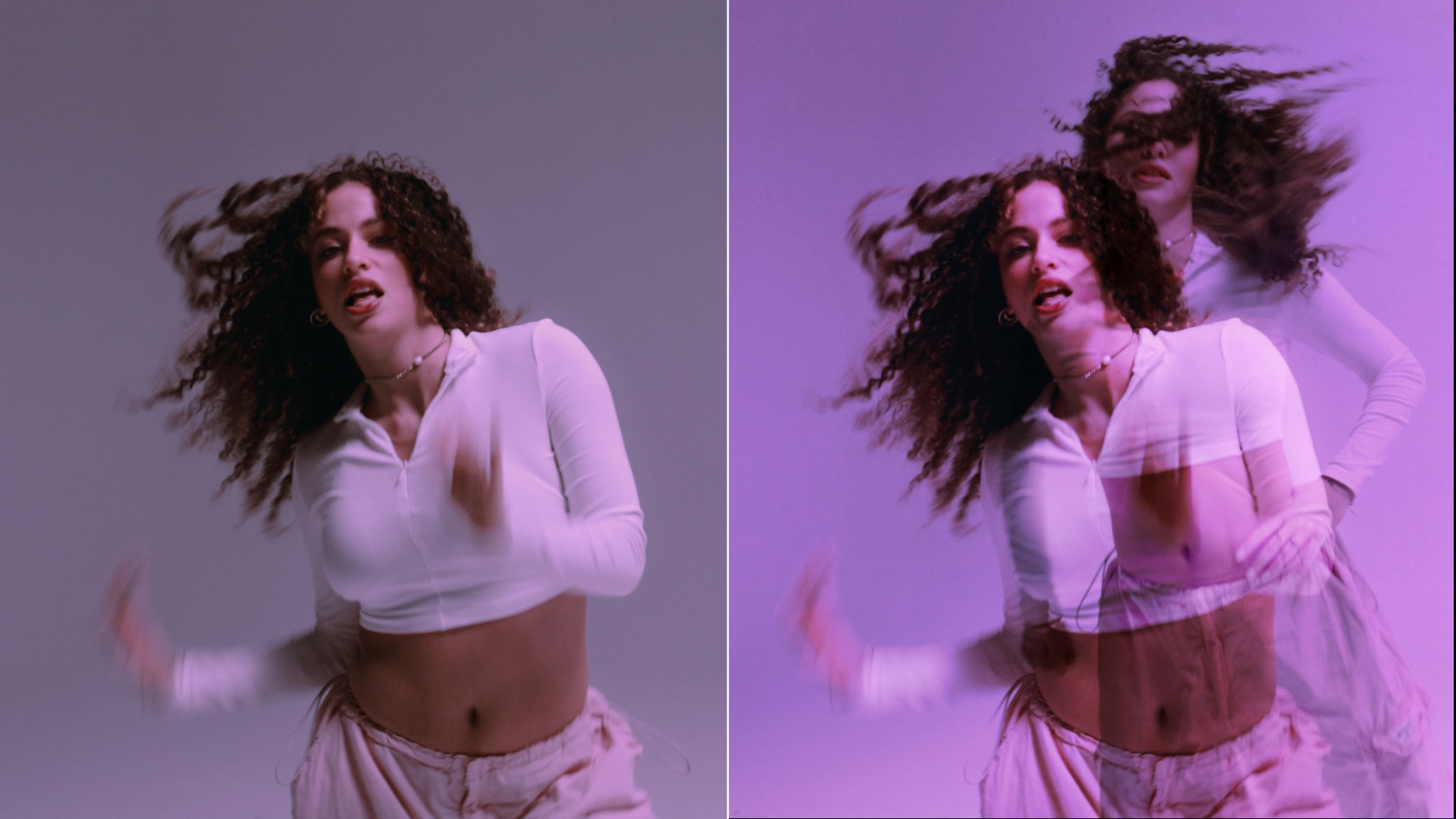
The BCC Posterize Time filter, part of the BCC Time category, can be used to create strobe effects by altering the frame rate of the source media and adjusting the length of time for which each frame is displayed.
Working with the Filter
Presets and Common Controls
- BCC filters come with a library of factory installed presets plus the ability to create your own custom presets and preview them with the BCC FX Browser™.
- BCC filters also include common controls that configure global effect preferences and other host-specific effect settings.
For more information about working with presets and other common controls, Click Here.
Effect Controls
Mocha Mask and Track
Continuum effects include integrated masking and matte tools that allow you to restrict the effect to specific regions of the image.
- Mocha masks: used to create custom spline masks. Mocha also includes Matte Assist ML and Matte Refine ML, which use machine learning to generate and track masks.
- Pixel Chooser: used to generate geometric shapes, gradients, or mattes based on channel, luma, or color-based selections. Additionally, an AI depth map generator, and an AI-powered face detection model allow for precise control of masks and mattes.
Note: Mocha can also be used to drive geometric parameters. See the Mocha Motion Tracker documentation for details.
For more information, see Mocha and Pixel Chooser.
- Legacy Posterize Behavior: Offsets the start posterized frame by half.
- Frame Separation: Sets which frames display and the duration each frame is held. For example, if Frame Separation is 10, every tenth frame (frame 0, 10, 20, and so on) displays for 10 frames for the duration of the clip. Increasing Frame Separation reduces the number of frames from the source media that display and increases the time that each frame stays on-screen. When Frame Separation is 1, the sequence plays at its normal frame rate.
- Lock to Whole Numbers: Rounds Frame Separation values to the nearest whole number.
- Time Mix Mode: Determines what happens when Time Width is reduced from the default of 100.
- Original: Reducing Time Width from 100 replaces the posterized frame with the original image as you move away from the actual time of the frame. Reducing Time Width to 0 removes the posterization completely. Time Falloff determines the smoothness of this transition.
- Dissolve: Dissolves the output from one posterized frame to the next when Time Width is reduced. Time Falloff is ignored.
- Transparency: Mixes the posterized frame with transparency as Time Width is reduced. Time Falloff works as it does with Original.
- Off: Time Width and Falloff controls have no affect.
Note: You can use Apply Mix to soften the effect of a given apply mode, or to animate from one apply mode to another over time.
- Mix with Original: Blends the source and filtered images. Use this parameter to animate the effect from the unfiltered to the filtered image without adjusting other settings, or to reduce the effect of the filter by mixing it with the source image.
