

















BCC Particle Array 3D
Category: BCC Particles
Effect Name: BCC Particle Array 3D
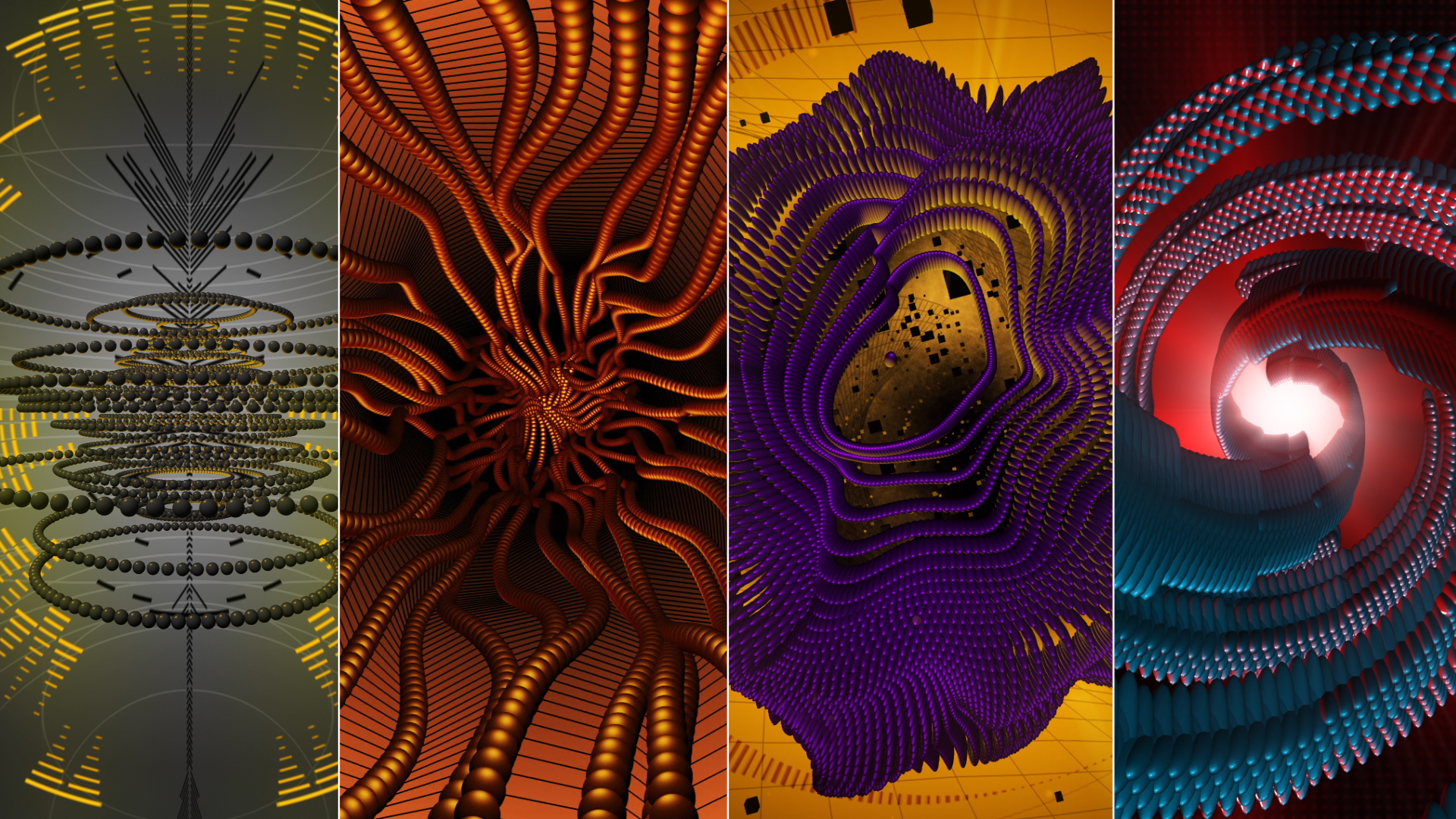
The BCC Particle Array 3D filter, part of the BCC Particles category, is a particle based generator style filter that generates a 3D array of particles and offers several interesting ways of manipulating the array based on graph controls, alternate AE layers, fractal noise patterns, random dispersion, and more. The filter supports AE lights and camera for simple integration into AE 3D compositions.
Working with the Filter
Presets and Common Controls
- BCC filters come with a library of factory installed presets plus the ability to create your own custom presets and preview them with the BCC FX Browser™.
- BCC filters also include common controls that configure global effect preferences and other host-specific effect settings.
For more information about working with presets and other common controls, Click Here.
Effect Controls
Mocha Mask and Track
Continuum effects include integrated masking and matte tools that allow you to restrict the effect to specific regions of the image.
- Mocha masks: used to create custom spline masks. Mocha also includes Matte Assist ML and Matte Refine ML, which use machine learning to generate and track masks.
- Pixel Chooser: used to generate geometric shapes, gradients, or mattes based on channel, luma, or color-based selections. Additionally, an AI depth map generator, and an AI-powered face detection model allow for precise control of masks and mattes.
Note: Mocha can also be used to drive geometric parameters. See the Mocha Motion Tracker documentation for details.
For more information, see Mocha and Pixel Chooser.
Beat Reactor
The Beat Reactor is an audio-driven animation system that links effect parameters to an audio track. This allows visual effects to react dynamically to sound without manual key-framing.
For more information, see Beat Reactor Documentation.
Render Group
Includes parameters affecting the image quality of the effect and other global render related settings
- Anti-Aliasing: Sets the level of anti-aliasing applied to smooth edges.
- Opacity Boost: Sets the opacity of the particles.
- Use Source Mask: When enabled, the particle array will take any masking applied to the filter layer into account in it’s use of the layer, otherwise it will ignore masks.
- Particle Intersection: When enabled, the particles will intersect in three dimensional space.
- Motion Blur and Shutter Angle: Offers options for various levels, simulating motion blur seen in camera footage. When set to Host Settings, the motion blur of the filter matches the motion blur set for the AE comp it’s applied in.
- Depth of Field Blur: Determines the amount the amount of blur in front and behind the focus of the camera.
- Use Comp Lights: When enabled, the filter will use AE lights enabled in the comp. The maximum number of total lights (including built-in and AE lights) the filter can use at once is 8. If there are more than 8 enabled AE lights in the comp it will use the 8 enabled light tracks that are topmost in the timeline.
- Use Built-in Lights: There are also 3 built-in lights available. It’s possible to use both built-in and AE lights simultaneously. If enabled, the built-in lights will have priority over AE lights in terms of which lights get used if the total number of lights exceeds 8.
- Use Comp Camera: When enabled, the filter will display the Pin Screen from the perspective of the enabled AE camera whose track is topmost in the timeline. When Use Comp Camera is enabled, the Built-In Camera group is disabled.
Particles Group
- Particle Shape: Determines the type of particle used in the array. 3D Particle Types support 3D lighting and textures, while most other choices do not. The Custom Shapes choice also supports 3D lighting and textures.
- Texture Layer and Texture Modes: Allow for using the image (Color and Alpha or Alpha Only) from an alternate layer as the texture displayed by each particle
- Preserve Orientation: when enabled, 3D particles’ orientation in relation to the camera is maintained regardless of the camera perspective or array rotations. This means that if the Particle Transforms are left at default, the particles will always seem to be facing the camera which is useful for some types of effects. The Preserve Orientation setting does not apply to other (non-3D) Particle Types since those types always face the camera regardless of perspective or rotations.
- Color Mode (Custom Color, Color Layer X/Y, Color Layer Random, Custom Color and Layer Alpha X/Y): Options for specifying a color or an alternate AE layer, or a combination of the 2 for defining the colr and alpha of the particles
- Size, Size Variance, Min Size: Options for adjusting and varying the size of the particles.
- Opacity: Determines the translucence of the particles.
- Shape Character: Makes the 3D Discs to appear with hollow centers and it can change the 3D Cylinders into Cone shapes.
- Material Shininess and Material Specular: For 3D and Custom Shape particle types, these parameters allow for adjusting the appearance of 3D lighting on the surface of the particles.
Array Group
- Array Layout (Grid, Grid Sphere, Onion Spheres, Random Box, Random Sphere): Options for the shape of the array.
- Num Particles X, Y, and Z: Sets the number of particles along each axis.
- Master Scale, Scale X, Y, and Z: Sets the overall scale of the array without changing the size of the particles.
Transform System Group
- Global Scale: Sets the scale for the array including scale of the particles
- Center X, Y , and Z: Sets the 3D position of the array
- Mirror Mode: Various options for achieving a symmetrical look to the array
- Rotate X, Y, Z: Array based rotation on 3 axes – rotation is applied to array and particles
- Lock Pivot, Pivot X, Y, and Z: Unlocking the pivot allows for offsetting 3D pivot from position
- World Rotate X, Y, and Z: World based rotation on 3 axes
Transform Particle Group
- Scale X, Y, and Z: Sets the scale of particles including individual X/Y/Z.
- Tumble, Spin, and Rotate: Allows for transforming 3D particles independently from the array (disabled for non 3D pins).
- Variance parameters: Allows for varying the rotation amount between particles based on a random algorithm
- Bi-directional Rotation: Allow for varied rotation in both directions simultaneously (positive and negative).
Built-in Camera Group
- Camera Model ; Position, Orbit: Camera offering 3D position and orientation control, or an orbit camera for easily adjusting perspective while remaining focused on the 3D center
- Field of View: An adjustment that can be used to simulate the look of various lenses – a large value gives a wide angle look
- Camera Position X, Y, and Z: 3D coordinate control for camera
- Camera Tumble, Spin, and Rotate: controls for orientation of the position based camera
- Use Depth of Field, DOF Focal Point, Aperture, Blur: controls for simulating camera depth of field
Built-in Lights Group
- Enable: 3 built in lights which can be individually enabled/disabled
- Ambient: increasing this value gives some of the light color to the dark (unlit) areas
- Type: determines whether the light will appear as a spot light or point light
- Light Intensity: intensity of the light
- Specular Highlight: determines how much the light contributes to any specular highlights on the particles – the color of the specular highlights is determined by the Material Specular prameter in the Particles group
- Color: the color of the light
- Position X, Y, and Z: 3D position of the light source
- Tumble and Spin: determines the orientation of the light if it is a spotlight
- Spot Angle and Feather: for spotlight, these determine the angle of the light cone and the softness of spot edges
Dispersion Group
- Disperse Master, Disperse X, Y, and Z: disperses the particles from their original locations based on a random algorithm – a master control and control for dispersion along the individual 3D axes
- Disperse Variance: allows for adjusting the range of random dispersion between the particles
Twist Group
- Twist Mode: allows for specifying along which axis the twist deformation is applied to the array
- Twist Angle, Twist Offset, Twist Direction: controls for applying a twist deformation to the particle array
Shift Group
- Shift Master, Shift X, Y, and Z: shifts the particles from their original locations – a master control and control for shift along the individual 3D axes (particularly useful in conjunction with Control Maps)
Fractal Noise Group
- Apply To: determines if the noise pattern is applied to ; XYZ Field, Opacity, Mix Color, Disperse Effect, Twist Effect, Shift Effect, Particle Size, or Particle Rotation
- Amplitude Master, Amplitude X, Y, and Z: determines the Amplitude of the Noise pattern as applied to XYZ Field choice
- Frequency Master, Frequency X, Y, and Z: determines the frequency of the noise pattern with separate control for each axis
- Auto Evolve Speed: speed of the auto animation of the noise pattern – set ot zero to turn off auto animation
- Auto Loop: the number of seconds at which the noise pattern animation will seemlessly loop
- Evolve X, Y, and Z: offsets for the noise pattern animation – can be used to manually animate noise
Control Maps Group
Control Maps which each allow for influencing the particle array using Graph, Layer, and Wipe Controls
- Apply To: determines which aspect of the particle array the Control Map is set to influence
- Apply Offset %: a master offset parameter which applies to the overall effect of the Control Map
- Graph Effect Offset: an offset parameter specifically affecting the Graph Control
- Layer Control: a layer selector so the control map can use an alternate layer to influence the particle array
- Layer Mode: options for how the control map reads/uses the alternate layer
- Layer Effect Offset: an offset parameter specifically affecting the Layer Control
- Wipe Control: offers many options for wiping the effects of the control map on and off. Below are images showing a particle array with the Color Mix Color partially wiped on using various wipe types.
- Wipe Progress and Wipe Smoothness: @ Progress zero none of the control map effect is displayed, @ Progress 100 the control map effect is entirely wiped on. For some effects, extending the Progress to 200 allows for further wiping the effect to the other extreme (so the entire array is displaying the effect). Wipe Smoothness allows for a softer edge to the wipe.
