

















BCC Wild Cards
Category: BCC Particles
Effect Name: BCC Wild Cards
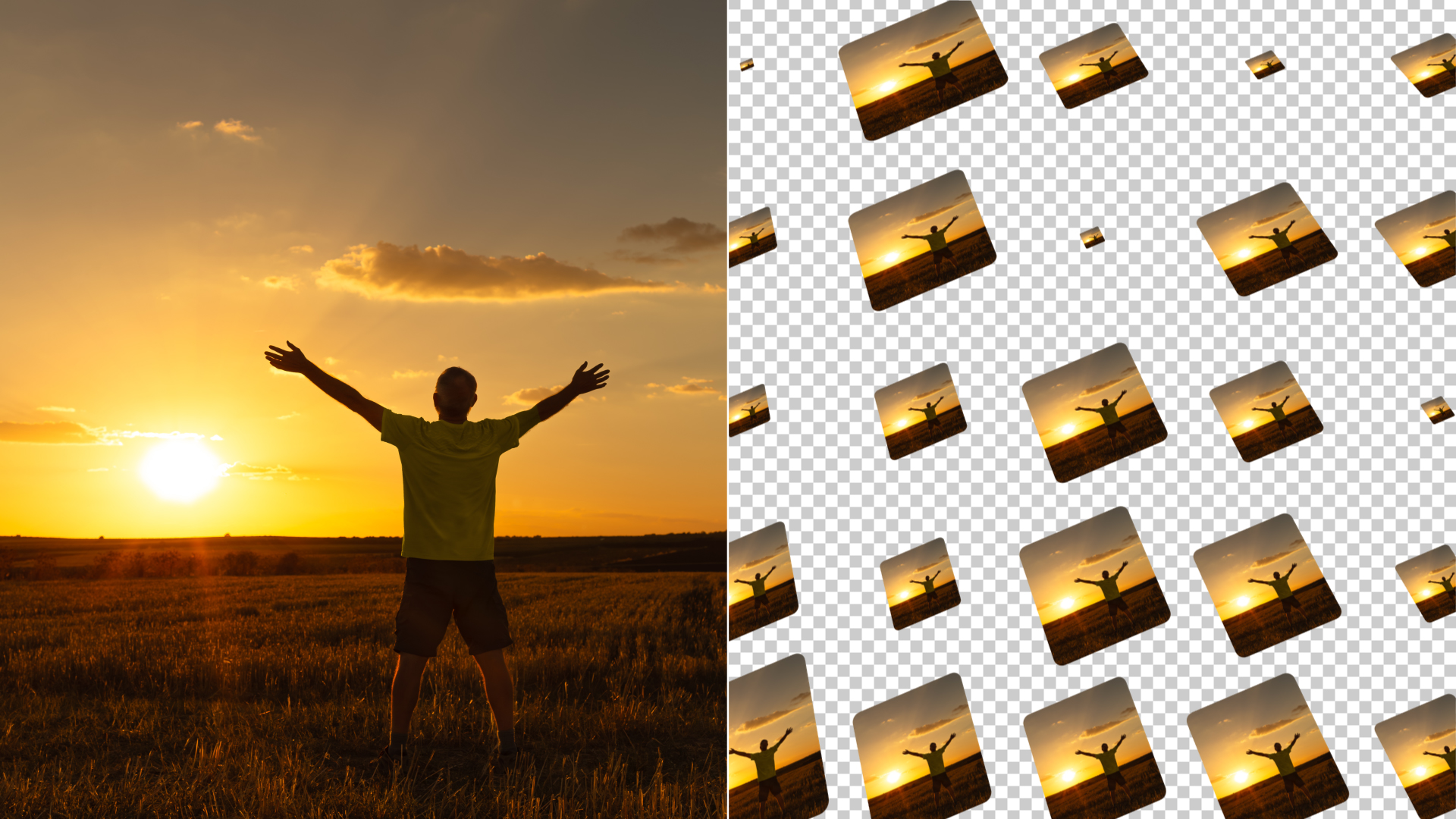
The BCC Wild Cards filter, part of the BCC Particles category, generates an array of 3D cards with interesting and convenient animation options.
Working with the Filter
Presets and Common Controls
- BCC filters come with a library of factory installed presets plus the ability to create your own custom presets and preview them with the BCC FX Browser™.
- BCC filters also include common controls that configure global effect preferences and other host-specific effect settings.
For more information about working with presets and other common controls, Click Here.
Effect Controls
Beat Reactor
The Beat Reactor is an audio-driven animation system that links effect parameters to an audio track. This allows visual effects to react dynamically to sound without manual key-framing.
For more information, see Beat Reactor Documentation.
Render Group
- Anti-Aliasing: Anti-Aliasing is a smoothing process that applies to 3D and alpha edges in the effect if they appear jagged. Anti-Aliasing can slow down the responsiveness of working with the effect and so by design the plugin will not apply any Anti-Aliasing when the layer the effect is applied to is set to Draft mode. Also, using a higher AA setting will result in a somewhat slower render than using a lower AA setting so AA should only be set as high as is visually necessary to smooth the effect.
- Opacity Boost: Adjust the opacity of the particles. It can be useful used in relation to other parameters creating varied opacity such as Motion Blur, Opacity Evolution, Random Opacity, etc.
- Use Source As Mask: Uses the alpha channel of the layer to which the effect is applied to mask the output of the effect.
- Use Particle Intersection: Allows particles to intersect with each other. This render mode can be useful for some kinds of effects but does not support particle images with transparency well.
- Motion Blur: Motion Blur offers various levels of motion blur to simulate camera shutter blur based on movement of the particles or camera
- Shutter Angle: Determines the spread of the motion blur when it is enabled
- Depth of Field Blur: Determines the amount the amount of blur in front and behind the focus of the camera.
- Use Comp Lights: When enabled, the filter will use AE lights enabled in the comp. The maximum number of total lights (including built-in and AE lights) the filter can use at once is 8. If there are more than 8 enabled AE lights in the comp it will use the 8 enabled light tracks that are topmost in the timeline.
- Use Built-in Lights: There are also 3 built-in lights available. It’s possible to use both built-in and AE lights simultaneously. If enabled, the built-in lights will have priority over AE lights in terms of which lights get used if the total number of lights exceeds 8.
- Use Comp Camera: When enabled, the filter will display the Cards from the perspective of the enabled AE camera whose track is topmost in the timeline. When Use Comp Camera is enabled, the Built-In Camera group is disabled.
Cards Group
- Front Face: Determines the source for the front of the card.
- Back Fance: Determines the source for the back of the card. If no back face is chosen the Front Image will appear when viewed from behind
- Image Mode: Determines for how the image is mapped onto the Cards, including whether or not the image is mapped across multiple cards.
- Corner Roundness: Sets the curve of the card corners. The higher the value, the rounder they are.
Alternate Front Faces Group
- Sample Mode: Determines how the effect chooses images for alternate front faces, either choosing additional layer inputs or using alternate frames form the primary Front Face input.
- Distribution: Determines how the alternate front faces are distributed within the array of cards.
- Frame Count: Determines how many frames are used for the sample mode.
- Loop Count: Determines how many loops are used for the loop based sample mode.
- Alternate Face 1-5: Select up to 5 other inputs when using the “Choose Layers” Sample Mode.
- Master Scale: Sets the scale of the cards.
- Scale X: Sets the scale of the cards along the horizontal axis.
- Scale Y: Sets the scale of the cards along the vertical axis.
- Size Random: Adds variability to the scale of the cards.
- Tumble: Tumbles the cards along the horizontal axis independently from the card array.
- Tumble Random: Adds variability to the tumble amount between pins based on a random algorithm.
- Bi-directional Tumble: Adds the ability to tumble in both directions simultaneously (positive and negative).
- Spin: Spins the cards along the vertical axis independently from the card array.
- Spin Random: Adds variability to the spin amount between pins based on a random algorithm.
- Bi-directional Spin: Adds the ability to spin in both directions simultaneously (positive and negative).
- Rotate: Rotates the cards along the Z axis independently from the card array.
- Rotate Random: Adds variability to the rotate amount between pins based on a random algorithm.
- Bi-directional Rotate: Adds the ability to rotate in both directions simultaneously (positive and negative).
- Rotate Order: It is possible to specify a wipe direction for the effects of card rotation.
Array Group
- Global Scale: Sets the scale of the card array including scale of the individual cards.
- Num Cards X, Y, and Z: Set the number of cards along 3 axes.
- Master Spacing, Spacing X, Y, and Z: Sets the distance between cards along 3 axes.
- Preserve Card Orientation: When enabled, the cards will maintain their orientation to the camera when the Array is rotated and/or the camera moves.
- Center X, Y , and Z: Sets the center point position of the each axis of the card array.
- Rotate X, Y, Z: Rotates the array along each of the axes. Rotation is applied to both the array and particles.
- Lock Pivot, Pivot X, Y, and Z: Lockes the pivot point around which each axis pivots. Unlocking the pivot allows for offsetting 3D pivot from position.
- World Rotate X, Y, and Z: Rotates the world around each of the axes.
Wild Cards Group
- Choose Cards: Selects which cards to apply the wild card transformation parameters too.
- Choice: When using the Choose Cards setting of One Card, One Row, or One Column this parameter allows you to specify which Card/Row/Column is affected. When using Random Choice this parameter acts as a random seed.
- Wildness Map: Selects a layer input whose luma values will be used to determine which cards the wild card transformations apply too.
- Scale, Tumble, Spin, Rotate, Pos XYZ: Sets position and rotation adjustments for transformations applied to chosen cards
- Influence and Influence Falloff:
Disperse Group
- Disperse Master, Disperse X, Y, and Z: Disperses the pins from their original locations based on a random algorithm – a master control and control for dispersion along the individual 3D axes.
- Disperse Wipe, Wipe Progress, Wipe Softness: Wipe controls that apply to the dispersion (same wipe options as for Rotate Wipe in the Cards group.
Fractal Movement Group
- Amplitude Master, Amplitude X, Y, and Z: Determines the Amplitude of the Noise pattern that displaces the cards.
- Frequency Master, Frequency X, Y, and Z: Determines the frequency of the noise pattern with separate control for each axis.
- Auto Evolve Speed: Sets the speed of the auto animation of the noise pattern – set to zero to turn off auto animation.
- Auto Loop: Sets the number of seconds at which the noise pattern animation will seemlessly loop.
- Evolve X, Y, and Z: Offsets for the noise pattern animation – can be used to manually animate noise.
- Individual Particle Noise: When enabled, each card uses its own noise pattern rather than sharing a noise pattern, which results in an appearance that looks less like waves and more random.
- Noise Character: Offers a variety of noise patterns
Built-in Camera Group
- Camera Model ; Position, Orbit: Camera offering 3D position and orientation control, or an orbit camera for easily adjusting perspective while remaining focused on the 3D center.
- Field of View: An adjustment that can be used to simulate the look of various lenses – a large value gives a wide angle look.
- Camera Position X, Y, and Z: 3D coordinate control for camera.
- Camera Tumble, Spin, and Rotate: Controls for orientation of the position based camera.
- Use Depth of Field, DOF Focal Point, Aperture, Blur: Controls for simulating camera depth of field.
Built-in Lights Group
- Enable: 3 built in lights which can be individually enabled/disabled.
- Ambient: Increasing this value gives some of the light color to the dark (unlit) areas.
- Type: Determines whether the light will appear as a spot light or point light.
- Light Intensity: Intensity of the light.
- Specular Highlight: Determines how much the light contributes to any specular highlights on the particles – the color of the specular highlights is determined by the Material Specular parameter in the Particles group.
- Color: The color of the light.
- Position X, Y, and Z: 3D position of the light source.
- Tumble and Spin: Determines the orientation of the light if it is a spotlight.
- Spot Angle and Feather: For spotlight, these determine the angle of the light cone and the softness of spot edges.
Global Settings Group
- Random Seed: There are several features in the plugin that use some kind of randomization to generate results (Size, Rotation, and Wipe randomization as well as Dispersion and Fractal Movement).
- Near and Far Clip Plane Adjust: It is possible to trim or extend the range in which particles will appear in the effect. In most cases there is no need to adjust these parameters, but if you find a particle very near or far from the camera unexpectedly disappearing it is possible to use these parameters to correct it.
- System Pos Z Use Pixel Units: When this is enabled, Position Z uses absolute pixel units for the system.
- Camera Pos Z Use Pixel Units: When this is enabled, Position Z uses absolute pixel units for the camera.
- Alpha Cutoff %: Determines what alpha value is equivalent to zero for the particle renderer.
- Z-Sorting Mode: Defaults to true 3D, with options for sorting by birth order.
- Accessing Image Layers: Determines whether (and how) an animated Image Layer used as a particle will loop when the end is reached.
