

















BCC Matte Choker
Category: BCC Key and Blend
Effect Name: BCC Matte Choker
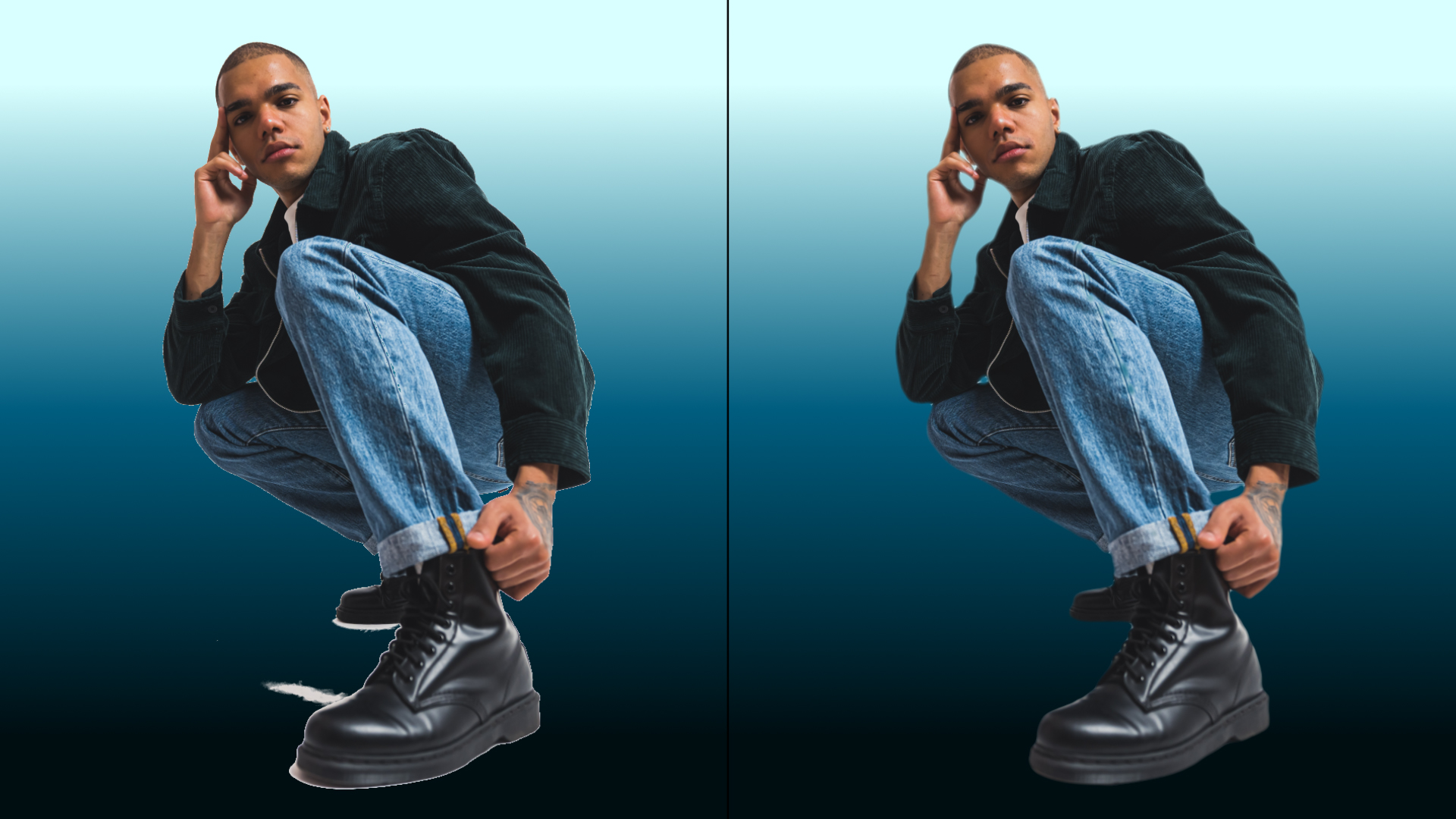
The BCC Matte Choker filter, part of the BCC Key and Blend category, uses an iterative technique to process the source alpha channel. In other words, the filter applies one stage of the process to the source image, then applies a second stage to the output of the first stage, and repeats the process using the output of each iteration as the input of the next.
Working with the Filter
Presets and Common Controls
- BCC filters come with a library of factory installed presets plus the ability to create your own custom presets and preview them with the BCC FX Browser™.
- BCC filters also include common controls that configure global effect preferences and other host-specific effect settings.
For more information about working with presets and other common controls, Click Here.
The first three controls affect Choke 1, whose output can then be passed through Choke 2 if needed.
- Blur 1: Softens the image’s alpha channel.
- Choke 1: Positive values push the tones in the matte toward transparent, tightening the edges of the matte around the foreground image. Negative values push the tones toward opaque, expanding the edges of the matte away from the foreground image.
- Gray Soften 1: Determines the amount of affect the Choke setting has. When Gray Soften is 100, the Choke value has no affect on the image. If Gray Soften is 0, the Choke acts as an alpha extract and produces a purely binary key.
Note: To contract the matte to get rid of areas in the foreground, use a positive Choke value. Increase Blur to increase the softness of the transparent areas, and adjust Gray Soften to adjust the sharpness of the borders of the matte. To expand the matte, follow the same guidelines using a negative Choke value. You may also want to apply a choke in one direction and a second choke in the opposite direction to deal with problem areas created by the first choke. You can use the Iterations control to repeat adjustments a number of times.
Choker 2 Parameter Group
The second choke uses the Choke 1 output and applies the process again using Blur 2, Choke 2, and Gray Soften 2. These parameters are identical to Blur 1, Choke 1, and Gray Soften 1, except that they affect the output of the first choke rather than directly affecting the source.
- Iterations: Determines the number of times the filter is applied. Some choking effects can only be achieved by repeatedly applying the same settings. Increasing Iterations increases rendering times proportionately.
- Blur Quality: Sets the quality of the blur applied in the filter.
- Gaussian Low: A fast, low intensive blur.
- Gaussian Medium: A medium intensive blur.
- Gaussian High: A high quality blur, more render intensive.
- Gaussian Higher: An even higher quality of blur. Increases render times.
- Gaussian Highest: The highest quality blur. The most render intensive.
- Pyramid: The fastest option and is generally adequate for most uses.
- Pyramid Smoother: A fast and smooth blur option.
- Iterations: Determines the number of times the filter is applied. Some choking effects can only be achieved by repeatedly applying the same settings. Increasing Iterations increases rendering times proportionately.
- View Matte: Displays the matte as you adjust it. Be sure to deselect this option before rendering.
Region Parameter Group
The Region parameters allow you to define a specific region of interest in which the filter is applied, leaving the rest of the image unchanged.
- Region of Interest Top-Left:Sets the upper left corners of a rectangle within which the filter is applied.
- Region of Interest Bot-Right: Sets the bottom right corners of a rectangle within which the filter is applied.
- Region Blend: Softens the edges of the region.
