

















BCC Snow
Category: BCC Particles
Effect Name: BCC Snow
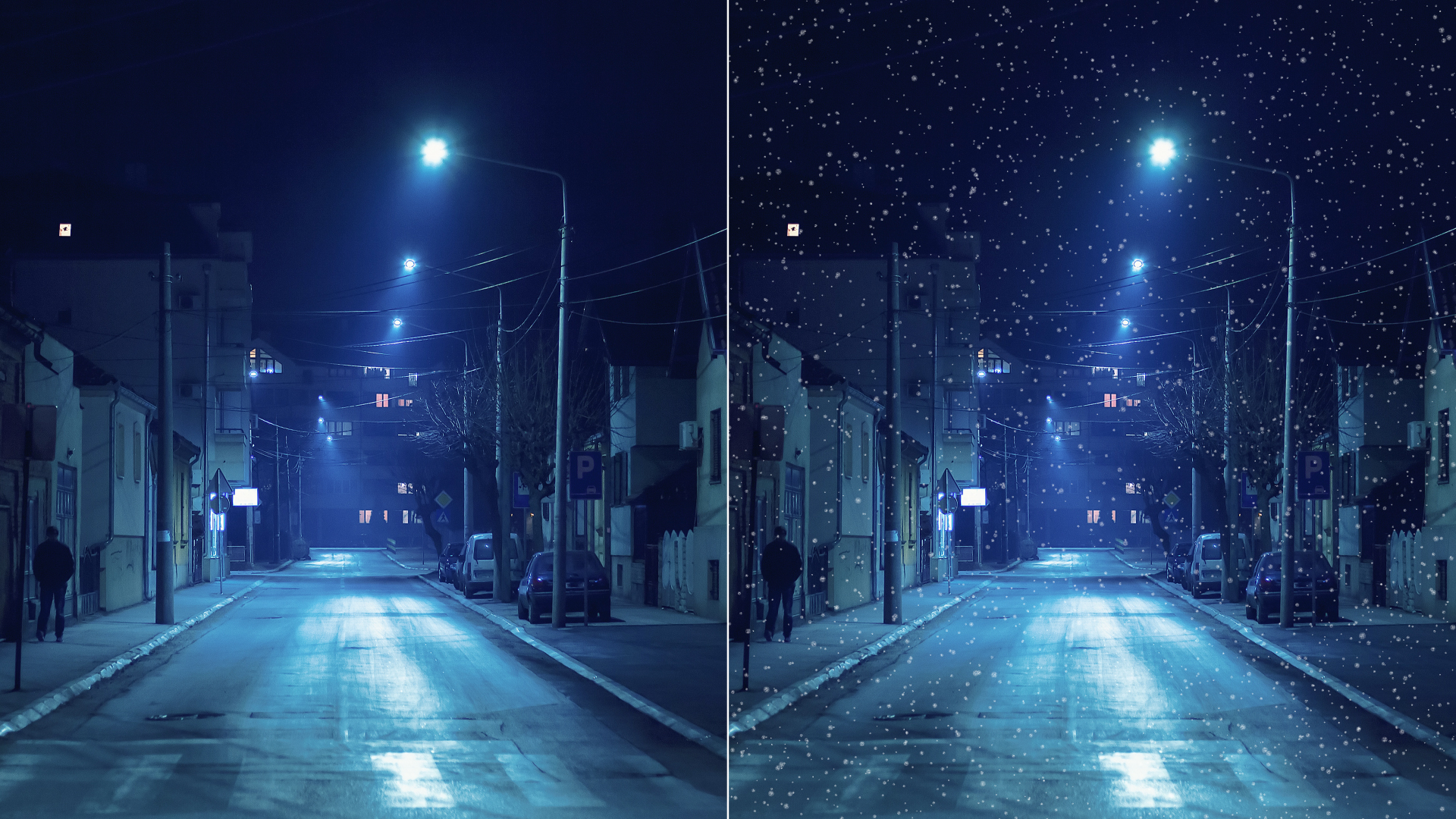
The BCC Snow filter, part of the BCC Particles category, is an auto-animated snow generator which can composite snow over a sky color or an image layer.
Working with the Filter
Presets and Common Controls
- BCC filters come with a library of factory installed presets plus the ability to create your own custom presets and preview them with the BCC FX Browser™.
- BCC filters also include common controls that configure global effect preferences and other host-specific effect settings.
For more information about working with presets and other common controls, Click Here.
Effect Controls
Mocha Mask and Track
Continuum effects include integrated masking and matte tools that allow you to restrict the effect to specific regions of the image.
- Mocha masks: used to create custom spline masks. Mocha also includes Matte Assist ML and Matte Refine ML, which use machine learning to generate and track masks.
- Pixel Chooser: used to generate geometric shapes, gradients, or mattes based on channel, luma, or color-based selections. Additionally, an AI depth map generator, and an AI-powered face detection model allow for precise control of masks and mattes.
Note: Mocha can also be used to drive geometric parameters. See the Mocha Motion Tracker documentation for details.
For more information, see Mocha and Pixel Chooser.
- Snow Amount: Determines the density of the flakes in the effect. Increasing Snow Amount creates more flakes, and decreasing Snow Amount creates fewer flakes.
- Snow Angle: Sets the angle between the flakes’ direction of motion and the vertical axis.
- Snow Speed: Determines the speed of the flakes as they move across the screen. Increasing this value makes the flakes move faster, while decreasing this value makes the flakes move slower.
- Snow Depth: Controls the apparent depth of the effect.
- Composite on Alpha: When enabled, the snow will be composited over a transparent background.
- Pan XY: Sets the perspective view of the effect. Move this point to change the position of the viewer’s eye in relation to the effect.
- Composite Layer: Selects the layer in the timeline to use as the background of the effect. The default setting, None, composites the Snow over a transparent background, revealing the layer below the filtered layer in the timeline.
- Composite Depth: Sets the apparent depth of the chosen composite layer. Increasing values move the composite layer closer to the viewer, while decreasing values move the layer farther from the viewer. This setting has no affect if Composite Layer is set to None.
- Random Seed: Determines which value is input to the random number generator used by the effect.
Snowflakes Group
- Color: Sets the color of the snowflakes.
- Color Source Layer: Selects a composition layer to use as a source for snowflake colors.
- Size: Sets the size of the flakes. Higher values create larger flakes, while lower values create smaller flakes.
- Size Variance: Varies the size of the snowflakes. Increase this setting to create a wider range of flake sizes.
- Shape: Determines shape of the snowflakes and whether they appears as flakes, blurs, or sparkles.
- Characetr: Determines the appearance of the snowflakes. The appearance depends on the Shape menu setting.
- Flakes: Higher values produce more detailed snowflakes, while lower values produce more blurred snowflakes.
- Blurs: Increasing positive Character values softens the edges of the particles, while decreasing negative values creates harder edges.
- Sparkles: Increasing positive Character values lengthens the four points of the sparkles, while decreasing negative values shortens the points.
- Opacity: Sets the opacity of the snow. Higher values create more opaque snow, while lower values create more transparent flakes.
- Brightness Variance: Sets the range of possible brightness values among the snowflakes.
- Use End Color: When enabled, adds a second color to the effect.
- End Color: Sets the secondary color of the snowflake.
- End Color Source Layer: Selects a composition layer to use as a source for the snowflake end color.
- End Opacity: Sets the opacity of the end color for the snowflake.
- Midpoint Location: Sets the midpoint along the gradient between the start and end color values.
System Group
- Particle Lifespan: Determines how long each snowflake lasts before it disappears.
- Generation Width: Sets the width of the snow production region. Increasing this value spreads out the individual flakes, reducing the density of the effect. Decreasing this value places the flakes closer together, creating a denser effect.
- Tile Width: Sets the width of each individual flake image, which can be useful if tiling becomes noticeable in the output
- Speed Variance: Varies the speed of each snowflake. Increase this setting to create a wider range of snowflake speeds.
- Direction Variance: Varies the angle of motion of each snowflake. Increase this setting to create a wider range of flake directions.
- Amplitude: Sets the shape of the snowflakes’ paths as they leave the source point. At the default value of 0, the flakes follow a straight line. Positive values cause the flakes to follow a sinosoidal (sine wave) path. Negative values cause the flakes to follow a negative sinosoidal path, meaning that the wave dips before it peaks. The amplitude, or height, of the wave increases as the Amplitude value moves away from 0. More extreme Amplitude values produce increasingly erratic flake paths which make the effect appear more chaotic.
- Ampl. Variance: Sets the range of possible Amplitude settings among individual snowflakes. A high Amplitude Variance value produces a wider range of wave heights among the individual flake paths, creating greater a disparity between the highest and lowest waves. An Amplitude Variance of 0 ensures that all flake paths have the same Amplitude setting.
- Frequency: Sets the frequency of the sine wave, and therefore the number of waves that the flakes create over the course of their life span. A Frequency value of 0 produces no wave motion, so flakes travel in a straight line. More extreme Frequency values produce very wavy flake paths which make the effect appear more chaotic.
- Freq. Variance: Sets the range of Frequency settings among individual flakes in the effect. A high Frequency Variance produces a larger range of wave frequencies among the flake paths, creating a greater disparity between the fastest and slowest waves. A Frequency Variance of 0 ensures that all snowflake paths have the same Frequency setting.
- Stick to Layer: Selects a layer in the timeline to determine where the snow accumulates.
- Layer Use Channel: Selects which channel in the Stick to Layer is used to create the map. The choices are Alpha, Inv Alpha, Luma, Inv Luma, Red, Inv Red, Green, Inv Green, Blue, Inv Blue, Premult Luma, Premult Inv Luma. In the following examples, an alpha channel is used as an interaction layer.
- Pixel Chooser Interaction: Selects the Pixel Chooser mask for the Snow to interact with.
- None: Does not apply an interaction layer.
- Use PC Layer: Uses the PixelChooser settings to create an interaction layer.
- Use PC Layer Inverted: Inverts the PixelChooser settings to create an interaction layer.
- Use PC Layer and Pixel Choice: Uses the PixelChooser settings to create an interaction layer and also uses the PixelChooser settings to create a matte.
- Use PC Layer Inverted and Pixel Choice: Inverts the PixelChooser settings to create an interaction layer and also uses the PixelChooser settings to create a matte.
- Layer Mode: Determines how the filter uses intermediate values in the chosen channel in the Stick to Layer.
- Binary: Uses the chosen Layer Use Channel in the Splash on Layer, but treats each pixel as if its chosen channel is either fully on or fully off.
- Gradient: Uses the channel in the Splash on Layer as it is, preserving the full range of channel values.
- Fallthru Percent: Sets the probability that individual flakes will pass through edges in the interaction layer.
- Fallthru Maximum: Sets the maximum number of edges in the interaction layer a flake can fall past without sticking.
- Stick to Ground: When enabled, the snoflakes stop moving and begin to acumulate when they reache the chosen Ground Height.
- View Ground: Displays a grid showing the location of the ground.
- Ground Height: Sets the height of the ground. Increase Ground Height to move the ground down, or decrease this value to move the ground up.
Note: If the snow effect stops short of the bottom of the image in a frame, increase Particle Lifespan to extend the effect to the bottom of the screen.
Chaos Group
The Chaos parameters create a more random pattern of falling snow, which can help produce a more natural effect.
