

















BCC+ Harris Shutter
Category: BCC Art Looks
Effect Name: BCC+ Harris Shutter
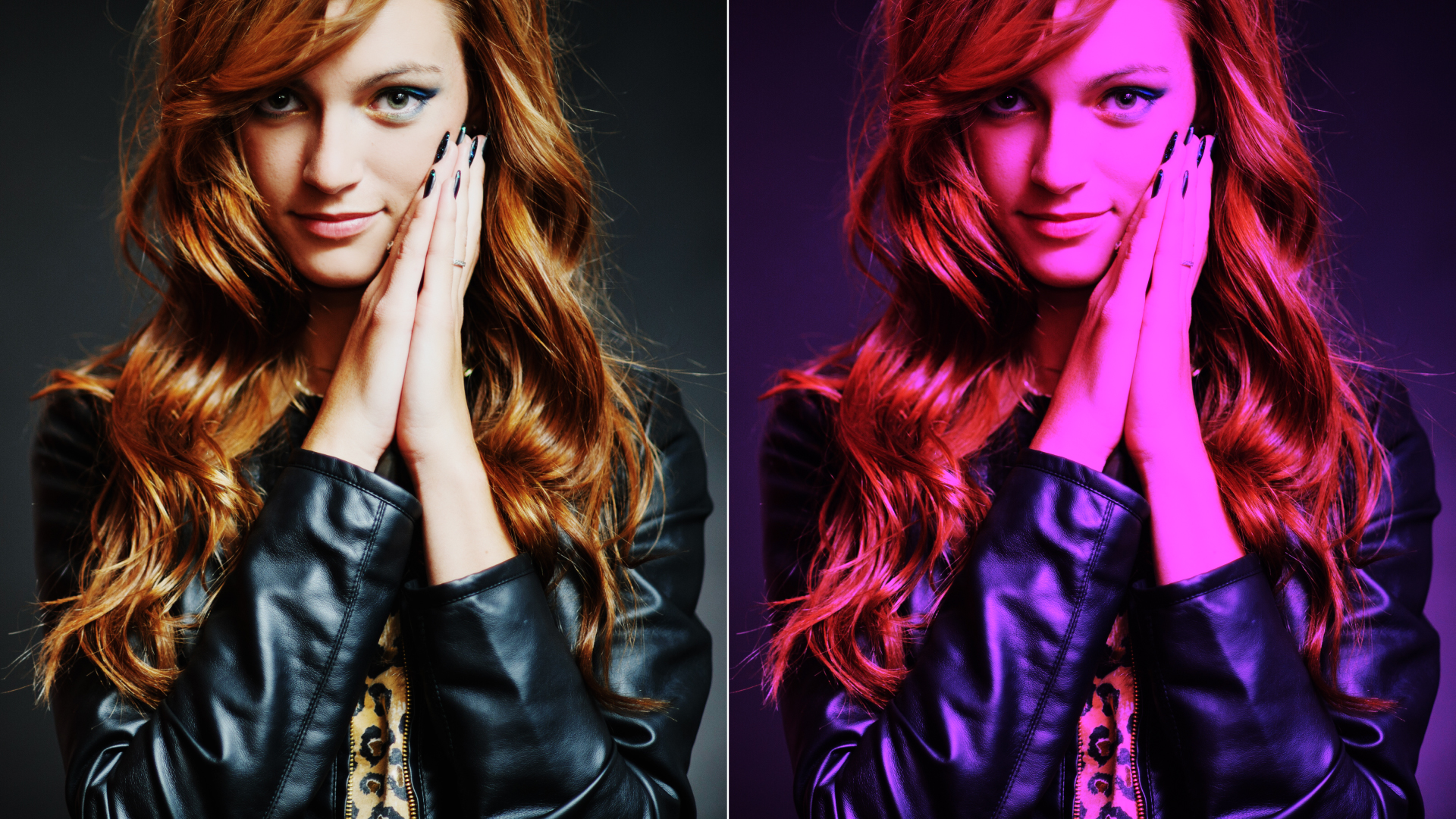
The BCC+ Harris Shutter filter, part of the BCC Art Looks category, uses separate images for the red, green and blue channels or offsets the individual channels of a sequence in time.
Invented by Robert S. “Bob” Harris of Kodak, the Harris Shutter was originally a strip device with three color filters used for making color photographs with the different primary color layers exposed in separate time intervals in succession. The same frame of film was re-exposed through red, green and blue filters in turn, while keeping the camera steady.
The Continuum filter version of the Harris Shutter can use separate images for the red, green and blue channels or offset the individual channels of a sequence in time. Offsetting the channels creates a rainbow of color around any object that moves within the frame. Some good candidates for subjects include waterfalls, clouds blowing over a landscape or people walking across a busy street.
Working with the Filter
FX Editor and Presets
- Use the FX Editor to load or save presets for reuse.
- To load a preset: Open the FX Editor, select a preset from the Presets panel, and click Apply to return to the host application.
- To save a custom preset: While in the FX Editor, click the Create Custom Preset icon in the parameter list, enter a preset name, and click Done. Additionally, a custom preset can be saved from the main menu bar by selecting File->Save Preset.
- To import custom presets from another drive: While in the FX Editor, select File->Import Preset from the main menu bar.
Effect Controls
Mocha Mask and Track
Continuum effects include integrated masking and matte tools that allow you to restrict the effect to specific regions of the image.
- Mocha masks: used to create custom spline masks. Mocha also includes Matte Assist ML and Matte Refine ML, which use machine learning to generate and track masks.
- Pixel Chooser: used to generate geometric shapes, gradients, or mattes based on channel, luma, or color-based selections. Additionally, an AI depth map generator, and an AI-powered face detection model allow for precise control of masks and mattes.
Note: Mocha can also be used to drive geometric parameters. See the Mocha Motion Tracker documentation for details.
For more information, see Mocha and Pixel Chooser.
Compare Mode
The Compare Mode is used to view the filtered result alongside the original source layer. Several split-screen and side-by-side display options are available.
For more information, see Compare Mode.
Beat Reactor
The Beat Reactor is an audio-driven animation system that links effect parameters to an audio track. This allows visual effects to react dynamically to sound without manual key-framing.
For more information, see Beat Reactor Documentation.
- View:
Allows you to set the viewer to display various color channels.
- Output: Shows the default look of the BCC Harris Shutter filter on the image and mixes all color channels.
- Red: Shows the red color channel only.
- Green: Shows the green color channel only.
- Blue: Shows the blue color channel only.
- Source:
Sets the source image to be used as the Red, Green and Blue channels. If an image is not assigned using Source, the original image’s color channel will be used. Depending on your host, different workflows may be needed:
- After Effects: Select the layer from the Red, Green, and Blue > Source selector.
- Premiere Pro: Select the track from the Red, Green, and Blue > Source selector.
- Final Cut Pro X: Click the drop zone to the right of the Red, Green, or Blue > Source parameter, choose a clip, and press Apply Clip below the Viewer.
- Avid Editing Systems: Place the source clips on a track below the clip you applied Harris Shutter to. Source 1, Source 2, and Source 3 are numbered from top to bottom where Source 1 is the first track below the one Harris Shutter is applied to.
- OFX Hosts: Assign the images to be used as the Red, Green, or Blue > Sources.
Note: The Red, Green and Blue source inputs are only available in OFX hosts that support auxiliary inputs. If auxiliary inputs are not supported, they will not be visible. Consult the host documentation for instructions on how to assign a source input as this will vary by host.
- Offset:Allows you to offset the frames used for the Red, Green and Blue channels.
- Amount:Controls how much of the Red, Green or Blue image is contributed to the composite image.
- Mix with Original: Blends the source and filtered images. Use this parameter to animate the effect from the unfiltered to the filtered image without adjusting other settings, or to reduce the effect of the filter by mixing it with the source image.
- Default: Uses product-wide default of 16 bit half-float GPU rendering.
- 16 Bit Float: Manually force 16 bit half-float GPU rendering.
- 32 Bit Float: Manually force 32 bit full-float GPU rendering.
- Disabled: Forces CPU rendering.
