

















BCC Spotlight
Category: BCC Lights
Effect Name: BCC Spotlight
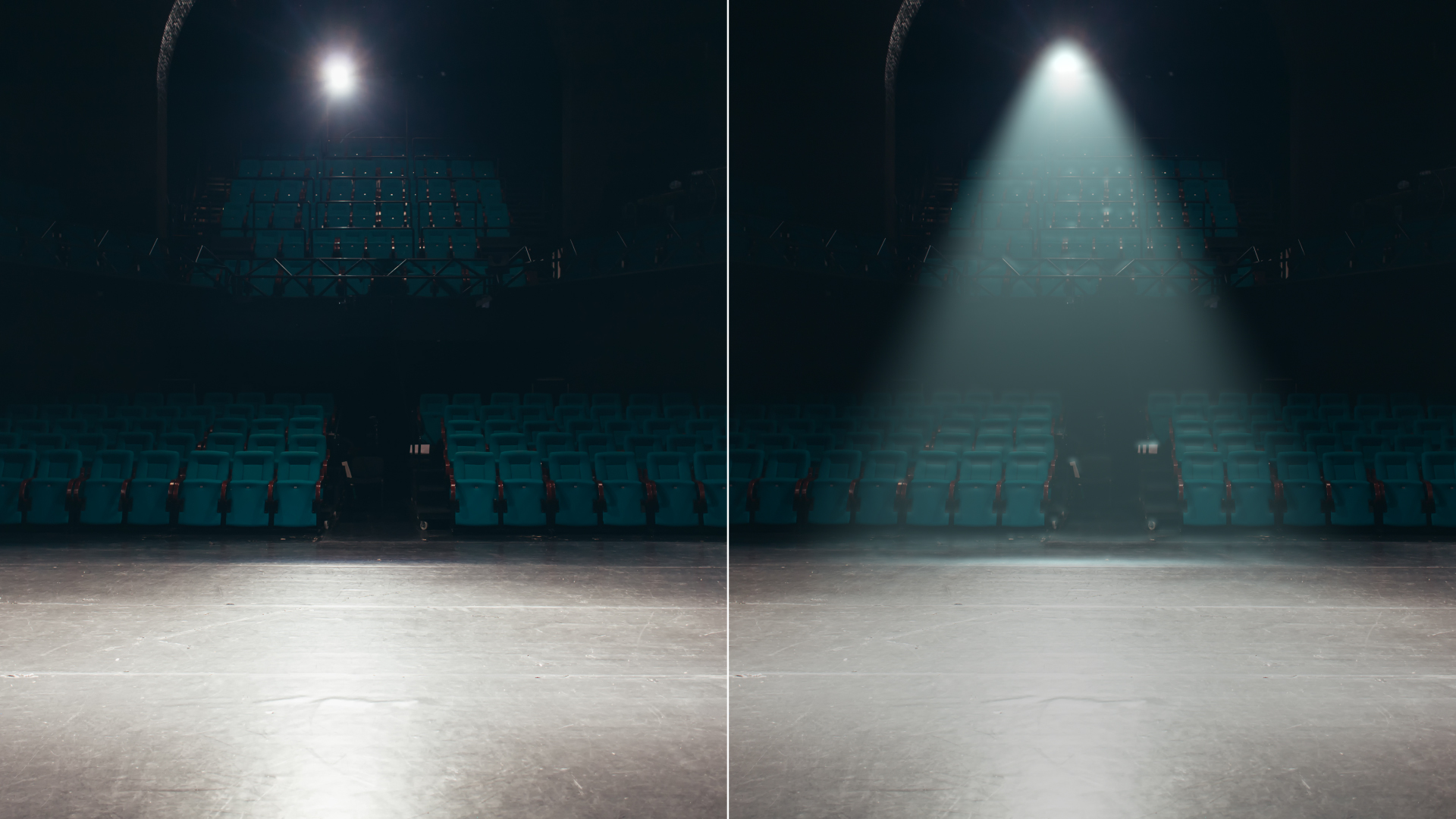
The BCC Spotlight filter, part of the BCC Lights category, generates a realistic spotlight that can be placed and aimed at a target point on the image using on-screen position points.
Working with the Filter
Presets and Common Controls
- BCC filters come with a library of factory installed presets plus the ability to create your own custom presets and preview them with the BCC FX Browser™.
- BCC filters also include common controls that configure global effect preferences and other host-specific effect settings.
For more information about working with presets and other common controls, Click Here.
Effect Controls
Mocha Mask and Track
Continuum effects include integrated masking and matte tools that allow you to restrict the effect to specific regions of the image.
- Mocha masks: used to create custom spline masks. Mocha also includes Matte Assist ML and Matte Refine ML, which use machine learning to generate and track masks.
- Pixel Chooser: used to generate geometric shapes, gradients, or mattes based on channel, luma, or color-based selections. Additionally, an AI depth map generator, and an AI-powered face detection model allow for precise control of masks and mattes.
Note: Mocha can also be used to drive geometric parameters. See the Mocha Motion Tracker documentation for details.
For more information, see Mocha and Pixel Chooser.
Beat Reactor
The Beat Reactor is an audio-driven animation system that links effect parameters to an audio track. This allows visual effects to react dynamically to sound without manual key-framing.
For more information, see Beat Reactor Documentation.
Motion Tracker
The BCC Motion Tracker allows you to track the motion of an object, then use the motion path to drive other geometric properties of the effect without the need for keyframing.
For more information on the Motion Tracker, Click Here.
- Light Source: Sets the point coordinates of light source along the horizontal and vertical axes.
- Target: Sets the point on the image plane at which the spotlight is aimed.
- Displace Light: Displaces the light source and target point by the same amount.
- Light Elevation: Controls the height of the light source above the image plane. The lit area is either an ellipse or a hyperbola, depending on the angle at which the light strikes the image. The shape of the lit region is determined by the Light Elevation and the distance between the Near and Far Corner points. Reducing Light Elevation produces an increasingly stretched ellipse. Increasing Light Elevation produces an increasingly circular lit region.
- Light Cone Width: Sets the width of the cone that defines the edge of the light as it spreads from the light source in three dimensions.
- Intensity: Sets the intensity of the light.
- Light Color: Sets the color of the light.
- Ambient Light: Adjusts the total amount of diffuse light on the image. The default setting of 100 does not add or subtract ambient light from the source image. Decreasing this setting makes the image darker before the other light is applied. Ambient light illuminates or darkens the image evenly, and is unaffected by any other lighting parameters.
- Ambient Follow: Sets the ambient light to fall off in regions of the image that are lit by the applied light. Use Ambient Follow if you want the applied light’s color to completely replace the ambient light.
- Center Falloff: Controls the falloff in the center of the lit region. Increase Center Falloff to create a light that is brighter in the center than at the edges. Use a negative Center Falloff value to create a ring-shaped spotlight.
- Edge Falloff: Controls the softness of the edges of the lit region. Increase Edge Falloff to soften the transition between the lit and unlit regions.
Edges Group
The Edges control edge detection and edge lighting.
Warning: Edge detection is inherently a non-scalable process, because edges are found by comparing each pixel with its immediate neighbors. The appearance of the full- size rendered image can be quite different than a scaled preview, so you should preview at least a frame of your sequence that uses edge lighting at full size.
- Edges From: Determines which channel in the source is used to compute edges. Choose Alpha to light text, or to light a cutout image around the edges. Use Luma or an RGB channel to light the image based on the edges in the corresponding color channel.
- Edge Intensity: Sets the intensity of the edge light. If Edge Intensity is any value other than 0, the filter completes a directional edge detection on the source image. Edge points are then given additional light, which is scaled by the geometric controls in the general parameters.
- Edge Threshold: Determines how sensitive the filter is to differences between pixels when finding edges in the source image.
Warning: Edge Threshold is intended more for adjusting the look of the edges than for animation. Some images change dramatically when Edge Threshold is animated.
- Edge Pre Blur: Softens the image’s edges and reduces their intensity.
- Edge Post Blur: Softens the edge light after the edges are computed.
- Post Blur Quality: Determines the quality of the Post Blur.
- Pyramid: The fastest option and generally adequate. Produces a blur similar in quality to the Pyramid Blur filter.
- Pyramid Smoother: Produces a higher quality pyramid blur and slightly increases rendering times.
- Gaussian Low: Produces a Gaussian blur with lower quality and faster rendering.
- Gaussian Medium: Produces a Gaussian blur with moderate quality and rendering time.
- Gaussian High: Produces a higher quality Gaussian blur with increased rendering time.
- Gaussian Higher: Produces an even higher quality Gaussian blur with further increased rendering time.
- Gaussian Highest: Produces the highest quality Gaussian blur with the longest rendering time.
- View Edges Only: When enabled, displays the edges created by the filter in black and white.
- Edge Color: Sets the edge light color.
- Edge Color Mode: Determines the interaction between the Edge Color and the Light Color.
- Ignore: The Light Color overrides the Edge Color.
- Mix: The Edge Light Color is mixed with the Light Color.
- Prefer: The Light Color fades away where the Edge Color is intense.
Common Group
The Common parameters offer more options for adjusting the filter. Use these parameters to control the mixing of ambient and applied light and/or to create gel or matte effects.
- Apply Mode: Determines how the filter composites the applied light with the image. For descriptions of all the possible Apply Modes, Click Here.
- Apply Mix: Controls the mix of the specified Apply Mode with the Normal apply mode. If the Apply Mode is Normal, Apply Mix has no affect. If Apply Mix is 0, Apply Mode has no affect. Increase Apply Mix to blend the Apply Mode setting with the Normal apply mode.
- Shadow Transparent: When enabled unlit regions of the image are transparen.
- Gel-Matte Layer: selects any layer in the composition to use as either a gel or a matte.
- Gel-Matte: determines how the Gel-Matte layer is used.
- Gel and Matte: Uses the Gel-Matte layer for color information to create either a gel or a matte.
- Luma Gel and Luma Matte: Scales down the applied light by the luminance values in the Gel-Matte layer. Luma Gel is not available in the Light Sweep filter.
- None: No gel or matte is used.
- Best Quality Gel: Improves the quality of the spotlight when using a gel, particularly if the spotlight moves, but increases render and preview time. Deselecting this option improves speed, and the resulting image quality is often adequate.
- Light Apply Layer: Selects a layer in the composition to which the light is applied. This enables the application of multiple lights to a layer with low ambient light.
