

















BCC Organic Strands
Category: BCC Particles
Effect Name: BCC Organic Strands
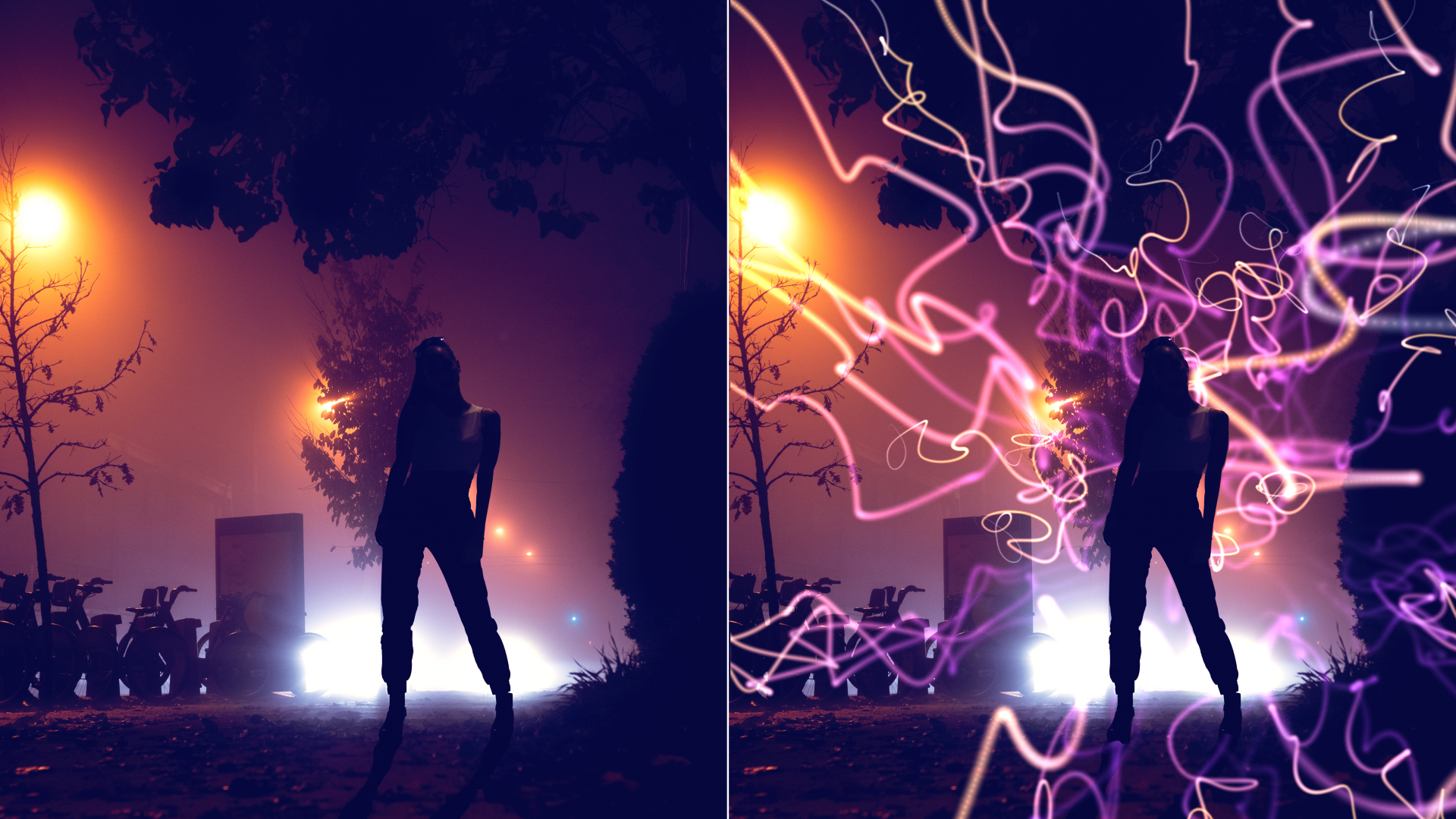
The BCC Organic Strands filter, part of the BCC Particles category, is a particle-based effect used to generate 3D strands.
Working with the Filter
Presets and Common Controls
- BCC filters come with a library of factory installed presets plus the ability to create your own custom presets and preview them with the BCC FX Browser™.
- BCC filters also include common controls that configure global effect preferences and other host-specific effect settings.
For more information about working with presets and other common controls, Click Here.
Effect Controls
Beat Reactor
The Beat Reactor is an audio-driven animation system that links effect parameters to an audio track. This allows visual effects to react dynamically to sound without manual key-framing.
For more information, see Beat Reactor Documentation.
Render Group
- Anti-Aliasing: Anti-Aliasing is a smoothing process that applies to 3D and alpha edges in the effect if they appear jagged. Anti-Aliasing can slow down the responsiveness of working with the effect and so by design the plugin will not apply any Anti-Aliasing when the layer the effect is applied to is set to Draft mode. Also, using a higher AA setting will result in a somewhat slower render than using a lower AA setting so AA should only be set as high as is visually necessary to smooth the effect.
- Opacity Boost: Adjust the opacity of the particles. It can be useful used in relation to other parameters creating varied opacity such as Motion Blur, Opacity Evolution, Random Opacity, etc.
- Use Source As Mask: Uses the alpha channel of the layer to which the effect is applied to mask the output of the effect.
- Use Particle Intersection: Allows particles to intersect with each other. This render mode can be useful for some kinds of effects but does not support particle images with transparency well.
- Motion Blur: Motion Blur offers various levels of motion blur to simulate camera shutter blur based on movement of the particles or camera
- Shutter Angle: Determines the spread of the motion blur when it is enabled
- Depth of Field Blur: Determines the amount the amount of blur in front and behind the focus of the camera.
- Use Comp Camera: When enabled, the filter will display the Cards from the perspective of the enabled AE camera whose track is topmost in the timeline. When Use Comp Camera is enabled, the Built-In Camera group is disabled.
Strands Group
- Count: Determines the number of strands.
- Direction: Determines the general direction the strands extend away from the source.
- Spread: Sets the angle spread for the strands.
- Length: Determines the length of the strands.
- Length Variance: Adds variability to the length between strands.
- Thickness: Determines the thickness of the strands by using larger particles to make up the strand.
- Thickness Variance: Adds variability to the thickness between strands.
- Taper: Adds variability to the thickness along the strands.
- Taper Graph: Manually adds variability to the thickness along the strands. The left edge of the graph represents the beginning of the strand (nearest the source) and the right edge the far end of the strand (away from the source).
- Opacity Graph: Manually adds variability to the opacity along the strands. The left edge of the graph represents the beginning of the strand (nearest the source) and the right edge the far end of the strand (away from the source).
- Density: Determines the density of particles making up the strand.
- Maintain Density: Attempts to maintain more uniform density when the strands are being stretched by the Organic Noise pattern.
- Density Graph: Manually adds variability to the density of the strands. The left edge of the graph represents the beginning of the strand (nearest the source) and the right edge the far end of the strand (away from the source).
- Color: Determines how color is applied to the particles.
- Gradient: The BCC Gradient group enables complex, multi-color gradients for use in a variety of effect settings such as colorizing light sources. For more information on the BCC Gradient tool, Click Here.
- Color Layer: Selects a color from the AE Comp layer.
- Gravity: Sets a gravitational force that will pull the strands down (positive Gravity number) or up (negative number) behaving as if the strands are attached to the source shape.
Source Group
- Shape: Determines shape of the source the organic strands originate from.
- Follow: Determines whether the source follows an AE 3D layer, an AE Mask or the Pos XYZ parameters
- Layer: Selects a layer to use as the source.
- Layer Map Mode: Determines how the layer map is handled.
- Alpha or Luma (Layer Mode): Strands originate from areas where pixels are white (Luma) or opaque (Alpha).
- Follow 3D Layer: Requires the selected After Effects layer to be a 3D layer for the feature to function.
- Scale Master: Sets the scale of the source shape.
- Scale X: Sets the scale of the source shape along the horizontal axis.
- Scale Y: Sets the scale of the source shape along the vertical axis.
- Scale Z: Sets the scale of the source shape along the z axis.
- Source Noise Suppression: allows for suppressing the effects of the Organic Noise on the source end of the strands
Destination Group
- Use Destination Point: When enabled a point in 3D space is defined as the destination point for the strands.
- Dest Pos XY: Sets the destination point position along the horizontal and vertical axes.
- Dest Pos Z: Sets the destination point position along the z axis.
- Strength and Pull: Adjusts the animation on the effects of the destination point on the strands.
- Destination Noise Suppression: Suppresses the effects of the Organic Noise on the destination end of the strands.
Organic Noise Group
- Random Bend, Bend X, Y, and Z: Determines the Amplitude of the Noise pattern that bends the strands
- Thickness Noise and Opacity Noise: Allows for applying the organic noise pattern to the thickness and opacity along the strands
- Noise Frequency, Frequency X, Y, and Z: Determines the frequency of the noise pattern with separate control for each axis
- Auto Evolve Speed: Sets the speed of the auto animation of the noise pattern – set to zero to turn off auto animation
- Auto Loop: Sets the number of seconds at which the noise pattern animation will seemlessly loop
- Evolve X, Y, and Z: Offsets for the noise pattern animation – can be used to manually animate noise
- Individual Particle Noise: When enabled, each strand uses its own noise pattern rather than sharing a noise pattern, which results in an appearance that looks less like waves and more random.
- Noise Character: Determines the type of noise pattern.
Movement Group
- Move Progress: Moves the strand in relation to the source (along the strand direction).
- Move Random %: Offset the movement between strands.
- Loop at Distance: Sets the number of strand lengths at which the movement will loop back to the source.
- Auto Move and Move Speed: Applies auto-animation to the Move Progress.
Transform Group
- Global Scale: Sets the scale of the strand effect, including the scale of the individual strands and particles
- Center X, Y , and Z: Sets the position of the strands along the horizontal, vertical and Z axes.
- Rotate X, Y, Z: Rotates the strands along the horizontal, vertical and Z axes.
Particles Group
- Images: Determines the source for the particles that are used to make up the strands.
- Image Layer and Layer Mode: When using a Host Layer image, these parameters allow you to select the layer and to determine which aspects of the image are used in the particles that make up the strands.
- Blurriness: Determines the softness of the Blurs when using that image type.
- Opacity: Sets the opacity of the particles in the strands.
- Transfer Mode and Transfer Composite Mix: Determines the transfer mode used to composite between the particles and strands and allows for mixing the result back to Normal transfer mode.
- Rotation, Bi-Directional Rotation, Rotation Random: Options for rotating the particles / strands (effects not noticeable when using round particles such as Blurs).
Effects Group
- Mirror Mode: Determines the style of reflection to create symmetrical patterns.
- Disperse Master, Disperse X, Y , and Z: Disperses the particles from their original locations based on a random algorithm – a master control and control for dispersion along the individual 3D axes.
- Disperse Variance: Sets the range of random dispersion between the particles.
- Disperse Relative to World: Determines if the particles are disbursed relative to the world or camera.
- Use Dispersion Graph: Toggles the Dispersion Graph controls.
- Dispersion Graph: Varies the dispersion of the particles along the strands. The left edge of the graph represents the beginning of the strand (nearest the source) and the right edge, the far end of the strand.
- View Sphere Warpers: Displays the two spherical fields that can be used to attract or repel the strand particles.
- SW Strength: Sets the strength of the attraction (negative values) or repulsion force (positive values).
- SW Pos XYZ: Sets the 3D position of sphere warper.
- SW Radius: Sets the size of the sphere warper.
- SW Feather: Allows for the influence of the sphere warper to be stronger toward the center of the spherical field.
Built-in Camera Group
- Camera Model: Determines the style of the camera used in the effect.
- Position: Camera has 3D position and orientation controls.
- Orbit: Camera perspective can be adjusted while remainingf focued on the 3D center.
- Field of View: Used to simulate the look of various lenses – a large value creates a wide angle look.
- Cam Pos XY: Sets the camera position along the horizontal and vertical axes.
- Cam Pos Z: Sets the camera position along the Z axis.
- Cam Tumble: Tumbles the camera along the horizontal axis.
- Cam Spin: Spins the camera along the vertical axis.
- Cam Rotate: Rotates the camera along the z axis.
- Cam Rotation Order: Determines the order of rotation.
- Use Depth of Field: Toggles depth of field controls.
- Focus Distance: Sets the focal distance.
- Aperature: Sets the aperature.
- Blur: Sets the intensity of the motion blur.
Global Settings Group
- Random Seed: There are several features in the plugin that use some kind of randomization to generate results (Organic Noise, Length and Thickness Variance, etc.). Changing the Random Seed tweaks the random algorithms to produce a somewhat different result. It can be used to simply try a few different takes on an effect and it can also be used when you want another instance of the effect to look the same but not identical give it a different Random Seed value.
- Near and Far Clip Plane Adjust: It is possible to trim or extend the range in which particles will appear in the effect. In most cases there is no need to adjust these parameters, but if you find a particle very near or far from the camera unexpectedly disappearing it is possible to use these parameters to correct it.
- Alpha Cutoff %: Determines what alpha value is equivalent to zero for the particle renderer.
- Z-Sorting Mode: Defaults to true 3D, with options for sorting by birth order.
- Accessing Image Layers: Determines whether (and how) an animated Image Layer used as a particle will loop when the end is reached.
