

















BCC+ Wide Angle Lens
Category: BCC Lens
Effect Name: BCC+ Wide Angle Lens
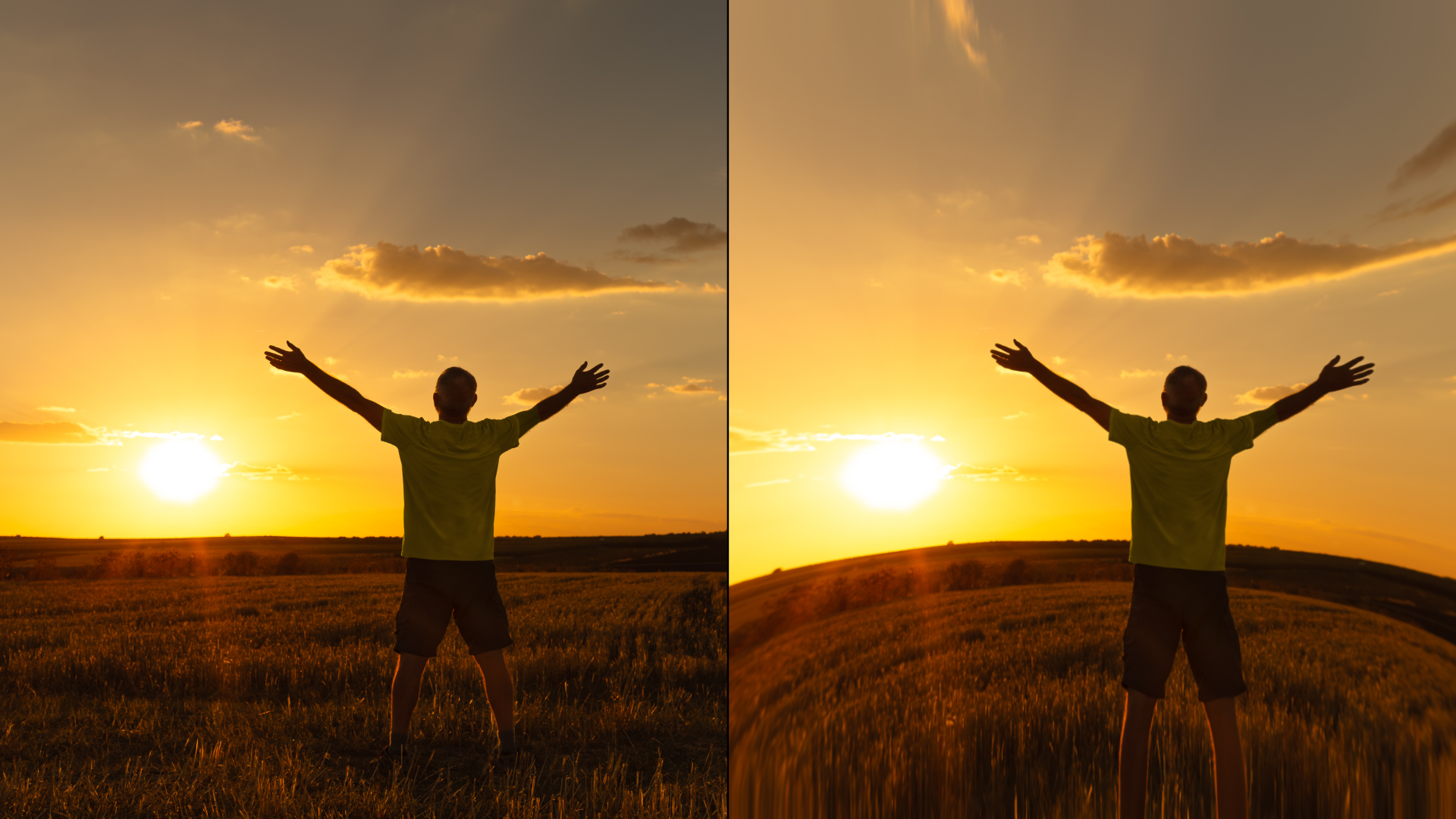
The BCC+ Wide Angle Lens filter, part of the BCC Lens category, quickly simulates the look of a wide angle lens by adding controlled distortion to the image. Use it to exaggerate perspective, add edge stretch, or create an ultra-wide feel without changing your camera lens.
Working with the Filter
FX Editor and Presets
- Use the FX Editor to load or save presets for reuse.
- To load a preset: Open the FX Editor, select a preset from the Presets panel, and click Apply to return to the host application.
- To save a custom preset: While in the FX Editor, click the Create Custom Preset icon in the parameter list, enter a preset name, and click Done. Additionally, a custom preset can be saved from the main menu bar by selecting File->Save Preset.
- To import custom presets from another drive: While in the FX Editor, select File->Import Preset from the main menu bar.
Effect Controls
Compare Mode
The Compare Mode is used to view the filtered result alongside the original source layer. Several split-screen and side-by-side display options are available.
For more information, see Compare Mode.
Beat Reactor
The Beat Reactor is an audio-driven animation system that links effect parameters to an audio track. This allows visual effects to react dynamically to sound without manual key-framing.
For more information, see Beat Reactor Documentation.
- Distortion: Pulls the corners of the image outward to create the wide angle look.
- X and Y Correction: Compensate for deformation introduced by the Distortion control. Use these to refine the overall shape after increasing distortion.
Tip: After dialing in the wide angle feel with Distortion, use X and Y Correction to keep subjects from looking overly stretched or warped.
- Transparent: Makes the edges of the result transparent.
- Repeat: Extends edge pixels outward to create opaque edges. (Default)
- Reflect: Mirrors edge pixels back into the image.
- Wrap: Wraps the edge pixels to create opaque edges.
- Default: Uses product-wide default of 16 bit half-float GPU rendering.
- 16 Bit Float: Manually force 16 bit half-float GPU rendering.
- 32 Bit Float: Manually force 32 bit full-float GPU rendering.
- Disabled: Forces CPU rendering.
