

















BCC Bump Map
Category: BCC Art Looks
Effect Name: BCC Bump Map
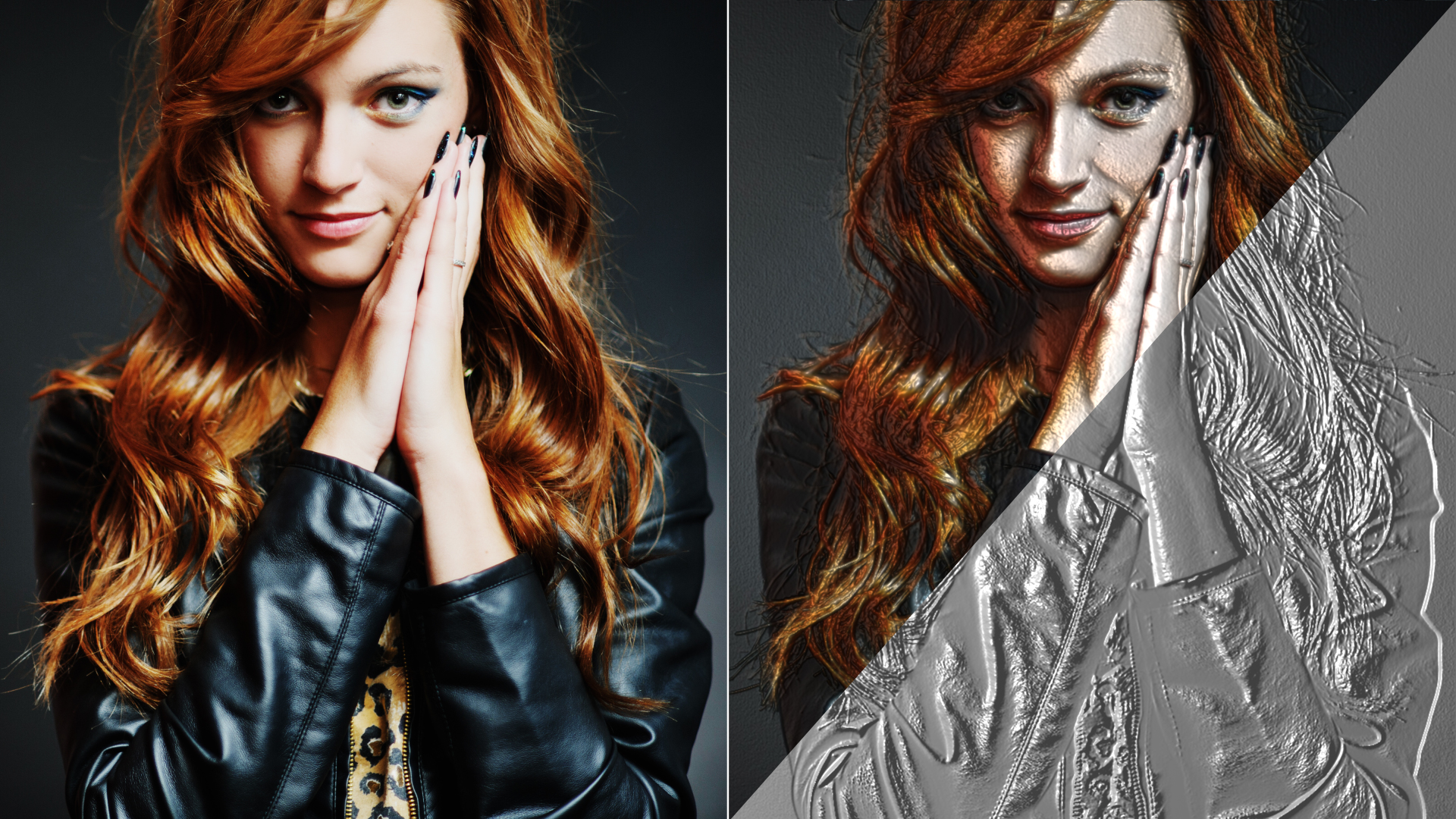
The BCC Bump Map filter, part of the BCC Art Looks category, is used to create three dimensional detail on an image based on the luminance information in the image. The luminance value of each pixel of the image creates height, with brighter pixels creating more height.
Working with the Filter
Presets and Common Controls
- BCC filters come with a library of factory installed presets plus the ability to create your own custom presets and preview them with the BCC FX Browser™.
- BCC filters also include common controls that configure global effect preferences and other host-specific effect settings.
For more information about working with presets and other common controls, Click Here.
Control Group
- Offset XY:Determines the position of the generated bump map.
- Rotation:Spins the bump map around the Z axis.
- Use Alpha:Select this checkbox to use the source image’s alpha channel as a mask for the filter, so the texture appears only in the opaque regions of the source. If this option is deselected, the source image’s alpha channel is ignored.
- Bump Height:Determines the height of the bump map used to create the texture.
- Bump Smoothness:Adjusts the amount of blur applied to the bump map. Higher values produce more blur, which tends to reduce the amount of detail and noise in the filtered image.
- Tiling Style:
Lets you repeat the texture. This menu has no affect unless the Scale X and Scale Y values are less than 100.
- Symmetric: Tiles the images.
- Repeating: Mirrors the tiled images.
- Scale X / Scale Y:Determine the horizontal and vertical size of the texture. Select Lock to Scale X to lock the Scale Y value to the Scale X value, or deselect this option to adjust each parameter independently.
Lighting Group
- Light Type:
Determines the type of light source.
- Point: Combines both focused (specular) and diffuse light.
- Distance: Creates a non-directional infinitely distant diffuse light.
- Spot: Creates the look of a traditional theatrical spotlight.
- Light XY:Positions the light source parallel to the image plane along the X and Y axes.
- Light Z:Positions the depth of the light source relative to the image plane.
- Light Intensity:Controls the intensity of the light.
- Light Color:Determines the color of the light.
- Spot XY:Sets the X and Y coordinates for the point at which the spotlight is aimed.
- Spotlight Angle:Sets the angle of the light.
- Spotlight Falloff:Controls the relative softness of the edges of the lit region.
- Use Texture Color:Select this checkbox to use the color values from the underlying track. Deselect to use luminance values only.
- White in Specular:Increases the amount of white in the specular light.
- Ambient Intensity:Adjusts the total amount of diffuse light on the image.
- Diffuse Intensity:Determines the amount of non-directional diffuse light applied.
- Specular Intensity:Simulates lighting a glossy surface from a point source.
- Shininess:Controls the rate at which the Specular light falls off from the center of the lit region.
Surface Image Group
- Image Layer:Allows you to choose a layer to use as the background of the effect. When set to None, the other parameters have no affect.
- Position XY:Determines the position of the selected Image Layer.
- Scale X / Scale Y:Determines the horizontal and vertical scale of the selected Image Layer. Select Lock to Scale X to link both values.
- Image Rotation:Spins the selected Image Layer around the Z axis.
- Image Opacity:Sets the opacity of the selected Image Layer.
Apply Group
- Source Alpha:Select this checkbox to use the source alpha channel as a mask for the filter, so the texture appears only in the opaque regions of the source. If deselected, the source image’s alpha channel is ignored.
- Opacity:Adjusts the opacity of the simulated texture.
- Apply Mode:Controls how the texture is composited over the source image. For descriptions of all the possible Apply Modes, Click Here.
- Apply Mix:Controls the mix of the specified Apply Mode with the Normal apply mode. If the Apply Mode is Normal, Apply Mix has no affect. If Apply Mix is 0, Apply Mode has no affect. Increase Apply Mix to blend the Apply Mode setting with the Normal apply mode.
