

















BCC Burnt Film
Category: BCC Transitions
Effect Name: BCC Burnt Film
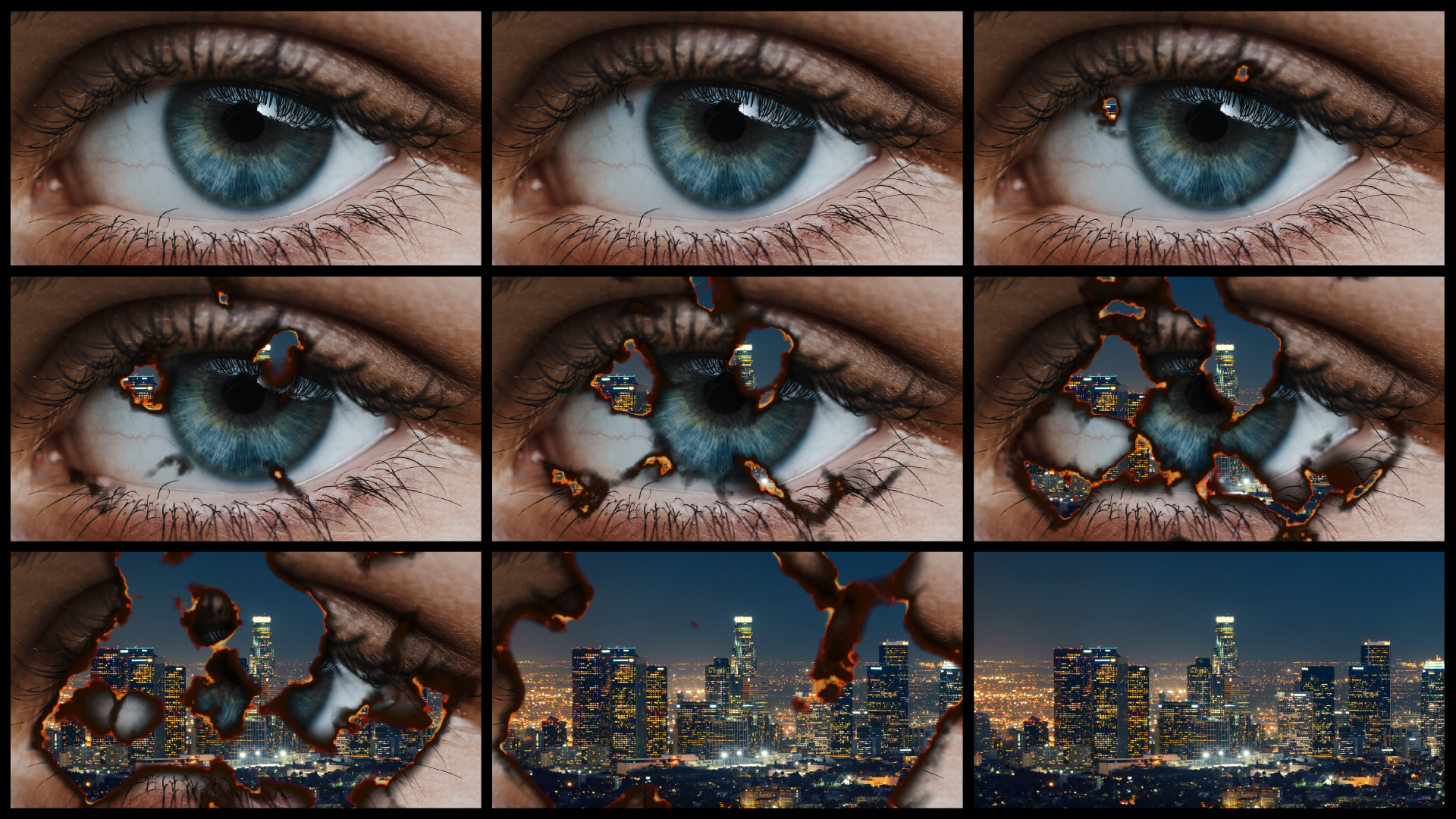
The BCC Burnt Film filter, part of the BCC Transitions group, simulates the look of holes burning through a layer of film to reveal another image. This filter provides control over the appearance of the burned edges and the burn rate, and allows you to use a custom alpha matte to set the shape of the burn holes.
Working with the Filter
Presets and Common Controls
- BCC filters come with a library of factory installed presets plus the ability to create your own custom presets and preview them with the BCC FX Browser™.
- BCC filters also include common controls that configure global effect preferences and other host-specific effect settings.
For more information about working with presets and other common controls, Click Here.
- Animation: Menu controlling what drives the animation of the transition.
- Auto: Automatically generates a transition based on the transition length (when used as a transition) or the clip length (when used as a filter.)
- Percent Done: Requires the user to set keyframes to control the transition progression.
- Percent Done: When the Animation menu is changed to Percent Done then this slider can be manually keyframed to control the transition progression.
- Reverse Effect: Flips the progression of the animation over the course of the transition so that regions which would have been the first to be wiped off are now the last to be wiped off and vice versa.
- Layer to Reveal: This layer selection popup is not relevant when you have applied the filter as a true NLE-style transition and it will be hidden or disabled in that context. When applied as a normal “effect” as opposed to a transition, however, this menu is used to select the Incoming or Reveal layer for the transition.
- Burn Amount: Sets the amount of burn applied to the source image.
- Burn Color: Sets the color of the burnt edges.
- Flare Color: Sets the color of the inside edges of the burn holes. These edges are partially transparent.
- Char Color: Sets the color of the “charred” edges—that is, the outside edges of the burn holes. These edges have not yet burned through, and are completely opaque.
- Burn Layer: If a layer is selected the region occupied by the solid Burn Color will be replaced by the contents of this alternate texture instead which can allow applying interesting alternate textures when this filter is applied in a way that permits access to alternate source layers.
- Flare Layer: If a layer is selected the region occupied by the solid Flare Color will be replaced by the contents of this alternate texture instead which can allow applying interesting alternate textures when this filter is applied in a way that permits access to alternate source layers.
- Char Layer: If a layer is selected the region occupied by the solid Char Color will be replaced by the contents of this alternate texture instead which can allow applying interesting alternate textures when this filter is applied in a way that permits access to alternate source layers.
- Flare Amount: Sets the width of the inside edges of the burn holes.
- Char Amount: Sets the width of the “charred” edges.
- Position: Determines the pattern of the burn holes at a given point by moving through the procedural noise from which the effect is generated.
- Lock to Scale X: Locks the Y Scale value to the X Scale setting and preserves the aspect ratio of the burn pattern. When this option is selected, adjusting Y Scale has no affect. Deselect this option to adjust the X and Y Scale values independently.
- Scale X: Determines the scale of the burn pattern along the horizontal axis. Increasing this setting stretches the burn pattern out horizontally.
- Scale Y: Determines the scale of the burn pattern along the vertical axis. Increasing this setting stretches the burn pattern vertically.
- The Layer Function: menu determines how the effect uses the map layer.
- None: Ignores the map layer.
- Alpha Layer: Creates a burn pattern in the shape of the map layer’s alpha channel.
- Luma Gradient: Uses the map layer’s luma values to determine when burning occurs.
- The Map Layer: Selects the clip or layer to use as the map layer.
- Map Layer Level: Sets the degree to which the burn pattern conforms to the alpha channel in the map layer.
- Blend: Softens edges in the channel used as the map layer.
- Choke: Expands or tightens the opaque areas in the map layer’s alpha channel (or the black areas in the map layer’s luma channel), thereby altering the size of the burned area.
- Random Seed:Determines the ‘random’ pattern of burn generation.
- Shape:Determines the shape of the film burn.
- Ripple:Creates a ripple of burns on the film.
- Ease In: Controls how quickly or slowly the effect amount increases at the beginning of the transition.
- Ease Out: Controls how quickly or slowly the effect amount decreases at the end of the transition.
- View Ease Curve: (Only visible/enabled in hosts that don’t support heads up display widgets for manipulating these controls directly on screen.) Enable this control to display a preview graph of the the animation curves rendered into in the composite window.
