

















BCC Unsharp Mask
Category: BCC Blur
Effect Name: BCC Unsharp Mask
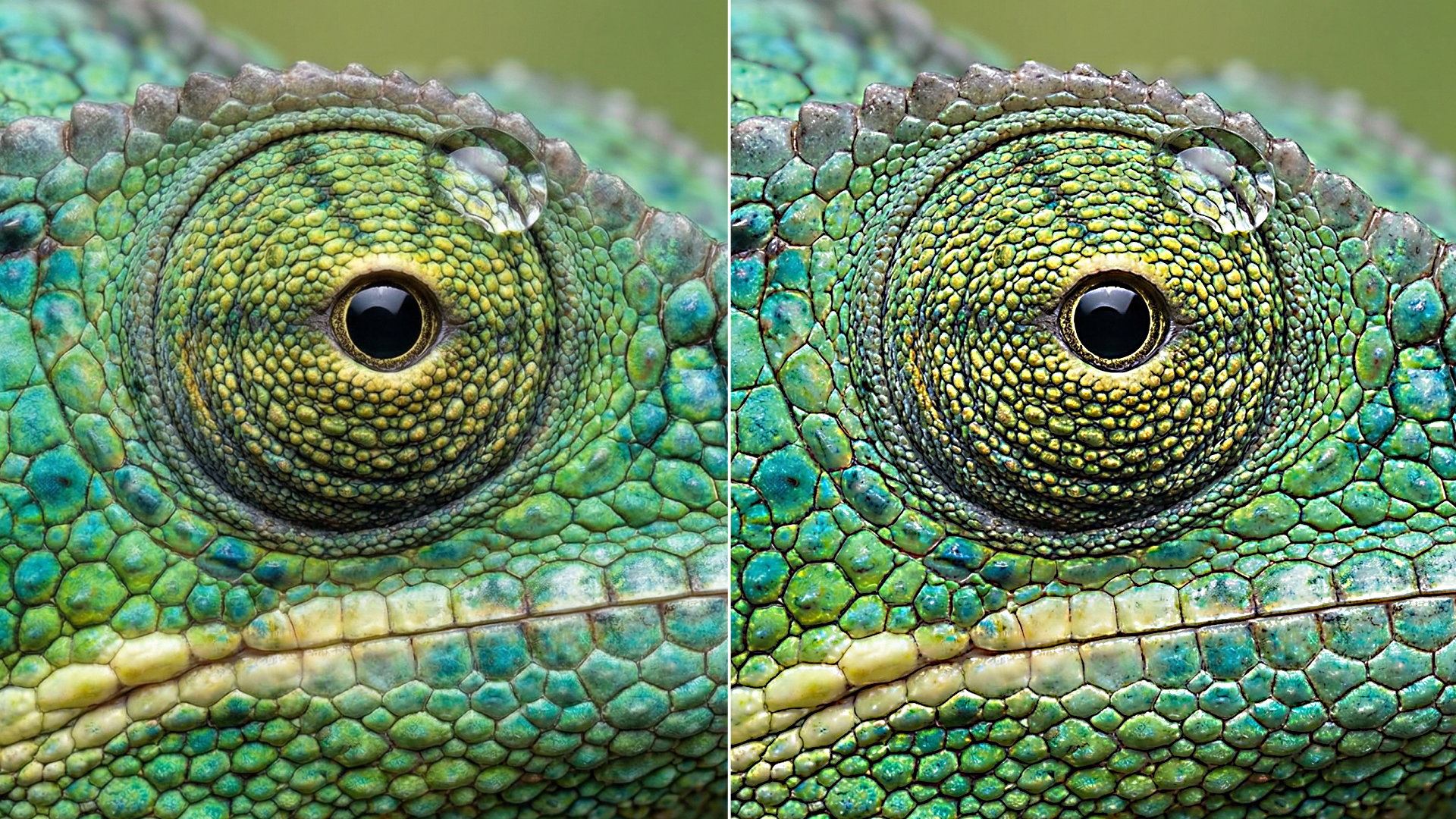
The BCC Unsharp Mask filter, part of the BCC blur category, uses a classic image sharpening technique similar to the method used to sharpen film images. The source image is blurred, and the blurred image is then subtracted from the source. The resulting image is sharper and has more contrast. Unsharp Mask sharpens areas in an image with significant color changes by adjusting the contrast of edge details to create the illusion of image sharpness. This filter is useful for refocusing an image that appears blurry due to scanning, poor lighting, or other factors.
Working with the Filter
Presets and Common Controls
- BCC filters come with a library of factory installed presets plus the ability to create your own custom presets and preview them with the BCC FX Browser™.
- BCC filters also include common controls that configure global effect preferences and other host-specific effect settings.
For more information about working with presets and other common controls, Click Here.
Effect Controls
Mocha Mask and Track
Continuum effects include integrated masking and matte tools that allow you to restrict the effect to specific regions of the image.
- Mocha masks: used to create custom spline masks. Mocha also includes Matte Assist ML and Matte Refine ML, which use machine learning to generate and track masks.
- Pixel Chooser: used to generate geometric shapes, gradients, or mattes based on channel, luma, or color-based selections. Additionally, an AI depth map generator, and an AI-powered face detection model allow for precise control of masks and mattes.
Note: Mocha can also be used to drive geometric parameters. See the Mocha Motion Tracker documentation for details.
For more information, see Mocha and Pixel Chooser.
Compare Mode
The Compare Mode is used to view the filtered result alongside the original source layer. Several split-screen and side-by-side display options are available.
For more information, see Compare Mode.
- Radius: Sets the radius of the intermediate blur that is subtracted in order to produce the sharpened image. Increasing the Radius of the blur sharpens the image to a greater degree and creates more contrast. Extreme settings can create artificial halos around image details.
- Amount: Controls the amount of blur applied to the image in the sharpening process. Increasing the Amount value increases sharpness.
- Threshold: Reduces the change in each pixel by a set value between 0 and 255. Pixels whose value would change by less than the threshold setting are not changed at all.
- Output Channels: The Output Channels menu specifies which channels are processed by the filter. You can blur all four channels (RGBA), just the RGB channels, just the Alpha channel, or any combination of the Red, Green, and Blue channels.
- Reduce Flicker:
Many hosts process media one field at a time which can cause flickering to occur on filtered effects. The Reduce Flicker menu allows you to reduce flicker in the rendered image. The only way to evaluate a deflicker setting is to render and play back the effect on an NTSC monitor. Choose from the following options in the Reduce Flicker menu.
- 1-2-1: mixes each pixel with the pixels above and below it, with the input pixel getting twice the weight as the ones above and below. For After Effects users, this works the same as applying the AE Reduce Flicker filter at a setting of 0.5.
- 2-3-2: provides more softening than 1-2-1.
- 1-1-1: provides the most softening for effects that still contain flicker with the above options.
- Off: is the default. If Off is chosen, no deflickering will be done.
- Mix with Original: Blends the source and filtered images. Use this parameter to animate the effect from the unfiltered to the filtered image without adjusting other settings, or to reduce the effect of the filter by mixing it with the source image.
