

















BCC Match Grain
Category: BCC Film Style
Effect Name: BCC Match Grain
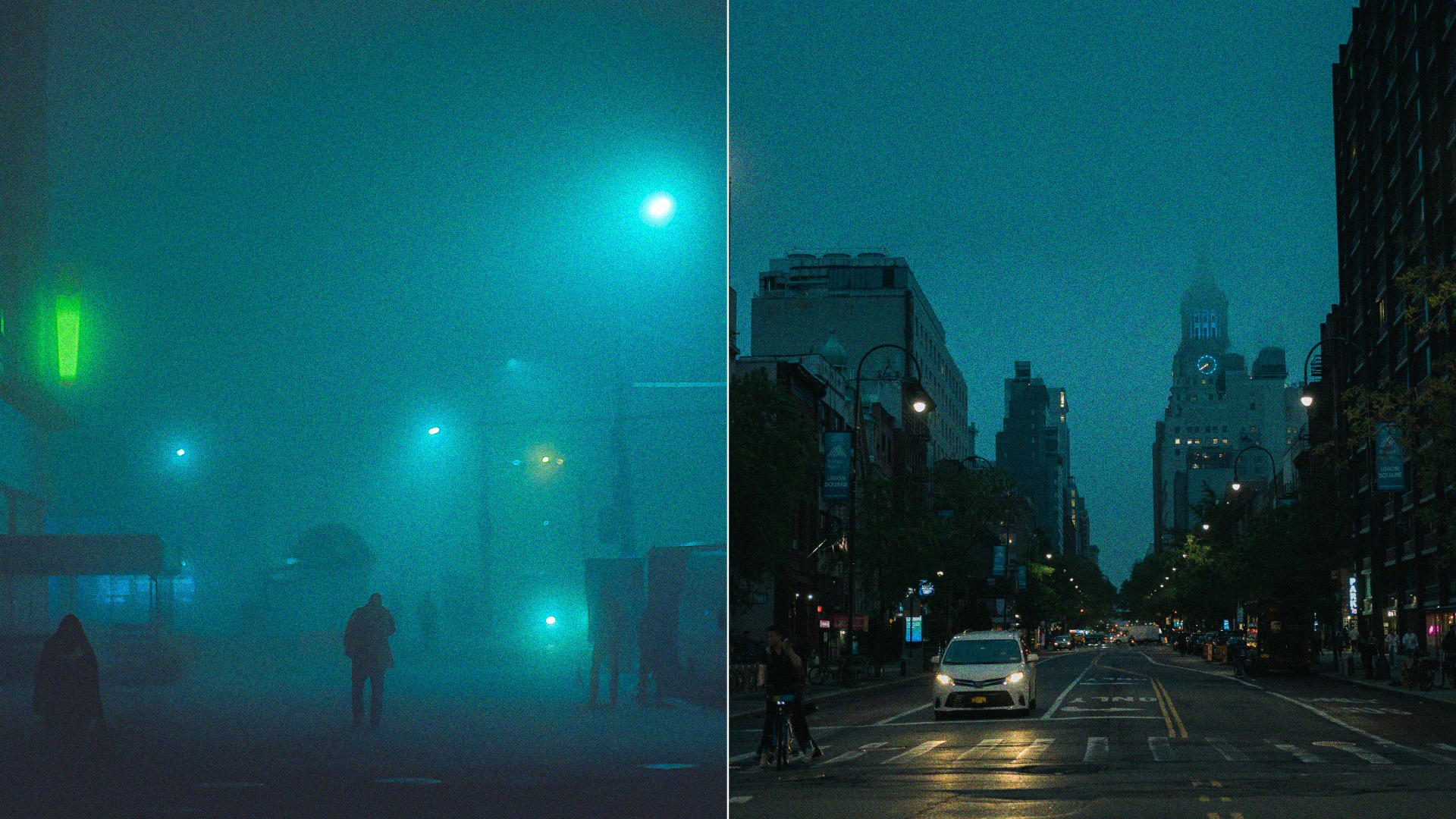
The BCC Match Grain filter, part of the BCC Film Style category, copies the grain signature from a source clip and applies it to a destination clip. This helps to create a more realistic composite. The grain that is sampled from the source clip can be stored and reused with the separate Grain Preset options.
Working with the Filter
Presets and Common Controls
- BCC filters come with a library of factory installed presets plus the ability to create your own custom presets and preview them with the BCC FX Browser™.
- BCC filters also include common controls that configure global effect preferences and other host-specific effect settings.
For more information about working with presets and other common controls, Click Here.
Effect Controls
Mocha Mask and Track
Continuum effects include integrated masking and matte tools that allow you to restrict the effect to specific regions of the image.
- Mocha masks: used to create custom spline masks. Mocha also includes Matte Assist ML and Matte Refine ML, which use machine learning to generate and track masks.
- Pixel Chooser: used to generate geometric shapes, gradients, or mattes based on channel, luma, or color-based selections. Additionally, an AI depth map generator, and an AI-powered face detection model allow for precise control of masks and mattes.
Note: Mocha can also be used to drive geometric parameters. See the Mocha Motion Tracker documentation for details.
For more information, see Mocha and Pixel Chooser.
Compare Mode
The Compare Mode is used to view the filtered result alongside the original source layer. Several split-screen and side-by-side display options are available.
For more information, see Compare Mode.
- Grain Presets Save and Load grain presets.
- View Sets the viewer to display different aspects of the filter.
- Final Output: This is the main result of the filter applied back over the input clip
- Sample Layer: Displays the Sample Layer in the timeline. You must assign a clip in the Sample Layer menu or the Composer window displays black.
- Generated Grain: Displays the grain that the filter will apply to the image.
- Grain Determines what type of grain is generated: Monochrome or RGB
- Match Contrast Generate grain with the same contrast as the source image.
- Grain Size Sets the size of the grain by adjusting the frequency spectrum of the grain. The default value of 100 is considered normal.
- Grain Filter Removes low frequencies from the grain sample. Lower numbers add a larger, more coarse grain structure (blotchy). Higher numbers produce a finer grain (smooth).
- Lock Sample Sets the filter to use the Sample Frame to create the grain, creating static grain. If this option is deselected, the grain structure starts at the Sample Frame and each successive frame is resampled from the clip, creating animating grain.
Sample Controls Group
- Sample Layer: Determines which clip in the timeline is used to sample generated grain.
- Sample Frame #: (AE, Premiere, Avid, or Vegas users only) Sets the frame from the Sample Layer that is used to create the grain.
- Sample Size: Sets the size of the sample area from which the grain is sampled.
- Sample Center: Sets the center point for the sample area on the X and Y axis.
- Random Seed: Sets the seed of the random number generator. Each frame is seeded with this value added to the frame time.
Note: Random Seed should only be adjusted when multiple Match Grain filters are used to generate different grain; Random Seed ensures that the grain is different.
- Mix with Original: Blends the source and filtered images. Use this parameter to animate the effect from the unfiltered to the filtered image without adjusting other settings, or to reduce the effect of the filter by mixing it with the source image.
Workflow Note: When working in Resolve and other non-Vegas OFX hosts you are required choose the Lock Sample checkbox when you are satisfied with the current grain profile before proceeding to further tune the results.
Note: The Grain Filter setting is not stored when you load or save a sample Grain Preset file. You need to manually adjust Grain Filter when loading Grain Presets.
