

















BCC+ Super LED
Category: BCC Stylize
Effect Name: BCC+ Super LED
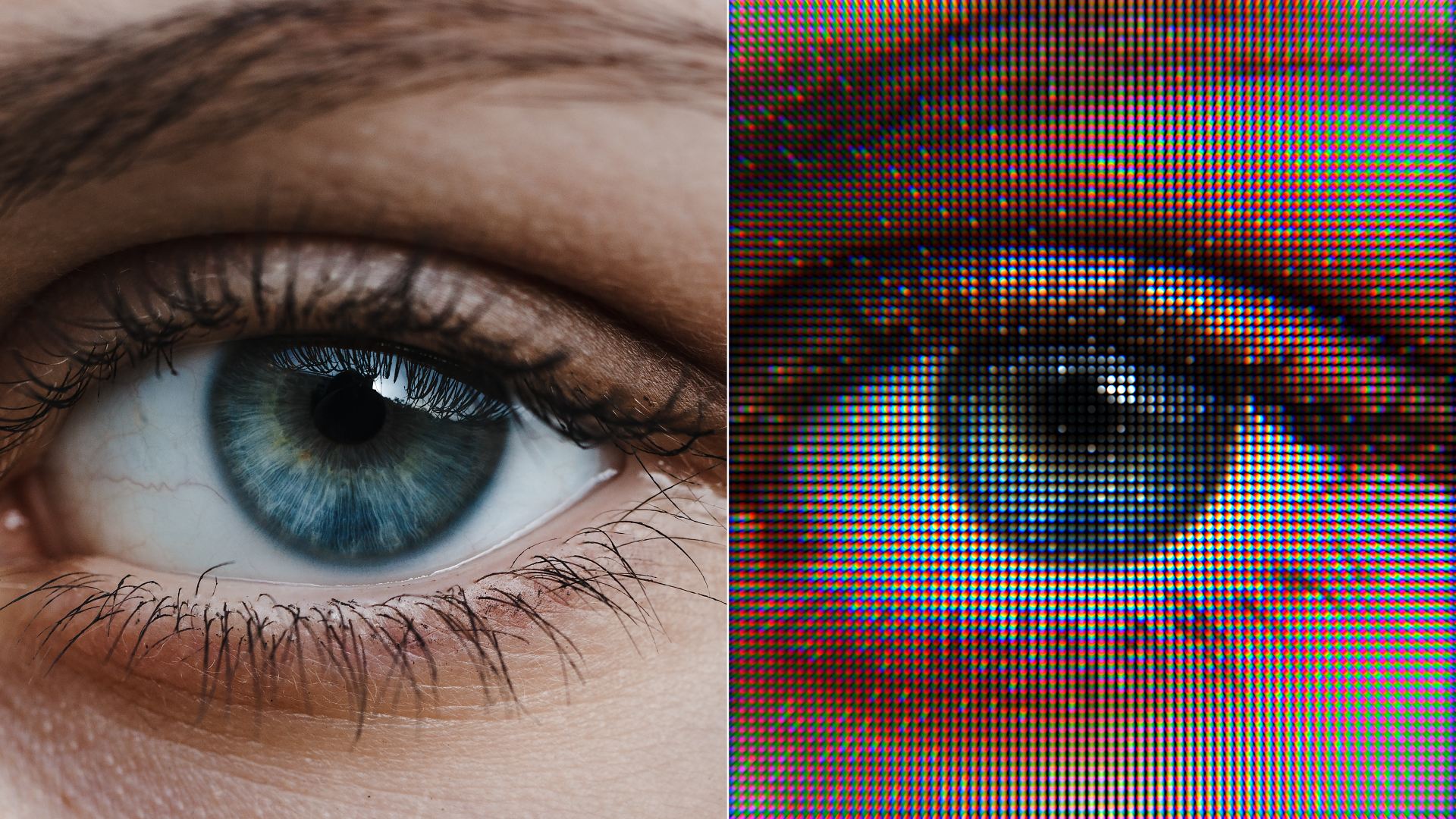
The BCC+ Super LED filter, part of the BCC Stylize category, converts the filtered source into a lit tiled LED sign, with options for flicker, tint and glow of the LED tiles, along with control over the tile shape, size and the gap between each tile. The filter also includes several special effects such as a built-in prism, glow, glitch, flicker, keylight, and a smoke/fog generator to enhance the LED look. The included corner pin transform control group can be used to pin the effect over a region in the composite and the post color correct group provides a convenient way to adjust the overall color of the effect. This effect also includes an integrated beat reactor option that can be used to auto-animate certain parts of the effect to an audio source file.
Working with the Filter
FX Editor and Presets
- Use the FX Editor to load or save presets for reuse.
- To load a preset: Open the FX Editor, select a preset from the Presets panel, and click Apply to return to the host application.
- To save a custom preset: While in the FX Editor, click the Create Custom Preset icon in the parameter list, enter a preset name, and click Done. Additionally, a custom preset can be saved from the main menu bar by selecting File->Save Preset.
- To import custom presets from another drive: While in the FX Editor, select File->Import Preset from the main menu bar.
Effect Controls
Mocha Mask and Track
Continuum effects include integrated masking and matte tools that allow you to restrict the effect to specific regions of the image.
- Mocha masks: used to create custom spline masks. Mocha also includes Matte Assist ML and Matte Refine ML, which use machine learning to generate and track masks.
- Pixel Chooser: used to generate geometric shapes, gradients, or mattes based on channel, luma, or color-based selections. Additionally, an AI depth map generator, and an AI-powered face detection model allow for precise control of masks and mattes.
Note: Mocha can also be used to drive geometric parameters. See the Mocha Motion Tracker documentation for details.
For more information, see Mocha and Pixel Chooser.
Compare Mode
The Compare Mode is used to view the filtered result alongside the original source layer. Several split-screen and side-by-side display options are available.
For more information, see Compare Mode.
Beat Reactor
The Beat Reactor is an audio-driven animation system that links effect parameters to an audio track. This allows visual effects to react dynamically to sound without manual key-framing.
For more information, see Beat Reactor Documentation.
LED Group
- Scale: Sets the master scale of the individual LEDs
- Scale X: Sets the scale along the X axis for the individual LEDs
- Scale Y: Sets the scale along the Y axis for the individual LEDs
- Gap: Sets the master distance between the LEDs
- Gap X: Sets the distance along the X-axis between the LEDs
- Gap Y: Sets the the distance along the Y-axis between the LEDs
- LED Shape: Determines the shape of the LEDS to one of three options:
- Square
- Round
- Polygon
- Polygon Side Count: Sets the number of sides of the polygon. A maximum of 9 sides may be selected, or a minimum of three.
Fade Map Group
The Fade Map option provides a way to fade the size of the led shapes based on proximity to the edge of the filtered source when using a clip with an alpha channel. When used with an RGB image, the fade map option fades the size of the led shapes based on the pixel value of the selected channel from the filtered source.
- Enable: Toggles the fade map controls.
- Amount: Sets the intensity of the fade map.
- Type: Determines the style of the fade map.
- Matte: Applies the fade map to a user defined matte over the source image.
- Gradient: Applies the fade map to a user defined gradient over the source image.
- Channel: Selects the color channel that will generate the matte.
- Black Level: Controls the shadow region of mattes generated by the keyer.
- White Level: Controls the highlight region of mattes generated by the key
- Blurred RGB: Controls the amount of blur applied to the matte.
- Flicker Affects Map: When enabled LED flicker influences the fade map.
- Type: Determines the direction of the gradient
- Top-to-bottom: The direction of the gradient is from top to bottom.
- Bottom-to-top: The direction of the gradient is from bottom to top.
- Left-to-right: The direction of the gradient is from left to right.
- Right-to-left: The direction of the gradient is from right to left.
- Horizontal Strip: Horizontal strip gradient gradient
- Vertical Strip: Vertical stripgradient grad.
- Size: Sets the size of the gradient.
- Angle: Sets the angle of the gradient
- Upper-Left: Controls the X and Y position of the Upper Left Point.
- Upper-Right: Controls the X and Y position of the Upper Right Point.
- Lower-Right: Controls the X and Y position of the Lower Right Point.
- Lower-Left: Controls the X and Y position of the Lower Left Point.
- Bulb Fade On: Used to enable or disable the bulb fade effect. The bulb fade effect softens / fades the edge of each LED bulb.
- Bulb Fade Amount: Used to set the amount of fade on each individual LED.
- Bulb Fade Width: Used to set the width of fade on each individual LED.
- Stagger: Used to select the order of the LED layout.
- Off: All LEDs are aligned equally along the X/Y axis.
- Rows: LED rows are offset slightly along the X axis.
- Columns: LED columns are offset slightly along the Y axis.
- Dead LEDs: Sets the percentage of LEDs that are “dead” or non-responsive.
- Dead LED Flicker: Sets the amount of dead LEDs that flicker
- Dead LED Seed: Introduces random variation into the intensity and order of the dead LEDs.
- Tint Color: Selects the color of the tint that will be applied to the LED. By default the color is set to white.
- Tint Amount: Sets the intensity of the tint applied to the LED.
- Gap Fill: Determines how the gap between LEDs will be filled. Either with Nothing (Alpha) or a Solid Color.
- Gap Fill Color: Sets the solid color between the LED gaps.
- Enable: Toggles the key light control group.
- Type: Determines they type of key light.
- Parallel: A directional light source.
- Point: A point light where the light either emanates from or fades into a vanishing point. Move the point control in the center of the screen to change the Point light location.
- Strength: Sets the strength of the light.
- Angle: Used in conjunction with Parallel, Angle sets the direction of the light source.
- Point: Sets the X/Y position of the Point Light.
- Invert: Used in conjunction with Point, Invert determines whether the light source emanates from or fades into a vanishing point.
- Enable: Toggles the flicker group controls. The main flicker group will cause the entire LED array to flicker over time while the two Blink controls will cause individual LED’s to flicker indepently of each other.
- Speed: Controls the overall speed of the flicker animation.
- Hue: Controls the hue effect on the image.
- Brightness: Controls the peak level of the brightness effect on the image.
- Saturation: Controls the extremity of the saturation effect on the image.
- Flicker Type: Used to set the style of the flicker.
- Smooth: Selects a flicker that fades in and out smoothly
- Sharp: Blinks on and off.
- Flicker Randomness: Adds more variability to the flickering animation. Higher values result in more random intervals between flickers. Lower values result in more regular flickering.
- Intensity Randomness: Adds more variability to the intensity of the flickering animation. Higher values result in more intense contrast between brightness and darkness.
- Blink LEDs: Sets the percentage of LEDs that blink.
- Blink LED Flicker: Sets the amount of blinking LEDs that flicker.
- Blink Intensity: Sets the peak level of the blinking effect of the LEDs
- Blink Speed: Sets the overall speed of the blinking LEDs.
- Random Seed: Sets the starting seed for the animation.
- Enable: Toggles independent controls for the glow parameters.
- Intensity: Sets the intensity of the glow result. Higher values yield a stronger glow across the image while lower values restrict the glow intensity.
- Color: Sets the color of the glow. In it’s default state the glow is white. By selecting a color with the color chip, the glow can be set to any RGB value. With the eyedropper, the glow color can be selected directly from the image pixels.
- Radius: Sets the radius over which the glow spreads to surrounding regions. Higher values will result in a larger, more diffuse glow, while lower values will create a more restricted glow.
- Radius X: Sets the width of the glow along the X axis. Higher values will result in a glow that is stretched horizontally along the X axis, while lower values will restrict the glow horizontally along the X axis.
- Radius Y: Sets the width of the glow along the Y axis. Higher values will result in a glow that is stretched vertically along the Y axis, while lower values will restrict the glow horizontally along the Y axis..
- Threshold: Sets the pixel values that are affected by the glow – a setting of 0 will apply a glow to all of the pixels in the input clip, while a setting of 100 will not apply any glow to the image.
- Glow From Alpha: Generates the image glow from the alpha channel instead of or in addition to the color channels. The selection in the Glow From Alpha Mode determines how the alpha glow and the color channel glows are combined.
- Glow under LED: Generates the image glow underneath the LED lights.
- Edge Mode: Determines how edges of the filtered frame are handled.
- Transparent: Allows the edge of the result to become transparent.
- Repeat: Repeats edge pixels to generate opaque pixels along the edge of the result.
- Reflect: Reflects pixels back into the result to generate opaque pixels along the edge of the result.
- RGB Independent Glows: Enables independent scaling of the glow dimensions for R, G, and B.
- Red Scale: Used to set the scale of the red glow uniformly. Higher values will increase the scale along the X and Y axis.
- Red Scale X: Used to set the scale of the red glow along the horizontal axis. Higher values will increase the scale along the X axis. while lower values will restrict it.
- Red Scale Y: Used to set the scale of the red glow along the vertical axis. Higher values will increase the scale along the Y axis. while lower values will restrict it.
- Green Scale: Used to set the scale of the green glow uniformly. Higher values will increase the scale along the X and Y axis.
- Green Scale X: Used to set the scale of the green glow along the horizontal axis. Higher values will increase the scale along the X axis. while lower values will restrict it. .
- Green Scale Y: Used to set the scale of the green glow along the vertical axis. Higher values will increase the scale along the Y axis. while lower values will restrict it.
- Blue Scale: Used to set the scale of the blue glow uniformly. Higher values will increase the scale along the X and Y axis.
- Blue Scale X: Used to set the scale of the green glow along the horizontal axis. Higher values will increase the scale along the X axis. while lower values will restrict it. .
- Blue Scale Y: Used to set the scale of the blue glow along the vertical axis. Higher values will increase the scale along the y axis. while lower values will restrict it.
- Enable: Toggles the video glitch parameters.
- Glitch Intensity: Used to adjust the overall intensity of the vide glitch effect.
- Shift Minimum Intensity: Allows for forcing a minimum intensity of shift for the glitch duration.
- Shift Intensity Randomness: Adds more variability to the animation within the glitch duration – larger values give a more flickering appearance.
- Shift Amount: Increases or decreases the peak horizontal Shift and Jitter amount in the shift animation that occurs over the duration of the Glitch.
- Density: Used to adjust the overall density of Shift bands on screen during a Glitch.
- Run Length: Controls the number of shifted lines between gaps.
- Seed: Used to adjust the randomness of the glitch effect.
- Enable: Toggles the Shake distortions controls.
- Shake Minimum Intensity: Allows for forcing a minimum intensity of shake for the glitch duration.
- Shake Intensity Random: Adds more variability to the animation within the glitch duration – larger values give a more flickering appearance.
- Shake Amount: Controls amount of overall position offset (also scales RGB Split value).
- Shake X: Sets the horizontal position offset.
- Shake Y: Sets the vertical position offset.
- RGB Split: Controls how much RGB are offset from each other in the direction of Shake movement.
- Enable: Enables independent control over the prism effect parameters.
- Amount: Sets the amount of the the prism, with lower values generating a smaller prism effect, and higher values generating a more intense prism effect.
- Weight: Sets the smoothness of the prism with lower values generating a more visible stepped offset and higher values yielding a smooth continuous prism.
- Short Color: use to set the first color in the prism.
- Mid Color: use to set the second color in the prism.
- Long Color: use to set the third color in the prism.
- Enable: Toggles the auto-animating smoke and fog parameters.
- Speed: Used to adjust the overall speed of the smoke’s movement. Higher values will result in faster movement.
- Opacity: Used to adjust the overall opacity of the smoke layer.
- Contrast: Used to control the overall contrast of the smoke. Higher values create a more intense contrast between light and dark pixels than lower values.
- Color: Used to set the color of the smoke. In it’s default state the glow is white. By selecting a color with the color chip, the smoke can be set to any RGB value. With the eyedropper, the smoke color can be selected directly from the image pixels.
- Coherance: Used to adjust the movement and evolution of the smoke pattern. Higher values result in a smoother oscillation , whereas lover values result in a more chaotic movement.
- Scale: Used to adjust the maximum size of the smoke pattern.
- Density: Used to adjust the complexity of the smoke pattern.
- Smoke Sprite: Click to select a different sprite image to alter the look of the smoke.
- Opacity: Used to adjust the overall opacity of the fog layer.
- Scale: Used to adjust the maximum size of the fog pattern.
- Contrast: Used to control the overall contrast of the fog. Higher values create a more intense contrast between light and dark pixels than lower values.
- Color: Used to set the color of the fog. In it’s default state the glow is white. By selecting a color with the color chip, the fog can be set to any RGB value. With the eyedropper, the fog color can be selected directly from the image pixels.
- Level: Used to adjust the complexity of the fog pattern.
- Speed: Used to adjust the overall speed of the fog’s movement. Higher values will result in faster movement.
- Use Source Alpha: Applies the fog to the source alpha layer.
- Blend Mode: Determines the blend mode to be used to create the fog effect.
- None: The fog layer is not blended into the image. It remains opaque.
- Normal: The fog layer is blended evenly into the image.
- Add: The fog is added to your image.
- Screen: The fog is combined with the image using a Screen blend mode. This looks kind of like the Add blend mode, but highlights are retained.
- Random Seed: Use to set the starting seed for the animation.
- Enable: Enables independent control over the color correction parameters.
- Hue: Used to control the overall hue of the effect
- Saturation: Used to control the overall saturation of the effect. Higher values create a more intense color saturation than lower values.
- Brightness: Used to control the overall brightness of the effect. Higher values create more intense highlights than lower values.
- Contrast: Used to control the overall contrast of the effect. Higher values create a more intense contrast between light and dark pixels than lower values.
- Gamma: Used to control the overall gamma of the effect.
- Temperature: Used to control the overall temperature of the effect. Moving the Temperature slider to the left (negative values) will yield a cooler result, while moving the slider to the right will warm up the shot.
- Cyan/Magenta: Used to control the overall amount of cyan/magenta in the image. Moving the slider to the left (negative values) will add a cyan tint, while moving the slider to the right will add a magenta tint.
- Red: Used to control the overall value of the red color channel. Higher values increase the overall influence of the red color channel than lower values.
- Green: Used to control the overall value of the green color channel. Higher values increase the overall influence of the blue color channel than lower values.
- Blue: Used to control the overall value of the blue color channel. Higher values increase the overall influence of the red color channel than lower values.
- Enable: Enables independent control over the corner pin parameters.
- Position: Used to set the overall position of the corner pinned image on the X or Y axis within the scene.
- Scale: Sets the scale along the XY axis.
- Scale X/Y: Sets scale individually along the X or Y axis.
- Rotate: Rotates the corner pinned image.
- Shear X/Y: Skews the perspective of the Corner Pin along the X or Y axis.
- Edge Mode: Determines how edges of the filtered frame are handled.
- Transparent: Allows the edge of the result to become transparent.
- Repeat: Repeats edge pixels to generate opaque pixels along the edge of the result.
- Reflect: Reflects pixels back into the result to generate opaque pixels along the edge of the result.
- Blend Mode: Determines the method that is used to composite the LED effect on the image.
- Mix with Original: Blends the source and filtered images. Use this parameter to animate the effect from the unfiltered to the filtered image without adjusting other settings, or to reduce the effect of the filter by mixing it with the source image.
- GPU Rendering:Specifies how the effect is rendered.
- Default: Uses product-wide default of 16 bit half-float GPU rendering.
- 16 Bit Float: Manually force 16 bit half-float GPU rendering.
- 32 Bit Float: Manually force 32 bit full-float GPU rendering.
- Disabled: Forces CPU rendering.
Matte Group
Grad Group
The grad can also be corner pinned by adjusting the Corner Pin sliders as well as dragging the four points on the corners of the screen.
Note: You may need to zoom the image out a bit to see the corner points. In addition, to see and adjust the corner points in After Effects, make sure that the effect title in the Effect Controls window is highlighted. For Final Cut Pro, you must activate the cross hair icon next to the corner position parameters to see and adjust the corner points on the screen.
Key Light Group
Flicker Group
Glow Group
Video Glitch Group
Shake Group
Prism Group
Smoke/Fog Group
Smoke Parameters
Fog Parameters
Post Color Correct Group
Transform/Corner Pin Group
The Corner Pins Group provides access to the four pins used to map the image. You can manually adjust the position of the Top Left, Top Right, Lower Left, and Lower Right pins, or, more commonly, you can use the Mocha Motion Tracker to track the movement of the corner pin in the scene.
