Mask ML
Description
Mask ML is an easy to use point and click, single frame mask generator utilizing machine learning object segmentation. A single click selects a defined segment of the image while successive clicks add adjacent areas to the object. The masks are useful as input to the Matte Assist ML node where the mask is propagated over time or to limit strokes in the Paint node.
A text-prompted object detection workflow is also possible where masks are auto-generated in Mask ML and then propagated in Matte Assist ML--usable via UI or command line. This unlocks a fully automated workflow: prompt, segment, propagate, render. For most shots, it’s hands-off. But when objects deform or occlude heavily, a few manual keyframes may still be needed.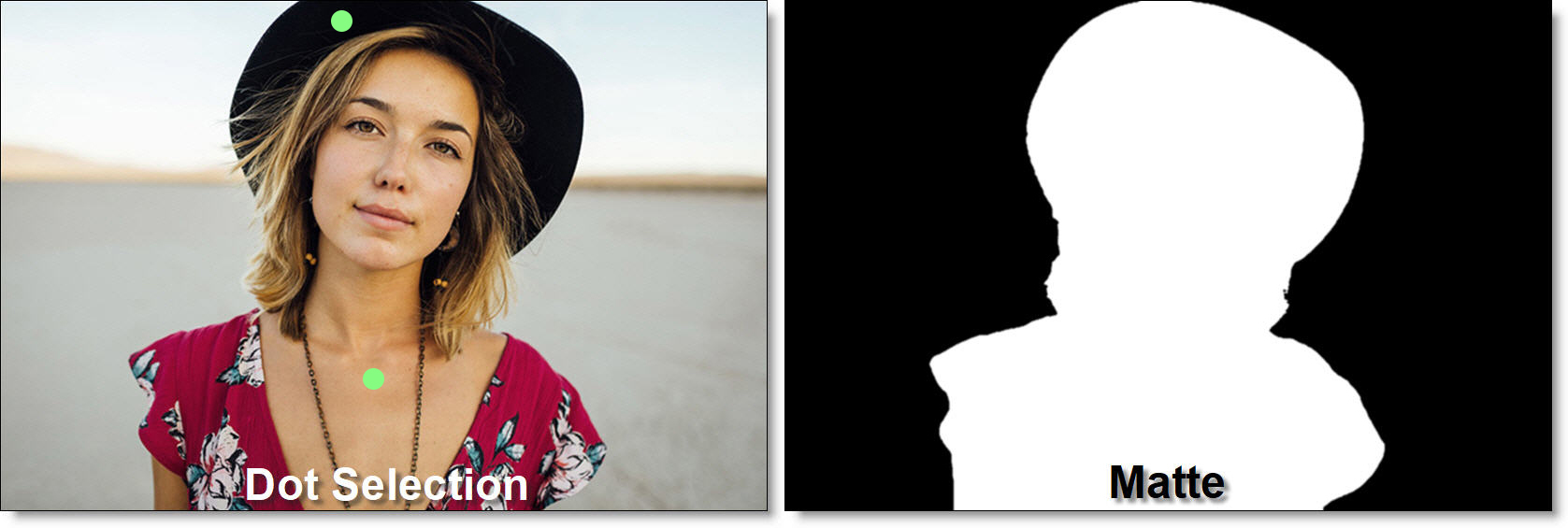
Go to the Mask ML tutorial to see how it works.
Node Group
AI/ML, Key.
Tools
When the Mask ML node is selected, three tools are selectable from the Toolbar to the left of the Viewer.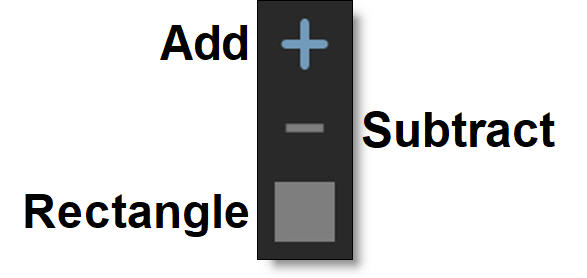
Note: Press the A key once to view the alpha overlay when using the Add and Subtract tools.
Add
Click within an object to select it. With each click, a green point appears. Add additional points as needed.
Subtract (Right-click)
Click on any unwanted alpha areas outside of the selected object. With each click, a red point appears. Add additional points as needed.
Note: Ctrl/Cmd-click a point to delete it.
Rectangle
Drag out a rectangle to select an entire object.
Object Detection
Automatically detect arbitrary objects in images using text prompts--such as category names or descriptive phrases--instead of manual selection. Supports automation via scripting.
Prompt
Enter a description of the object you want to detect--such as person, bicycle, or apple. To detect multiple object types, place each prompt on a separate line.
Prompt Threshold
The model returns a bunch of bounding boxes with probability scores with the threshold set at .40--anything lower than that is discarded, anything higher is kept. Lower the value to include more of what you are prompting for.
Detect Objects
Uses the provided prompts to locate objects in the image, drawing bounding boxes and generating masks.
Note: You can automate object detection, mask creation, and propagation by running the auto-matte.py script located in the Silhouette-Install/resources/scripts folder.
Go to the Automate Mask ML And Matte Assist ML With Text Prompts And The auto-matte.py Script tutorial to see how it works.
Point Opacity
Adjust the Add and Subtract point opacity with the Viewer > Blend Amount.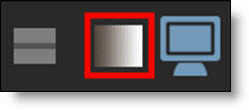
Multiple Objects / Object List
Mask ML supports multiple objects in the Object List. When Mask ML and Matte Assist ML’s data ports are connected and Matte Assist ML > Mask Source > Cryptomatte is selected, each Mask ML object is considered a separate object.
• The first point or rectangle added automatically creates a new object.
• To manually create an empty object, click the Add Object icon in the Object List.
• Selecting an object reveals its controls; changes apply only to the selected object.
• Use the Object List to rename, delete, or toggle visibility per object.
• If you delete all points from an object, it becomes inactive and won’t contribute to the render.