

















BCC+ Waves Dissolve
Category: BCC Transitions
Effect Name: BCC+ Waves Dissolve
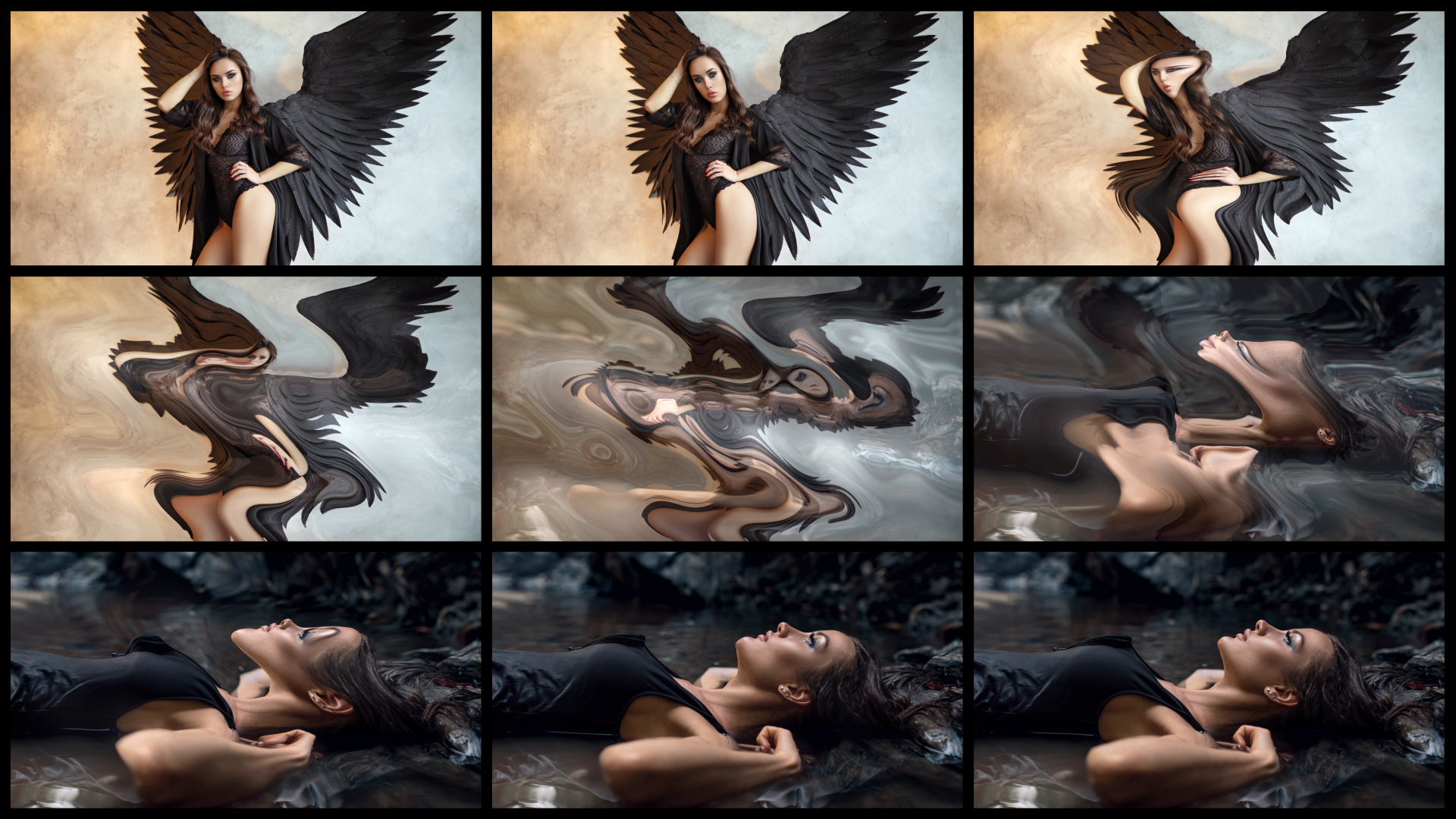
The BCC+ Waves Dissolve filter, part of the BCC Transitions category, blends two shots together through animated wave-based distortion , creating flowing ripples that travel across the image during the transition. The effect adds a soft, fluid sense of motion and can be used for everything from subtle scene changes to more stylized, visually expressive transitions.
Working with the Filter
FX Editor and Presets
- Use the FX Editor to load or save presets for reuse.
- To load a preset: Open the FX Editor, select a preset from the Presets panel, and click Apply to return to the host application.
- To save a custom preset: While in the FX Editor, click the Create Custom Preset icon in the parameter list, enter a preset name, and click Done. Additionally, a custom preset can be saved from the main menu bar by selecting File->Save Preset.
- To import custom presets from another drive: While in the FX Editor, select File->Import Preset from the main menu bar.
- Animation: Menu controlling what drives the animation of the transition.
- Auto: Automatically generates a transition based on the transition length (when used as a transition) or the clip length (when used as a filter).
- Manual: Requires the user to set keyframes to control the transition progression. Can be useful in customizing the exact timing of the transition or when applying the filter as a stylized effect as opposed to a direct NLE-style transition.
- Layer to Reveal: This layer selection popup is not relevant when you have applied the filter as a true NLE-style transition and it will be hidden or disabled in that context. When applied as a normal “effect” as opposed to a transition, however, this menu is used to select the “Incoming” or “Reveal” layer for the transition.
- Percent Done: When the Animation menu is changed to Percent Done then this slider can be manually keyframed to control the transition progression.
- Enable: Toggles the wave on or off.
- Height: Sets the amplitude of of the wave and therefore the amount of displacement produced in the primary wave direction.
- Perpendicular Height: Sets the amount of displacement generated perpendicular to the primary direction of the wave.
- Width: Sets the wavelength of the wave, determining the distance between successive peaks and valleys in the distortion.
- Speed: Determines the rate at which the wave travels across the image over time.
- Direction: Sets the angle at which the wave travels across the image.
- Phase: Offsets the position of the wave within its waveform cycle, allowing the wave pattern to be shifted without changing its other properties.
- Waveform Shape: Determines the mathematical waveform used to define the shape and profile of the wave from the available waveform types.
- Spectrum Hybrid: Modifies the waveform by combining spectral characteristics to produce a more complex wave shape.
- Spectrum Blend Strength: Sets the amount of spectral blending introduced by the Spectrum Hybrid parameter.
- Wave Distortion: Introduces additional variation into the selected waveform to produce a less uniform and more complex distortion pattern.
- Intensity: Determines the overall intensity range used when generating the selected waveform.
- Low: Generates the waveform using a reduced intensity range for a more subtle distortion.
- Normal: Generates the waveform using the standard intensity range.
- Super: Generates the waveform using an increased intensity range for a more pronounced distortion.
- Peak Point: Sets the position of the waveform's peak within each wave cycle.
- Decay Distance: Sets the distance over which the waveform decreases in strength from its peak.
- Decay Ratio: controls the rate at which the waveform decreases in strength across the specified Decay Distance.
- Height: Globally scales the primary displacement height of all enabled waves.
- Perpendicular Height: Globally scales the perpendicular displacement height of all enabled waves.
- Width: Globally scales the wavelength of all enabled waves, changing the overall spacing of their wave patterns.
- Speed: Globally scales the animation speed of all enabled waves.
- Direction: Globally offsets the direction of all enabled waves, allowing the complete distortion pattern to be rotated.
- Phase: Globally offsets the phase of all enabled waves, shifting the position of the combined wave pattern.
- Light Level: Sets the overall intensity of the simulated lighting applied to the distorted surface.
- Light Color: Sets the color of the simulated light used to illuminate the wave distortion.
- Light Width: Sets the width of the illuminated regions generated across the distorted surface.
- Light Focus: Controls the concentration or sharpness of the simulated lighting, with higher values producing more focused highlights.
- Ambient Light: Controls the amount of uniform illumination applied to the image independently of the directional lighting.
- Apply Mode: Determines the blending operation used to composite the generated lighting with the processed image.
- Chromatic Separation: Enables/disables the prismatic color separation effect.
- Spread: Sets the distance between the separated color channels, with higher values producing a more pronounced prismatic effect. .
- Spectral Blend: Sets the amount of blending between the separated color channels, producing smoother transitions and a more continuous spectrum of colors.
- Samples: Controls the number of samples used to generate the prismatic color separation, with higher values producing smoother color transitions and more refined spectral effects.
- Red Amount: Sets the amount of displacement applied to the red channel, determining its contribution to the prismatic color separation.
- Green Amount: Sets the amount of displacement applied to the green channel, determining its contribution to the prismatic color separation.
- Blue Amount: Sets the amount of displacement applied to the blue channel, determining its contribution to the prismatic color separation.
- Alpha Amount: Setsthe amount of displacement applied to the alpha channel, allowing the transparency information to be offset independently of the RGB channels.
- Edge Pin: Selects the pinning method used to constrain the wave distortion.
- Edge Pin Width: Controls the width of the area influenced by the selected pinning operation.
- Pin Point 1 X/Y: Sets the horizontal and vertical position of the first pinning point in the image.
- Point 1 Strength: Controls how strongly Pin Point 1 suppresses or constrains the wave distortion.
- Point 1 Range: Controls the size of the area surrounding Pin Point 1 that is influenced by the pinning effect.
- Point 1 Center %: Controls the size of the central region around Pin Point 1 that receives the strongest pinning influence.
- Pin Point 2 X/Y: Sets the horizontal and vertical position of the second pinning point in the image.
- Point 2 Strength: Controls how strongly Pin Point 2 suppresses or constrains the wave distortion.
- Point 2 Range: Controls the size of the area surrounding Pin Point 2 that is influenced by the pinning effect.
- Point 2 Center %: Controls the size of the central region around Pin Point 2 that receives the strongest pinning influence.
- Edge Mode: Edge Mode determines how the filter generates pixels when the wave distortion samples areas beyond the boundaries of the source image.
- Transparent: treats areas beyond the source image boundaries as transparent.
- Repeat: extends the pixels at the edges of the source image to fill areas sampled beyond the image boundaries.
- Reflect: mirrors the source image at its edges when the distortion samples beyond the image boundaries.
- Wrap: wraps sampling from one edge of the source image to the opposite edge.
- Apply Waves To: determines which component of the transition receives the Waves effect.
- Dissolve: applies the Waves to the composited dissolve result as the transition progresses.
- Outgoing: applies the Waves only to the outgoing image.
- Incoming: applies the Waves only to the incoming image.
- Incoming and Outgoing: applies the Waves to both the incoming and outgoing images.
- Off: disables the Waves processing.
- Hue: Rotates the hue of the image.
- Saturation: Sets the saturation of the image.
- Brightness: Sets the brightness of the image.
- Contrast: Sets the contrast of the image.
- Gamma: Sets the gamma of the image.
- Temperature: Sets the color of the image to be either warmer or cooler.
- Cyan/Magenta: Adds either Cyan or Magenta to the image. Dragging the slider to the right makes the image more magenta and dragging the slider to the left makes the image more cyan.
- Red: Adds or subtracts red from the image.
- Green: Adds or subtracts green from the image.
- Blue: Adds or subtracts blue from the image.
- Ease In: Controls how quickly or slowly the transition advances at the beginning of the transition.
- Ease Mid: Controls how quickly or slowly the middle of the animation progresses.
- Ease Out: Controls how quickly or slowly the transition advances at the end of the transition.
- OSC Enable: Only visible in hosts that support heads up display widgets for manipulating these controls directly on screen. Enables/Disables on screen controls.
- GPU Rendering:Specifies how the effect is rendered.
- Default: Uses product-wide default of 16 bit half-float GPU rendering.
- 16 Bit Float: Manually force 16 bit half-float GPU rendering.
- 32 Bit Float: Manually force 32 bit full-float GPU rendering.
- Disabled: Forces CPU rendering.
Waves Group 1-3
The Waves Group contains controls for configuring up to three independent waves used to generate the overall distortion. Each wave sub-group can be enabled or disabled, and their parameters adjusted independently from each other. Each group contains the same parameters.
Waveform
The Waveform sub-group provides controls for defining and modifying the shape and characteristics of the wave.
Global Group
The Global group provides master controls that modify corresponding properties across all three waves simultaneously.
Lights Group
The Lights group adds simulated lighting to the distorted surface to emphasize the contours created by the wave deformation.
Chromatic Separation Group
The Chromatic Separation group generates a prismatic RGB split effect by separating and offsetting the image's color channels, producing chromatic fringes, spectral distortion, and rainbow-like color separation.
Advanced Sub-Group
The Advanced sub-group provides independent controls for adjusting the contribution of each image channel to the prismatic separation effect.
Pinning Group
The Pinning group provides controls for restricting or reducing the wave distortion in selected regions of the image.
Edge Mode
Color Correct Group
The Color Correct group provides controls for adjusting the color and tonal characteristics of the transition result.
Animation Tuning Group
These parameters control the overall timing of the transition. On hosts which permit on-screen heads up display widgets (such as AE, Premiere, and Avid) you should never need to modify these sliders directly since they can be configured in a more convenient and intuitive manner by manipulating the widgets directly in your comp/preview pane. On hosts without heads up display widgets you can use these sliders directly to fine tune your animation timing, taking advantage of the View Ease Curve option to help visualize the animation rates.
