

















BCC+ Vector Blur
Category: BCC Blur
Effect Name: BCC+ Vector Blur
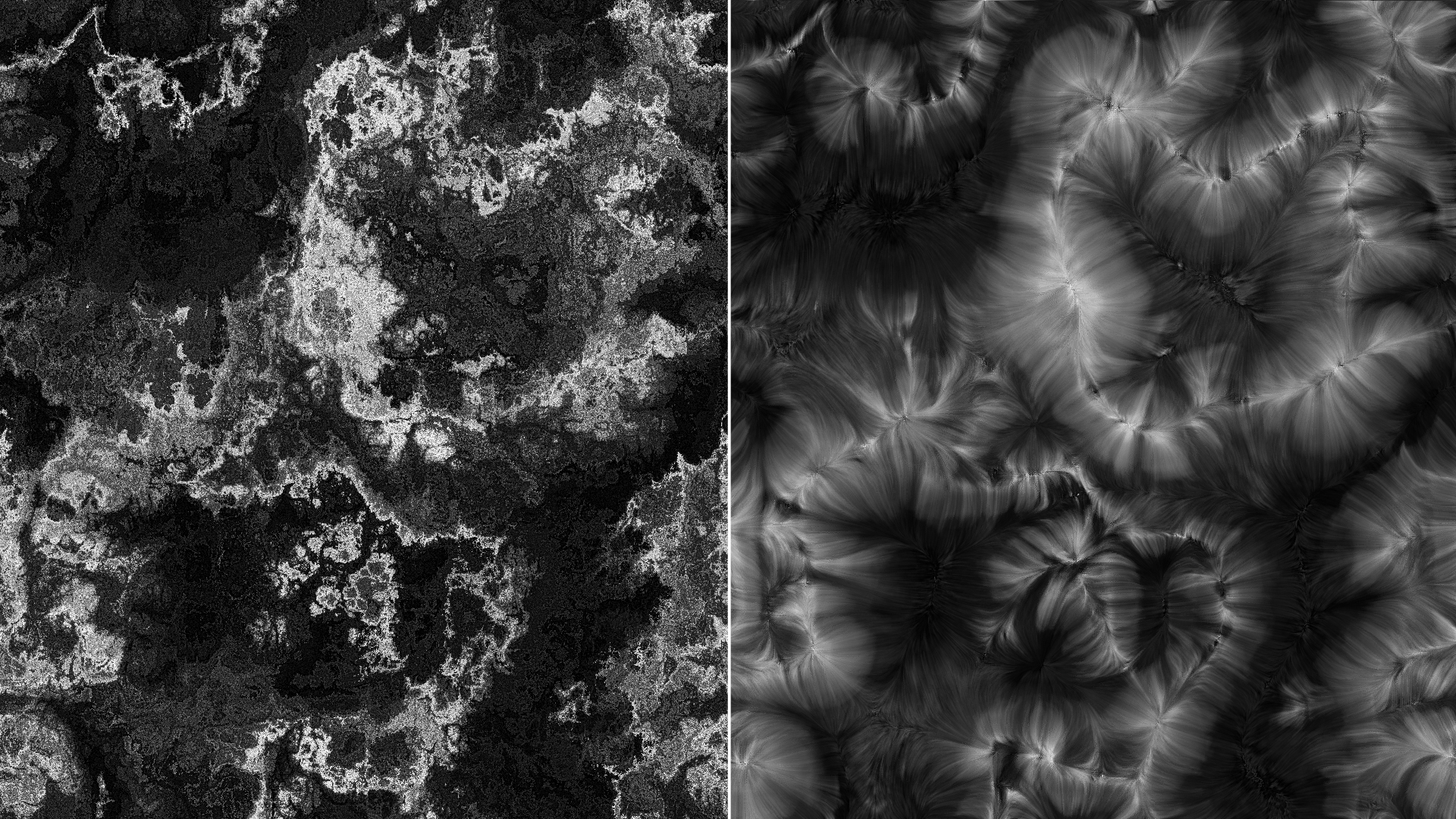
The BCC+ Vector Blur filter, part of the BCC Blur category, creates complex directional blur and streaking effects by moving pixels along a vector field. The direction and length of the blur can vary independently throughout the image, allowing for effects that would be difficult to achieve with a standard directional blur.
Working with the Filter
FX Editor and Presets
- Use the FX Editor to load or save presets for reuse.
- To load a preset: Open the FX Editor, select a preset from the Presets panel, and click Apply to return to the host application.
- To save a custom preset: While in the FX Editor, click the Create Custom Preset icon in the parameter list, enter a preset name, and click Done. Additionally, a custom preset can be saved from the main menu bar by selecting File->Save Preset.
- To import custom presets from another drive: While in the FX Editor, select File->Import Preset from the main menu bar.
Effect Controls
Mocha Mask and Track
Continuum effects include integrated masking and matte tools that allow you to restrict the effect to specific regions of the image.
- Mocha masks: used to create custom spline masks. Mocha also includes Matte Assist ML and Matte Refine ML, which use machine learning to generate and track masks.
- Pixel Chooser: used to generate geometric shapes, gradients, or mattes based on channel, luma, or color-based selections. Additionally, an AI depth map generator, and an AI-powered face detection model allow for precise control of masks and mattes.
Note: Mocha can also be used to drive geometric parameters. See the Mocha Motion Tracker documentation for details.
For more information, see Mocha and Pixel Chooser.
Compare Mode
The Compare Mode is used to view the filtered result alongside the original source layer. Several split-screen and side-by-side display options are available.
For more information, see Compare Mode.
Beat Reactor
The Beat Reactor is an audio-driven animation system that links effect parameters to an audio track. This allows visual effects to react dynamically to sound without manual key-framing.
For more information, see Beat Reactor Documentation.
- View: Determines which stage of the Vector Blur effect is displayed in the viewer for preview and adjustment.
- Output: Displays the final processed image with the Vector Blur effect applied.
- Processed Map: Displays the processed vector map used to determine the direction and behavior of the blur.
- Vectors: Displays a visualization of the vector field used to control the direction of the blur.
- Vector Type: Determines how the information derived from the Vector Map is interpreted to generate the vector field used by the blur.
- Value: Uses the values of the selected map channel to determine the direction and magnitude of the generated blur vectors.
- Gradient: Uses changes between neighboring values in the selected map channel to determine the direction and magnitude of the generated blur vectors.
- Blur Length: Sets the overall distance that pixels are displaced along the generated vectors and therefore determines the apparent length of the blur or streaks.
- Angular Offset: Rotates the direction of the generated vector field by the specified angular amount.
- Bias: Shifts the balance of the generated vector values to alter how the displacement is distributed across the vector map.
- Falloff: Determines how strongly the vector blur diminishes as the vector-map values move away from the regions producing the strongest displacement.
- Cycles: Sets the number of directional cycles generated when interpreting the vector map, increasing the frequency of directional changes as the value is increased.
- Gradient Flattening: Reduces variations in the vector map gradient to create smoother and more uniform vector directions.
- Edge Mode: Determines how the filter generates pixels when a blur vector extends beyond the boundaries of the source image.
- Transparent: Treats areas beyond the source image boundaries as transparent.
- Repeat: Extends the edge pixels of the source image outward to fill areas sampled beyond the image boundaries.
- Reflect: Mirrors the source image at its edges when pixels are sampled beyond the image boundaries.
- Wrap: Wraps sampling from one edge of the image to the opposite edge.
- Ignore: Ignores samples that extend beyond the boundaries of the source image.
Vector Map Group
- Vector Map: Selects the source layer or image that is analyzed to generate the vector field used to control the direction and length of the blur.
- Base Map On: Determines which image component of the selected Vector Map is used to generate the vector field.
- Red: Derives the vector map from the red channel of the selected image.
- Green: Derives the vector map from the green channel of the selected image.
- Blue: Derives the vector map from the blue channel of the selected image.
- Alpha: Derives the vector map from the alpha channel of the selected image.
- Luminance: Derives the vector map from the luminance values of the selected image.
- Hue: Derives the vector map from the hue values of the selected image.
- Saturation: Derives the vector map from the saturation values of the selected image.
- Map Softness: Softens the selected vector map before it is analyzed, reducing abrupt changes in the resulting vector field and producing smoother blur transitions.
Prism Group
The Prism group adds color separation to the vector blur by assigning different colors to shorter, middle, and longer portions of the generated blur streaks.
- Enable: Enables/disables the Prism color-separation effect.
- Short Color: Sets the color applied to the shorter-distance portion of the vector blur.
- Mid Color: Sets the color applied to the middle-distance portion of the vector blur.
- Long Color: Sets the color applied to the longer-distance portion of the vector blur.
- Blend Mode: Determines the mathematical operation used to composite the vector-blurred result with the source image.
- Blend Mix: Controls the amount of the selected Blend Mode operation that is applied when combining the processed result with the source image.
- Mix with Original: Blends the filtered result with the unfiltered source image, with higher values restoring more of the original image.
- GPU Rendering:Specifies how the effect is rendered.
\
- Default: Uses product-wide default of 16 bit half-float GPU rendering.
- 16 Bit Float: Manually force 16 bit half-float GPU rendering.
- 32 Bit Float: Manually force 32 bit full-float GPU rendering.
- Disabled: Forces CPU rendering.
\
\
\
\
\
