

















BCC+ Time Displacement
Category: BCC Time
Effect Name: BCC+ Time Displacement
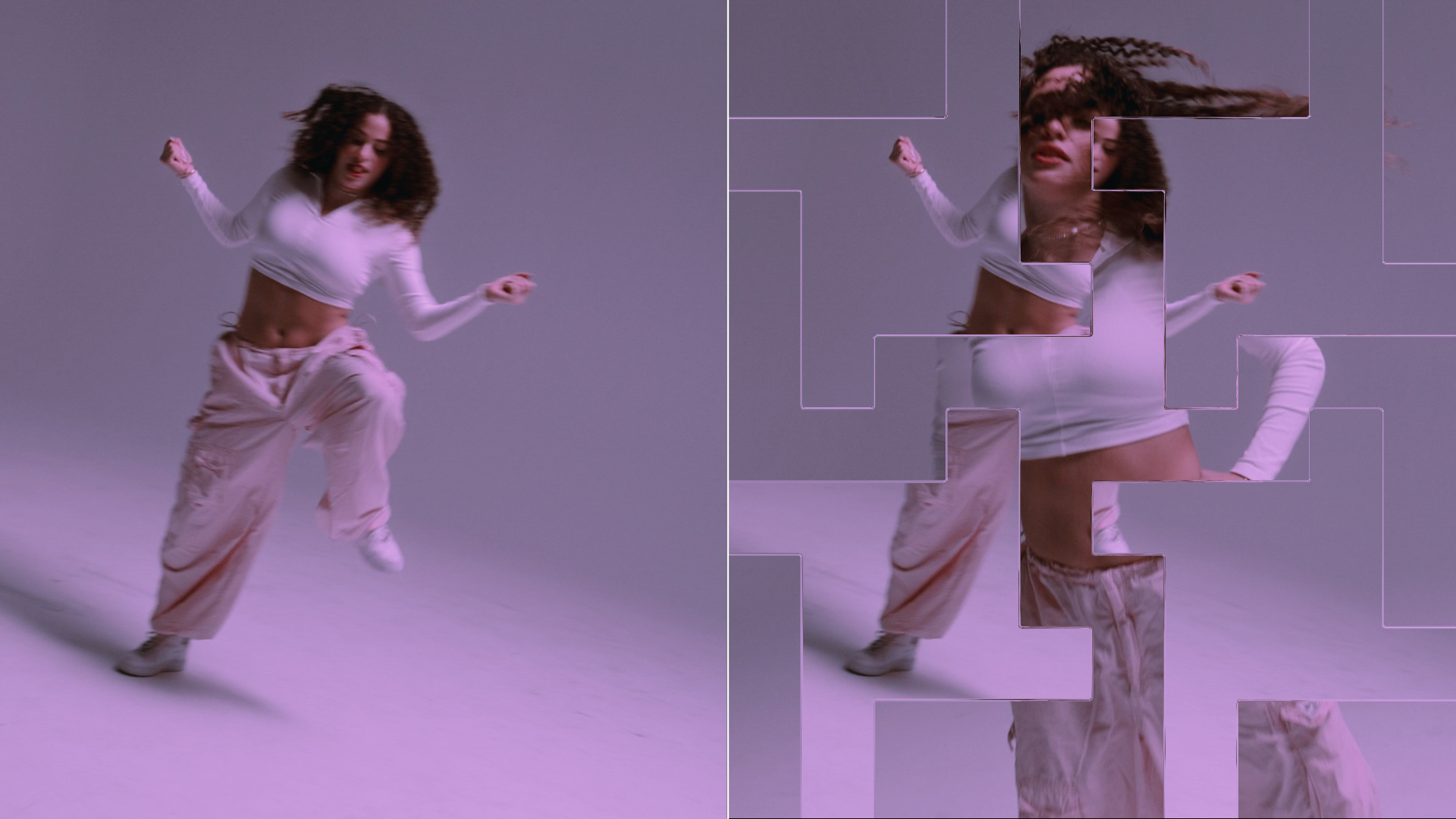
The BCC+ Time Displacement filter, part of the BCC Time category, introduces a unique approach to image distortion by shifting pixels through time rather than space. Instead of simply repositioning pixels within the frame, the effect blends imagery from the current source with pixels sampled from different moments in time, or even from another layer, creating dynamic temporal offsets driven by the selected displacement map.
Working with the Filter
FX Editor and Presets
- Use the FX Editor to load or save presets for reuse.
- To load a preset: Open the FX Editor, select a preset from the Presets panel, and click Apply to return to the host application.
- To save a custom preset: While in the FX Editor, click the Create Custom Preset icon in the parameter list, enter a preset name, and click Done. Additionally, a custom preset can be saved from the main menu bar by selecting File->Save Preset.
- To import custom presets from another drive: While in the FX Editor, select File->Import Preset from the main menu bar.
Effect Controls
Mocha Mask and Track
Continuum effects include integrated masking and matte tools that allow you to restrict the effect to specific regions of the image.
- Mocha masks: used to create custom spline masks. Mocha also includes Matte Assist ML and Matte Refine ML, which use machine learning to generate and track masks.
- Pixel Chooser: used to generate geometric shapes, gradients, or mattes based on channel, luma, or color-based selections. Additionally, an AI depth map generator, and an AI-powered face detection model allow for precise control of masks and mattes.
Note: Mocha can also be used to drive geometric parameters. See the Mocha Motion Tracker documentation for details.
For more information, see Mocha and Pixel Chooser.
Compare Mode
The Compare Mode is used to view the filtered result alongside the original source layer. Several split-screen and side-by-side display options are available.
For more information, see Compare Mode.
Beat Reactor
The Beat Reactor is an audio-driven animation system that links effect parameters to an audio track. This allows visual effects to react dynamically to sound without manual key-framing.
For more information, see Beat Reactor Documentation.
- View: Determines which representation of the Time Displacement effect is displayed in the viewer while adjusting the filter.
- Map Type: Determines the type or source of displacement map used to control the temporal displacement.
- Map Layer: Selects the host layer used as the displacement map for determining the temporal offset applied to each pixel.
- Browse Maps: Opens a file browser for selecting an external image or media file to use as the displacement map.
- External Map: Enables the use of an externally loaded file as the displacement map instead of a host layer.
- Watch Folder: Monitors the location of the selected external map for changes and automatically updates the map when its source file is modified.
- Display File Info: Displays information about the currently selected external map file.
Map Transform Group
The Map Transform group provides controls for cropping, positioning, scaling, rotating, and otherwise transforming the displacement map independently of the source image.
Crop
The Crop sub-group provides controls for trimming the edges of the displacement map before it is used to generate the effect.
- Top: Crops the displacement map inward from its top edge.
- Bottom: Crops the displacement map inward from its bottom edge.
- Left: Crops the displacement map inward from its left edge.
- Right: Crops the displacement map inward from its right edge.
Corner Pin
The Corner Pin sub-group provides independent control over the four corners of the displacement map for perspective and freeform positioning.
- Upper-Left: Sets the position of the upper-left corner of the transformed displacement map.
- Upper-Right: Sets the position of the upper-right corner of the transformed displacement map.
- Lower-Right: Sets the position of the lower-right corner of the transformed displacement map.
- Lower-Left: Sets the position of the lower-left corner of the transformed displacement map.
- Position Z: Moves the displacement map along the Z axis to change its apparent distance from the camera.
- Scale: Uniformly scales the displacement map along both the horizontal and vertical axes.
- Scale X: Independently scales the displacement map along the horizontal axis.
- Scale Y: Independently scales the displacement map along the vertical axis.
- Tumble: Rotates the displacement map in three-dimensional space around its horizontal axis.
- Spin: Rotates the displacement map in three-dimensional space around its vertical axis.
- Rotate: Rotates the displacement map within the image plane.
- Shear X: Skews the displacement map along the horizontal axis.
- Shear Y: Skews the displacement map along the vertical axis.
- Anchor X: Sets the horizontal position of the anchor point around which map transformations are calculated.
- Anchor Y: Sets the vertical position of the anchor point around which map transformations are calculated.
- Anchor Z: Sets the depth position of the anchor point used for three-dimensional map transformations.
- Camera XY: Sets the horizontal and vertical position of the virtual camera used to view the transformed displacement map.
- Camera Z: Controls the virtual camera's position along the Z axis, changing the apparent scale and perspective of the transformed map.
- Filter Softness: Softens the transformed displacement map to reduce sharp transitions and produce smoother temporal displacement.
- Edge Mode: Determines how pixels are generated when transformation of the displacement map requires sampling beyond its boundaries.
- Transparent: Treats areas beyond the displacement map boundaries as transparent.
- Repeat: Extends the pixels at the edges of the displacement map into areas beyond its boundaries.
- Reflect: Mirrors the displacement map at its edges when sampling beyond its boundaries.
- Wrap: Wraps sampling from one edge of the displacement map to the opposite edge.
Map Processing Group
The Map Processing group provides controls for modifying the tonal characteristics of the displacement map before it is used to generate temporal displacement.
- Pre Blur: Applies a blur to the displacement map before processing to smooth fine details and reduce abrupt changes in temporal displacement.
- Blur Threshold: Limits the Pre Blur operation based on differences between neighboring map values, helping preserve stronger transitions while smoothing subtler variations.
- Map Black Level: Sets the map value that is treated as black, allowing darker portions of the displacement map to be remapped.
- Map White Level: Sets the map value that is treated as white, allowing brighter portions of the displacement map to be remapped.
- Map Gamma: Adjusts the midtone distribution of the displacement map without directly changing its defined black and white levels.
Map Glitch Group
The Map Glitch group introduces procedural temporal variations and digital-style disruptions into the displacement map before it drives the Time Displacement effect.
- Glitch On: Enables/disables the Map Glitch processing.
- Global Seed: Generates a different randomized glitch pattern while preserving the current glitch parameter settings.
- Glitch Intensity: Controls the overall strength of the generated glitch processing.
- Intensity Randomness: Introduces variation into the strength of successive glitch events.
- Glitch Interval: Controls the amount of time between generated glitch events.
- Interval Randomness: Introduces variation into the timing between successive glitch events.
- Glitch Duration: Controls how long each generated glitch event remains active.
- Duration Randomness: Introduces variation into the duration of successive glitch events.
- Duration Mode: Determines how the filter interprets the duration of generated glitch events.
- Actual: Uses the specified duration as the direct duration of each glitch event before randomization is applied.
- Average: Treats the specified duration as the average around which individual glitch durations are varied.
- Edge Mode: Determines how the Map Glitch processing handles samples that extend beyond the boundaries of the map.
- Zero: Assigns a value of zero to samples that fall beyond the boundaries of the map.
- Tile: Repeats the map pattern when processing extends beyond its boundaries.
- Reflect: Mirrors the map at its boundaries when processing extends outside the image.
- Clamp: Uses the nearest edge value for samples that extend beyond the boundaries of the map.
Block Damage
The Block Damage sub-group generates block-based disruptions in the displacement map to simulate digital compression errors and damaged image data.
- Block Damage Intensity: Controls the overall strength of the block-based damage applied to the displacement map.
- Block Minimum Intensity: Sets the minimum amount of distortion that can be applied to generated damaged blocks.
- Block Run Length: Controls how long or how extensively generated block damage continues across adjacent regions.
- Block Size: Determines the dimensions of the blocks used to generate the damage pattern.
- 4: Generates the damage pattern using 4-pixel blocks.
- 8: Generates the damage pattern using 8-pixel blocks.
- 16: Generates the damage pattern using 16-pixel blocks.
- 32: Generates the damage pattern using 32-pixel blocks.
- 64: Generates the damage pattern using 64-pixel blocks.
- 128: Generates the damage pattern using 128-pixel blocks.
- 256: Generates the damage pattern using 256-pixel blocks.
- Pattern Size: Controls the overall scale of the pattern used to distribute block damage across the displacement map.
- Pattern Opacity: Controls the visibility and influence of the generated block damage pattern.
Shift
The Shift sub-group introduces line- and region-based displacement into the map to create additional glitch-style variations.
- Shift Group Intensity: Controls the overall strength of the displacement generated by the Shift group.
- Shift Peak Position: Controls the position within the generated shift pattern where the displacement reaches its maximum strength.
- Line Duplication: Controls the amount or frequency of duplicated lines introduced into the shift pattern.
- Shift Amount: Controls the distance that affected portions of the map are displaced from their original positions.
- Density: Controls the number or concentration of shift events distributed throughout the map.
- Run Length: Controls the distance over which individual shift events extend.
- Skew: Offsets the shift pattern progressively to produce angled or slanted displacement.
- Jitter: Introduces randomized positional variation into the shift pattern to create a less uniform result.
Time Displacement Group
The Time Displacement group controls how values in the processed displacement map are converted into temporal offsets in the source footage.
- Displacement Channel: Selects the image channel or constant tonal value used to generate the temporal displacement.
- Red: Uses the red channel of the displacement map to determine temporal offsets.
- Green: Uses the green channel of the displacement map to determine temporal offsets.
- Blue: Uses the blue channel of the displacement map to determine temporal offsets.
- Luma: Uses the luminance of the displacement map to determine temporal offsets.
- White: Uses a constant white value as the input for temporal displacement.
- Grey: Uses a constant middle-grey value as the input for temporal displacement.
- Black: Uses a constant black value as the input for temporal displacement.
- Alpha: Uses the alpha channel of the displacement map to determine temporal offsets.
- Max Frame Span: Controls the maximum number of frames through which pixels can be displaced in time based on the selected displacement map.
- Frame Interval: Controls the spacing, in frames, between the source frames sampled across the specified temporal range.
- Always Include Span Ends: Ensures that the first and last frames of the specified temporal span are included among the frames available for Time Displacement processing.
- Always Include Current Frame: Ensures that the source frame at the current timeline position is included among the frames available for Time Displacement processing.
- Map Reference Level: Sets the displacement-map value that represents the temporal reference point, with values above and below this level producing corresponding offsets in time.
- Frame Blending: Blends between neighboring source frames when a displacement value falls between whole-frame positions, producing smoother temporal transitions.
- Deinterlace: Processes interlaced source footage to reduce field-related artifacts when frames are sampled at different points in time.
- End Behavior: Determines how the effect handles temporal displacement when the requested frame range extends beyond the available duration of the source.
- Squeeze Map in Time: Compresses the temporal displacement range as it approaches the source boundaries so that the requested samples remain within the available footage.
- Expand Map in Time: Expands or adjusts the temporal mapping near the source boundaries to accommodate the available frame range.
- Clip Map: Limits temporal displacement to the available source range and clips requests that extend beyond the beginning or end of the footage.
- Mix with Original: Blends the filtered result with the unfiltered source image, with higher values restoring more of the original image.
- GPU Rendering:Specifies how the effect is rendered.
- Default: Uses product-wide default of 16 bit half-float GPU rendering.
- 16 Bit Float: Manually force 16 bit half-float GPU rendering.
- 32 Bit Float: Manually force 32 bit full-float GPU rendering.
- Disabled: Forces CPU rendering.
