

















BCC+ Noise Map Studio
Category: BCC Art Looks
Effect Name: BCC+ Noise Map Studio
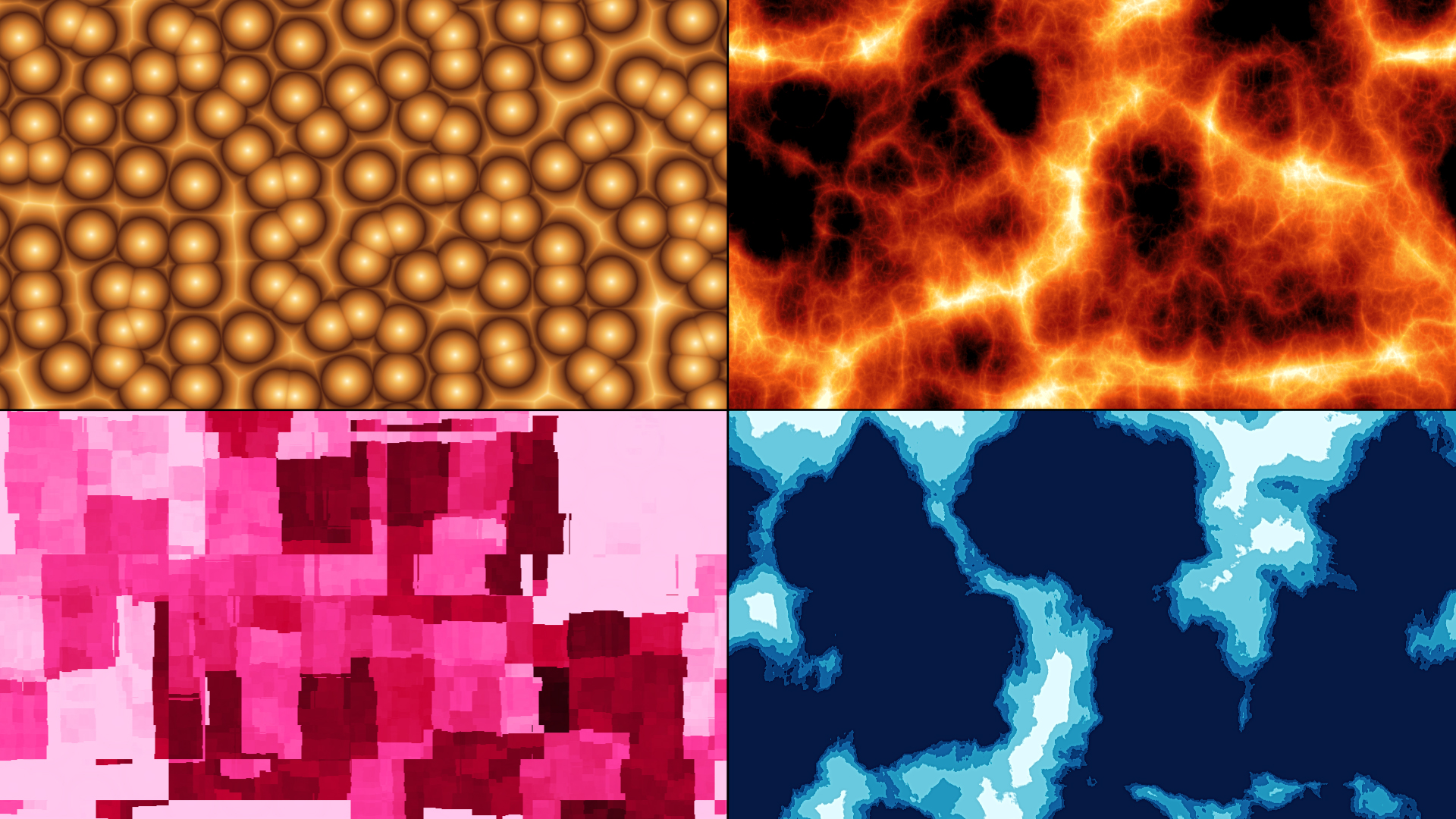
The BCC+ Noise Map Studio filter, part of the BCC Art Looks category, is a powerful 3D procedural noise generator designed to create an extensive range of rich, evolving textures. The filter produces automatically animated monochrome patterns that can be used as dynamic backgrounds, organic mattes, or custom control sources for driving other effects.
Working with the Filter
FX Editor and Presets
- Use the FX Editor to load or save presets for reuse.
- To load a preset: Open the FX Editor, select a preset from the Presets panel, and click Apply to return to the host application.
- To save a custom preset: While in the FX Editor, click the Create Custom Preset icon in the parameter list, enter a preset name, and click Done. Additionally, a custom preset can be saved from the main menu bar by selecting File->Save Preset.
- To import custom presets from another drive: While in the FX Editor, select File->Import Preset from the main menu bar.
Effect Controls
Mocha Mask and Track
Continuum effects include integrated masking and matte tools that allow you to restrict the effect to specific regions of the image.
- Mocha masks: used to create custom spline masks. Mocha also includes Matte Assist ML and Matte Refine ML, which use machine learning to generate and track masks.
- Pixel Chooser: used to generate geometric shapes, gradients, or mattes based on channel, luma, or color-based selections. Additionally, an AI depth map generator, and an AI-powered face detection model allow for precise control of masks and mattes.
Note: Mocha can also be used to drive geometric parameters. See the Mocha Motion Tracker documentation for details.
For more information, see Mocha and Pixel Chooser.
Compare Mode
The Compare Mode is used to view the filtered result alongside the original source layer. Several split-screen and side-by-side display options are available.
For more information, see Compare Mode.
Beat Reactor
The Beat Reactor is an audio-driven animation system that links effect parameters to an audio track. This allows visual effects to react dynamically to sound without manual key-framing.
For more information, see Beat Reactor Documentation.
Noise Group
The Noise group provides controls for defining the fundamental type, structure, scale, complexity, and randomization of the generated procedural noise.
- Type: Determines the underlying noise algorithm used to generate the procedural texture.
- Cloudy: Generates smooth, cloud-like variations with softly blended areas of light and dark.
- Bubbly: Generates rounded, bubble-like regions with more clearly defined areas of tonal variation.
- Eroded Terrain: Generates irregular terrain-like patterns with eroded features and complex surface detail.
- Sharp Ridges: Generates strongly defined ridge-like structures with sharper transitions between light and dark regions.
- Texture Style: Determines the structural appearance used to shape the generated noise pattern.
- Smooth: Generates continuous noise with smoothly varying transitions between neighboring values.
- Blocky: Quantizes the noise into more angular, block-like regions with harder transitions.
- Organic Cells: Organizes the noise into irregular cellular regions to produce an organic, cell-like texture.
- Cracks: Generates narrow branching divisions through the texture to produce a cracked or fractured appearance.
- Terrain Offset: Shifts the tonal threshold or elevation of terrain-based noise to change the distribution of raised and recessed areas.
- Pattern Size: Controls the overall scale of the generated noise features, determining how large or small the texture elements appear.
- Octaves: Controls the number of progressively finer layers of noise combined to create the texture, with higher values producing greater complexity and detail.
- Frequency Step: Controls the change in spatial frequency between successive noise octaves and therefore the scale relationship between layers of detail.
- Detail Strength: Controls the contribution of the higher-frequency noise layers to the final texture.
- Seed: Generates a different procedural noise pattern while preserving the current noise settings.
Shape
The Shape group modifies the structure of the generated noise to introduce swirling and stepped terrain-like characteristics.
- Swirl: Twists the generated noise pattern to introduce curved and rotational structures into the texture. Deep
- Swirl: Increases the depth and complexity of the swirling deformation to produce more strongly twisted noise structures.
- Terrace Steps: Divides the continuous noise values into a series of discrete levels to produce stepped, contour-like regions.
- Terrace Smoothness: Controls the softness of the transitions between adjacent terrace levels.
Adjust
The Adjust group provides controls for remapping the tonal range and distribution of the generated noise.
- Input Black: Sets the input noise value that is remapped to black, allowing darker portions of the texture to be clipped or expanded.
- Input White: Sets the input noise value that is remapped to white, allowing brighter portions of the texture to be clipped or expanded.
- Field: Controls the tonal distribution or range of the generated noise field before the remaining tonal adjustments are applied.
- Invert: Reverses the tonal values of the generated noise so that light areas become dark and dark areas become light.
- Bias: Shifts the distribution of intermediate noise values toward the darker or brighter end of the tonal range.
- Gain: Adjusts the distribution of intermediate noise values to increase or decrease the separation between darker and brighter regions.
- Gamma: Adjusts the midtone distribution of the generated noise without directly changing its defined black and white points.
- Output Black: Sets the minimum output value used for the darkest areas of the processed noise.
- Output White: Sets the maximum output value used for the brightest areas of the processed noise.
Sharpen
The Sharpen group enhances local contrast within the generated noise to produce more clearly defined texture details.
- Enable: Enables/disables sharpening of the generated noise.
- Sharpen Amount: Controls the strength of the sharpening applied to texture details.
- Sharpen Radius: Controls the size of the neighboring area examined when sharpening the generated texture.
Color
The Color group maps the monochrome noise values through a customizable gradient to create a colorized texture.
- Edit Gradient: Opens the interactive gradient editor for defining the colors and transitions used to colorize the generated noise.
- Gradient Hue: Shifts the hue of all colors in the selected gradient.
- Gradient Saturation: Adjusts the overall color saturation of the selected gradient.
- Gradient Lightness: Adjusts the overall brightness or lightness of the selected gradient.
Animation
The Animation group controls the automatic or manually keyframed movement and evolution of the procedural noise pattern over time.
- Mode: Determines whether the noise animation is generated automatically as a repeating loop or controlled manually through keyframing.
- Loop (Auto): Automatically evolves the procedural noise over the specified duration to produce a continuously repeating animation.
- Manual (Keyframe): Allows the evolution and movement of the noise to be controlled manually using keyframed parameters.
- Morph Amount: Controls the amount by which the internal structure of the procedural noise changes as it evolves over time.
- Loop Duration: Controls the amount of time required for an automatically animated noise pattern to complete one seamless animation cycle.
- Auto Drift X: Controls the automatic horizontal movement of the noise texture over time.
- Auto Drift Y: Controls the automatic vertical movement of the noise texture over time.
- Evolution: Controls the procedural state of the noise pattern, allowing its internal structure to be animated independently of its position.
- Offset X (tiles): Shifts the procedural noise horizontally by a specified number or fraction of repeating texture tiles.
- Offset Y (tiles): Shifts the procedural noise vertically by a specified number or fraction of repeating texture tiles. Blend
- Mode: Determines the mathematical blending operation used to composite the generated noise texture with the source image.
- Mix with Original: Blends the filtered result with the unfiltered source image, with higher values restoring more of the original image.
- GPU Rendering:Specifies how the effect is rendered.
- Default: Uses product-wide default of 16 bit half-float GPU rendering.
- 16 Bit Float: Manually force 16 bit half-float GPU rendering.
- 32 Bit Float: Manually force 32 bit full-float GPU rendering.
- Disabled: Forces CPU rendering.
