

















BCC+ Lens Blur
Category: BCC Blur
Effect Name: BCC+ Lens Blur
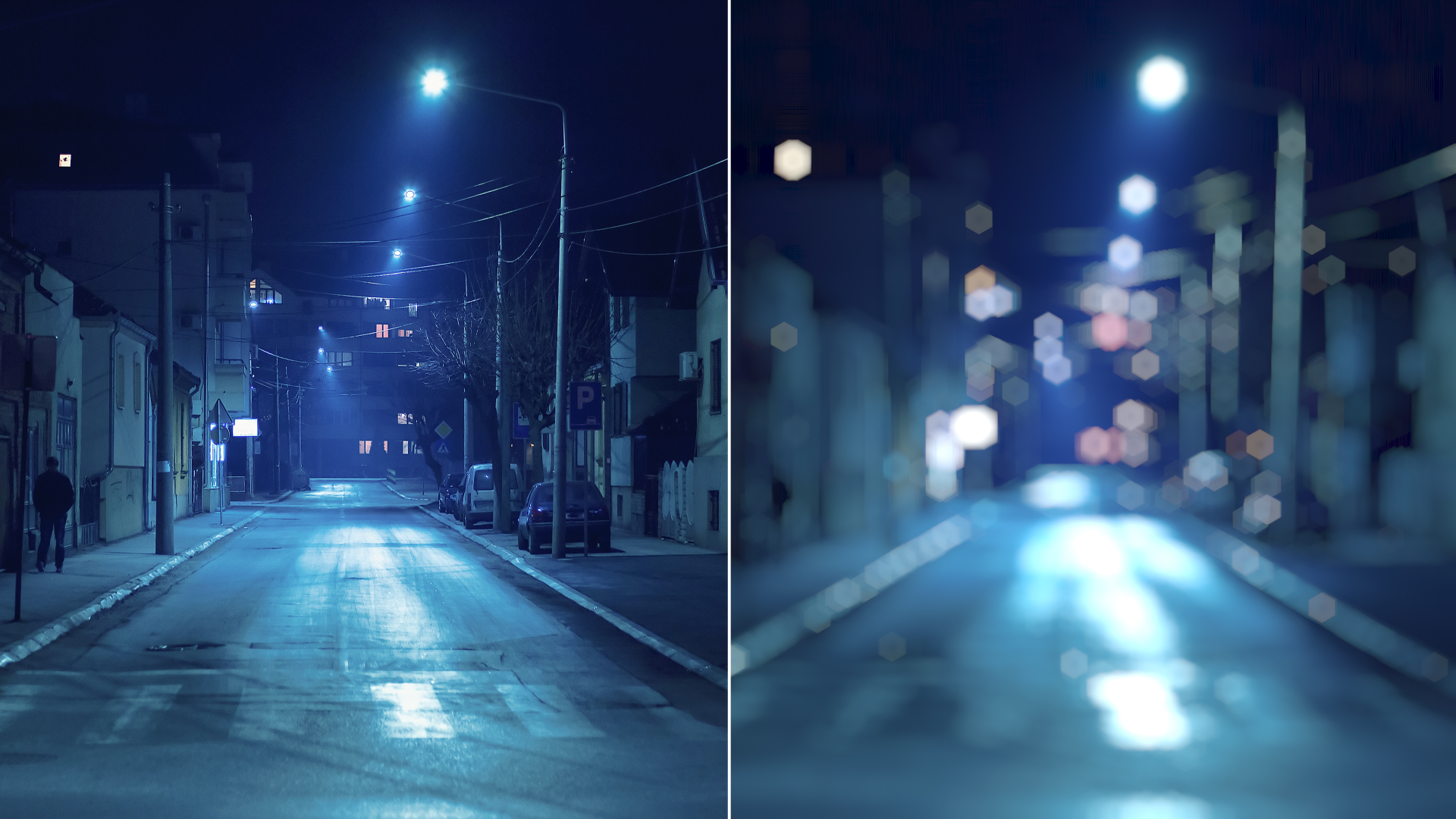
The BCC Lens Blur filter, part of the BCC Blur category, emulates a lens blur defocus/rackfocus effect where out of focus highlights of an image clip take on the shape of the lens diaphragm. When a lens is used at its maximum aperture (fully open / set to the smallest f stop number) the out of focus highlights are typically in the shape of a circle, however, when the lens is stopped down (set to something other than the smallest f stop number) the blades inside the lens shape the out of focus highlights into multi-sided shapes.
This filter includes a pop-up that can be used to match the different looks that can be achieved in the physical world based on the lens aperture setting. This pleasing optical result is referred to in photographic terms as Bokeh.
The BCC Lens Blur filter also includes a comprehensive depth of field (Z-Depth) option, whereby a separate image or an ML Depth Map can be used to control the depth and position of the focus field.
Working with the Filter
FX Editor and Presets
- Use the FX Editor to load or save presets for reuse.
- To load a preset: Open the FX Editor, select a preset from the Presets panel, and click Apply to return to the host application.
- To save a custom preset: While in the FX Editor, click the Create Custom Preset icon in the parameter list, enter a preset name, and click Done. Additionally, a custom preset can be saved from the main menu bar by selecting File->Save Preset.
- To import custom presets from another drive: While in the FX Editor, select File->Import Preset from the main menu bar.
Effect Controls
Mocha Mask and Track
Continuum effects include integrated masking and matte tools that allow you to restrict the effect to specific regions of the image.
- Mocha masks: used to create custom spline masks. Mocha also includes Matte Assist ML and Matte Refine ML, which use machine learning to generate and track masks.
- Pixel Chooser: used to generate geometric shapes, gradients, or mattes based on channel, luma, or color-based selections. Additionally, an AI depth map generator, and an AI-powered face detection model allow for precise control of masks and mattes.
Note: Mocha can also be used to drive geometric parameters. See the Mocha Motion Tracker documentation for details.
For more information, see Mocha and Pixel Chooser.
Compare Mode
The Compare Mode is used to view the filtered result alongside the original source layer. Several split-screen and side-by-side display options are available.
For more information, see Compare Mode.
Beat Reactor
The Beat Reactor is an audio-driven animation system that links effect parameters to an audio track. This allows visual effects to react dynamically to sound without manual key-framing.
For more information, see Beat Reactor Documentation.
- Allow Resizing: (Adobe After Effects only) enables automatic resizing to avoid cropping the edge.
- View:
Use to set the output from the filter and to view the different stages of the effect. The pop-up menu includes the following options:
- Output: Displays the final effect output.
- Iris: Displays a matte of the iris shape.
- Map Layer Orig: Displays the original map layer.
- Z Map: Displays the image used for the Z Map.
- Focus Map: Displays the area of focus in the image.
- Mask Defocused Pixels: Displays the blured pixels in red.
- Noise: Displays the noise map.
- Noisy Iris: Displays a matte of the iris shape with the noise map overlayed.
- Iris Scale:Used to set the size of the blurred highlight shapes.
- Iris Scale X:Scales the blurred highlight shape along the X axis.
- Iris Scale Y:Scales the blurred highlight shape along the Y axis.
- Blur Alpha:When enabled, will also blur the alpha channel in the filtered source
- Gamma:Used to control the gamma of the highlight shapes in the image.
Iris Group
Contains parameters to control the shape and look of the generated highlights.
- Iris Shape:
This menu is used to set the iris shape.
- Circle: Generates circular highlights (lens at maximum aperture /wide open.)
- 3 - 16 Sides: Sets the number of sides representing the number of shutter blades in the lens.
- Iris Rotation:Used to rotate the angle of the iris.
- Bokeh:Used in conjunction with the Iris Shape pop-up to define the shape of the out of focus highlights.
- Bokeh Shading:Used to set the level of shading of the inner region of the highlights.
Blur Map Group
Contains parameters to enable and control Z-Depth compositing within the filter.
- Map Type:
Used to set the mode of the Z-Map function:
- None: no depth map will be enabled.
- Depth Map ML: enables Depth Map ML.
- Z Layer: enables Z Map.
- Map Layer:Use to select a layer from the timeline for use as the depth map
Depth Map ML Group
- Model:
Used to select the desired depth map model and includes 3 user selectable options:
- Faster: less precise but fast depth map model
- Better: more precise depth map model, slightly slower than the Faster model
- Best: the most precise depth map model, slightly slower than the Better model
- Mapping Mode:
Used to determine how the AI model will be used to determine depth in the filtered source. This menu includes the following three options:
- Scaled: Provides the user with a single Scale control for tuning the returned depth map result. Low values in the corresponding Scale parameter will generate more transparency, while high values in the Scale parameter will introduce more opacity to the result.
- Min/Max: Automatically rescales the depth map to span the full range from black to white
- Guided: Generates a depth map based on user defined start and end points in the image. A pair of position points, Guide Near and Guide Far, are placed over regions that are nearest to and farthest from the camera, which provides a start and end point for the depth map generation.
- Scale:Available when Scaled mode is selected and used to tune the white scale of the depth map result. Low values in this parameter will introduce more transparency, high values introduce more opacity.
- Guide Far:Available when Guided mode is selected and used to set the far point for the depth map
- Guide Near:Available when Guided mode is selected and used to set the near point for the depth map
- Brightness:Used to increase or decrease the brightness in the generated depth map
- Contrast:Used to increase or decrease the contrast in the generated depth map
- Gamma:Used to increase or decrease the gamma in the generated depth map
- Level Far:Used to tune the Far (furthest from the camera) region of the generated depth map
- Level Near:Used to tune the Near (closest to the camera) region of the generated depth map
- Invert:Used to invert the depth map
Refine Depth Group
This group includes a set of brightness/contrast/gamma controls to separately refine the near/mid/far regions with user definable range and position settings for each region.
- Enable:Enables/Disables the Refine Depth Group parameters.
Far Sub Group:
Used to tune the far regions in the depth map (furthest from the camera)
- Position:Used to set the mid-point in the Far range
- Range:Used to define the size of Far range
- Brightness:Used to control the brightness in the maps Far region
- Contrast:Used to control the contrast in the maps Far region
- Gamma:Used to control the brightness in the maps Far region
Mid Sub Group:
Used to tune the mid regions in the depth map
- Position:Used to set the mid-point in the Midtone range
- Range:Used to define the size of Midtone range
- Brightness:Used to control the brightness in the maps Midtone region
- Contrast:Used to control the contrast in the maps Midtone region
- Gamma:Used to control the brightness in the maps Midtone region
Near Sub Group:
Used to tune the near regions in the depth map (closest to the camera)
- Position:Used to set the midpoint in the Near range
- Range:Used to define the size of Near range
- Brightness:Used to control the brightness in the maps Near region
- Contrast:Used to control the contrast in the maps Near region
- Gamma:Used to control the brightness in the maps Near region
Matte Tools Group
This group includes a set of parameters to fine tune the matte that is generated from the Depth Map result.
- Enable:Used to enable / disable the refine matte controls
- Matte Type:
Select one option from the list to fine tune the matte
- Levels: Uses depth map levels directly as set by earlier phases
- Threshold: Exposes Threshold and Softness control sliders for selecting all levels above or below a particular threshold
- Range: Exposes Range From and Range To matte control sliders for selecting an arbitrary range of levels
- Slice: Exposes Slice Center, Slice Width and Softness matte control sliders for isolating a range of pixels around a particular level
- Threshold:Used to set the center point for pixels that are either black or white
- Range From:Used to set the starting range (brights) of pixels to be included in the matte
- Range To:Used to set the end range (darks) of pixels to be included in the matte
- Slice Center:Used to isolate a range of pixels around a particular level to be included in the matte
- Slice Width:Used to define the width (in terms of levels) of the Slice range
- Softness:Used to soften the transition of the threshold, range, and slice boundary regions
- Choke:Used to choke or spread the matte
- Blur:Used to blur the matte
- Invert Matte:Used to invert the depth map
- Channel:
Used to select a channel from the layer that is used as the depth map image with the following options:
- Luminance
- Alpha
- Red
- Green
- Blue
- Invert Z:enable to flip the Z map
- Smoothness:Higher values produce a smoother blur result.
- Focal Point:Used to set the point along the Z axis which is in focus.
- Depth of Field:Controls the depth of the focus field, or the amount of pixels that remain in focus.
- Z Gamma:Used to adjust the gamma levels of the Z Map input image.
- Near Scale:Use to increase the size of the blur applied to the pixels that are closest to the camera.
- Far Scale:Use to increase the size of the blur applied to the pixels that are farthest from the camera.
Noise Group
Contains parameters to control the level of noise in the highlights.
- Noise Intensity:Used to set the amount of noise in the highlights.
- Noise Scale:Used to set the size of noise structure in the highlights.
- Noise Stretch:Used to distort the noise structure in the highlights.
- Noise Blur:Used to smooth the generated noise in the highlights.
- Noise Seed:Used to set the random seed that controls the noise structure in the highlights.
Highlights Group
Contains parameters to control the highlights that are generated by the filter.
- Highlight Mode:
The options in this menu are used to determine the way the highlights are composited into the image:
- Luma: Boosts the Luminosity values of the highlights.
- Luma Boost to White: Boosts the Luminosity values and desaturates the highlights.
- RGB Glow: Boosts the RGB and Saturation values of the highlights.
- RGB Max: Boosts the RGB values of the highlights.
- Highlight Boost:Used to set the intensity of the highlight boosting – higher values result in brighter highlights.
- Highlight Threshold:Used to set the cutoff point for highlight boosting.
- Suppress Threshold:Used to set the intensity of the shadow boosting – higher values result in darker shadows.
- Boost Soften:A slope control that softens the highlight and shadow boosting effect.
Post Group
Contains parameters for post processing the image.
- Blend Mode:Contains 25 blending modes for compositing the filtered result with the original image.
- Blend Mode Mix:Used to create a blend between the current blend mode and the Normal blend mode.
- Mix with Original: Blends the source and filtered images. Use this parameter to animate the effect from the unfiltered to the filtered image without adjusting other settings, or to reduce the effect of the filter by mixing it with the source image.
- GPU Rendering:Specifies how the effect is rendered.
- Default: Uses product-wide default of 16 bit half-float GPU rendering.
- 16 Bit Float: Manually force 16 bit half-float GPU rendering.
- 32 Bit Float: Manually force 32 bit full-float GPU rendering.
- Disabled: Forces CPU rendering.
