

















BCC+ Grid
Category: BCC Textures
Effect Name: BCC+ Grid
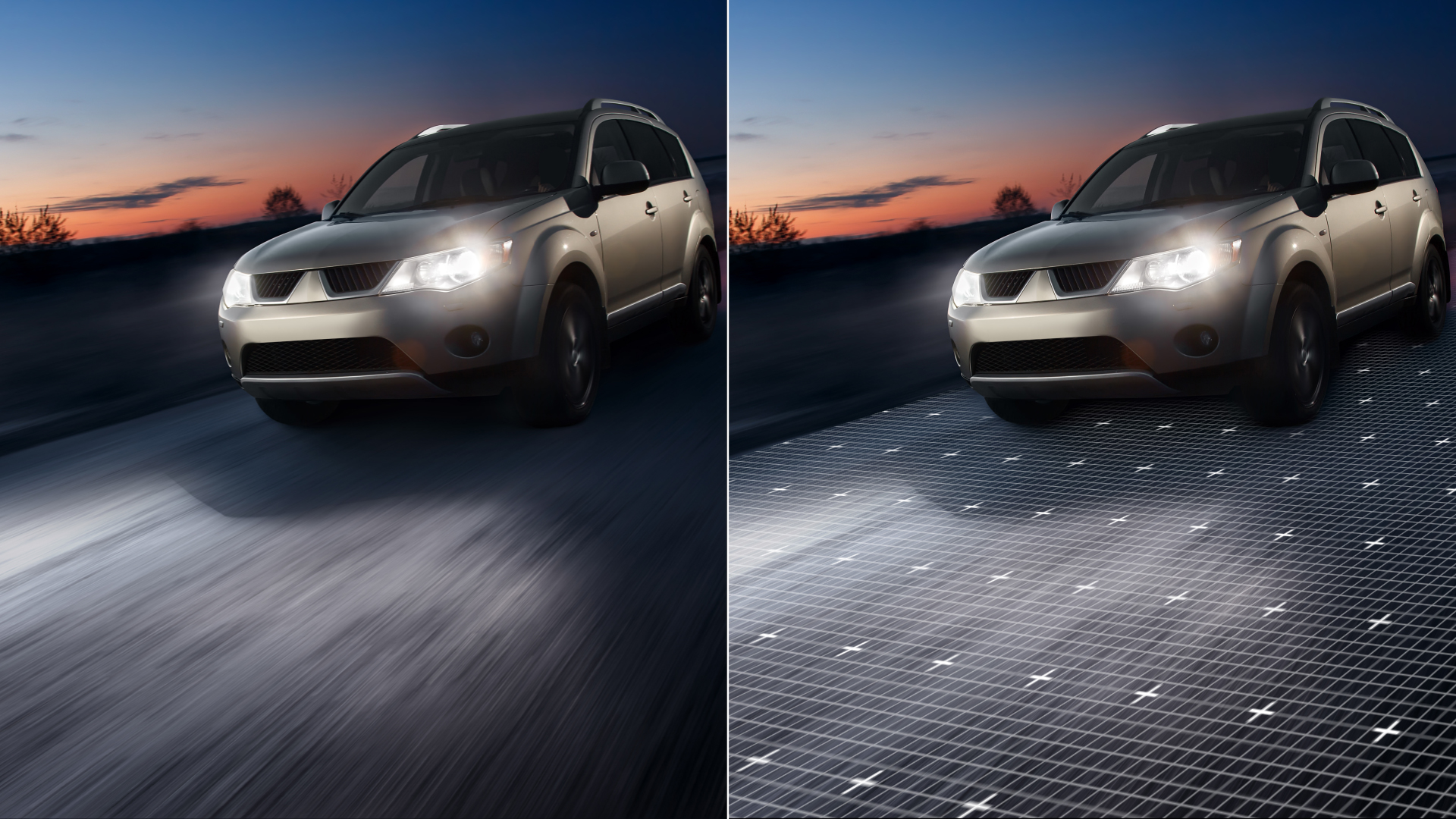
The BCC+ Grid filter, part of the BCC Textures category, is a versatile new filter that makes it easy to create fully customizable 2D grid designs . Grids can be composited directly over the source image or generated against a solid-color background, with independent primary and secondary grid lines offering a wide variety of styles, including lines, dots, plus signs, diamonds, and more.
For even greater creative flexibility, BCC+ Grid features a comprehensive 3D DVE system with corner pinning , Mocha tracking, and edge mirroring, allowing the grid to be transformed into a seamless, infinite 3D plane. The source image can also be locked to the grid, ensuring that it follows the same perspective and movement as the 3D DVE transformation for convincing, fully integrated results.
Working with the Filter
FX Editor and Presets
- Use the FX Editor to load or save presets for reuse.
- To load a preset: Open the FX Editor, select a preset from the Presets panel, and click Apply to return to the host application.
- To save a custom preset: While in the FX Editor, click the Create Custom Preset icon in the parameter list, enter a preset name, and click Done. Additionally, a custom preset can be saved from the main menu bar by selecting File->Save Preset.
- To import custom presets from another drive: While in the FX Editor, select File->Import Preset from the main menu bar.
Effect Controls
Mocha Mask and Track
Continuum effects include integrated masking and matte tools that allow you to restrict the effect to specific regions of the image.
- Mocha masks: used to create custom spline masks. Mocha also includes Matte Assist ML and Matte Refine ML, which use machine learning to generate and track masks.
- Pixel Chooser: used to generate geometric shapes, gradients, or mattes based on channel, luma, or color-based selections. Additionally, an AI depth map generator, and an AI-powered face detection model allow for precise control of masks and mattes.
Note: Mocha can also be used to drive geometric parameters. See the Mocha Motion Tracker documentation for details.
For more information, see Mocha and Pixel Chooser.
Compare Mode
The Compare Mode is used to view the filtered result alongside the original source layer. Several split-screen and side-by-side display options are available.
For more information, see Compare Mode.
Beat Reactor
The Beat Reactor is an audio-driven animation system that links effect parameters to an audio track. This allows visual effects to react dynamically to sound without manual key-framing.
For more information, see Beat Reactor Documentation.
- View: Determines which representation of the Grid effect is displayed in the viewer while adjusting the filter.
- Grid Spacing: Uniformly controls the horizontal and vertical distance between grid elements.
- Grid Spacing X: Independently controls the horizontal spacing between grid elements.
- Grid Spacing Y: Independently controls the vertical spacing between grid elements.
- Seamless Tile: Adjusts the generated grid so that it can repeat continuously without visible seams at the tile boundaries.
- Subdivisions: Controls the number of secondary divisions created between the primary grid lines.
Primary Group
The Primary group controls the appearance of the main grid elements.
- Style: Selects the geometric style used to draw the primary grid elements.
- Thickness: Controls the line or stroke thickness of the primary grid elements.
- Size: Controls the overall size of the primary grid shapes or markers.
- Color: Sets the color of the primary grid elements.
Secondary Group
The Secondary group controls the appearance of the secondary grid elements generated between the primary grid divisions.
- Style: Selects the geometric style used to draw the secondary grid elements.
- Thickness: Controls the line or stroke thickness of the secondary grid elements.
- Size: Controls the overall size of the secondary grid shapes or markers.
- Color: Sets the color of the secondary grid elements.
- Offset: Shifts the generated grid horizontally and vertically relative to its default position.
- Opacity: Controls the overall transparency of the generated grid.
- Background: Determines whether the generated grid is composited over the source image or displayed over a solid-color background.
- Source: Uses the original source image as the background behind the generated grid.
- Solid: Uses the selected Background Color as a solid background behind the generated grid.
- Apply Mode: Determines the mathematical blending operation used to composite the generated grid with the source image or background.
- Use Source Alpha: Uses the alpha channel of the source image to control the visibility of the generated grid composite.
- Background Color: Sets the solid color used for the generated background when Background is set to Solid.
- Background Opacity: Controls the transparency of the generated background.
Transform Group
The Transform group provides controls for positioning, scaling, rotating, skewing, corner pinning, and viewing the grid in 3D space.
- Enable: Enables/disables the transformations defined in the Transform group.
- Apply To: Determines whether the Transform controls affect the grid or the background.
- Grid: Applies the Transform controls to the generated grid while leaving the background unchanged.
- Background: Applies the Transform controls to the background while leaving the generated grid independently positioned.
Corner Pin
The Corner Pin sub-group provides independent control over the four corners of the grid plane for perspective and freeform positioning.
- Upper-Left: Sets the position of the upper-left corner of the transformed grid plane.
- Upper-Right: Sets the position of the upper-right corner of the transformed grid plane.
- Lower-Right: Sets the position of the lower-right corner of the transformed grid plane.
- Lower-Left: Sets the position of the lower-left corner of the transformed grid plane.
- Position Z: Moves the grid plane along the Z axis to change its apparent distance from the virtual camera.
- Scale: Uniformly scales the grid plane along both the horizontal and vertical axes.
- Scale X: Independently scales the grid plane along the horizontal axis.
- Scale Y: Independently scales the grid plane along the vertical axis.
- Tumble: Rotates the grid plane in 3D space around its horizontal axis.
- Spin: Rotates the grid plane in 3D space around its vertical axis.
- Rotate: Rotates the grid plane within the image plane.
- Shear X: Skews the grid plane along the horizontal axis.
- Shear Y: Skews the grid plane along the vertical axis.
- Anchor X: Sets the horizontal position of the anchor point around which grid transformations are calculated.
- Anchor Y: Sets the vertical position of the anchor point around which grid transformations are calculated.
- Anchor Z: Sets the depth position of the anchor point used for 3D grid transformations.
- Camera XY: Sets the horizontal and vertical position of the virtual camera used to view the transformed grid plane.
- Camera Z: Controls the virtual camera position along the Z axis, changing the apparent scale and perspective of the transformed0 grid.
- Filter Softness: Applies softening to the transformed result to reduce hard edges and aliasing.
- Edge Mode: Determines how the filter generates pixels when transformation of the grid or source extends beyond the image boundaries.
- Transparent: Treats areas beyond the image boundaries as transparent.
- Repeat: Extends the pixels at the image edges into areas beyond the boundaries.
- Reflect: Mirrors the image at its edges when sampling beyond the boundaries.
- Wrap: Wraps sampling from one edge of the image to the opposite edge.
Motion Blur
The Motion Blur sub-group controls the simulated blur generated by animated transformations of the grid or source.
- Enable: Enabl/disables motion blur for animated transformations.
- Shutter Angle: Controls the duration of the simulated shutter exposure and therefore the overall amount of motion blur.
- Shutter Phase: Offsets the timing of the simulated shutter interval relative to the current frame.
- Samples: Controls the number of temporal samples used to calculate motion blur, with higher values producing smoother results at the cost of additional render time.
- Mix with Original: Blends the filtered result with the unfiltered source image, with higher values restoring more of the original image.
- Default: Uses product-wide default of 16 bit half-float GPU rendering.
- 16 Bit Float: Manually force 16 bit half-float GPU rendering.
- 32 Bit Float: Manually force 32 bit full-float GPU rendering.
- Disabled: Forces CPU rendering.
