

















BCC+ Curl Dissolve
Category: BCC Transitions
Effect Name: BCC+ Curl Dissolve
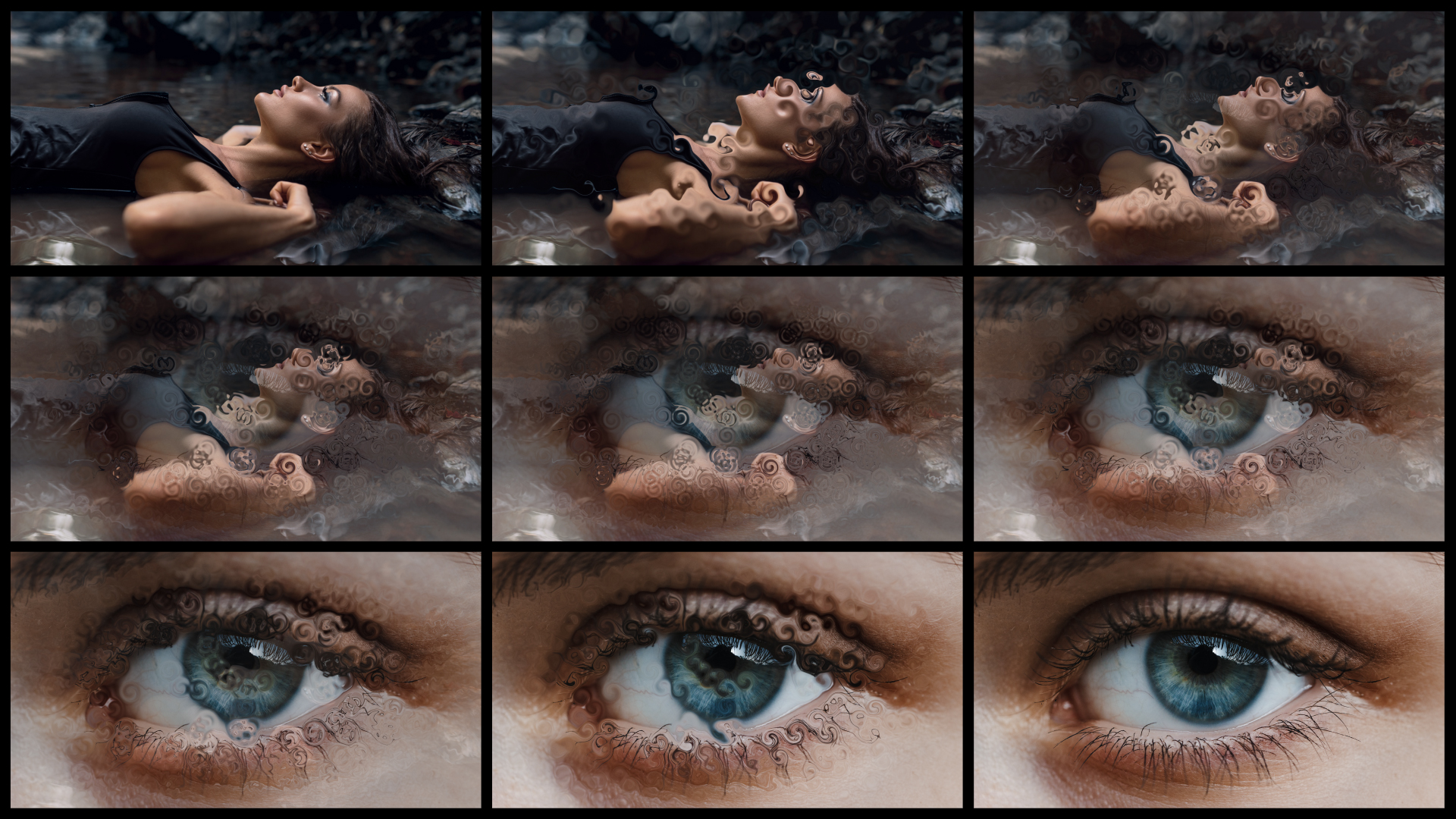
The BCC+ Curl Dissolve filter, part of the BCC Transitions category, creates a fluid, organic transition that blends one shot into the next using animated curling distortions. The effect twists and folds image detail as the transition progresses, producing a more dimensional and stylized alternative to a traditional dissolve while remaining fully auto-animating for fast setup.
Working with the Filter
FX Editor and Presets
- Use the FX Editor to load or save presets for reuse.
- To load a preset: Open the FX Editor, select a preset from the Presets panel, and click Apply to return to the host application.
- To save a custom preset: While in the FX Editor, click the Create Custom Preset icon in the parameter list, enter a preset name, and click Done. Additionally, a custom preset can be saved from the main menu bar by selecting File->Save Preset.
- To import custom presets from another drive: While in the FX Editor, select File->Import Preset from the main menu bar.
- Animation: Menu controlling what drives the animation of the transition.
- Auto: Automatically generates a transition based on the transition length (when used as a transition) or the clip length (when used as a filter).
- Manual: Requires the user to set keyframes to control the transition progression. Can be useful in customizing the exact timing of the transition or when applying the filter as a stylized effect as opposed to a direct NLE-style transition.
- Layer to Reveal: This layer selection popup is not relevant when you have applied the filter as a true NLE-style transition and it will be hidden or disabled in that context. When applied as a normal “effect” as opposed to a transition, however, this menu is used to select the “Incoming” or “Reveal” layer for the transition.
- Percent Done: When the Animation menu is changed to Percent Done then this slider can be manually keyframed to control the transition progression.
Curl Group
The Curl group controls the shape, strength, scale, movement, randomization, and lighting of the animated distortions used to create the transition.
- Warp Type: Determines the type of geometric distortion used to generate the animated curl pattern.
- Density: Sets the number and concentration of individual warp regions used to create the transition.
- Warp Amplitude: Sets the overall strength of the curl distortion and how far pixels are displaced from their original positions.
- Warp Amplitude Randomizer: Introduces variation into the strength of individual warp regions to create a less uniform distortion.
- Warp Direction Randomizer: Introduces variation into the directional orientation of individual warp regions.
- Radius: Sets the overall size of the individual warp regions used to generate the curl effect.
- Radius Randomizer: Introduces variation into the size of individual warp regions.
- Flow Direction: Sets the primary direction in which the curl pattern moves across the image.
- Flow Direction Randomizer: Introduces variation into the movement direction of individual warp regions.
- Flow Speed: Sets the rate at which the curl pattern moves across the image.
- Flow Speed Randomizer: Introduces variation into the movement speed of individual warp regions.
- Random Seed: Generates a different randomized arrangement of warp regions while preserving the current Curl settings.
Bulge / Spherize Light
The Bulge / Spherize Light sub-group controls the simulated lighting and shading used to emphasize the dimensional appearance of Bulge and Spherize warp types.
- Light Level: Sets the overall intensity of the simulated light.
- Light Direction: Sets the horizontal direction from which the simulated light illuminates the distorted surface.
- Light Elevation: Sets the vertical angle of the simulated light relative to the distorted surface.
- Light Width: Sets the width and spread of the illuminated regions across the distorted surface.
- Light Color: Sets the color of the simulated light.
- Shade Level: Sets the intensity of shading applied to areas of the distorted surface facing away from the light.
- Shade Color: Sets the color applied to shaded regions of the distorted surface.
- Specular Level: Sets the intensity of the simulated specular highlights on the distorted surface.
- Specular Color: Sets the color of the simulated specular highlights.
- Chromatic Separation: Introduces color separation into the wave distortion by offsetting the image channels to create chromatic fringes and multicolored distortion detail.
- Spread: Determines the distance over which the separated color channels are distributed, with higher values producing greater separation between colors.
- Bias: Shifts the distribution of the chromatic separation to alter the balance and positioning of the separated colors.
- Spectral Blend: Sets the amount of blending between the separated color components, with higher values producing smoother transitions between colors.
- Samples: Determines the number of samples used to generate the chromatic separation, with higher values producing smoother and more continuous results at the cost of additional processing.
Advanced
The Advanced sub-group provides independent controls for adjusting the contribution of each image channel to the chromatic separation effect.
- Red Amount: controls the amount of chromatic separation applied to the red channel.
- Green Amount: controls the amount of chromatic separation applied to the green channel.
- Blue Amount: controls the amount of chromatic separation applied to the blue channel.
- Alpha Amount: controls the amount of separation applied to the alpha channel.
- Edge Mode: Determines how edges of the filtered frame are handled.
- Transparent: Sets the edge of the result to become transparent.
- Repeat: Sets edge pixels to generate opaque pixels along the edge of the result.
- Reflect: Reflects pixels back into the result to generate opaque pixels along the edge of the result.
- Wrap: Wraps edge pixels to generate opaque pixels along the edge of the result.
- Apply Curl To: determines which image or transition component receives the animated Curl distortion.
- Hue: Shifts the overall hue of the color-corrected image.
- Saturation: Controls the overall intensity of colors in the color-corrected image.
- Brightness: Sets the overall luminance of the color-corrected image.
- Contrast: Sets the difference between the lighter and darker areas of the color-corrected image.
- Gamma: Sets the midtone brightness of the image while having less effect on the darkest and brightest values.
- Temperature: Shifts the overall color balance toward warmer or cooler tones.
- Cyan/Magenta: Shifts the overall color balance between cyan and magenta.
- Red: Sets the contribution of the red channel in the color-corrected image.
- Green: Sets the contribution of the green channel in the color-corrected image.
- Blue: Sets the contribution of the blue channel in the color-corrected image.
- Ease In: Controls how quickly or slowly the transition advances at the beginning of the transition.
- Ease Mid: Controls how quickly or slowly the middle of the animation progresses.
- Ease Out: Controls how quickly or slowly the transition advances at the end of the transition.
- OSC Enable: Only visible in hosts that support heads up display widgets for manipulating these controls directly on screen. Enables/Disables on screen controls.
- GPU Rendering:Specifies how the effect is rendered.
- Default: Uses product-wide default of 16 bit half-float GPU rendering.
- 16 Bit Float: Manually force 16 bit half-float GPU rendering.
- 32 Bit Float: Manually force 32 bit full-float GPU rendering.
- Disabled: Forces CPU rendering.
Color Correct Group
The Color Correct group provides controls for adjusting the color and tonal characteristics of the transition result.
Animation Tuning group
These parameters control the overall timing of the transition. On hosts which permit on-screen heads up display widgets (such as AE, Premiere, and Avid) you should never need to modify these sliders directly since they can be configured in a more convenient and intuitive manner by manipulating the widgets directly in your comp/preview pane. On hosts without heads up display widgets you can use these sliders directly to fine tune your animation timing, taking advantage of the View Ease Curve option to help visualize the animation rates.
