

















BCC+ Curl
Category: BCC Warp
Effect Name: BCC+ Curl
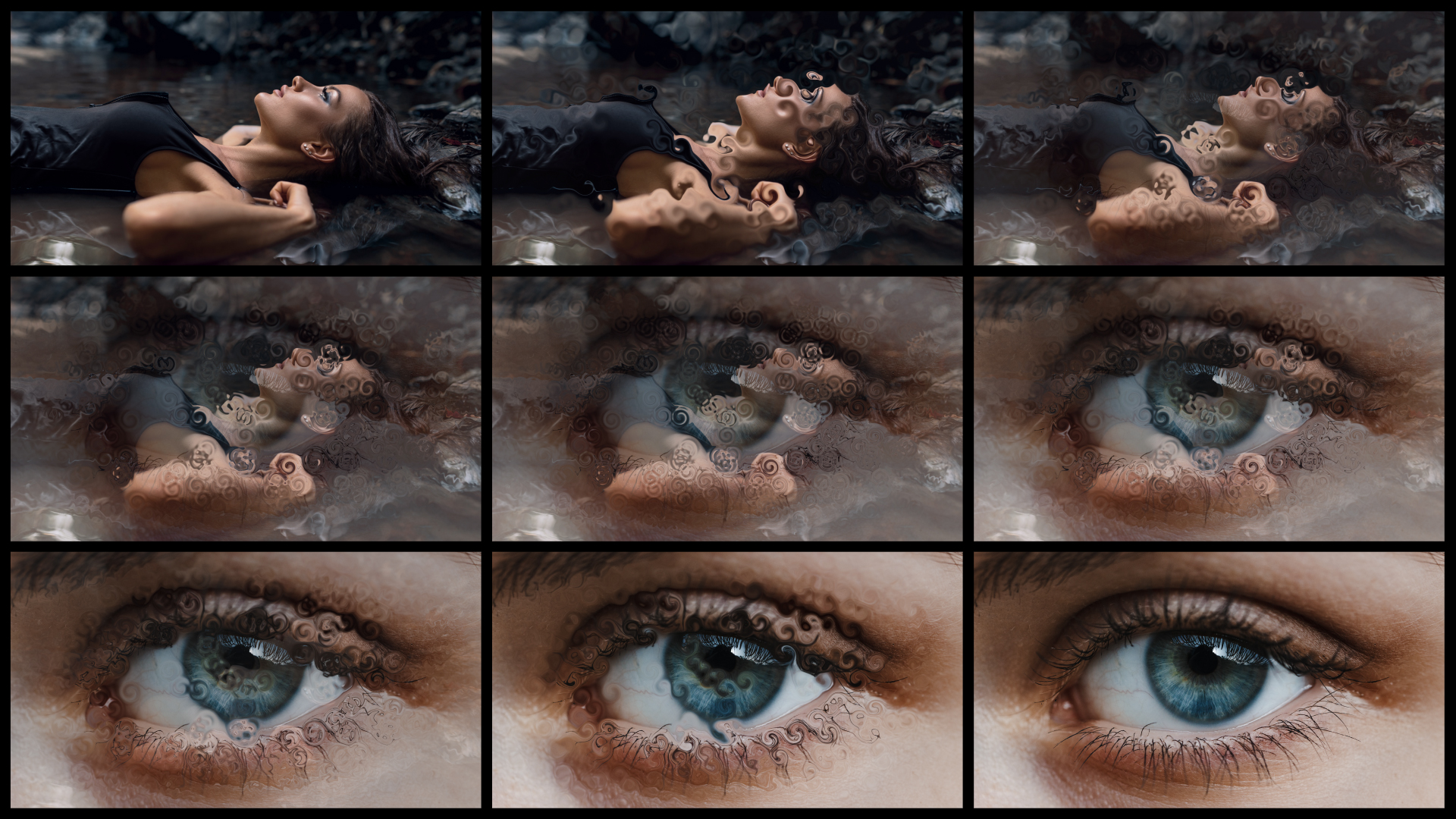
The BCC+ Curl filter, part of the BCC Warp category, creates a fluid, brings image clips to life with fluid, automatically animated swirling distortions that twist and flow organically across the frame. Extensive controls over the amount, amplitude, and scale of the curls make it easy to create anything from subtle rippling motion to bold, energetic warps. Built-in randomization controls independently vary characteristics such as amplitude, movement direction, scale, and flow speed, producing continuously evolving patterns with unique and unpredictable results.
Working with the Filter
FX Editor and Presets
- Use the FX Editor to load or save presets for reuse.
- To load a preset: Open the FX Editor, select a preset from the Presets panel, and click Apply to return to the host application.
- To save a custom preset: While in the FX Editor, click the Create Custom Preset icon in the parameter list, enter a preset name, and click Done. Additionally, a custom preset can be saved from the main menu bar by selecting File->Save Preset.
- To import custom presets from another drive: While in the FX Editor, select File->Import Preset from the main menu bar.
Effect Controls
Mocha Mask and Track
Continuum effects include integrated masking and matte tools that allow you to restrict the effect to specific regions of the image.
- Mocha masks: used to create custom spline masks. Mocha also includes Matte Assist ML and Matte Refine ML, which use machine learning to generate and track masks.
- Pixel Chooser: used to generate geometric shapes, gradients, or mattes based on channel, luma, or color-based selections. Additionally, an AI depth map generator, and an AI-powered face detection model allow for precise control of masks and mattes.
Note: Mocha can also be used to drive geometric parameters. See the Mocha Motion Tracker documentation for details.
For more information, see Mocha and Pixel Chooser.
Compare Mode
The Compare Mode is used to view the filtered result alongside the original source layer. Several split-screen and side-by-side display options are available.
For more information, see Compare Mode.
Beat Reactor
The Beat Reactor is an audio-driven animation system that links effect parameters to an audio track. This allows visual effects to react dynamically to sound without manual key-framing.
For more information, see Beat Reactor Documentation.
- View: Determines which representation of the Curl effect is displayed in the viewer while adjusting the filter.
- Output: Displays the final processed image with the Curl distortion applied.
- Grid: Displays a reference grid that visualizes the shape, position, and amount of distortion produced by the effect.
- Grid Over Source: Overlays the reference grid on the source image so that the distortion can be evaluated in relation to the original image.
- Warp Type: Determines of geometric distortion used to generate the individual animated warp regions.
- Curl: Twists pixels around the centers of the generated warp regions to produce swirling distortions.
- Bulge: Expands or contracts pixels around the centers of the generated warp regions to produce bulging or pinching distortions.
- Spherize: Maps pixels within the generated warp regions onto spherical surfaces to create rounded, lens-like distortions.
- Density: Sets the number and concentration of individual warp regions used to create the transition.
- Warp Amplitude: Sets the overall strength of the generated distortions and therefore how far pixels are displaced from their original positions.
- Warp Amplitude Randomizer: Introduces variation into the amplitude of the individual warp regions so that their distortion strengths are less uniform.
- Warp Direction Randomizer: Introduces variation into the directional orientation of the individual warp regions to produce a less uniform distortion pattern..
- Radius: Sets the overall size of the individual warp regions generated throughout the image.
- Radius Randomizer: Introduces variation into the radius of the individual warp regions so that they are generated at different sizes.
- Flow Direction: Sets the primary direction in which the generated warp regions move across the image over time.
- Flow Direction Randomizer: Introduces variation into the movement direction of the individual warp regions so that they travel in less uniform directions.
- Flow Speed: Sets the raterate at which the generated warp regions move across the image over time.
- Flow Speed Randomizer: Introduces variation into the movement speed of the individual warp regions so that they travel at different rates
- Random Seed: Generates a different randomized arrangement of the procedural variations while preserving the current parameter settings.
Bulge / Spherize Light
The Bulge / Spherize Light sub-group controls the simulated lighting and shading used to emphasize the dimensional appearance of Bulge and Spherize warp types.
- Light Level: Sets the overall intensity of the simulated light.
- Light Direction: Sets the horizontal direction from which the simulated light illuminates the distorted surface.
- Light Elevation: Sets the vertical angle of the simulated light relative to the distorted surface.
- Light Width: Sets the width and spread of the illuminated regions across the distorted surface.
- Light Color: Sets the color of the simulated light.
- Shade Level: Sets the intensity of shading applied to areas of the distorted surface facing away from the light.
- Shade Color: Sets the color applied to shaded regions of the distorted surface.
- Specular Level: Sets the intensity of the simulated specular highlights on the distorted surface.
- Specular Color: Sets the color of the simulated specular highlights.
- Chromatic Separation: Introduces color separation into the wave distortion by offsetting the image channels to create chromatic fringes and multicolored distortion detail.
- Spread: Determines the distance over which the separated color channels are distributed, with higher values producing greater separation between colors.
- Bias: Shifts the distribution of the chromatic separation to alter the balance and positioning of the separated colors.
- Spectral Blend: Sets the amount of blending between the separated color components, with higher values producing smoother transitions between colors.
- Samples: Determines the number of samples used to generate the chromatic separation, with higher values producing smoother and more continuous results at the cost of additional processing.
Advanced
The Advanced sub-group provides independent controls for adjusting the contribution of each image channel to the chromatic separation effect.
- Red Amount: controls the amount of chromatic separation applied to the red channel.
- Green Amount: controls the amount of chromatic separation applied to the green channel.
- Blue Amount: controls the amount of chromatic separation applied to the blue channel.
- Alpha Amount: controls the amount of separation applied to the alpha channel.
- Edge Mode: Determines how edges of the filtered frame are handled.
- Transparent: Sets the edge of the result to become transparent.
- Repeat: Sets edge pixels to generate opaque pixels along the edge of the result.
- Reflect: Reflects pixels back into the result to generate opaque pixels along the edge of the result.
- Wrap: Wraps edge pixels to generate opaque pixels along the edge of the result.
- Mix with Original: Blends the filtered result with the unfiltered source image, with higher values restoring more of the original image.
- GPU Rendering:Specifies how the effect is rendered.
- Default: Uses product-wide default of 16 bit half-float GPU rendering.
- 16 Bit Float: Manually force 16 bit half-float GPU rendering.
- 32 Bit Float: Manually force 32 bit full-float GPU rendering.
- Disabled: Forces CPU rendering.
