

















BCC+ Bulge
Category: BCC Warp
Effect Name: BCC+ Bulge
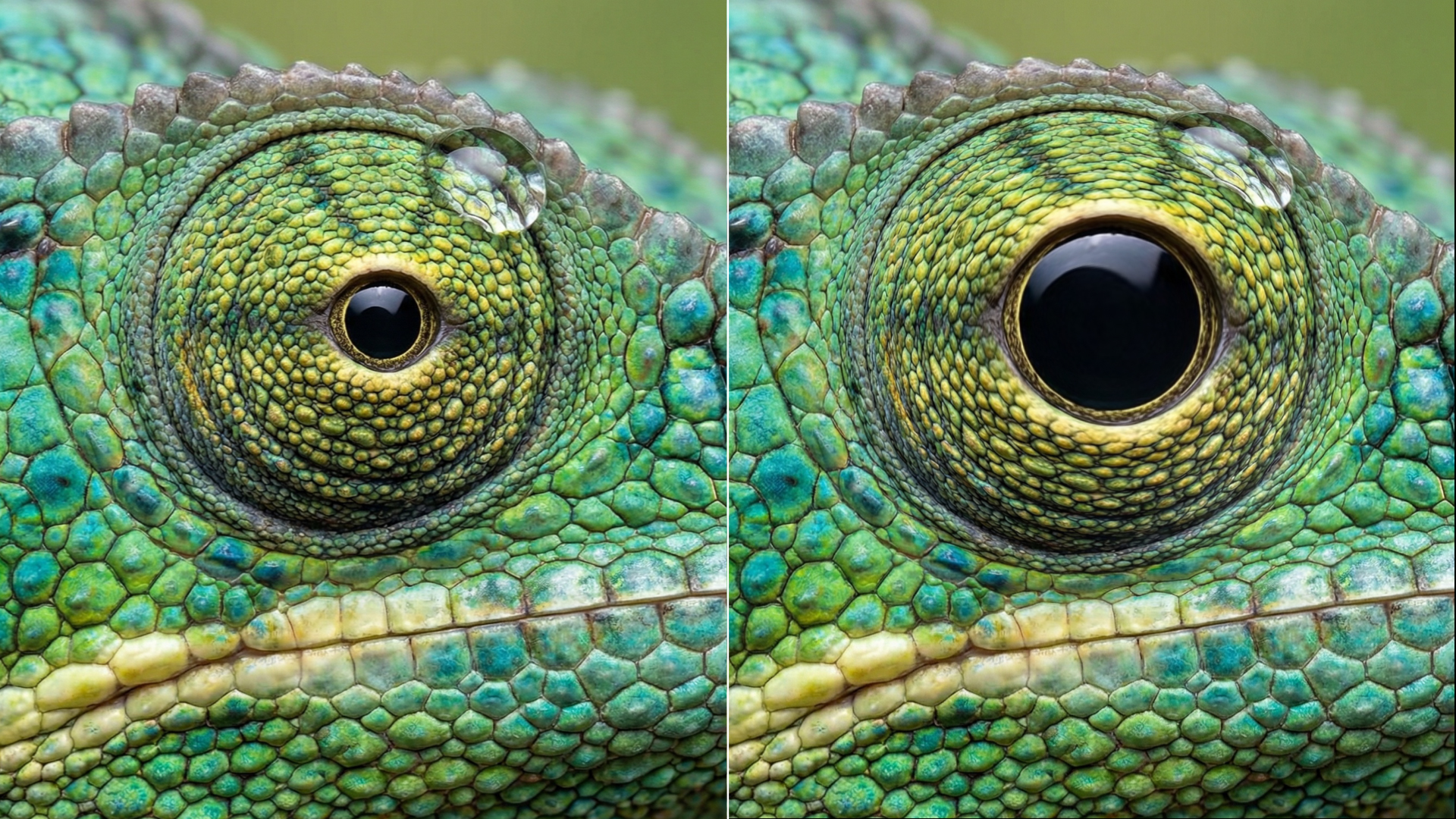
The BCC+ Bulge filter, part of the BCC Warp category, distorts an image by expanding or contracting pixels around a user-defined center point. Positive bulge values create the appearance of the image projecting outward toward the viewer, while negative values pull the image inward to produce a pinched or recessed appearance.
Working with the Filter
FX Editor and Presets
- Use the FX Editor to load or save presets for reuse.
- To load a preset: Open the FX Editor, select a preset from the Presets panel, and click Apply to return to the host application.
- To save a custom preset: While in the FX Editor, click the Create Custom Preset icon in the parameter list, enter a preset name, and click Done. Additionally, a custom preset can be saved from the main menu bar by selecting File->Save Preset.
- To import custom presets from another drive: While in the FX Editor, select File->Import Preset from the main menu bar.
Effect Controls
Mocha Mask and Track
Continuum effects include integrated masking and matte tools that allow you to restrict the effect to specific regions of the image.
- Mocha masks: used to create custom spline masks. Mocha also includes Matte Assist ML and Matte Refine ML, which use machine learning to generate and track masks.
- Pixel Chooser: used to generate geometric shapes, gradients, or mattes based on channel, luma, or color-based selections. Additionally, an AI depth map generator, and an AI-powered face detection model allow for precise control of masks and mattes.
Note: Mocha can also be used to drive geometric parameters. See the Mocha Motion Tracker documentation for details.
For more information, see Mocha and Pixel Chooser.
Compare Mode
The Compare Mode is used to view the filtered result alongside the original source layer. Several split-screen and side-by-side display options are available.
For more information, see Compare Mode.
Beat Reactor
The Beat Reactor is an audio-driven animation system that links effect parameters to an audio track. This allows visual effects to react dynamically to sound without manual key-framing.
For more information, see Beat Reactor Documentation.
- View: Determines which representation of the Bulge effect is displayed in the viewer while adjusting the filter.
- Output: Displays the final processed image with the Bulge distortion applied.
- Grid: Displays a reference grid that visualizes the shape and amount of distortion produced by the effect.
- Grid over Source: Overlays the reference grid on the source image so that the distortion can be evaluated in relation to the original image.
- Distortion Type: Determines the type of geometric distortion used to deform the source image.
- Bulge: Expands or contracts pixels around the Center Point to produce an outward bulging or inward pinching distortion.
- Spherize: Maps the affected region onto a spherical surface to create the appearance of the image wrapping around or receding into a sphere.
- Center Point: Sets the horizontal and vertical position around which the distortion is generated.
- Amount: Controls the strength and apparent height of the bulge, with positive and negative values producing outward or inward deformation.
- Falloff: Controls the amount of perspective applied to the distortion, altering the apparent three-dimensional projection of the bulged surface.
- Depth: Controls the apparent depth of the distorted surface and influences how strongly the effect appears to project toward or away from the viewer.
- Radius: Controls the size of the area surrounding the Center Point that is affected by the distortion.
- Taper: Controls how gradually the distortion decreases in strength as it approaches the outer boundary of the affected region.
- Stretch: Changes the aspect ratio of the distortion, allowing the normally circular bulge region to be elongated along one axis.
- Stretch Angle: Controls the orientation of the axis along which the distortion is stretched.
Light Group
The Light group adds simulated lighting to the distorted surface to emphasize the contours created by the wave deformation.
- Light Level: Sets the overall intensity of the simulated lighting applied to the distorted surface.
- Light Color: Sets the color of the simulated light used to illuminate the wave distortion.
- Light Width: Sets the width of the illuminated regions generated across the distorted surface.
- Light Focus: Controls the concentration or sharpness of the simulated lighting, with higher values producing more focused highlights.
- Ambient Light: Controls the amount of uniform illumination applied to the image independently of the directional lighting.
- Blend Mode: Determines the blending operation used to composite the generated lighting with the processed image.
Chromatic Separation Group
The Chromatic Separation group introduces color separation into the wave distortion by offsetting the image channels to create chromatic fringes and multicolored distortion detail.
- Spread: Controls the distance over which the separated color channels are distributed, with higher values producing greater separation between colors.
- Bias: Shifts the distribution of the chromatic separation to alter the balance and positioning of the separated colors.
- Spectral Blend: Controls the amount of blending between the separated color components, with higher values producing smoother transitions between colors.
- Samples: Controls the number of samples used to generate the chromatic separation, with higher values producing smoother and more continuous results at the cost of additional processing.
Advanced
The Advanced sub-group provides independent controls for adjusting the contribution of each image channel to the chromatic separation effect.
- Red Amount: Controls the amount of chromatic separation applied to the red channel.
- Green Amount: Controls the amount of chromatic separation applied to the green channel.
- Blue Amount: Controls the amount of chromatic separation applied to the blue channel.
- Alpha Amount: Controls the amount of separation applied to the alpha channel.
Pinning Group
The Pinning group provides controls for constraining or reducing the effect in selected areas of the image using edge-based and point-based pins.
- Edge Pin: Determines which image edges are constrained to reduce or prevent the effect along the selected boundaries.
- Edge Pin Width: Controls the distance from the selected image edges over which the edge-pinning constraint is applied.
Point Pin 1
The Point Pin 1 sub-group provides controls for constraining the effect around a user-defined point in the image.
- Position X/Y: Sets the horizontal and vertical location of the first pin point.
- Strength: Controls how strongly the first pin point constrains or suppresses the effect.
- Radius: Controls the size of the area surrounding the first pin point that is influenced by the pinning operation.
- Falloff Hardness: Controls the sharpness of the transition between the pinned and unpinned regions surrounding the first pin point.
Point Pin 2
The Point Pin 2 sub-group provides controls for constraining the effect around a second user-defined point in the image.
- Position X/Y: Sets the horizontal and vertical location of the second pin point.
- Strength: Controls how strongly the second pin point constrains or suppresses the effect.
- Radius: Controls the size of the area surrounding the second pin point that is influenced by the pinning operation.
- Falloff Hardness: Controls the sharpness of the transition between the pinned and unpinned regions surrounding the second pin point.
- Edge Mode: Determines how the filter generates pixels when the wave distortion samples areas beyond the boundaries of the source image.
- Transparent: treats areas beyond the source image boundaries as transparent.
- Repeat: extends the pixels at the edges of the source image to fill areas sampled beyond the image boundaries.
- Reflect: mirrors the source image at its edges when the distortion samples beyond the image boundaries.
- Wrap: wraps sampling from one edge of the source image to the opposite edge.
- Mix with Original: Blends the filtered result with the unfiltered source image, with higher values restoring more of the original image.
- GPU Rendering:Specifies how the effect is rendered.
- Default: Uses product-wide default of 16 bit half-float GPU rendering.
- 16 Bit Float: Manually force 16 bit half-float GPU rendering.
- 32 Bit Float: Manually force 32 bit full-float GPU rendering.
- Disabled: Forces CPU rendering.
