 Marco Sebastiano Alessi |
July 2, 2026
Marco Sebastiano Alessi |
July 2, 2026


There are many reasons why you may want to remove guitar from a song or isolate guitar tracks: for remixing, practice a tricky guitar part, learn chord progressions, make covers, create backing tracks, to analyze your performance, and more.
Today, you’ll learn how to remove a guitar part from a song with the CrumplePop separate instruments tool, our latest stem isolation AI-powered tool.
Let’s dive in!
What Is CrumplePop SoundApp's Separate Instruments Tool?

CrumplePop is an AI-powered plugin set and desktop application for audio restoration and stem separation. It utilizes artificial intelligence to analyze audio files, remove noise, boost vocal quality, and isolate instruments, vocals, and cinematic elements like sound effects.
CrumplePop SoundApp is a standalone application for Mac and Windows that processes your audio locally, privately, and securely. It features Demix tools for separating tracks into instruments like drums, bass, guitar, vocals, and synths with a few simple clicks.
Key Features of CrumplePop Separate Instruments Tool
The brand-new Demix feature in CrumplePop SoundApp lets you take a full mix and separate it into editable tracks without going back to your original project. It features several AI models specifically tailored for different needs. Music 4 Stems is the one used to demix a song into multiple instruments and voice tracks. Here are Music 4 Stems main features of the separate instruments tool:
Separate Instruments
It separates song tracks into vocals, bass, drums, and other instruments, such as acoustic and lead guitar, synth, and others.
Readjust Levels
Readjust levels and mute or solo specific elements of your audio files, including voices, music, sound effects, or individual instruments.
Immediate Playback
Choose a segment of the song and listen to it separated right away, without waiting for the entire clip to finish processing.
Multiple Export
Extract individual tracks to either remove them from the mix or isolate instruments into separate stems, then export each stem separately, only specific ones, or a final mix.
Friendly Interface
Easy to use and navigate the app with a drag-and-drop workflow in a clean and streamlined interface.
Private and Secure
All processing runs locally on your computer, enabling unlimited experimentation and exporting while keeping your files private and secure.
No Waiting Times, Uploads, or Limits
Quick, offline, unlimited local processing on your computer. No cloud uploads or limits.
GPU Processing
Fast performance combined with the ability to manage more complex tasks and exports.
Step-by-Step: Remove Guitar from a Song Using CrumplePop
Follow these simple steps to remove guitar parts from a song or create a guitar track by isolating lead guitars and acoustic guitars from any song track. You can follow this tutorial with the CrumplePop trial version. Download it here.
Step 1: Import Your Song into the SoundApp
Run the CrumplePop SoundApp and import a song. You can drag and drop an audio file or video from a folder on your computer, or click the box to open the Finder or Explorer window and navigate to the folder containing the song you want to isolate guitar tracks from.
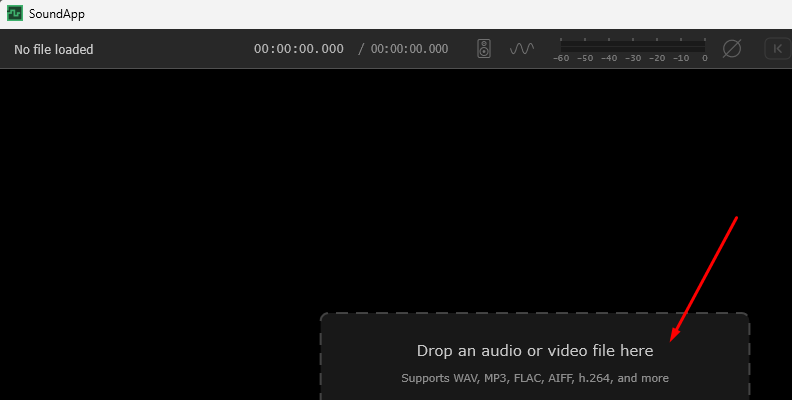
SoundApp supports popular video and audio files, including WAV, MP3, FLAC, AIFF, AAC, MP4, MOV, MKV, and more.
Step 2: Choose the Right Tool
In the top toolbar, you can switch between Denoise and Demix modes. Select Demix to access the AI models for instrument separation.
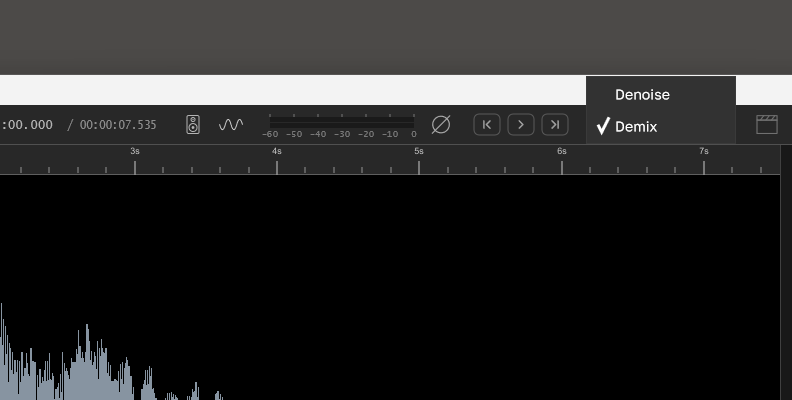
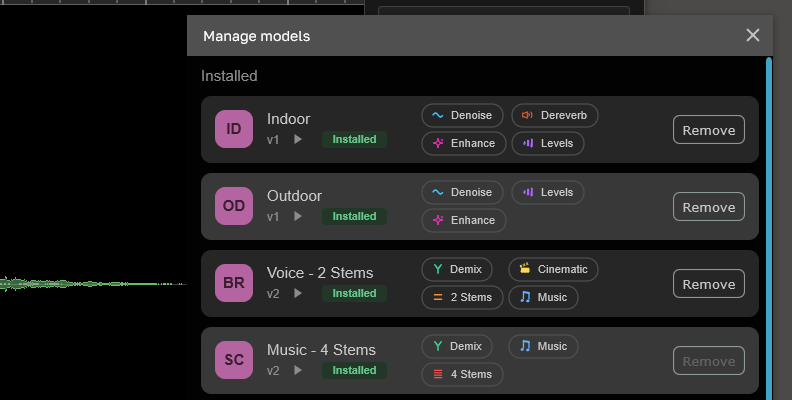
Once Demix is selected, you should have the stem separation models on the right panel. Click the dropdown menu and select “Music 4 Stems”.
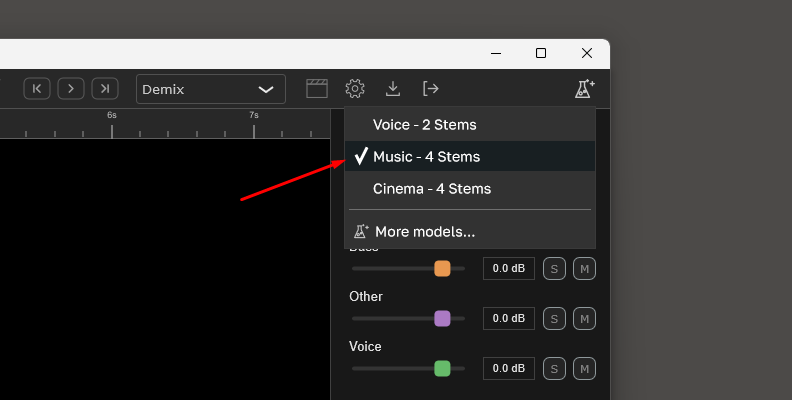
If you don’t see this model, don’t panic! Select the option “More models” and find Music 4 Stems in the “Not Installed” list. Click install, and once the installation completes, it will appear on the Model’s menu. You just need to install the models once.
Step 3: Remove Guitar
After you select a model, it will start analyzing your audio file and process it immediately. If there is a specific section you want to hear right away, such as the chorus or the guitar solo, move the playhead to that point on the timeline to process that part first. The rest of the track will continue to be processed in the background.
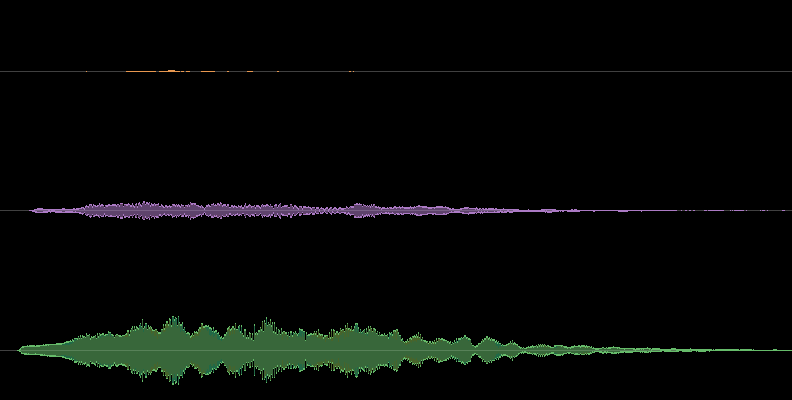
The track will split the song into four stems. One for Drums, one for Bass, one for Other (here’s your guitars), and one for Voice. They will appear on the timeline in different colors. Click the Waveform button to change the view to display all stems in separate waveforms or combine them into a single one.
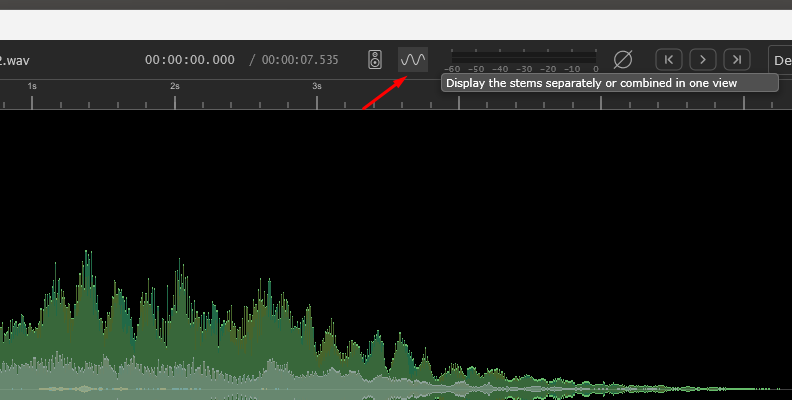
You can also display the waveform in stereo or mono with the speaker button.
To completely remove the guitar from the song, you can mute the track by pressing the M button.
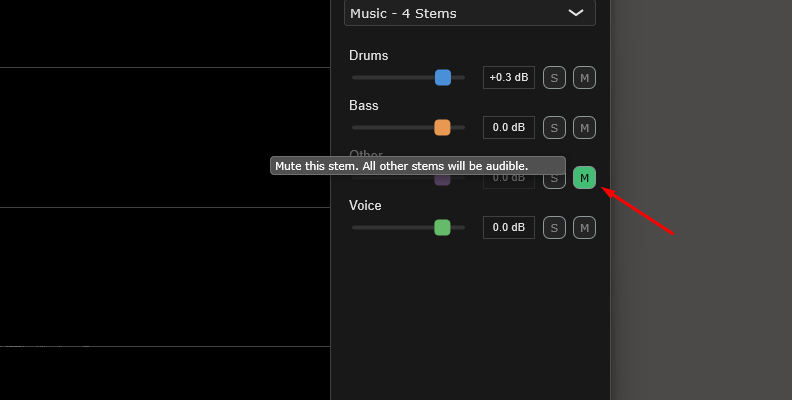
To isolate and hear the guitar, press the S button on Other to solo it.
Step 4: Adjust Levels of the Mix
You can adjust the levels of each stem using the sliders. This allows you to create a custom mix if you don’t want to isolate the guitars entirely, just making them sound louder or quieter. The same goes for the rest of the instruments and voices.
Step 5: Export the New Mix
Once you are satisfied with your adjustments and ready to export, click the export button in the top-right corner.
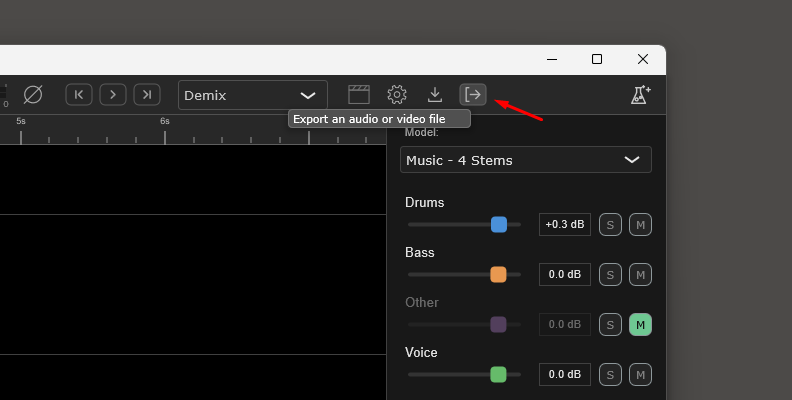
The export window lets you export all individual stems, select only the ones you want, or export a mixdown with the adjustments you made. You can also select your preferred audio format for the new file.
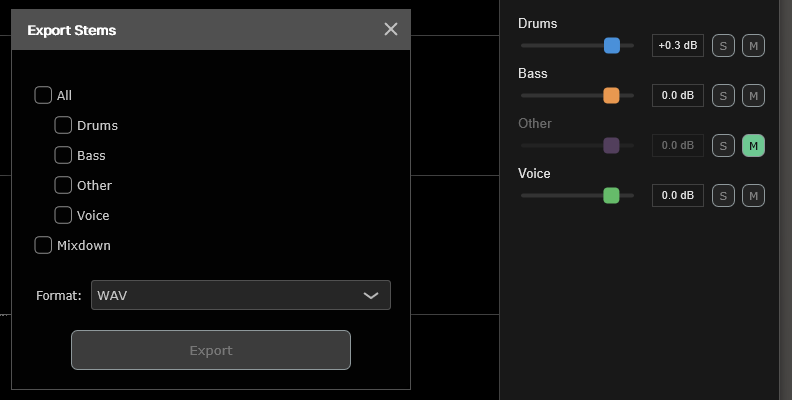
If you only want the isolated guitar track, select the Other stem and click Export. If you want a track without guitars, check all stems except Other. Or select All to export all the stems, then create your own mixes in your DAW or other audio software.
Final Words
Just like that, you have individual guitar tracks to use however you want. Create an instrumental for videos or social media content to promote your new songs without complex software or processes, or make different mixes to practice and perform with your band. CrumplePop processes all quickly on your computer - not in the cloud, so your new unreleased songs are private and safe!
Good luck, and stay creative!