 Marco Sebastiano Alessi |
August 21, 2026
Marco Sebastiano Alessi |
August 21, 2026


Jump cuts are among the earliest editing techniques in filmmaking, and though still popular today, their function has shifted over the years. Some editors embrace them and use them intentionally, while others avoid jump cuts because they see them as a sign of poor editing.
Today, we’ll explore jump cuts, their purposes, how to use them creatively, and when to avoid them. We’ll also see how a new Boris FX Continuum tool can fix unwanted jump cuts, making them look less sloppy.
Let’s dive in!
What Are Jump Cuts?
Jump cuts are a video editing technique that breaks a continuous shot by removing frames in the middle. The result is a clip that literally looks like a jump forward in time. Instead of a continuing scene, the scene now shifts abruptly.
Jump cuts are obvious by changes in position. If a person is speaking, their head, hands, and body will be in different positions, and their expression will be different. Objects may change position or disappear entirely from the screen.
The change appears abrupt and is often disorienting for audiences, as it highlights clear editing and can shatter narrative immersion. For projects pursuing a jarring effect, jump cuts are the optimal choice.
There are two types of jump cuts: temporal and spatial. A temporal jump cut manipulates time by removing a segment from a continuous shot. A spatial jump cut alters the position or arrangement within a scene, often by stopping and resuming filming after changes. In both jump cuts, the jump is noticeable and clearly shows that time has passed.
The first application of jump cuts as a technique is attributed to filmmaker George Méliès, who was also the pioneer of the stop trick, or substitution splice, cinematic special effect. His films, The Haunted Castle (1896) and The Vanishing Lady (1896), are known for their use of jump cuts to create magic and trickery, making objects and people appear and disappear.
Filmmakers later used jump cuts to disrupt traditional narratives, adding raw, documentary style and abstraction. This defined the French New Wave, as seen in Godard's Breathless (1960).
Jump cuts are now a staple for vloggers seeking efficiency and for filmmakers seeking to build emotion, especially in horror and action films.
What’s the Main Point of Jump Cuts?
Jump cuts deliberately create jarring scenes. They help manipulate time, generate emotional impact, and create a sense of speed and urgency. They're particularly effective at tightening the flow of a video, getting rid of unwanted pauses or errors in talking-head footage, and compressing time in montages. This makes them a go-to technique for YouTube creators, tutorial makers, and anyone after a fast-paced or stylistically raw aesthetic.
Manipulating Time
The main purpose is to condense a lengthy shot or a repetitive process into seconds, keeping the core action while removing dull moments and maintaining the scene's pace. It's also an efficient way to cut dead air from interviews, vlogs, and tutorials, helping them fit time constraints.
Conveying a Mental State
Another goal is to use jump cuts as a visual tool for internal chaos. Filmmakers use them to inject anxiety and disorientation. The jarring effect of jump cuts can make viewers as unsettled or fragmented as the character. Jump cuts also depict memory gaps when a character faces intense stress, trauma, or an altered reality due to intoxication.
Creating Urgency
Contrary to the old view that jump cuts break audience focus, in today’s fast-paced world, platforms like social media and vlogs use jump cuts to trim unnecessary pauses, keep energy high, and focus the viewer’s attention. In films, they inject urgency into action, thriller, and horror scenes.
How to Use Jump Cut Editing (and Jump Cut Fixer ML)
Now, let's learn how to approach jump cut editing. This section explains both traditional jump cut techniques for intentional effects and how to use the BCC+ Jump Cut Fixer ML tool to create more continuous-looking transitions.
Jump Cut Fixer ML is a new AI-powered transition in Boris FX Continuum. It transforms jarring jump cuts into smooth, natural shots by using advanced optical flow to blend two segments seamlessly.
To follow this tutorial, download a free Continuum trial. You can use the plugin in Adobe Premiere Pro, Avid Media Composer, Vegas Pro, DaVinci Resolve, and more. I’ll use Premiere Pro, but the Jump Cut Fixer ML transitions work similarly in other software as well.
Step 1: Install Continuum
Download and install the Boris FX Hub on your computer. Then, locate Continuum on the project list and download the version compatible with your video editing software. Once it is installed, activate the free trial or use your purchased license.
Step 2: Import Video Footage
Start a new project and import your footage for editing into Premiere Pro or your chosen video editor. Arrange the footage on the timeline and complete the initial edits.
Note: Continuum is compatible with all popular video editing programs. However, we'll use Premiere Pro in this specific example. Keep in mind that the procedure is almost the same across different software, aside from minor user interface differences.
Step 3: Make a Cut
Make a cut using the Razor Tool (press C), or use the keyboard shortcut Ctrl + K (Windows) or Command + K (Mac) to cut at the playhead's position.
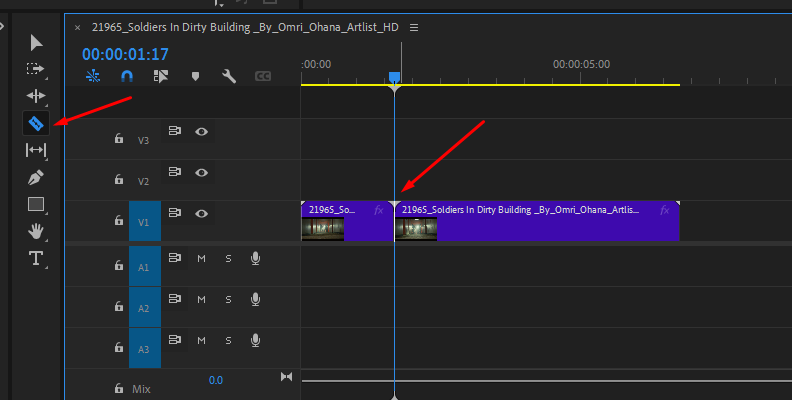
Determine where the jump cut should start, advance to the desired point for the jump, and remove the segment in between. Refine these cuts, zooming in and out in the timeline, and review the sequence to ensure the jump cuts fit the intended narrative.
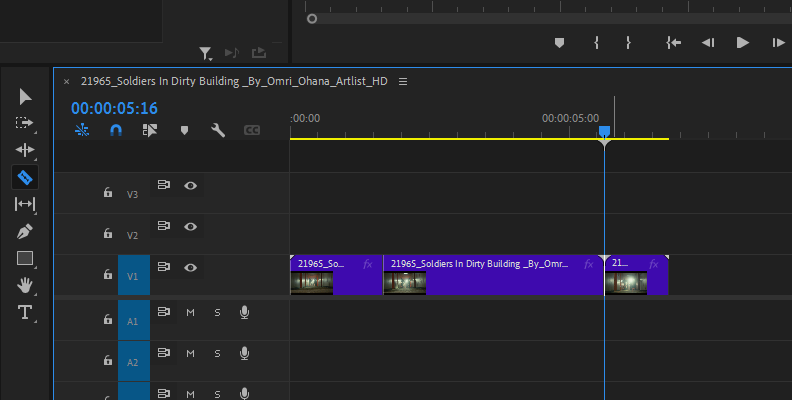
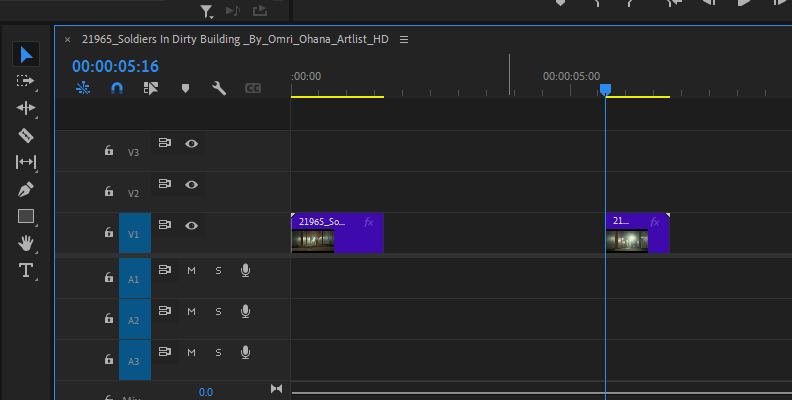
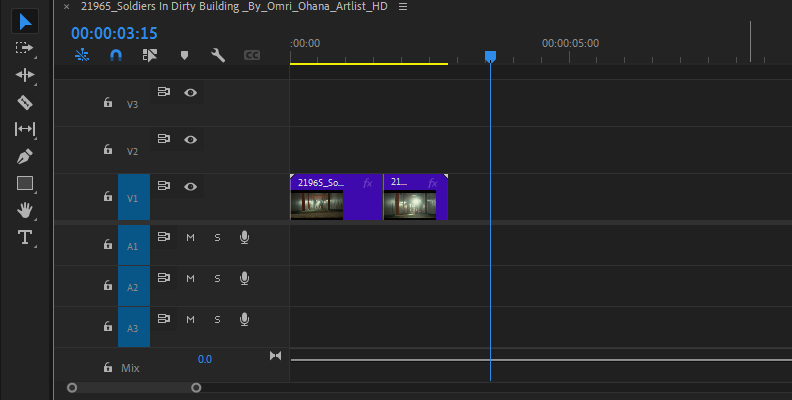
Traditional jump cuts may serve their intended purpose, but sometimes, even deliberate jump cuts can seem overly harsh. In these cases, Continuum can help smooth the transition.
Step 4: Add Jump Cut Fixer ML
Display your effects library and navigate to the video transition folder.
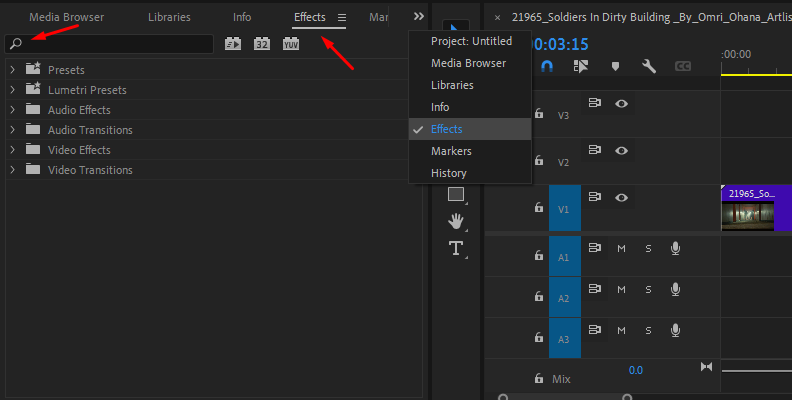
Locate the BCC Transitions folder and search for BCC+ Jump Cut Fixer ML. Click the Jump Cut Fixer ML, drag it to the cut in the timeline, and drop it.
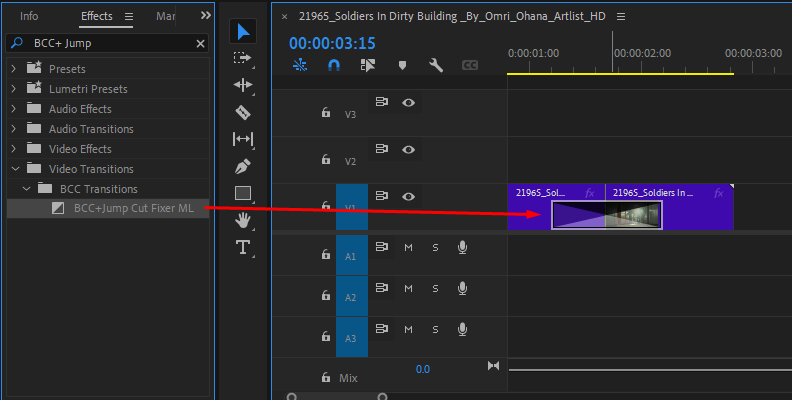
Immediately, Jump Cut Fixer ML blends the frames using machine learning technology to analyze the frames before and after the jump cut. This fixes jump cuts in moderate-motion content, such as talking-head videos and interviews.
Step 5: Fine-Tune the Transitions
Sometimes, the jump cut stands out too much. For instance, a moving person or object may cause odd visual effects, such as a disappearing hand or strange blending. The transition might also produce 'artifacts,' unwanted or distorted visual glitches. Adjust the Jump Cut Fixer ML’s length to resolve these issues or try cropping the frame.
In interviews, cut during silence, then again when the speaker resumes, allowing the two shots to blend smoothly.
Step 6: Use Jump Cut Fixer ML Creatively
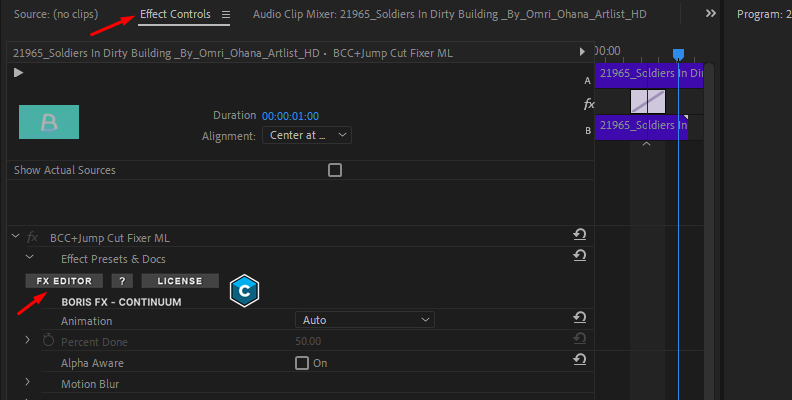
Experiment with Jump Cut Fixer ML transitions across different shot types to find other creative uses in your projects. For example, you might use it to visually morph an object or to make it disappear with a dissolve (a gradual fade). From the effects panel, you can launch the FX editor, which lets you customize the animation and add effects like motion blur or color correction to the transition.
When to Use Jump Cut Editing
Now that you know how to create and refine jump cuts, consider these scenarios where effective and intentional jump cuts can be useful:
Talking Head Videos
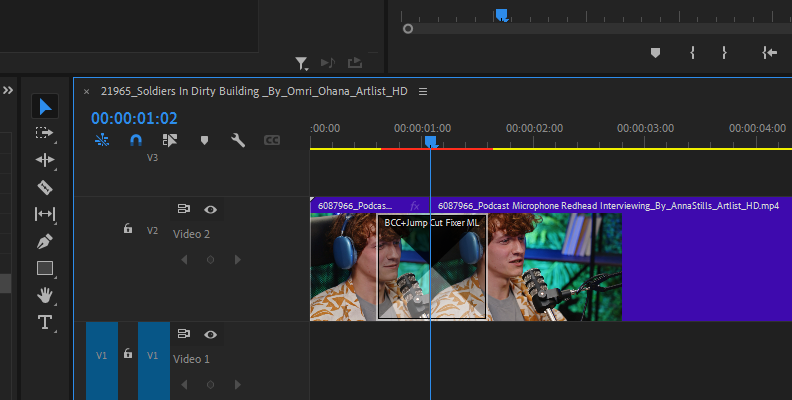
Videos recorded straight to the camera are popular on YouTube, TikTok, and other social media platforms. Jump cuts are the essential editing tool for cleanup, allowing you to remove dead air, cut out filler words such as “ums”, “eh”, “ahh”, long breaths, awkward pauses, and mistakes.
Jump cuts in this format are well received by these platforms' audiences because they can get the information they’re looking for quickly and keep them engaged. There’s no narrative immersion to maintain, and sometimes you have time limitations.
Condensing Repetitive Tasks
Use jump cuts when you have long, repetitive shots that can be boring to watch, such as in building tutorials, cooking, makeup, “get ready with me,” or unboxings. Jump cuts allow you to showcase the full process without forcing your audience to watch it at the pace it would take in real time.
Travel Sequences
In travel sequences or vlogs, jump cuts can accelerate travel scenes by removing repetitive footage, highlighting key moments along the route, and efficiently illustrating the journey from start to destination.
Psychological and Horror Effects
Jump cuts can create a sense of unease or discomfort, making viewers feel that something is off. As mentioned earlier, jump cuts are effective in portraying altered mental states or intoxication.
In psychological and horror films, jump cuts can give “monsters” an uncanny movement. Or use rapid jump cuts to portray an altered and fractured mental state and memory gaps.
Comedic and Trickery Effects
Jump cuts, when timed well, can add a “punchline” to the scene for comedic effect. A good example is in expectations VS reality scenes. where a character says something and the jump cut shows the contrary of what they predicted. Pairing jump cuts with a sound bridge can enhance the comedic tone of the sequence.
Another use for jump cuts is to return to its roots as a trick and magic effect, making things and people disappear and reappear in other places.
Fast-Paced Action
Jump cuts can add energy to an action scene. Use rapid jump cuts between shots to intensify the scene and the sense of urgency among the frantic action, making the viewer feel the adrenaline and excitement the characters are experiencing.
How Do You Avoid a Jump Cut?
Cuts are a necessary tool in video editing, but unwanted jump cuts might also appear where you need a clean, invisible edit. Here are tips and strategies to avoid jump cuts and maintain a smooth flow in your videos.
Follow the 30-Degree Rule
It’s the golden rule of continuity for a reason. It consists of moving the camera at least 30 degrees relative to the subject when cutting between two shots of the same subject. If the camera's movement is minimal, the human brain perceives it as a glitch, but if it is more significant, the brain accepts the new perspective.
Change the Focal Length
If changing the camera angle is not possible, use a close-up to cut from a medium shot to a close-up. You can also achieve this in post-production by zooming or cropping the frame. Because it is a significant change, the viewer will perceive it as intentional rather than an editing mistake.
Use B-Roll
One of the most effective ways to hide a jump cut is by adding b-roll. While the person is speaking, add footage about what they are talking about. In vlogs, if you’re talking about a product, show footage of you opening it and how to use it, then cut back to the next shot. The result is a smooth cut from the speaker to the object, then back to the speaker, without jumps.
Use L-Cuts and J-Cuts
If you are using b-rolls, add L-cuts and J-cuts to make the transitions more fluid. A J-cut is when the audio from the next scene starts before the video. For example, you hear the speaker while the b-roll is still on screen. An L-cut is when the video from the current clip continues into the next one. Using the same example, the speaker's audio will continue as the b-roll appears on screen. This hides the jump cut and the audio prepares the viewer for the visual change.
Create a Match Cut
To make a match cut, cut between clips where similar action or imagery appears in both. The most common example is an action match move: a person opening the door in scene A, and then a different person finishing the same action in scene B.
Final Words
Jump cuts are an interesting editing technique that can be quite divisive, too. Whether you like to use them creatively or want to avoid them, you now know when to use them with purpose and how to fix them when you want a more invisible, continuous cut.
Good luck!
FAQ
Difference Between a Jump Cut and a Match Cut
Jump cuts and match cuts have different purposes and are different visually. The jump cut is abrupt, on the same subject, and with a slight camera shift, and it’s usually used to speed up time. The match cut, on the other hand, is more metaphorical and smoother, using different subjects with similar shapes or colors to link two ideas.
What is the 30-Degree Rule for Jump Cuts?
The 30-degree rule states that to achieve continuity, the camera must move at least 30 degrees. To create jump cuts, you must break this rule and avoid moving the camera’s angle more than 30 degrees between shots or not moving it at all.