 Marco Sebastiano Alessi |
October 26, 2026
Marco Sebastiano Alessi |
October 26, 2026


Audio transitions between songs are a common practice in audio post-production. It's an audio editing technique essential for editing audio and creating engaging narratives.
In today’s article, you’ll learn what a crossfade is, why they are important in music production, video transitions and other audio projects, how to create a crossfade, the types of audio crossfades, and common mistakes when working with a crossfade.
Let’s dive in!
What is Crossfade in Audio
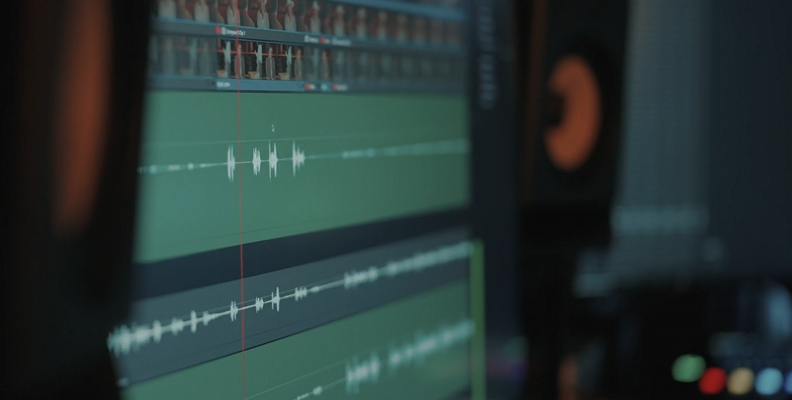
Crossfade is an audio production technique that creates a transition between two audio clips, fading the first out as the second fades in, with a moment when both clips overlap. Crossfades help make audio transitions smoother, avoiding gaps, cuts, and audio artifacts caused by abrupt clip changes.
DJs are known for creating crossfades so smooth that you never notice a cut when a song ends and the next one begins, providing that endless music environment known in electronic shows and parties.
Joining two clips recorded in separate environments can also introduce performance variations, a problem that crossfading can address by smoothing the transition between them. This is commonly done when editing podcast and dialogue content.
Crossfading differs from fades mainly in that fades require only one clip, which you either fade in at the beginning or fade out at the end, creating a smooth start and end to the audio clip. On the other hand, a crossfade requires two clips. It adds a smooth transition between two clips on the same audio track. Think of crossfading as a technique that uses fades to achieve seamless transitions between the two adjacent audio clips.
Why crossfade audio in your projects? First, as mentioned, it can help you fix audio artifacts when joining two different clips with performance or room-tone variations - a very common use is for podcasts, interviews, and audio for films. It also adds flow to the audio, enhancing your listeners' engagement by maintaining a consistent sound. For example, to crossfade between audio from two different takes.
How to Crossfade Audio: Step-by-Step:
Audio crossfade works similarly across most DAWs, but for today’s tutorial, we’ll use Samplitude to explain how audio fades. Unlike some DAWs that only offer a few fixed curves, Samplitude provides precise numerical control over the transition shape.
To follow this step-by-step guide, you can download Samplitude’s free trial.

Step 1: Add Audio to a Samplitude Project
Import audio files or record a new track.
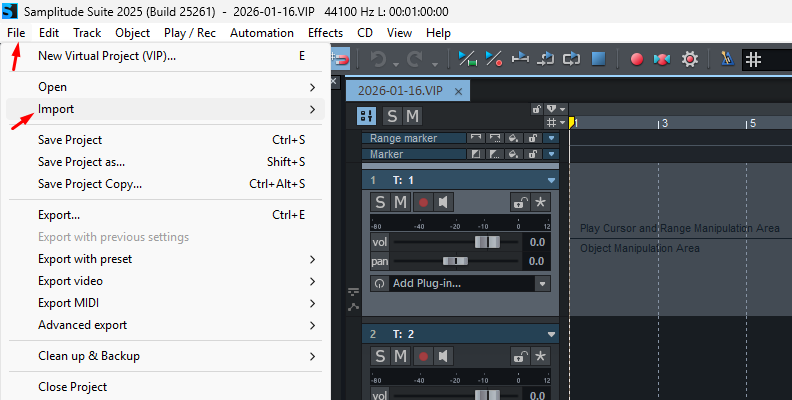
In Samplitude, audio data are called objects that can be moved, copied, or cut on the track as you want. Remember, you need two audio clips to create a crossfade, so make sure to add or record to separate clips or cut the track as needed to split a single audio track into two objects.
Step 2: Identify the Crossfade Point
Listen to the part where you want to make the crossfade and zoom in on the track to make it easier to identify where to crossfade audio. You can zoom in and out using the CTRL + Mouse Wheel to zoom horizontally, Alt + Mouse Wheel to zoom vertically, and CTRL + Alt + Mouse Wheel to zoom in horizontally and vertically. Once you have the point, split the track with the T key or from Edit > Split > Split Objects.
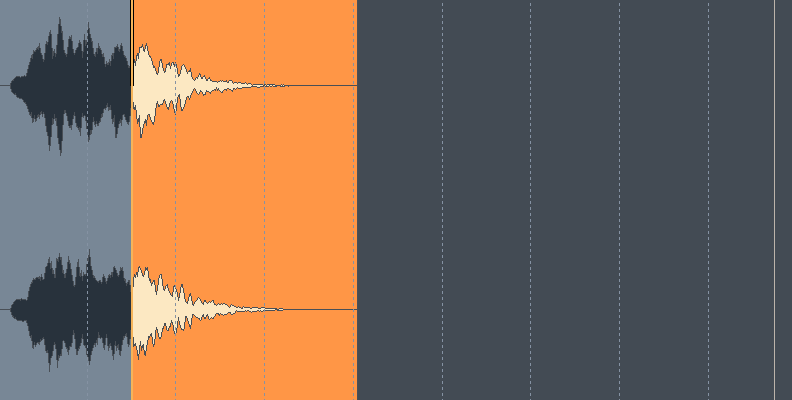
Step 3: Auto Crossfade
Auto crossfade can be enabled via the Auto Crossfade Mode button in the upper toolbar (an icon that looks like an X) or from the menu Edit > Crossfade and selecting the “Auto Crossfade Active” option.
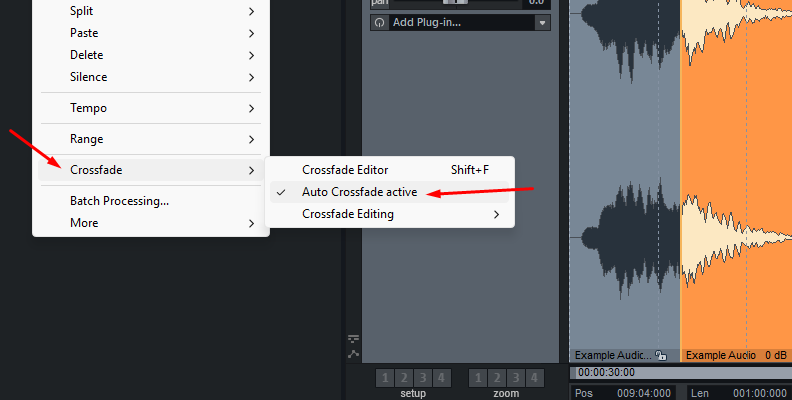
Enabling Auto Crossfade automatically adds a crossfade between two adjacent audio clips or fades at the beginning and end of objects created by cuts, trims, or recordings. You can identify a crossfade because you’ll see an X between the two clips if you zoom in.
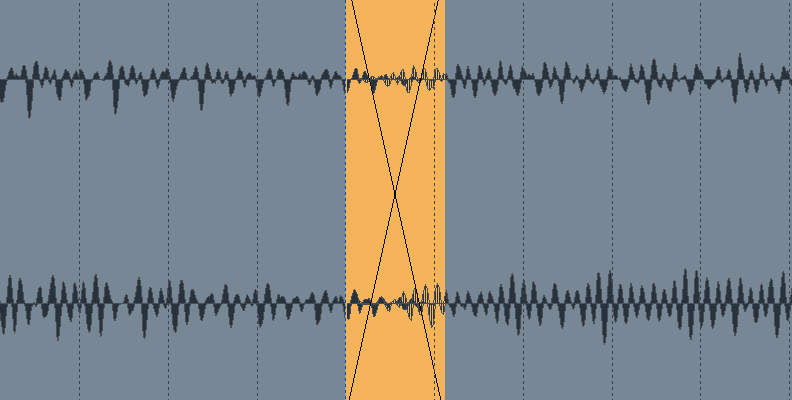
You can also create a crossfade by moving one object over another. If there’s an existing fade-out in the first audio clip, it will be lost and replaced with a crossfade. If the audio clip to the right has a fade-in, the crossfade will be created shorter than or equal to the existing fade-in. If there is no previous fade-in, then the default crossfade will be used.
You can move the crossfade location by hovering the mouse over the crossfade until you see the cursor change into two arrows to the sides. Then, click and draw to change the crossfade location. Listen to the audio to ensure the crossfade hears seamlessly.
Step 4: Asymetric Crossfade
The default crossfade is symmetrical, but you can manually adjust the fade-in and fade-out to create custom lengths and curve shapes for the crossfade.
Select the audio clip on the left, right-click the fade-in handle, and click Asymetric Crossfade to enable it.
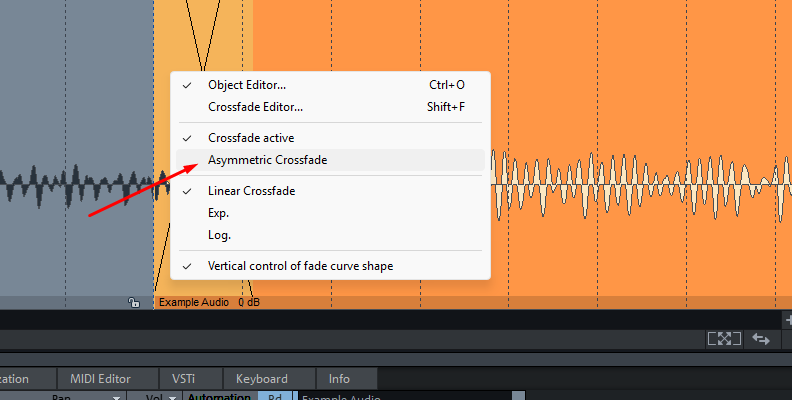
You can also select the left object and go to Edit > Crossfade > Crossfade Editing > Asymmetric Crossfade.
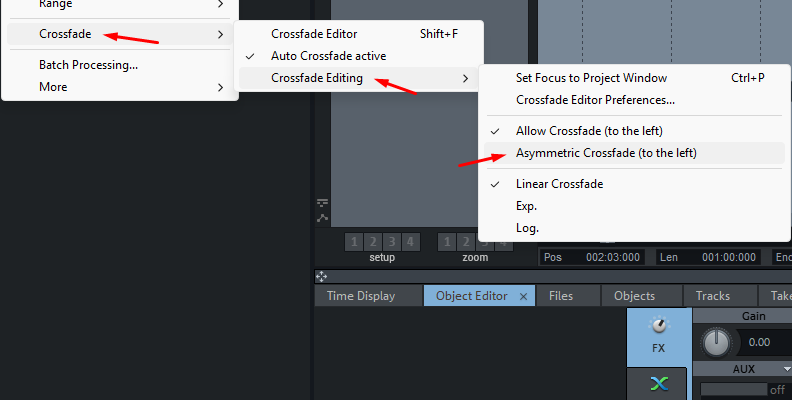
Step 5: Crossfade Audio Manually
When Crossfade is turned off, or you want to create a crossfade manually, start by overlapping two audio clips or objects in a single track. Use the top-left and top-right handles of the objects to shape the curve. For the crossfade, drag the top right handle of the first clip inwards (to the left) to create a fade-out, and the top left handle of the second clip to the right for the fade-in.
You can also use Samplitude’s object editor to crossfade audio manually. Select the first object and open the object editor with CTRL + O.
Click the Fades tab, and set the duration and the curve’s shape using the preset curves or the faders.
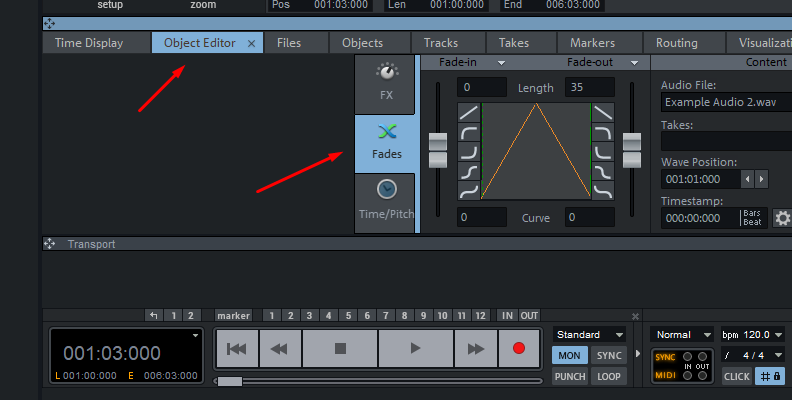
You can change the default crossfade settings from the Object Editor. Make the changes, then click the little arrow next to Fade-In and Fade-Out at the top and select the “Set Global Crossfade” option to make the current crossfade settings the default global option.
Step 6: The Crossfade Editor
Samplitude's Crossfade Editor is a powerful tool to create crossfades between audio clips. To open the Crossfade Editor, select the crossfade region and press Shift + F or go to Edit > Crossfade > Crossfade Editor. A new window appears, showing the crossfade section: the first audio clip, containing the fade-out, is on top, and the second, containing the fade-in, is below.
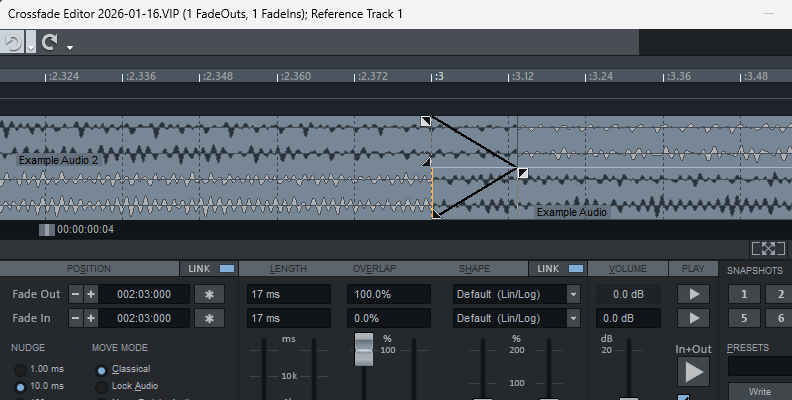
Below the window, you’ll find other settings to adjust the crossfade position, length, overlap, and shape.
Adjust the crossfade position using the Fade Out and Fade In minus and plus buttons. You can also move the playhead in the Crossfade Editor window to a position and click the * button to set that as the Fade Out and Fade In reference point. Additionally, you can double-click the values and type them manually.
The Move Mode also determines how the fade-in behaves. The default setting is Classical mode, which is ideal for editing music. Lock Audio mode works best for synchronous editing, such as dialogue and film dubbing.
Enable the AutoZoom checkbox at the bottom of the window to keep the crossfade section fully visible at the center while making changes.
Step 7: Crossfade Length, Overlap, and Shape
When editing the length, overlap, and shape of the fades, the Link feature is on by default. When it’s on, the fades can be adjusted together; when Link is off, you can set the fades independently. You can press Alt while adjusting the faders to temporarily disable Link and move one fader independently.
The parameters are easy to use and understand. Length determines the crossfade duration, Overlap the reference point within the fade, and Shape, the fade curve. Use the faders to adjust each parameter.
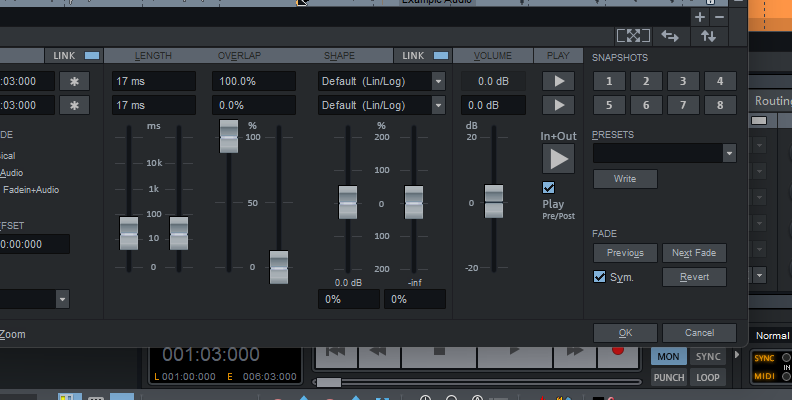
Dragging the handles left and right in the Crossfade Editor view adjusts the Length, and pulling them up and down changes the fade shape. You can press Shift while moving the faders for a more precise adjustment.
Step 8: Save and Retrieve Crossfade Presets
When you find a setting that you like, you save it as a preset. All the crossfade parameters, length, overlaps, and curve shape will be saved for future use. Click the Write button below Presets, type a name for the preset, and press OK to save it.
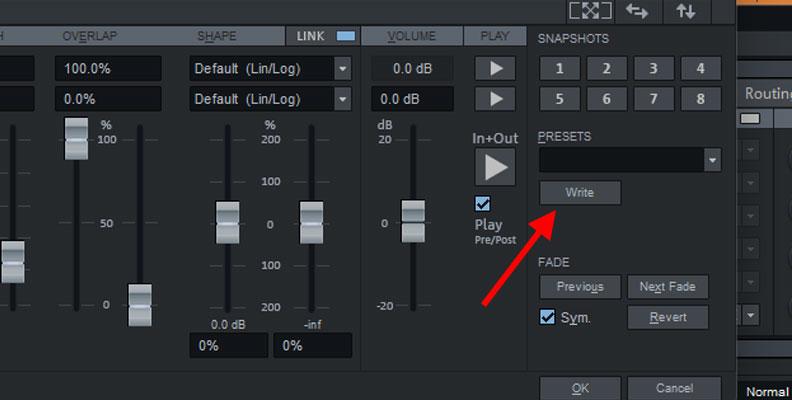
All saved presets will appear under the Presets dropdown menu. Simply select it to retrieve the stored settings.
Step 9: Listen and Adjust
Preview the audio to ensure the crossfade is smooth with no cuts or clicks. You can use the Snapshot feature to save different crossfade settings and A/B-test them to see which one sounds more natural. Make the adjustments needed, and don’t forget to save presets if you like a crossfade effect.
Types of Audio Crossfades
The type of audio crossfade refers to the shape of the curve used to adjust the volume during the overlap. In Samplitude, you can choose between five core shapes, which can be further refined within the Object Editor and the Crossfade Editor. Most DAWs have similar types of audio crossfade, but they may use different labels. These are the most common audio crossfade types used in audio production.
Linear Crossfade
The linear crossfade is the most common and usually the default crossfade in DAWs. It fades the volume equally on both clips. It’s ideal for content that is phase-coherent (such as a split in a single continuous recording or two loops of the same sound) or for simple, quick crossfades.
Exponential (Exp)
The Exponential crossfade starts the curve slowly and rises toward the end. It can make the instruments' decays sound more musical.
Logarithmic (Log)
The Logarithmic curve starts quickly and levels off toward the end, making the volume drop sound linear. Adjusting the center point of a logarithmic curve to around -3 dB can benefit musical transitions by avoiding a volume dip.
Cosine (Cos)
It shows a smooth S-shaped curve that delivers a soft fade and a transparent transition, which works great for dialogue.
Sine (Sin)
The Sine shape is similar to the cosine, but differs slightly in slope. Sine is often used to avoid the volume “dip” caused by Linear Crossfades, which makes it ideal for music transitions.
Symmetrical Crossfade
A symmetrical crossfade creates a perfect mirror of the first clip’s fade-out with the fade-in in the second clip. With length, curve, shape, and position, coupled for fade-in and fade-out.
Asymetrical Crossfade
An asymmetrical crossfade removes the coupling between the fade-out of the first audio clip and the fade-in of the second. Asymmetrical crossfades can be used when you want to combine a sharp linear fade-out with a slower fade-in of the next sound.
Common Crossfade Mistakes to Avoid
A crossfade mistake can become the tell of an amateur mix. When a crossfade technique is not executed correctly, your mix will have clicks, volume dips, and rhythmic confusion. Here are the most common crossfade mistakes to avoid in your mixes.
Crossfades Too Long
Choosing the wrong crossfade length can ruin your mix. Setting the crossfade length too long can cause audio to bleed, and setting it too short can introduce artifacts and clicks. A good starting point is to create a 1 to 3-second crossfade. However, as with audio, experimenting is key.
Linear Volume Dips
Linear crossfades are usually the default crossfades in many DAWs, but they’re not the best choice when crossfading music. A reason why learning how to use other types or change the crossfade settings in your DAW is fundamental. To avoid this and create consistent volume during the transition, use the Equal Power crossfade, which can be achieved with a Cosine or Sine curve in Samplitude.
Missing Handles
Another common mistake is cutting the audio clips at their absolute start or end points. The crossfade requires extra audio beyond the edges to fade into. Ensure you record at least 5 seconds before and after the audio clip to allow for handling time.
Wrong Crossfade Position
Avoid crossfading in the middle of a sentence, a beat, or a heavy transient. Move the crossfade position to a silent gap or soft part, such as a sustained note before the next beat. For vocals, you can cut over an S or F sound. Mostly, you want to avoid cutting in the middle.
Zero-Crossing Oversight
The number one cause of clicks and pops in crossfades. It occurs when the crossfade center is at a peak or through the waveform, or when you cut the audio clip at a peak and the next one starts at a different point. To avoid this, ensure the cut occurs at the zero-crossing or align the crossfade at that point.
Final Words
Crossfading audio is both a technical and creative tool in audio production. It can help reduce unwanted sounds between abrupt audio transitions and enhance storytelling, creating a coherent, professional sound. Crossfade basics are easy to understand and harder to master.
There are different options and types to try, and it also depends on what kind of audio you are editing. By using comprehensive and professional tools like Samplitude, you’ll have at your disposal the best tools to experiment with crossfading like a professional, with a easy to use interface.
Good luck!
FAQ
Do all DAWs Support Crossfading?
Yes, most DAWs support crossfading, as it is one of the most commonly used features for editing clean, professional audio. How they apply crossfades varies significantly between professional and entry-level software. Most professional DAWs, such as Pro Tools, Logic Pro, Cubase, and Samplitude, offer detailed, surgical tools for different types of crossfades.
What Effect Does Crossfade Have on Music?
Crossfades help make smooth transitions when editing different sounds. It prevents pops and clicks, maintains consistent volume, and allows the listener process a sequence of sounds as a single continuous narrative.