Matte Assist ML
Description
Generates evolving mattes over time using machine learning-based object segmentation and propagation. You can start with any combination of inputs: Mask ML, Roto, EZ Mask, or Input Alpha--whether from an alpha-embedded source or a node that generates alpha.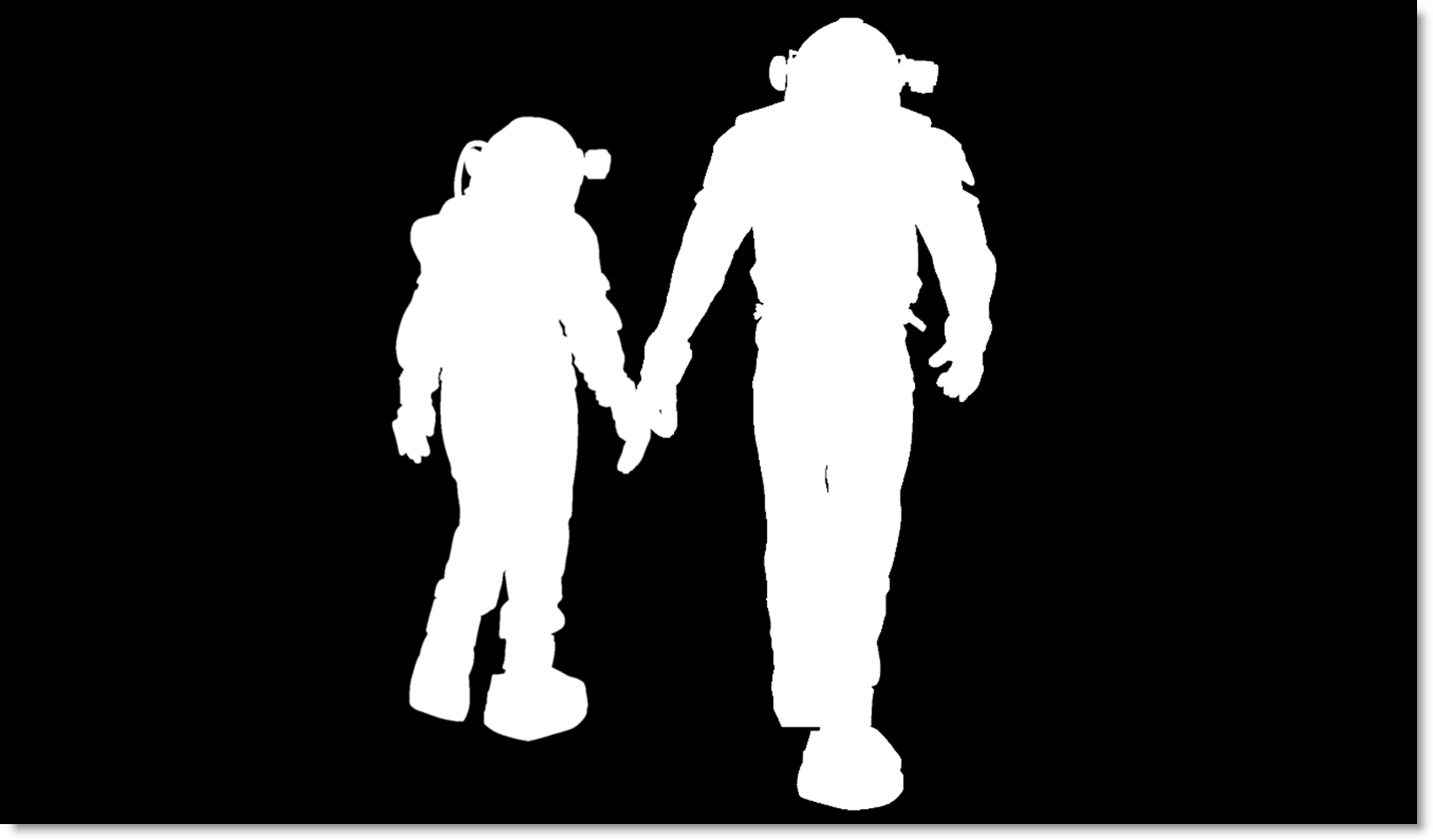
Matte Assist ML generates a binary matte. To create a more natural edge with partial opacity, you can use Matte Assist ML in conjunction with Matte Refine ML.
Go to the Matte Assist ML tutorial to see how it works.
Node Group
AI/ML, Key.
Controls
Create Mask ML, EZ Mask, Roto Node
Automatically creates a Mask ML, EZ Mask, or Roto node before Matte Assist ML with their Data output connected to the Data input.
Create Mask ML Node
Automatically sets the Mask Source to Cryptomatte (data port).
Create EZ Mask Node
Reference Frames is automatically set to Keyframes (data port).
Create Roto Node
Automatically sets the Mask Source to Roto (data port).
Auto DOD
Auto DOD analyzes the sequence, inserts a DOD (Domain of Definition) node after the source, and automatically crops the image prior to matting based on the incoming alpha. This tighter region produces a more accurate matte by limiting processing to the active image area.
Frame Range
Select from All, Work Range or Custom.
Start Frame
With a Custom frame range, selects the start frame.
End Frame
With a Custom frame range, selects the end frame.
DOD Padding %
Controls the percentage of padding around the DOD.
Size Consistency %
Controls how much the DOD box is allowed to change size from frame to frame. At low values the box tightly follows the subject and changes size often. At high values the box stays the same size and provides a more stable working area. The default setting of 50% offers a balance between adaptability and stability.
Static Max DOD
Creates a fixed DOD that covers the combined image or matte bounds over the selected frame range, including DOD Padding. The DOD maintains the same size and position on every frame. Use for variable-resolution sources, such as stabilized plates, so Matte Deflicker ML and Video Inpaint ML receive a consistent image size. Size Consistency is disabled when this option is enabled.
Model
Model
Matte Assist ML v1 (Faster)
Generates a matte faster, with less stable edges across frames.
Matte Assist ML v1 (Better)
Generates a matte with more stable edges across frames, but takes longer to process.
Inference Shape
Controls the aspect ratio of the image used by the Matte Assist ML model. This determines how the source image is resized for processing and can affect the accuracy of matte propagation.
Inference Size
Controls the resolution used to process the matte. Higher resolutions can preserve finer details and improve matte accuracy but require more GPU memory and processing time.
Mask Source
Cryptomatte
Generates a matte across the sequence using Cryptomatte enabled nodes--such as Mask ML--when connected to the Data input port. Objects and their corresponding keyframes are processed and tracked separately.
Input Alpha
Generates a matte throughout the sequence using single or multiple input alpha reference frames from any node or keyframes from the Mask ML, EZ Mask or Paint nodes. Input Alpha is meant to be used for matting a single object. For matting multiple objects use the Cryptomatte or Roto Mask Source options.
Roto
Generates a matte across the sequence using keyframes from Roto objects--such as Shapes and Layers--when connected to the Data input port. Each top-level item (shape or layer) in the Object List is treated as a distinct object and processed and output separately.
Note: For best performance when using multiple shapes for one object, place the shapes within a layer.
Reference Frames
Available with Mask Source > Input Alpha selected, choose from Frame, Markers or Keyframes options as the matte generation reference.
Frame
A matte is generated based on a single specified frame.
Markers
A matte is generated based on Markers.
See Marker for more information.
Keyframes
With either Mask ML, EZ Mask, or Paint Data outputs connected to the Data input port, a matte is generated based on the input node’s keyframes.
Notes:
• For faster performance and better edge quality, use Auto DOD to automatically crop the image based on the incoming alpha prior to matting.
• If you jump to another point in time, please be aware that Matte Assist ML always calculates the matte from frame 1, so it can take some time to update depending on the length of the sequence.
Propagation Mode
Controls the frame at which matte propagation starts. Propagation can proceed both forward and backward from that frame.
Auto
Matte propagation starts with the first keyframe.
Custom
Matte propagation starts with the frame defined in Start Frame.
Start Frame
Sets the matte propagation start frame when in Custom mode and defaults to frame 1.
Node Outputs
Output
Outputs the foreground input and generated matte.
Data
When Mask Source > Cryptomatte or Roto is selected and multiple objects exist in the Roto or Mask ML nodes, each object is output as its own Cryptomatte layer. Connecting the Data output to another node with a Data input, such as Matte Refine ML, Matte Deflicker ML, or Output Multi-Part, keeps those layers intact. The Output Multi-Part node writes each object into its own EXR channel at render, allowing the mattes in the final Cryptomatte EXR file to be individually enabled or disabled in Silhouette’s Cryptomatte node or in other applications that support Cryptomatte, including Nuke and After Effects.