Controller
Description
The Controller node allows multiple node parameters to be controlled from one location using expressions. Custom parameters are added to the Controller and linked to parameters on other nodes. Changing a Controller parameter updates all parameters linked to it.
Node Group
Utility.
Controls
The Controller has no predefined controls. Parameters and groups are added using Manage Parameters in the Node parameters window.
Adding Parameters
1 Add a Controller node to the Trees window and select it.
2 Select Manage Parameters from the Node parameters window’s Options menu.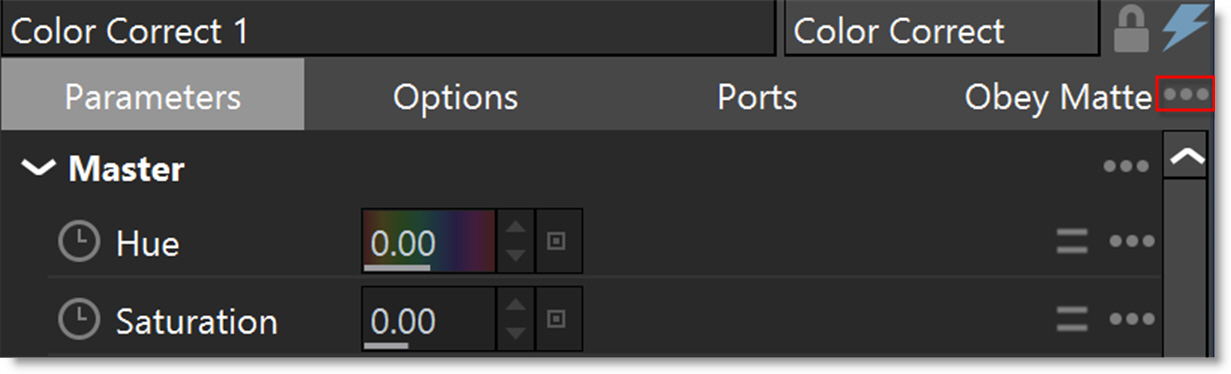
3 Click + Property to add a parameter.
4 Set the parameter’s type, label, ID and default value.
5 For numeric parameters, set the Display Range and Edit Range as needed.
6 Enable Keyframeable to allow the parameter to be animated.
7 Click + Group to organize parameters into groups.
Note: The label is the parameter’s displayed name. The ID identifies the parameter when used in expressions.
Linking Parameters
1 Right-click a Controller parameter and select Copy expression reference.
2 Select the node containing the parameter to be controlled.
3 Turn on Enable Expression for that parameter.
4 Paste the copied reference into the expression field.
The parameter now follows the Controller parameter. Repeat these steps to control additional parameters from the same Controller.
Controller references can also be used in expressions to offset or multiply values. Animating a Controller parameter updates the parameters linked to it.
Note: Disable or clear a parameter’s expression to adjust it independently.