PowerMesh Morph
Morphs between either painted keyframes or specified frames from the input. This is made possible with Mocha Pro’s powerful sub-planar PowerMesh tracking which tracks warped surfaces and organic objects.
For more information on Mocha Pro PowerMesh tracking, see the Mocha User Guide.
Using Paint Keyframes
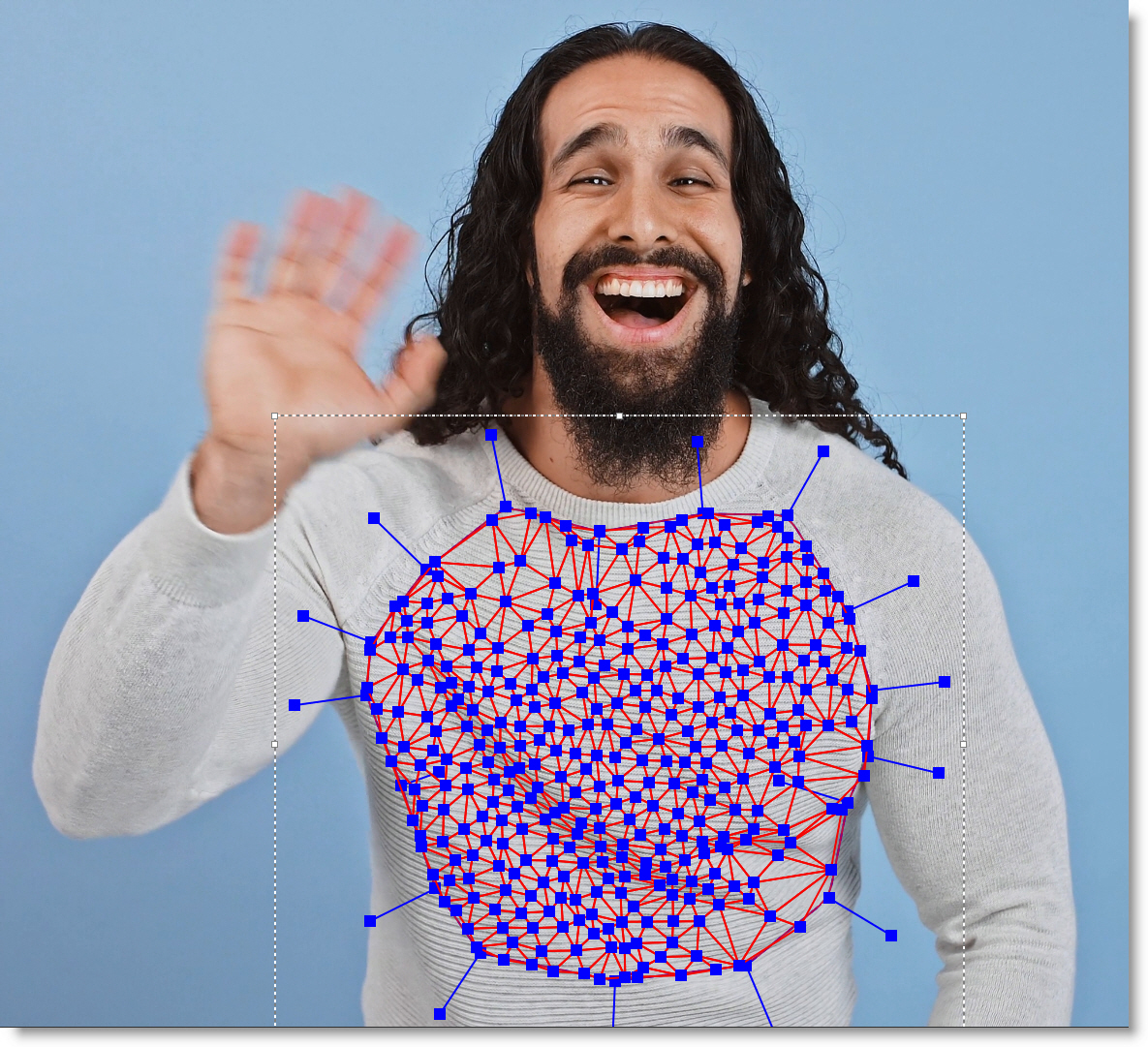
2 Paint on various frames in Paint.
3 Add a PowerMesh Morph node from the Warp group.
4 Make the following node connections:
• Connect the Paint output to the input of PowerMesh Morph.
• Connect the Paint Data output to the PowerMesh Morph Keyframes Data input.
• Connect the Mocha Pro Data output to the PowerMesh Morph Mesh Data input.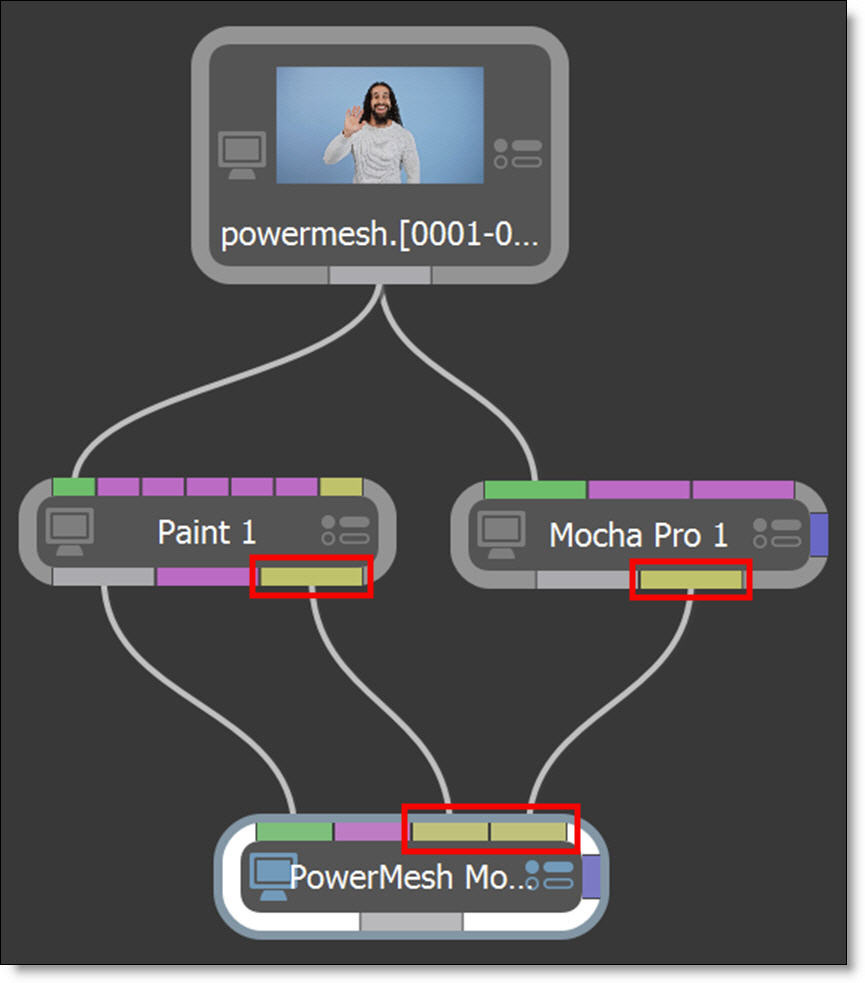
5 Single-click in the center of the PowerMesh Morph node to view and edit it.
Note: The Range Info field displays the painted keyframes.
6 Select a Mesh from the Mesh pop-up menu.
7 Set the mode to Continuous and the painted keyframes morph from one keyframe to another as shown in the Range Info field using the Mesh alpha.
8 If the painted frames occur later than the first frame and earlier than the end frame, enable Extend Start and Extend End to hold the start and end frame of the range.
9 Set the mode to Pairs and the painted keyframes morph between each pair of keyframes in the Range Info field using the Mesh alpha. Any frames outside the pairs are not morphed and the source input passes through instead.
Using Input Clips
1 PowerMesh track an image in Mocha Pro. See the PowerMesh Warp tutorial above.
2 Add a PowerMesh Morph node from the Warp group.
3 Make the following node connections:
• Connect one or two sources to the input of PowerMesh Morph.
• Connect the Mocha Pro Data output to the PowerMesh Morph Mesh Data input.
4 Single-click in the center of the PowerMesh Morph node to view and edit it.
5 Select a Mesh from the Mesh pop-up menu.
6 Set the Range Start and End frames to determine where the morph will occur.
The frames defined by the Range Start and End are morphed using the Mesh alpha.